






High ping and desync have two kinds of cause. One is the distance and the line between a player and the server, and no server setting fixes that. The other is a server that cannot keep up, and that you can fix. Read the server FPS first to tell which one you have.
Ping is how long a message takes to reach the server and come back. Desync is when what a player sees no longer matches what the server has, so they rubber-band, or things pop in late.
Step 1: read the server FPS
Server FPS is how many times a second the server runs the game.
- With the Server Admin Tools mod, open the Admin Tools tab. The stats band shows Server FPS. Our guide to server stats shows how to set it up.
- Without the mod, read the performance line in the Console tab. Loafhosts servers start with Bohemia’s
-logStatsoption, so each line has the server FPS, the frame times, and the player and AI counts.
Compare the number with Maximum server FPS on the Startup tab (165 by default). While the server is busy:
- FPS near the cap: the server is keeping up. A player with a bad ping most likely has a distance or connection problem. Go to step 3.
- FPS well under the cap, or the frame time maximum jumping: the server is the problem. Go to step 2.
Step 2: make the server’s work smaller
Change one thing at a time, restart, and read the FPS again. Config Editor changes apply after a restart. Startup changes apply on the next start.
Network view distance
- Open the Config Editor and find the Performance group.
- Lower Network view distance (m) (1). The panel’s help says: “How far away the server sends players what other players and vehicles are doing. The biggest bandwidth and CPU cost there is, so it is kept at 3000 at most; 1500 suits most servers.” New servers start at 500. The start command sets any value above 3000 back to 3000 at every start.
- Press Save and restart.
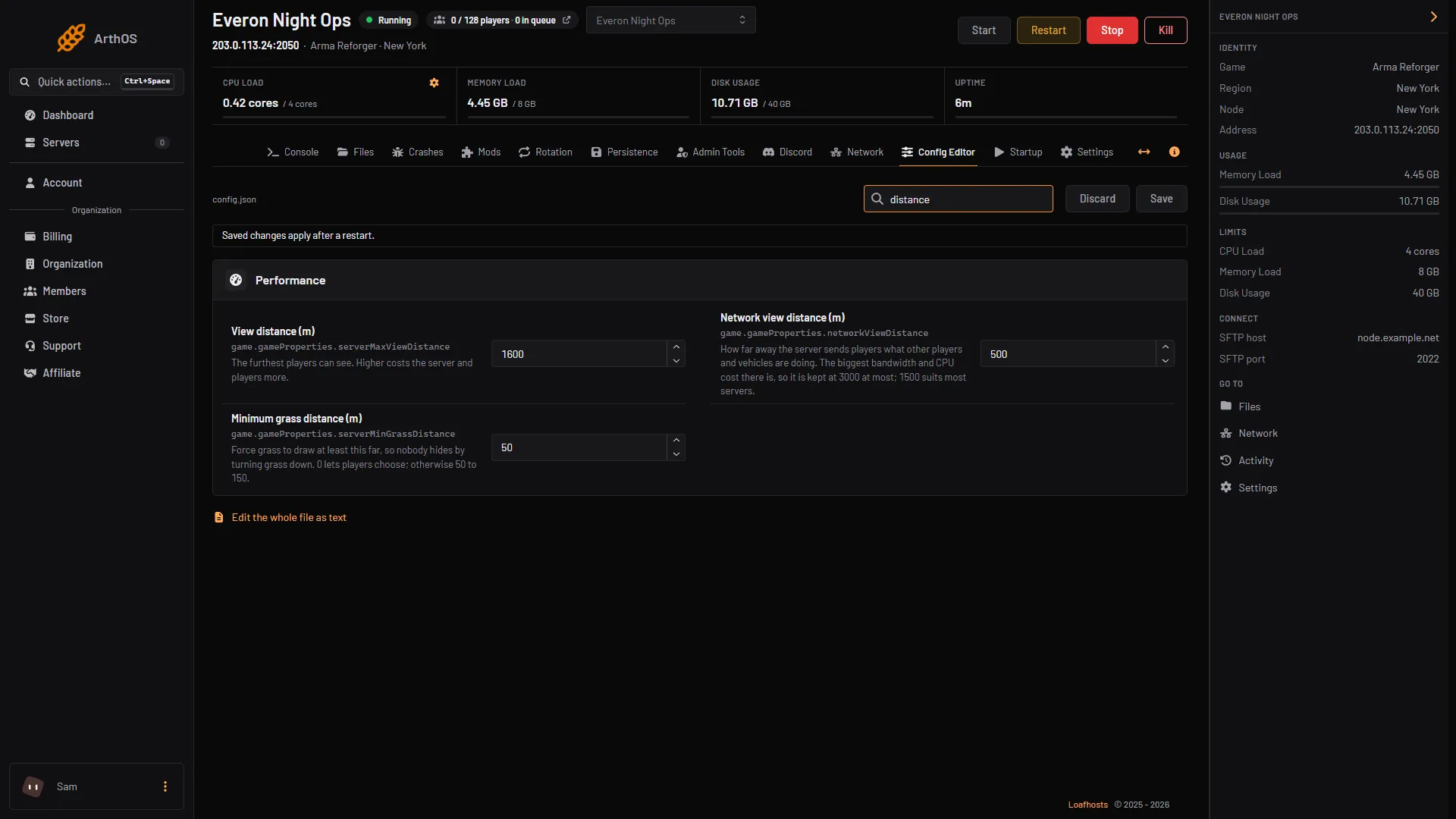
- Network view distance (m)
AI limit
In the same Performance group, lower AI limit: “The most AI soldiers at once. -1 has no limit. Fewer AI means a smoother server.” The performance line shows how many AI are running. A scenario may need its AI, so lower the number in steps.
The network overrides on the Startup tab
These settings come in pairs. A switch ends in “override”, and the value under it counts only while the switch is on. With the switch off, the game uses its own default. Use the help text the panel shows:
- Network sim diameter (0 to 2), switch (1) and value (2): “How many network cells around each player are kept in sync: 0 turns it off, 1 or 2 (the default). Higher shows more of the world to players at more cost to the server.”
- Streams delta limit (1 to 1000): “Maximum delta between streams the server has open vs. streams the client has open (1 to 1000). Tune higher for slower client networks.”
- Connection timeout (ms) (1000 to 60000), switch (3): “Lower = quicker disconnect of unresponsive clients; higher = more tolerant of brief lag spikes.”
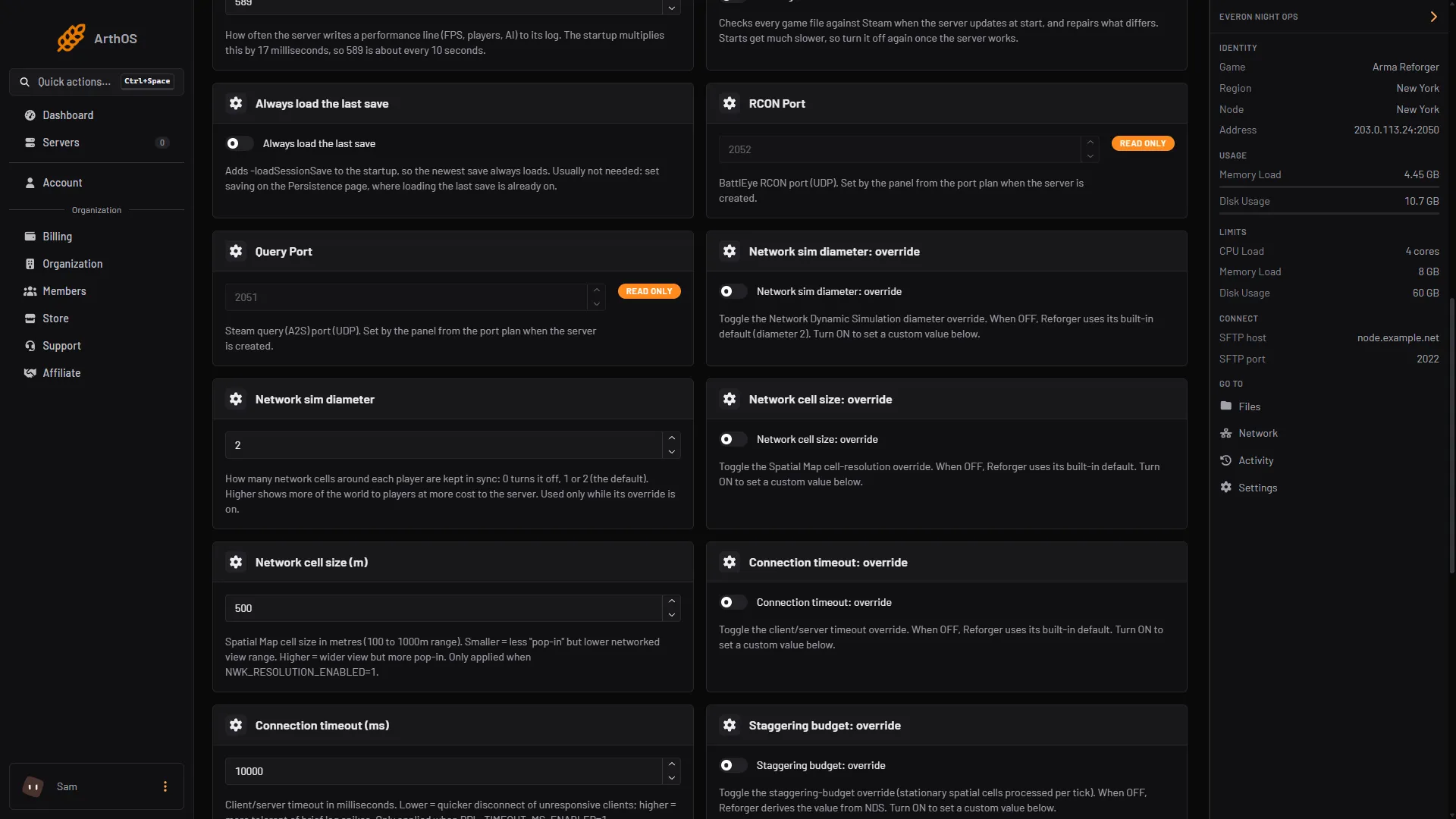
- Network sim diameter override
- Its value
- Connection timeout override
That guide also covers Maximum server FPS. Bohemia recommends a cap of 60 to 120 for a server, otherwise it can try to use all the resources it is given.
Step 3: distance and the player’s line
The place your server runs is listed in the Server details panel on the server page, under Region and Node. A player far from that place will have a higher ping, and no setting here shortens the distance.
To tell a distance problem from a server problem:
- Ask a player who lives close to the server how it feels.
- Ask the player with the problem to try another server near them. If it is bad there too, it is their line.
If only far-away players are affected and the server FPS is fine, it is distance or their own line, and the server is working as it should.
By hand
In config.json, set networkViewDistance in game.gameProperties (Bohemia’s range is 500 to 5000, default 1500) and aiLimit in operating. The startup parameters are -nds, -nwkResolution, -staggeringBudget, -streamingBudget, -streamsDelta and -rpl-timeout-ms. See Bohemia’s startup parameters.
If it does not work
- A change did nothing. For a startup pair, its override switch is off. For the Config Editor, you did not restart.
- Things pop in after a change. The network budget is too low. Put the value back.
- FPS is low with few players. Your mods or scenario may be the cause. See the logs.
- Only one player lags. Their line or distance is the likely cause, not the server.
More about the game on our Arma Reforger page.
Sources: Bohemia wiki: Startup Parameters, Bohemia wiki: Server Config, Bohemia wiki: Server Hosting