






You set the maximum server FPS with the -maxFPS startup parameter. Bohemia heavily recommends 60 to 120, because without a limit the server can try to use all the resources it is given. In the ArthOS panel it is the Maximum server FPS variable on the Startup tab. The maximum is 165, which is also the default.
Why limit the FPS
Server FPS is how many times a second the server runs its game loop. A higher number means the server simulates the world more often, and sends more updates to players. It also uses more CPU.
Bohemia’s Server Hosting page puts it this way: as of game version 0.9.8, it is “heavily recommended” to use the -maxFPS startup parameter “set to a value in the 60..120 range; otherwise, the server can try to use all the available resources”. The Startup Parameters page says -maxFPS “sets max FPS limit - useful for a server”.
The panel’s variable says the same thing from the player side: “This regulates both server performance and network traffic. The maximum is 165, which is also the default.” So a lower cap lowers CPU use and the amount of data sent, and a higher cap raises both.
In the ArthOS panel
- Open the Startup tab.
- Find Maximum server FPS (1). It shows 165 unless someone changed it.
- Type a new number. Bohemia’s range for a server is 60 to 120.
- Choose Save (2).
- Restart the server. See restart an Arma Reforger server. A restart drops every player.
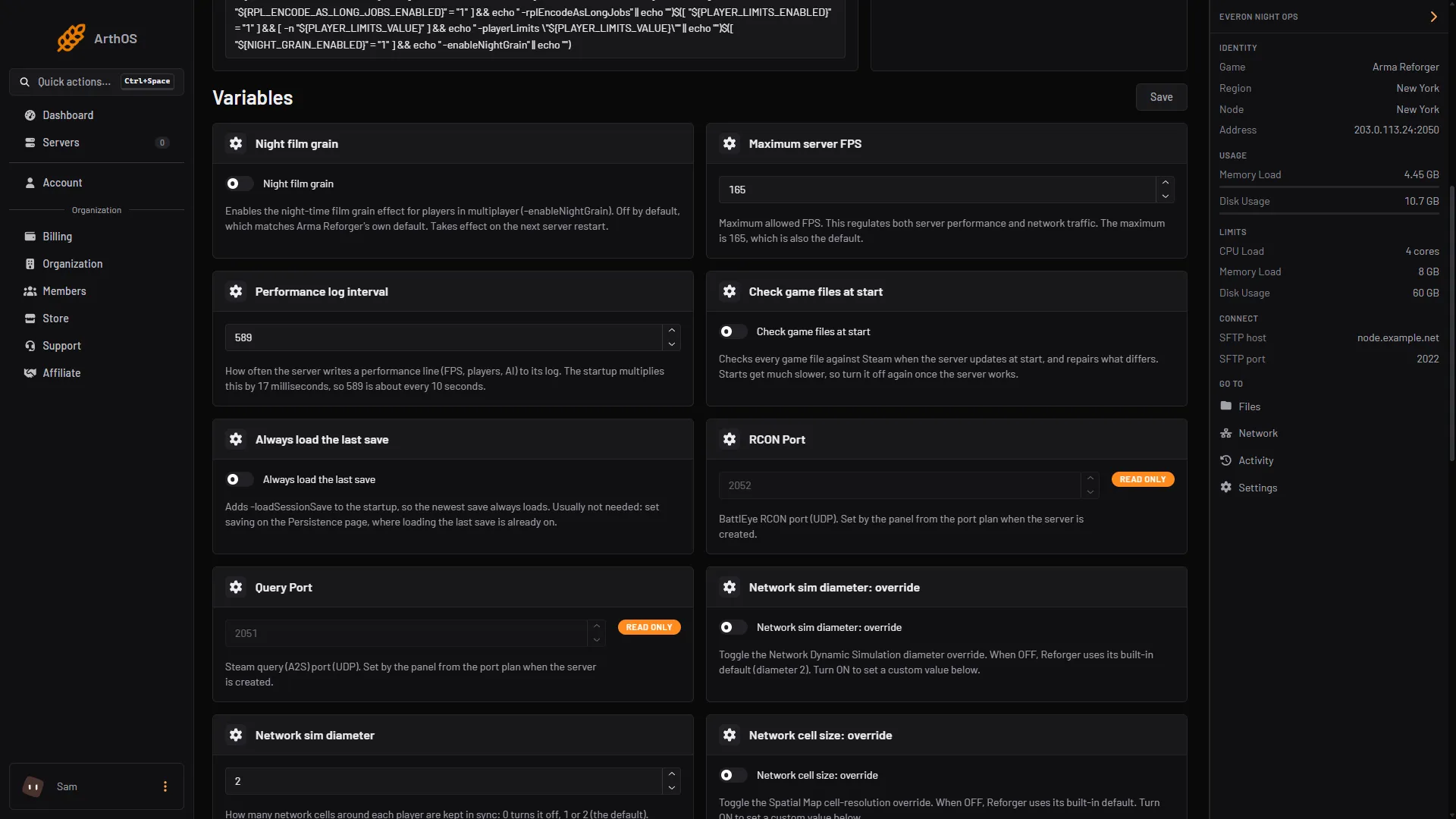
- Maximum server FPS
- Save
The panel adds -maxFPS followed by your number when the server starts. If the box is empty, the panel leaves the parameter out and the game uses its own limit.
To check the effect, read server FPS before and after. The server stats guide shows where it appears. The tuning guide shows the order in which to change things.
By hand
If you host the server yourself, add the parameter to the command that starts it:
./ArmaReforgerServer -config ./config.json -profile ./profile -maxFPS 60Windows servers use ArmaReforgerServer.exe the same way. Bohemia’s own example is ArmaReforgerServer.exe -maxFPS 60.
If it does not work
- Nothing changed. The server reads startup variables when it starts. Restart it.
- The panel will not accept a number. Stay at 165 or below.
- FPS is far below the cap. The cap is not the problem. See the tuning guide.
- Players feel the server is choppy after you lowered it a lot. Raise the cap again within Bohemia’s 60 to 120 range. Not checked on 1.8 as of 12 October 2026: the lowest cap that still feels smooth for a given scenario or player count.
More guides: Arma Reforger servers.
Sources: Bohemia wiki: Startup Parameters, Bohemia wiki: Server Hosting