






In Enshrouded, choose Join in the main menu, turn on Show dedicated server in the filter, pick the server by its name, and type a password. The password you type decides your group on the server. A dedicated server is one that runs on its own machine, apart from any player’s game.
A 1.0 game can join only when the server has the 1.0 build too. Checked on the 0.9 server. Enshrouded 1.0 is released on 15 October 2026.
Join from the server list
- Start Enshrouded and choose Join in the main menu.
- In the Server Filter on the right, turn on Show dedicated server. Dedicated servers are hidden until you do.
- Find the server by its name. The name is the Server name the owner set. Server owners: see change the server name.
- Select the server and type a password when the game asks.
The password decides what you may do. A server has four groups, Admin, Friend, Guest and Visitor, each with its own password. If you do not know which password to use, ask the server owner.
Keen Games, who make the game, say you can mark a dedicated server as a favorite with the star icon. Favorites move to the top of the list. The filter can also hide password-protected servers, empty servers and servers with fewer free slots than you need, so check those if a server is missing.
If the server is not in the list
Add its address in Steam:
- Open the Steam client.
- Choose View, then Game Servers, then the Favorites tab.
- Choose the + button and type the server address, with its port.
- Start Enshrouded and open Join again.
Server owners get the address from the Joining card on the Players page of the server in the ArthOS panel. It has a Copy button, and its text says the same: “If it is not listed, add this address in Steam under View, Game Servers, Favorites.”
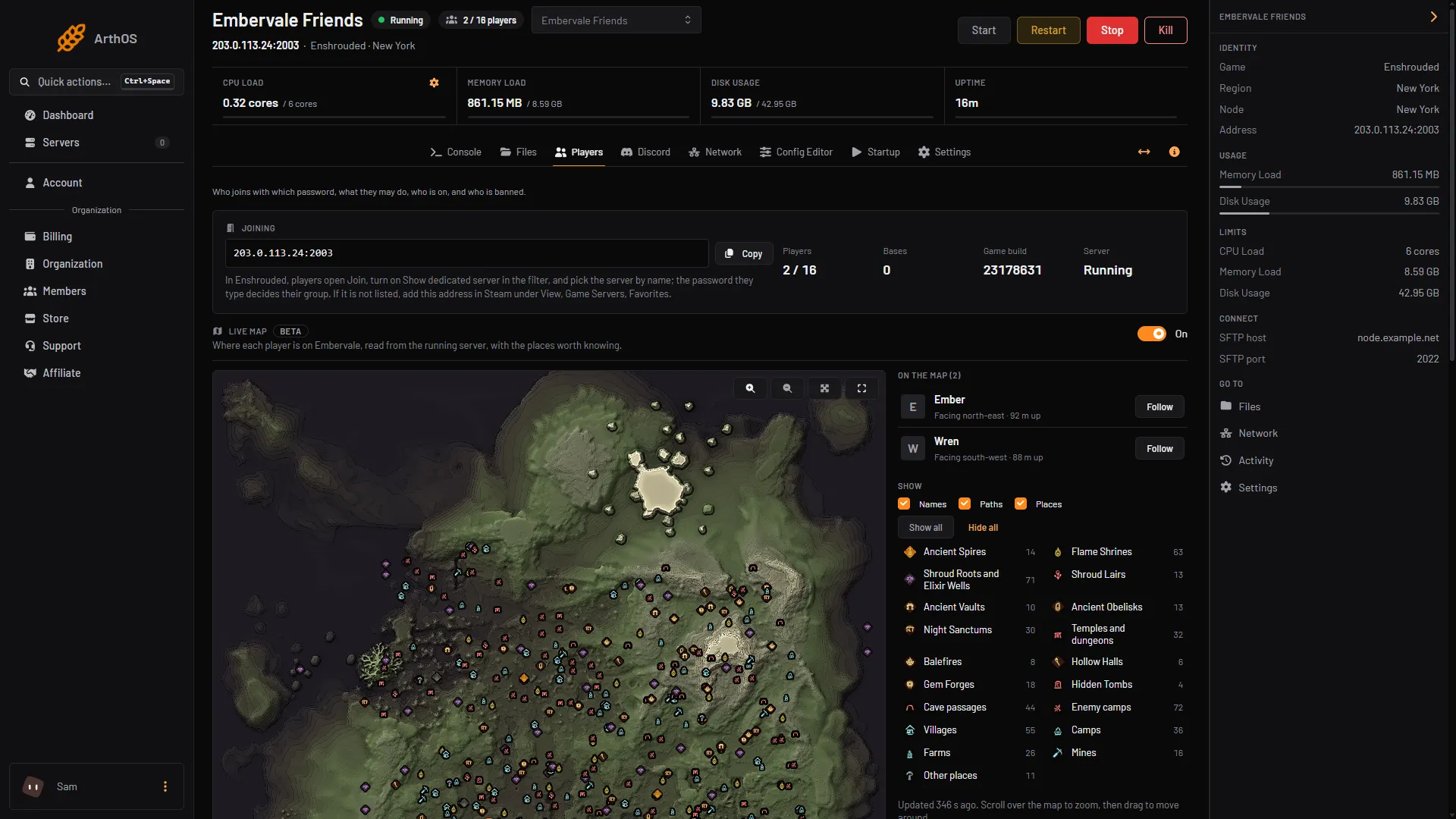
- Server address
- Copy
- Join text
The address is box 1. Choose Copy (box 2) and send the address to your players. The text under it (box 3) tells them what to do in Steam.
Your game must match the server
Enshrouded refuses a player whose game is a different version from the server. When the game updates, the server must update too. Owners: turn on Update on start on the Startup page, or choose Restart and update when the Players page shows “An Enshrouded update is out”. More in update the server.
If it does not work
- The server is not listed and not in Favorites. Check it is running. Then check the address and port, and check Show dedicated server is on.
- The password is refused. Passwords are case sensitive and belong to one group each. Ask the owner to copy it from the Players page. See set a server password.
- The game says the versions differ. The game or the server is out of date. Update whichever is behind.
- Still stuck. See players cannot join.
More about the game: Enshrouded servers.
Sources: enshrouded.zendesk.com: 16056312924957 Dedicated Server FAQ, enshrouded.zendesk.com: 19191581489309 Server Roles Configuration, store.steampowered.com: 1203620