









Open the Discord page of your server. Link a channel and the Loafhosts bot keeps one message in it up to date. You can also post server events, such as a start or a crash, with a webhook.
What the message shows
The bot edits one message in the channel. It updates every minute. It shows:
- Whether the server is up.
- The world name and its size.
- In game: the day and time, such as
Day 7, 21:05. - Blood moon: when the next one comes, such as
Tonight at 22:00,Day 8, tomorroworDay 14, in 7 days. It saysNowwhile one is on. - Online: who is playing, each with their level, such as
Jason (level 12). It lists the first ten and then how many more. - Short notes that matter to players: password protected, crossplay on and Easy Anti-Cheat (EAC) off.
- A button that opens the list of mods.
The mod list leaves out the three mods the game ships with. If the server is stopped, the message cannot read the game, so the day, blood moon and players are not shown.
Link a channel
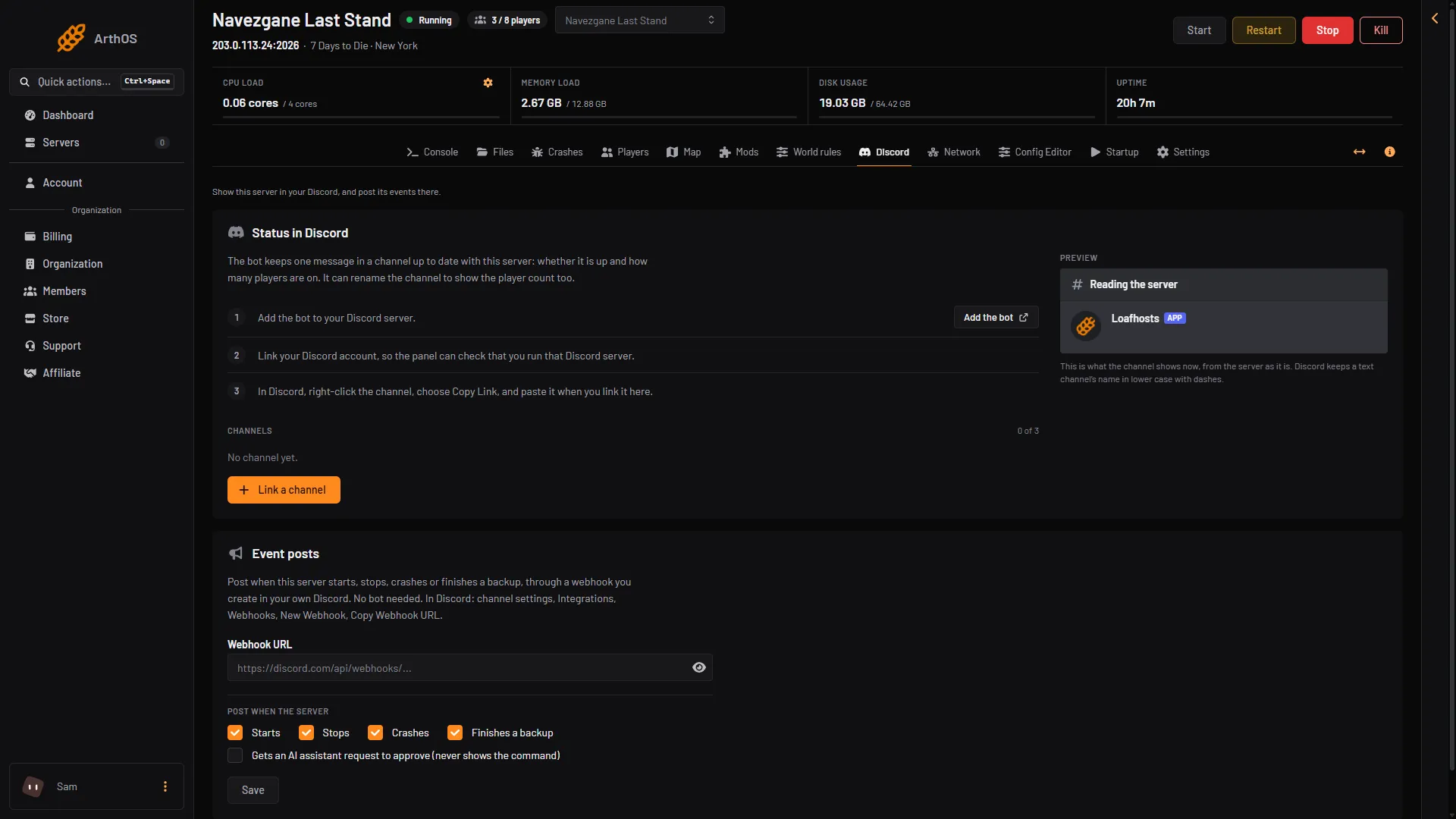
You need three things. The page lists them.
- Choose Add the bot (1) and add it to your Discord server.
- Link your Discord account. This lets the panel check that you run that Discord server.
- In Discord, right-click the channel and choose Copy Link.
Then:
- Open the Discord page.
- Choose Link a channel (2).
- Paste the link in Channel link or ID.
- Choose what the message shows. Show mods button lets anyone in the channel open the full mod list. Only the person who clicks sees it. Show the join address is off by default, because players find the server in the game’s server list.
- Choose Link channel.
- Add the bot
- Link a channel
- Preview
- Event posts
- Webhook URL
The Preview (3) shows how the message will look. The message is posted at once and updates every minute. Use Update now on the channel row to refresh it sooner. A server can post to up to three channels.
Rename the channel
Rename the channel to show the server is on by default. The bot changes the channel name to show the server and its player count. Discord allows two renames in ten minutes, so the name changes at most every 11 minutes, or every 5 when the server goes up or down. The bot needs the Manage Channels permission in Discord. Turn the switch off if you want to keep your own channel name. You can set a Name to show and a Format too.
Post events with a webhook
Event posts need no bot. They use a webhook you make in your own Discord.
- In Discord, open the channel settings, then Integrations, Webhooks, New Webhook. Choose Copy Webhook URL.
- On the Discord page, find the card Event posts (4).
- Paste the address in Webhook URL (5). It starts with
https://discord.com/api/webhooks/. - Under Post when the server, tick what you want: Starts, Stops, Crashes, Finishes a backup. The AI assistant approval request is off until you tick it.
- Choose Save, then Send a test and check the channel.
Posts arrive within 20 seconds. The address is kept secret: it is shown once and then only its number. To use a new webhook, paste a new address. Remove stops all posts. The webhook itself stays in Discord until you delete it there.
If it does not work
- The channel row shows an error. Read the line. The bot may not be in that Discord server or may not see the channel. Check the channel permissions, then choose Update now.
- “Waiting for the first update”. The first post takes a short time. Wait a minute.
- The day and players are missing. The server is stopped or still loading its world. Start it and wait for it to finish loading.
- The channel keeps its old name. Renaming needs the Manage Channels permission, and Discord limits how often a name can change.
- Event posts stopped. The page shows why. Save a working webhook address to start again.
- You cannot link a channel. Your Discord account must be linked, and the bot must be in your Discord server.
More about the game: 7 Days to Die servers.