






By default an Arma Reforger server follows the latest version of every mod. Each start can pull a new version. To stop that, lock a mod to a version: in the ArthOS panel, use the version menu on the mod’s row on the Mods tab. To lock every mod at once, select them and choose Lock to installed versions.
Why lock versions
Mod authors update their mods, and the server downloads the new version at its next start. That is fine until an update breaks something. A save records what mods placed in the world, so an update can change what a save holds, and a broken update can stop the save loading. A mod update can also fail on its own, for example if it was built for a different game version. See a mod that fails to load.
A locked mod stays on the version you chose until you change it. You decide when each mod updates.
Not checked on 1.8 as of 12 October 2026: whether a dependency the game adds stays locked when only the main mod is locked.
Lock one mod
- Open the Mods tab, under On this server.
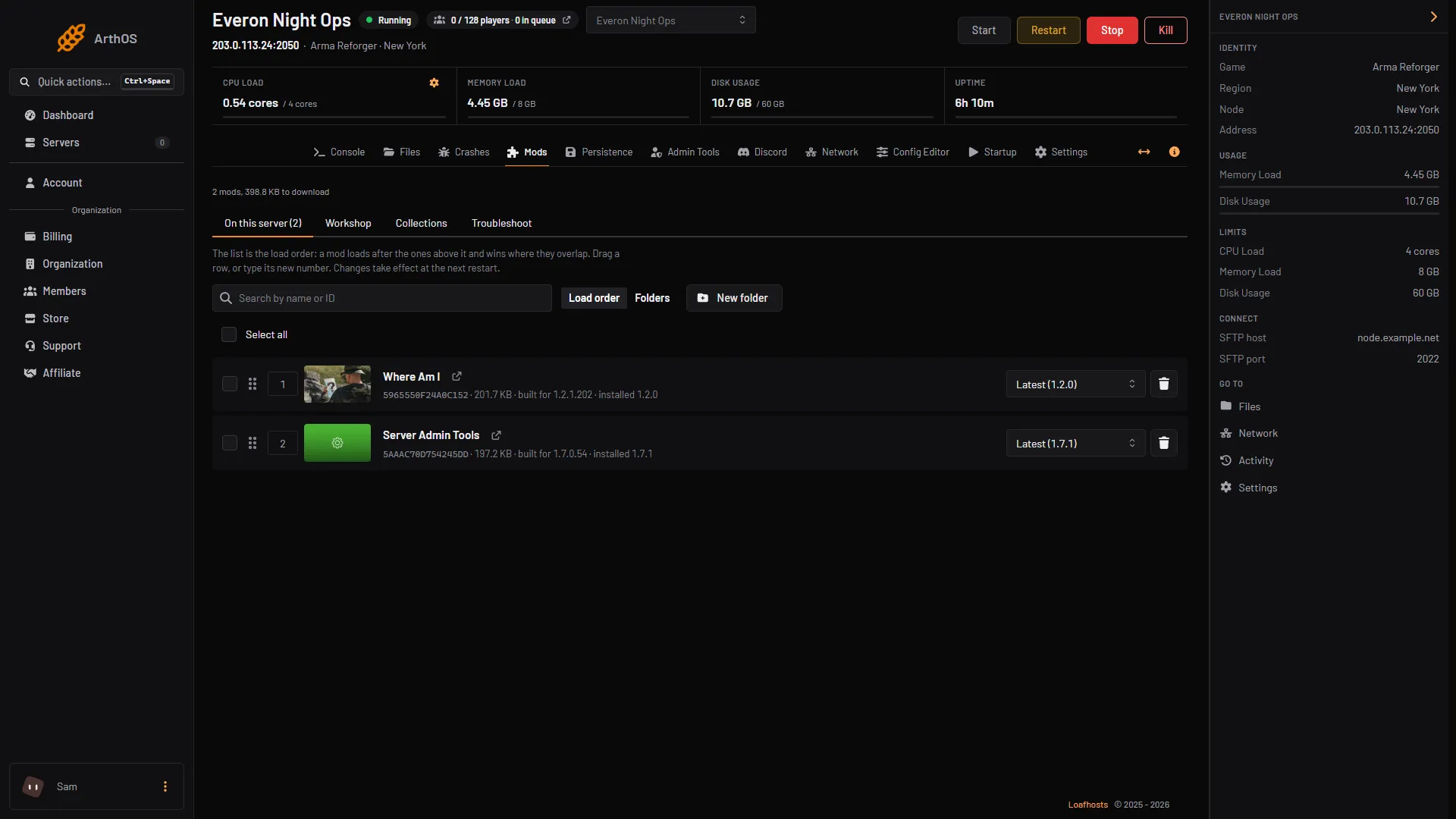
- On the mod’s row, open the version menu. It shows Latest with the newest version in brackets, for example “Latest (1.2.0)”, and the older versions the Workshop still offers.
- Choose a version. The panel says “Version changed.” and the row gets a lock label, for example “Locked 1.1.28”.
- Restart the server for it to take effect. Mod changes apply at the next start.
- Built for and installed version
- Version menu
The line under the mod name (1) shows the version the mod was built for and the one installed. The version menu (2) is where you lock.
When a mod is not locked and a newer version exists, the row says the new version “downloads at the next start”. Choose Latest in the menu to unlock a mod and follow the newest again.
Lock many mods at once
- On Mods, tick the mods you want, or use Select all.
- Choose Lock to installed versions. Each chosen mod is locked to the version on disk right now. The panel says how many it locked.
- A mod that is not downloaded yet has no version on disk. The panel skips it and tells you how many it skipped. Start the server once so it downloads, then lock again.
- To undo, select the mods and choose Follow latest.
Lock versions from the Persistence tab
If your save holds mods that follow the latest version, the Persistence tab warns you. Under Before the next start, a note reads ”… mods in your save update on their own”. Choose Lock mods to the versions on disk and the panel locks the mods that are in your save. See persistence and save games.
Lock versions in a collection
A collection is a saved list of mods you can reuse on other servers. When you save one on the Collections tab, tick Lock the versions installed now. The collection then records the version on disk for each mod. Without it, only versions you had already locked are recorded. See load order, presets and folders.
By hand
Each mod in game.mods in config.json can have a version field. Bohemia says it is optional, and the latest version is used when it is missing. Add the field to lock:
{
    "game": {
        "mods": [
            {
                "modId": "0123456789ABCDEF",
                "name": "Example mod",
                "version": "1.1.28"
            }
        ]
    }
}
The ID above is a placeholder. Copy the real modId from the mod’s Workshop page, see finding mod IDs. Remove the version line to follow the latest again. Restart the server after editing.
If it does not work
- The version you want is not in the menu. The Workshop keeps only recent versions of a mod, so an old one may be gone. A version the Workshop no longer lists cannot be chosen.
- The mod still updates. Check the row for the lock label. A mod without it follows the latest. Locks are per mod, so each mod you want held needs its own.
- The server will not start after locking. The version you chose may be built for another game version. Check “built for” on the row, and try a newer one.
Running on Loafhosts? See Arma Reforger servers.
Sources: Bohemia wiki: Server Config, Bohemia wiki: Workshop