






To run a scenario that comes from a Workshop mod, add the mod to the server first, then set the scenario to the ID the mod provides. In the ArthOS panel the Mods page does both: the mod’s row has a Play button for each scenario it brings.
Add the mod first
A mod’s scenario only exists while its mod is on the server’s mod list. If the mod is missing, the game cannot read the scenario and the server does not start. So the order is always: mod first, scenario second.
- Open your server and choose the Mods tab, then Workshop.
- Search for the mod by name and choose Add. See how to install mods.
- Check what the mod needs. The mod’s detail window in the panel has a Needs list. The game downloads what a listed mod needs, and the row says “Needs …, which the game downloads with it” for anything not yet on the list.
Set the scenario in the ArthOS panel
On the Mods tab, under On this server, look at the mod’s row. A mod that brings scenarios shows one button per scenario, named Play followed by the scenario’s name.
- Choose Play and the scenario name.
- The panel says “Scenario changed. It takes effect at the next restart.” Restart the server.
- The row now shows a Provides the scenario label and the button reads “Playing …”.
You can also open the mod’s detail window to see Scenarios it provides, with the player count each is built for (shown as “up to N players”).
Find a scenario ID
If the panel shows no Play button for the mod, you need the ID itself. It looks like {ECC61978EDCC2B5A}Missions/23_Campaign.conf: a code in curly braces, then a path ending in .conf.
- The mod’s Workshop page. A mod’s page on Bohemia’s Workshop has a Scenarios tab next to Info. Open it to see what the mod provides.
- The mod’s author. The author’s description or comments often give it.
- By hand, on your own host. Start the server with
-listScenariosand without-config, then readconsole.log. Bohemia says Workshop scenarios are listed only when no scenario is being loaded, which is why-confighas to be left out. The Reforger servers on Loafhosts have no field for free startup parameters, so this one is for your own machine.
Then, in the panel, open Config Editor, find Scenario in the Server group, paste the ID into the box under the list and choose Save. Its help text says: “The mission the server runs. Pick an official one, or paste a mod’s scenario ID. A mod’s scenario only works while that mod is installed.”
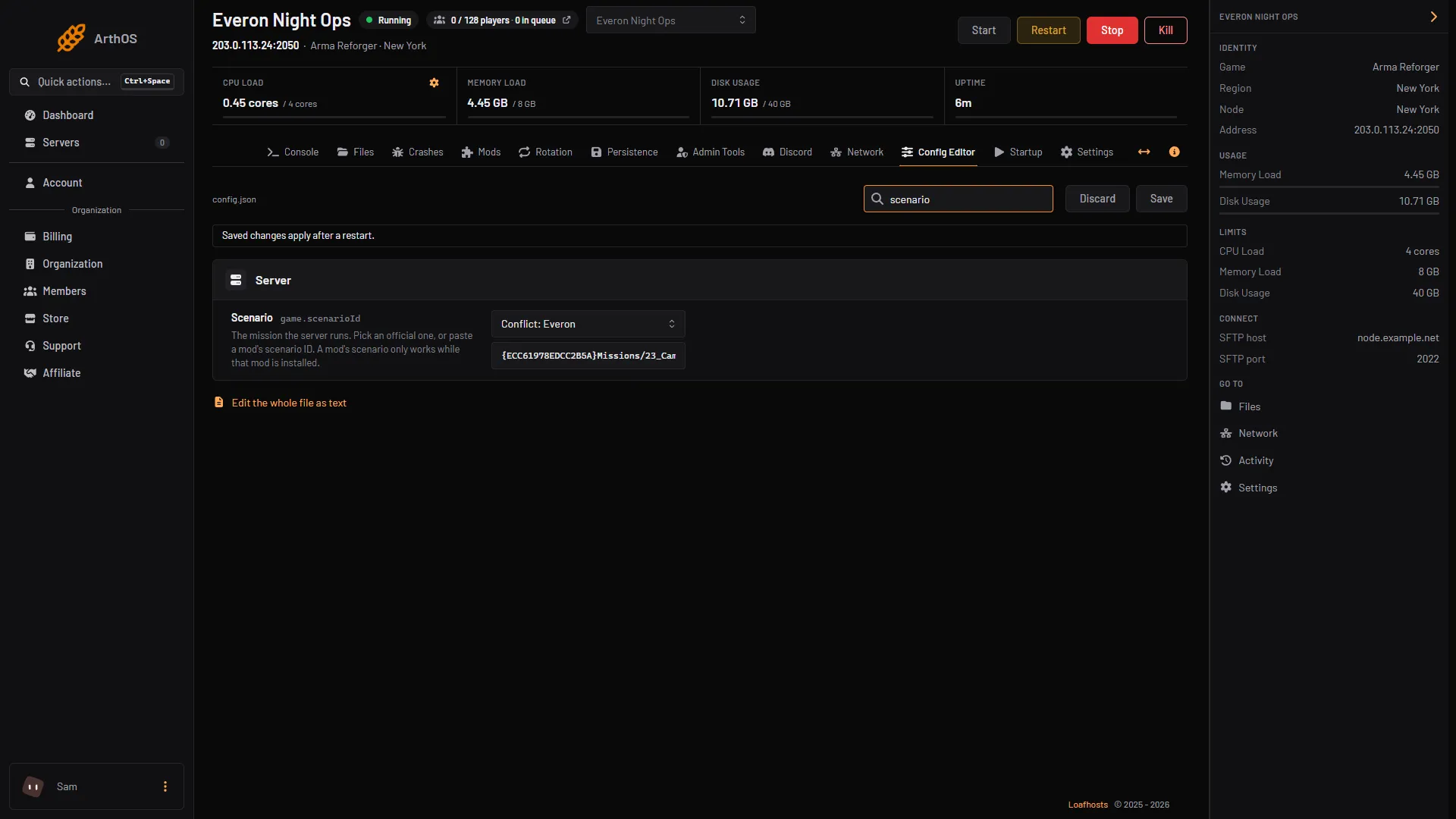
- Scenario list and ID box
- Save
Paste the ID into the Scenario row (1), then choose Save (2). Restart the server to apply it.
By hand
- Add the mod to the
modslist inconfig.json, with itsmodId. - Set
scenarioIdin thegameblock to the mod’s scenario ID. - Save and restart.
{
    "game": {
        "scenarioId": "{0123456789ABCDEF}Missions/Example.conf",
        "mods": [
            { "modId": "0123456789ABCDEF", "name": "Example scenario mod" }
        ]
    }
}
The IDs above are placeholders. Use the real ones from the mod’s page. See config.json explained.
If it does not work
- The log says
Unable to read the mission headerand the server stops. The game cannot read the scenario. Either the ID has a typo, or the mod that provides it is not on the list. The Troubleshoot tab shows this as “The scenario cannot be loaded”. Add the mod, fix the ID, or pick an official scenario. - Troubleshoot says “The scenario is not from any mod on the list”. The ID is not official and no listed mod provides it. Add the mod back or switch to an official scenario.
- You removed the mod and the server will not start. The panel warns you before you remove it: “The server plays a scenario from …; pick another scenario first or it will not start.” Pick another scenario, then remove the mod.
- The mod loads but the server fails on a script error. Use the search in finding the mod that stops your server.
- The world starts fresh. Saves belong to one scenario, so a new scenario starts a new world. See persistence and save games.
Running on Loafhosts? See Arma Reforger servers.
Sources: Bohemia wiki: Server Config, Bohemia wiki: Startup Parameters, reforger.armaplatform.com: 591AF5BDA9F7CE8B