






To remove a mod, take it off the mod list and restart the server. In the ArthOS panel that is the bin icon on its row in Mods. The mod stops loading at the next start, but its files stay on the server until you delete them.
In the ArthOS panel
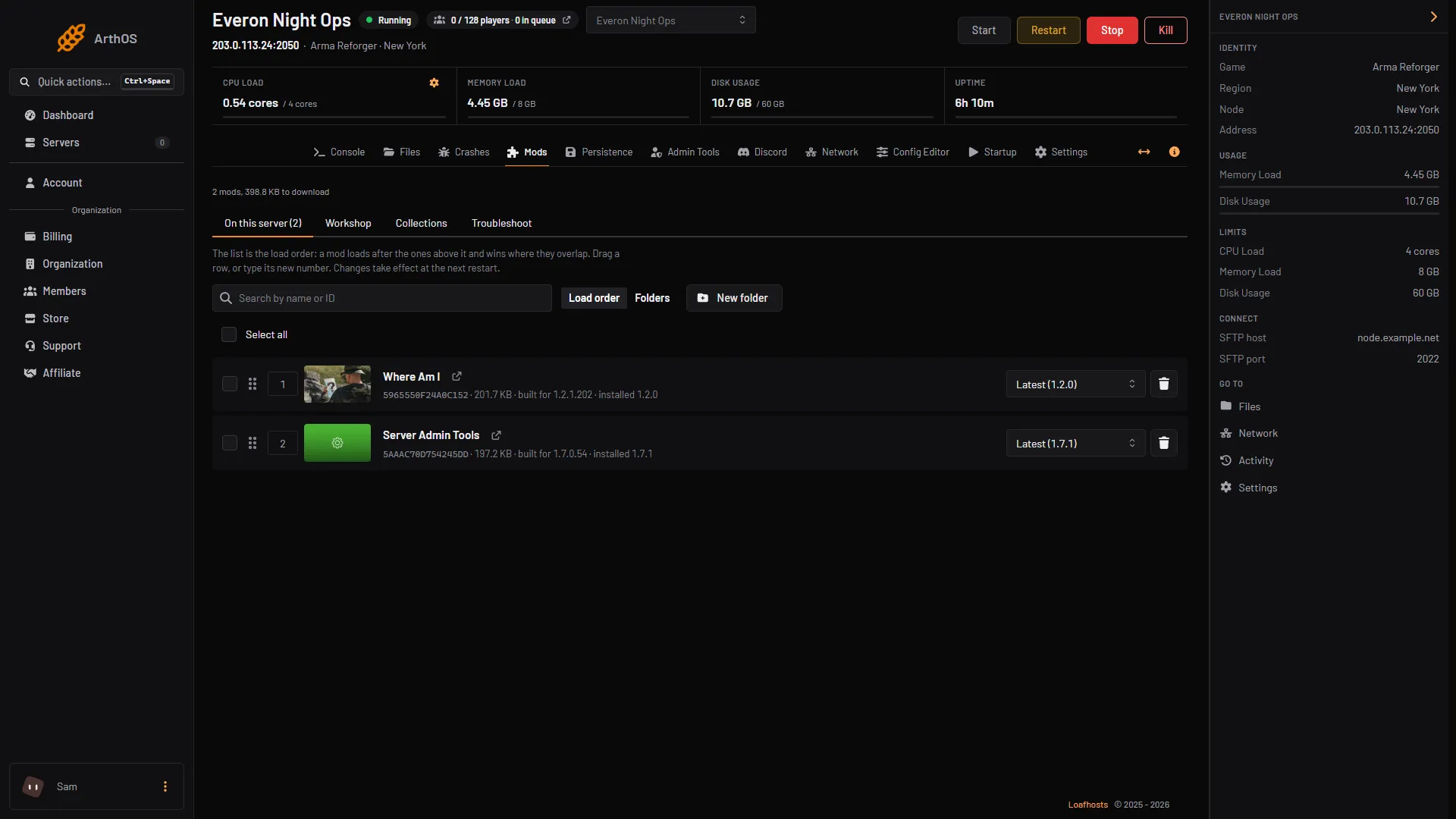
- Open your server, choose Mods, then On this server.
- On the mod’s row, choose the bin icon (1), named Remove with the mod’s name. To remove several, tick their rows and choose Remove in the bar above the list.
- Remove (bin)
- A box asks “Remove {name}?” (or “Remove 3 mods?”). It says: “They come off the list and are not loaded at the next start. Their files stay on disk until you delete them.” Choose Remove.
- Restart the server. A restart disconnects everyone who is playing.
When another mod needs it
Some mods need other mods to work. These are called dependencies, and the dependency guide explains them. If a mod you remove is needed by another mod still on the list, the box warns you: the game still downloads and loads the removed mod at each start, because the mod that needs it is still listed.
You have two choices:
- Leave the other mod alone, and the removed mod keeps loading.
- Tick Also remove the mods that need it. The panel marks it as not usually recommended, because those mods stop loading too.
To really get rid of a mod that others need, remove the mods that need it, or decide you do not need it gone.
The panel does not remove the mods that the removed mod needed. They stay on your list. Remove them yourself if nothing else uses them.
If the server plays a scenario from it
If the server’s scenario comes from the mod you are removing, the box tells you to pick another scenario first, or the server will not start. Change it in Config Editor under Scenario. See scenario IDs.
Free the disk space
Removing a mod leaves its files in /profile/addons. The Mods page lists them as “Downloaded, but no longer on the list”, with a note to delete their folders under profile/addons in Files.
- Stop the server.
- Open Files and go to
/profile/addons. - Delete the folder of the removed mod. The folder name is the mod’s name, an underscore and its 16 character ID.
The game downloads a mod again if you add it back, so deleting these folders is safe. Keep them if you may add the mod again soon, to save the download. Do not delete the folder of a mod that is still on the list.
By hand
- Open
config.json. - In
game.mods, delete the whole object of the mod, from its opening{to its closing}. Keep the commas right: no comma after the last entry.
"mods": [
  { "modId": "5AAF6D5352E5FCAB", "name": "Project Redline - Core" }
]- If another mod listed here needs it, delete that one too, or the game downloads the removed mod again.
- Save and restart. Startup files can also load mods from other folders (
-addonsDir), so check there if a mod still loads.
If it does not work
- The mod is still loading. Another mod on the list needs it. The Mods page row of that mod says what it needs.
- The server will not start after a removal. A scenario or a mod that needed it may be broken. Open Troubleshoot on the Mods page, or read find the mod that stops your server.
- The world is wrong after a removal. Restore your backup and put the mod back.
- A hand edit stops the server. One extra comma makes
config.jsoninvalid. Fix it in Files, or restore a backup.
Sources: Bohemia wiki: Server Config, Bohemia wiki: Startup Parameters, Bohemia wiki: Persistence System