






To update an Arma Reforger server in the ArthOS panel, take a backup, then press Reinstall Server on the Settings tab. That runs the installer again. The installer updates the game from Steam every time it runs, so a reinstall normally brings the server to the current build. Afterwards open the Crashes tab: the newest start shows the Game version the server runs.
When you need to
Bohemia ships an update to the game on all platforms from time to time. The stable version on 12 October 2026 is 1.8.0.13, released on 3 September 2026. Players update their own game, so after a release most of them are on the new version.
Bohemia lists a startup parameter, -rpl-validation-version-disable, that “disables the validation of clients executable version”. So by default a server checks the game version of the players who join. If your server stays on an old version, players on the new one may not be able to join. Bohemia’s own warning about turning that check off is that a version mismatch “may bring undefined behaviour”.
Check your version first
- Open the Crashes tab.
- Open the newest start. It lists Game version, for example 1.8.0.13.
- Compare it with the version in Bohemia’s latest update post.
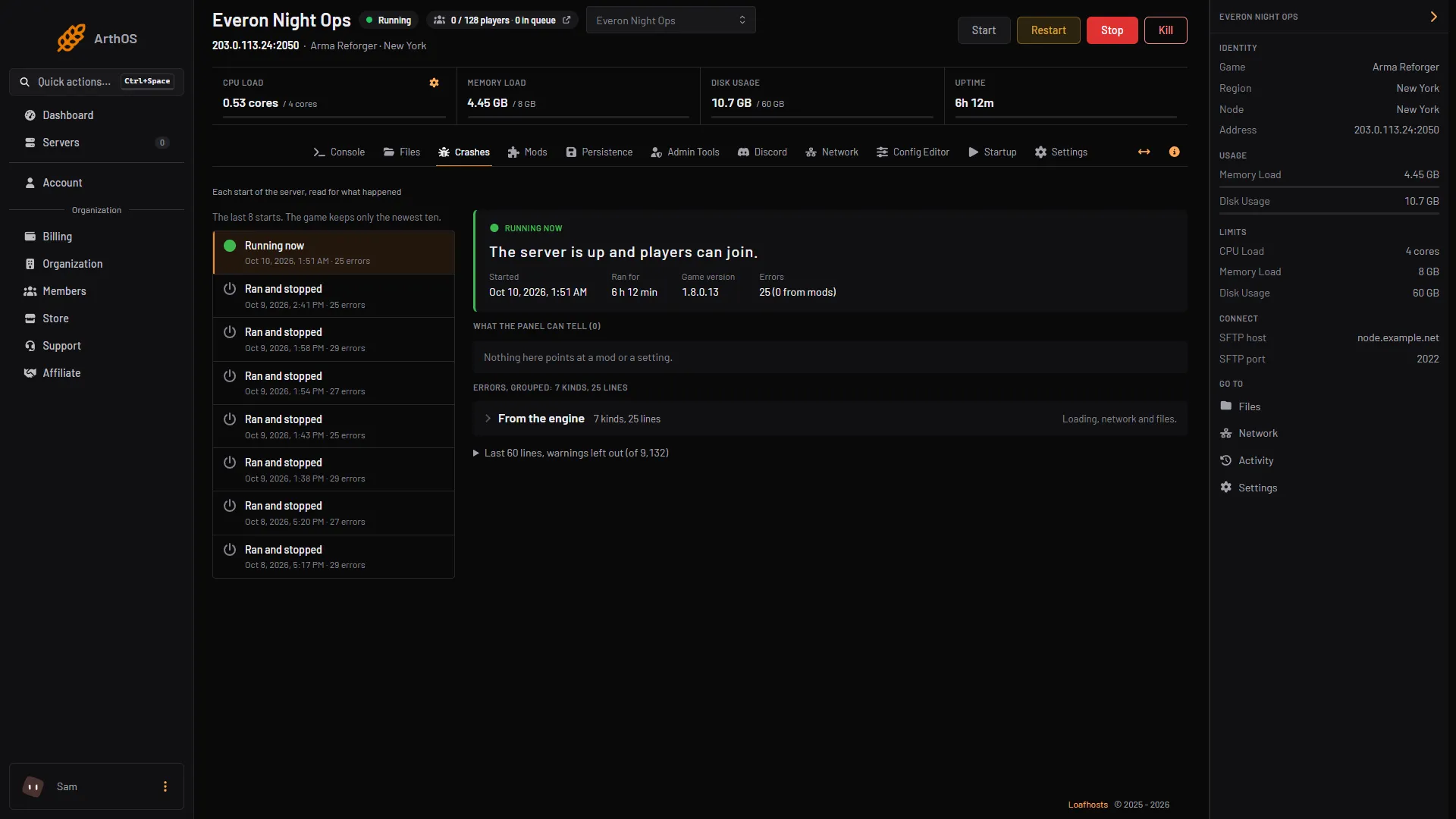
- Game version of this start
If they match, there is nothing to do.
In the ArthOS panel
- Take a backup of the server.
- Open the Settings tab and find the Reinstall Server card.
- Press Reinstall Server.
- In the window, leave the switch about deleting all files off. It asks whether to delete all files of the server before the action, and that cannot be undone.
- Tick Start the server after the reinstall has finished if you want it to start by itself.
- Press Reinstall. The server shows as installing. Wait for it to finish.
- Start the server, then check Game version on the Crashes tab again.
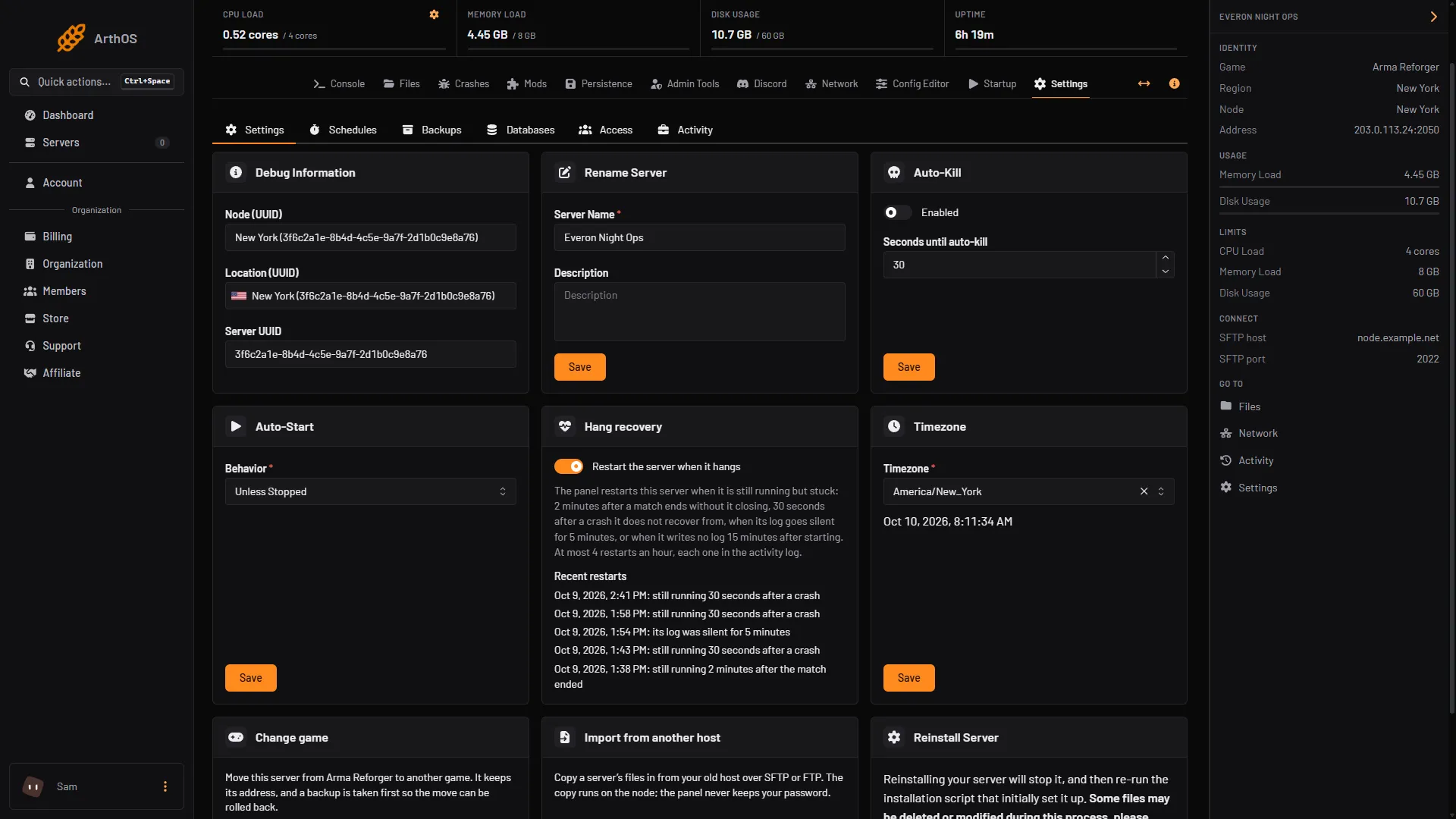
- Reinstall Server
Does a plain restart update the server?
Not checked on 1.8 as of 12 October 2026: whether a restart alone brings the game to the newest version. Do not rely on it. After any restart, read Game version on the Crashes tab, and reinstall if it is behind.
Mods built for the old version
A mod page on the Workshop names the game version the mod was built for, and the Mods tab shows it as “built for” on each row. After a game update, a mod that was not rebuilt can fail to load. When the server starts, it also downloads mod versions it does not have yet, so a restart can pull new mod versions. To keep control, lock the versions on the Mods page before you update.
If the server stops starting after an update, work out which mod is at fault with our guide to finding the mod that stops your server. The Troubleshoot tab on Mods can also test them.
A save from another game version can be refused. Most saves carry over, and one that does not starts the scenario fresh. The old save stays on disk.
By hand
If you host the server yourself, Bohemia’s way is SteamCMD. Set the install folder with force_install_dir, then run app_update 1874900, and quit. App ID 1874900 is the stable server. Add validate to check the files. Restart the server afterwards.
If it does not work
- Game version did not change after the reinstall. Make sure you opened the newest start on the Crashes tab, which only appears after the server has started once since the reinstall. If it is still old, reinstall again.
- The reinstall takes a long time. It downloads the whole game again. Wait for it to finish before you start the server.
- Players still cannot join after the update. Ask them to update their game too, and check your mods for ones that are not rebuilt for the new version.
- The server will not start after the update. Read the crashes and the log. If the cause is a mod, remove it or put an older version back.
More about the game on our Arma Reforger page.
Sources: reforger.armaplatform.com: Update september 3 2026, Bohemia wiki: Server Hosting, Bohemia wiki: Startup Parameters