






The most common reason is the list filter. In Enshrouded, open Join and turn on Show dedicated server in the server filter. Dedicated servers are hidden until you do. If the server is still missing, check that it has finished starting. If it still does not show, add its address to your Steam Favorites.
Check these in order
- Show dedicated server is on. The server browser can list dedicated servers and player-hosted sessions. The filter on the right of the screen switches dedicated servers on and off.
- The other filters are not hiding it. The same filter can hide servers with a password, show only sessions of Steam friends, hide empty servers, or ask for a minimum number of free slots. Clear them.
- The server has finished starting. A server that is still starting is not listed yet.
- The tags match. A server can carry tags for language and play style, and players can filter by the same tags. If you filter by a tag your server does not have, it will not match. See server list tags.
- Your game and the server run the same version. Players can only join a server on the same version as their game. Checked on the 0.9 server. Enshrouded 1.0 is released on 15 October 2026. Until the server has the 1.0 build, a 1.0 game cannot join it; Update on start brings it once Keen publish it.
Is the server finished starting?
In the ArthOS panel:
- Open the Console page.
- Wait for these lines from the game:
[Session] 'HostOnline' (up)!and[Session] finished transition from 'Lobby' to 'Host_Online'. Keen Games name them as the sign that the server is fully started. - Open the Players page. The Server figure should read Running.
Add the server to Steam Favorites
This works even when the in-game list does not show the server.
- Open the Players page and, in Joining, choose Copy to copy the address. It is the server’s address and port, written as
address:port. - In the Steam client, open View, then Game Servers.
- Open the Favorites tab and choose the + button at the bottom.
- Paste the address and port and confirm.
- Start Enshrouded and open Join. A favorite server is listed at the top.
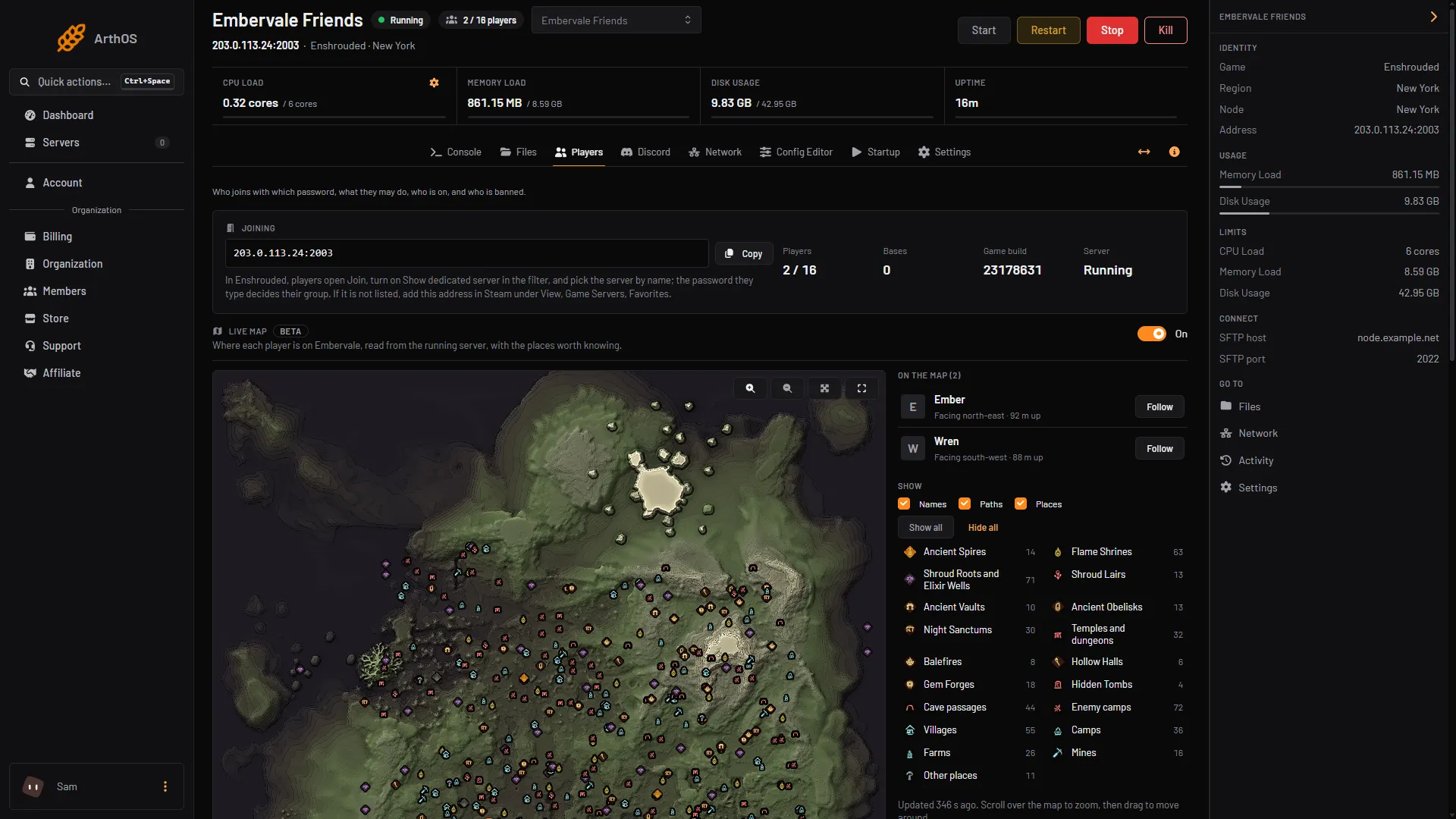
- Address and Copy
- Join text
In the picture, box 1 is the address and Copy in Joining. Box 2 is the text under it that tells players how to join.
The port you enter is the server’s query port. On Loafhosts that is the same single port the server uses for play. The Network page lists it.
If it does not work
- The address is refused or never answers. Check the server is Running on the Players page, then copy the address again.
- You can see it but cannot join. See cannot join an Enshrouded server.
- It was listed and vanished. The server may have restarted or stopped. Wait until the lines above appear in the Console.
More about the game: Enshrouded servers.
Sources: enshrouded.zendesk.com: 16056312924957 Dedicated Server FAQ, enshrouded.zendesk.com: 16454683440541 Favorite Server via IP, store.steampowered.com: 1203620