






You can try to move a world from your own computer to the server by copying its files into the server’s savegame folder. Stop the server first, and make a backup first. Keen Games’ server articles do not describe this step, so treat it as an experiment you can undo.
The steps below follow Keen’s description of how save files are named and stored. Keen do not say a server will load a world copied this way, so keep your backup until you have joined and seen your base.
Checked on the 0.9 server. Enshrouded 1.0 is released on 15 October 2026.
Before you start
- Players can only join a server on the same game version. Use a world saved by the same version the server runs. A 1.0 game cannot join until the server has 1.0, and Update on start brings it once Keen publish the 1.0 server build there. See Update an Enshrouded server.
- Keen say only the world is stored on a dedicated server. Characters are stored on each player’s own computer. Players join with their own characters.
- Making a backup of the server first lets you go back. See back up and restore an Enshrouded world.
Find your world on your computer
- Close Enshrouded.
- Open
%USERPROFILE%/Saved Games/enshroudedin your file browser. This is where Keen say local saves are kept. - Find your world. Keen say world file names are fixed hexadecimal names, given in order of creation. The first world is
3ad85aea, the second3bd85c7d, the third38d857c4, and so on. The modified date of the files helps you tell worlds apart. Keen say the_infofiles hold details such as the world’s name. - Copy every file that belongs to that world: the world file, its numbered copies and its
-indexfile. If your folder has_infofiles, copy them too. The server’s own folder shows none. - Rename the copies on your own computer before you upload them. The server’s world file is
3ad85aea, so your World 2 files, which start3bd85c7d, become3ad85aea,3ad85aea-1and so on up to3ad85aea-index. Keep each ending as it is.
If you use Steam Cloud, check the folder holds your newest save first. Keen’s Save Game Management page explains where the cloud copy is.
In the ArthOS panel
The picture shows the savegame folder of the server: the server’s world file (1) and its -index file (2), with the numbered copies between them. A server’s world is World 1, so its file is 3ad85aea.
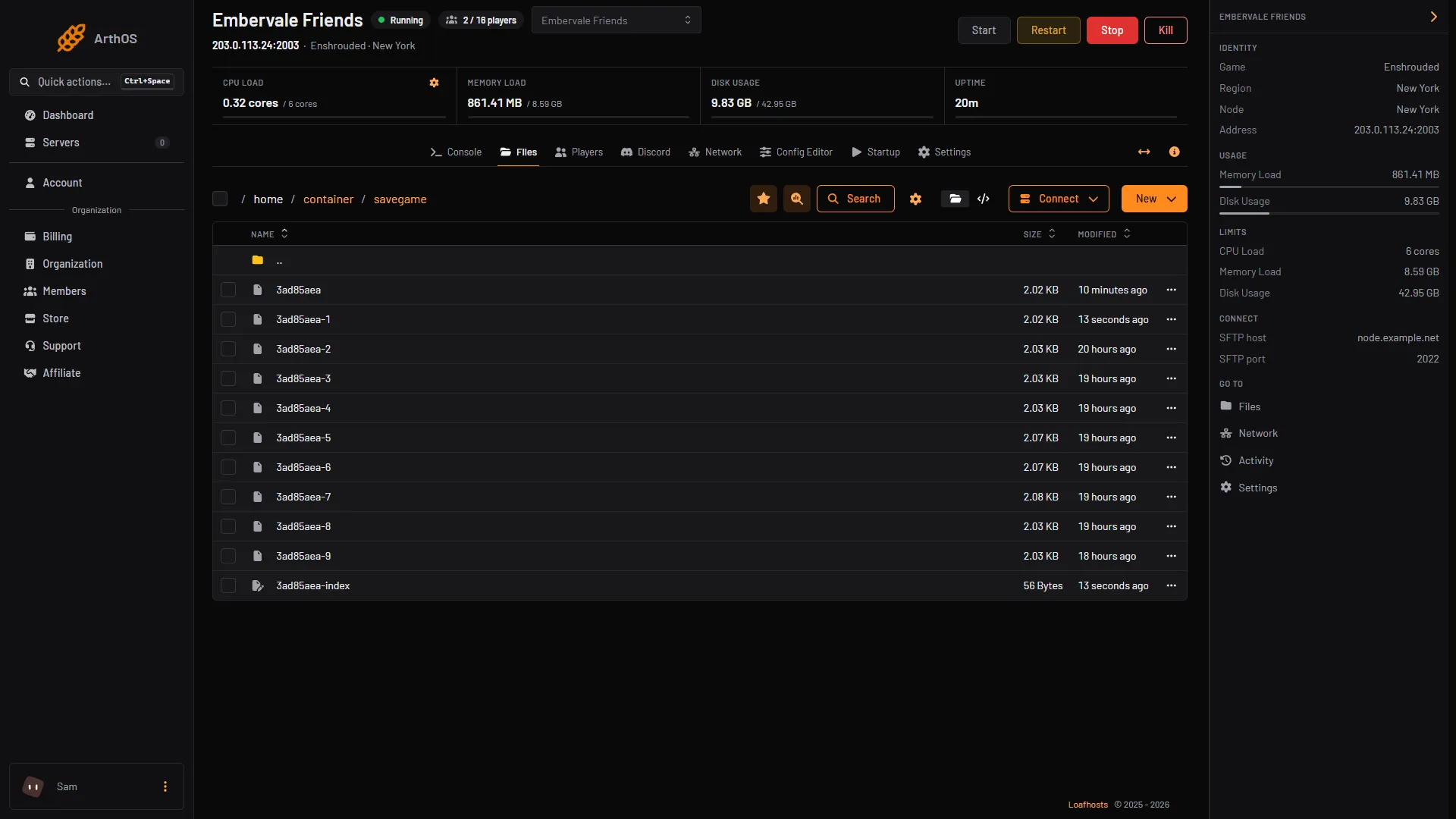
- The server's world file
- The -index file
- Open the Console and stop the server.
- Make a backup under Settings, then Backups.
- Open Files, then the
savegamefolder. - Delete the server’s
3ad85aea*files, or plan to overwrite every one of them. Do this only after the backup is made. - Upload all of your renamed files into
savegame. Choose Upload, then Upload from computer. - Start the server. In the Console, watch for
[Session] 'HostOnline' (up)!. - Join the server and check your base is there.
Files can also be sent over SFTP. Choose Connect, then via SFTP. The SFTP Details window shows the host, port and username. The password is your control panel password.
What may not work
- The server may need its own world file name rather than the name of your world.
- It may not accept the numbered copies and
_infofiles you copy over. - A world saved by the 1.0 game may not load on a 0.9 server. The server is on 0.9.0.0 now. Keen have not said whether a 0.9 world loads on 1.0.
By hand
If you run the server yourself, the savegame folder is beside enshrouded_server.exe. Stop the server, copy the files in, and start it.
If it does not work
- The server starts with a new, empty world. It did not load your files. Stop it, restore your backup, and check the file names match the server’s.
- The server will not start. Restore your backup. Look at the Console for the error.
- Players cannot join. The server and the game must be on the same version. See connect to an Enshrouded server.
More about the game: Enshrouded servers.
Sources: enshrouded.zendesk.com: 17764283835677 Save Game Management, enshrouded.zendesk.com: 16056312924957 Dedicated Server FAQ, enshrouded.zendesk.com: 16055441447709 Dedicated Server Configuration