






The name, description, website, header image, logo and tags are the server.hostname, server.description, server.url, server.headerimage, server.logoimage and server.tags settings. In the ArthOS panel you set them on the Startup tab. On a running server the change reaches the game at once.
In the ArthOS panel
- Open your server and the Startup tab.
- Under Variables, fill in what you want players to see:
- Server name: the name in the server browser. Up to 60 characters, and no double quotes.
- Description: shown when a player selects the server. Up to 1,600 characters, and no double quotes. Type
\nwhere you want a new line. - Website: a link on the server’s page in the browser.
- Header image: the link to a picture shown at the top of the server’s page.
- Logo: the link to a PNG or JPG, 256 by 256 pixels. It is shown as a circle.
- Browser tags: the filters players find the server under.
- Press Save.
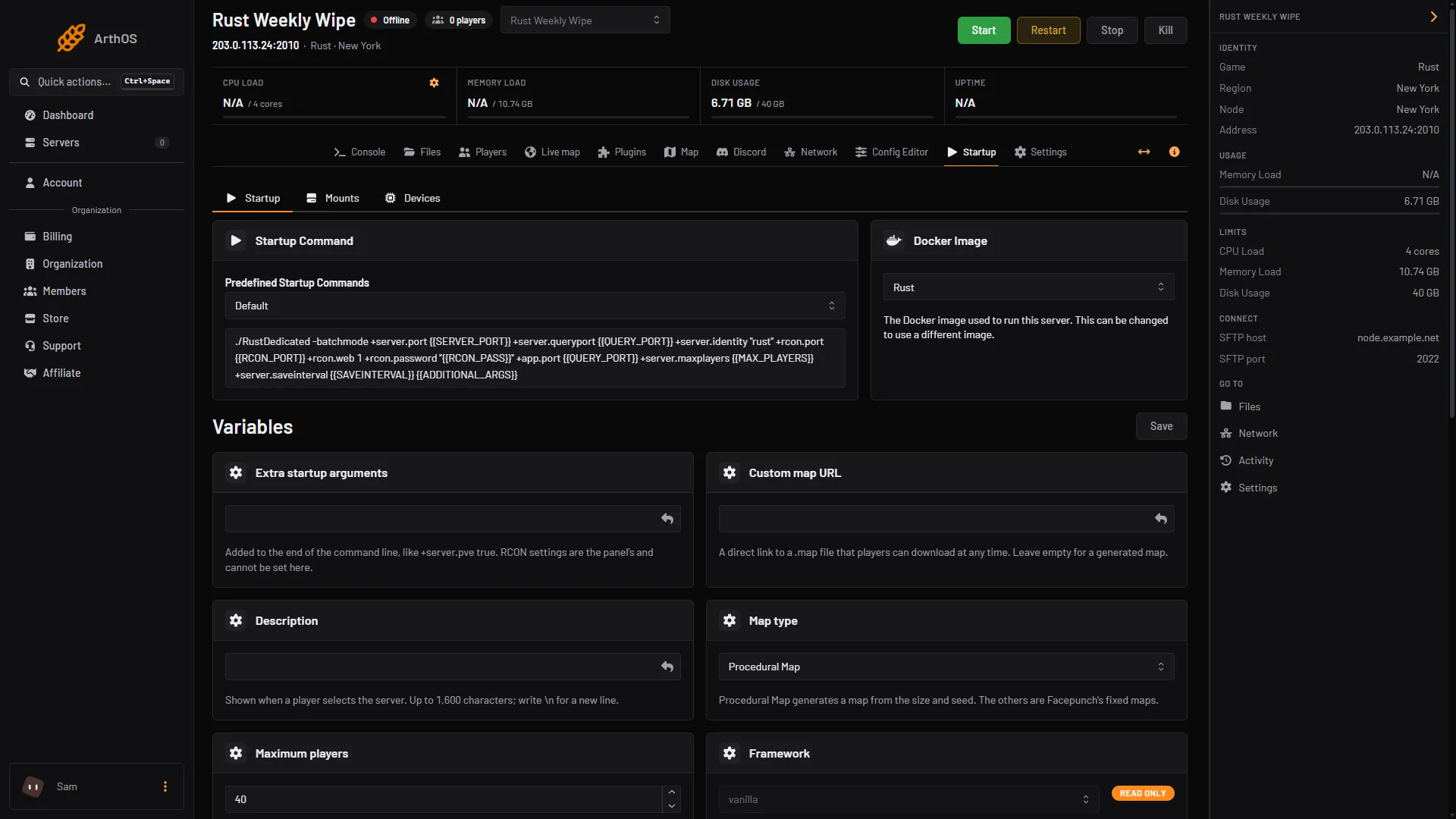
- Type the description
- Press Save
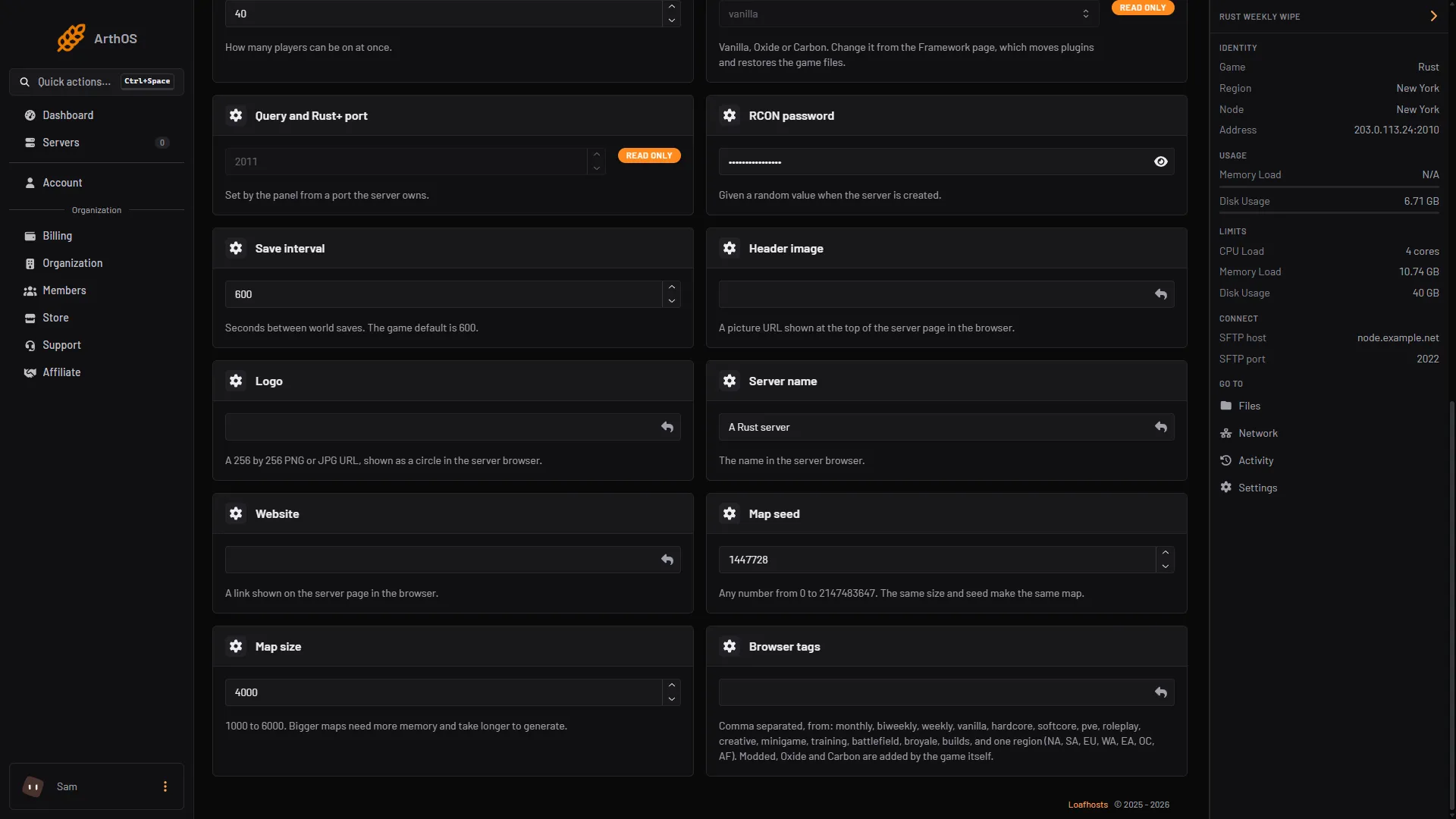
- Type the name
- Paste the header link
- Paste the logo link
- Type the tags
On a running Rust server the panel sends these six to the game as it saves, and says so: “The server list name and details changed on the running server now; the rest applies on the next start.” If the game does not confirm a value, it is used the next time the server starts. Either way it is saved.
The images
The panel has no upload for the logo and header image; they must be links. The link must go straight to the picture file, so the picture itself opens when you paste the link in a browser. Host it on a site you control or an image host that gives direct links.
- Logo: Facepunch, the maker of Rust, recommends 256 by 256 pixels. The game shows it as a circle, so anything in the corners is cut off. Keep the logo in the middle.
- Header image: a link to a picture. Facepunch’s wiki does not give a size, so try a wide picture and check how it looks on the server’s page in game.
The tags
Type the tags separated by commas, with no spaces, for example weekly,vanilla,roleplay. The tags you can use:
| Group | Tags |
|---|---|
| Wipe schedule | monthly, biweekly, weekly |
| Difficulty | vanilla, hardcore, softcore |
| Region | NA, SA, EU, WA, EA, OC, AF |
| Other | pve, roleplay, creative, minigame, training, battlefield, broyale, builds |
Take at most one tag from each of the wipe, difficulty and region groups. Two tags from one group, such as weekly,monthly, can stop the server showing up in searches for either. The game shows up to four tags. Modded, Oxide and Carbon are added by the game itself when you run a plugin framework, so you cannot type them.
By hand
Put the settings in server/<identity>/cfg/server.cfg, one per line, without a plus sign:
server.hostname "My Rust server"
server.description "Weekly wipe. Friendly admins."
server.url "https://example.com"
server.headerimage "https://example.com/header.png"
server.logoimage "https://example.com/logo.png"
server.tags "weekly,vanilla,EU"
The server reads this file when it starts. You can also pass them on the command line as +server.hostname "My Rust server". Restart the server to apply a change.
If it does not work
- Save refuses the value. The name and description cannot contain a double quote, the website and images must be web links, and the tags may hold only letters and commas.
- The old name still shows in the browser. The panel has saved it. The in-game list can take a while to refresh. Search again after a few minutes.
- The logo or header does not show. The link must open the picture directly in a browser. A link to a web page that contains the picture does not work.
- The logo looks cut off. The game draws it in a circle. Move the important part to the middle.
- A setting on the Config Editor tab does not stick. On the panel, the name and the other list settings come from the Startup tab, which wins over
server.cfg.
More on the game: Rust servers.
Sources: wiki.facepunch.com: Creating a server, wiki.facepunch.com: Custom server icon, wiki.facepunch.com: Server browser tags