






Most Rust servers that do not show up are still starting, have a tag that breaks the search, or sit in a list the player is not looking at. Test the join line first. If joining works, the problem is the list, not the server.
1. Check that you can join
- Open the Players page. The join line there reads like
client.connect 203.0.113.24:28015. Press Copy. - In Rust, press F1 and paste the line. If you connect, the server is up and the fix is below. If not, read the console on the Console tab.
- Wait for
Server startup complete. The first start builds the map and takes several minutes, and Facepunch says to join once that line appears.
2. Check the query port
Rust lists a server through its query port. The game port and the query port are both UDP, both must be open, and they cannot be the same number.
On a Loafhosts server you do not set this. The Query and Rust+ port on the Startup tab is filled in by the panel from a port your server owns, and you cannot edit it.
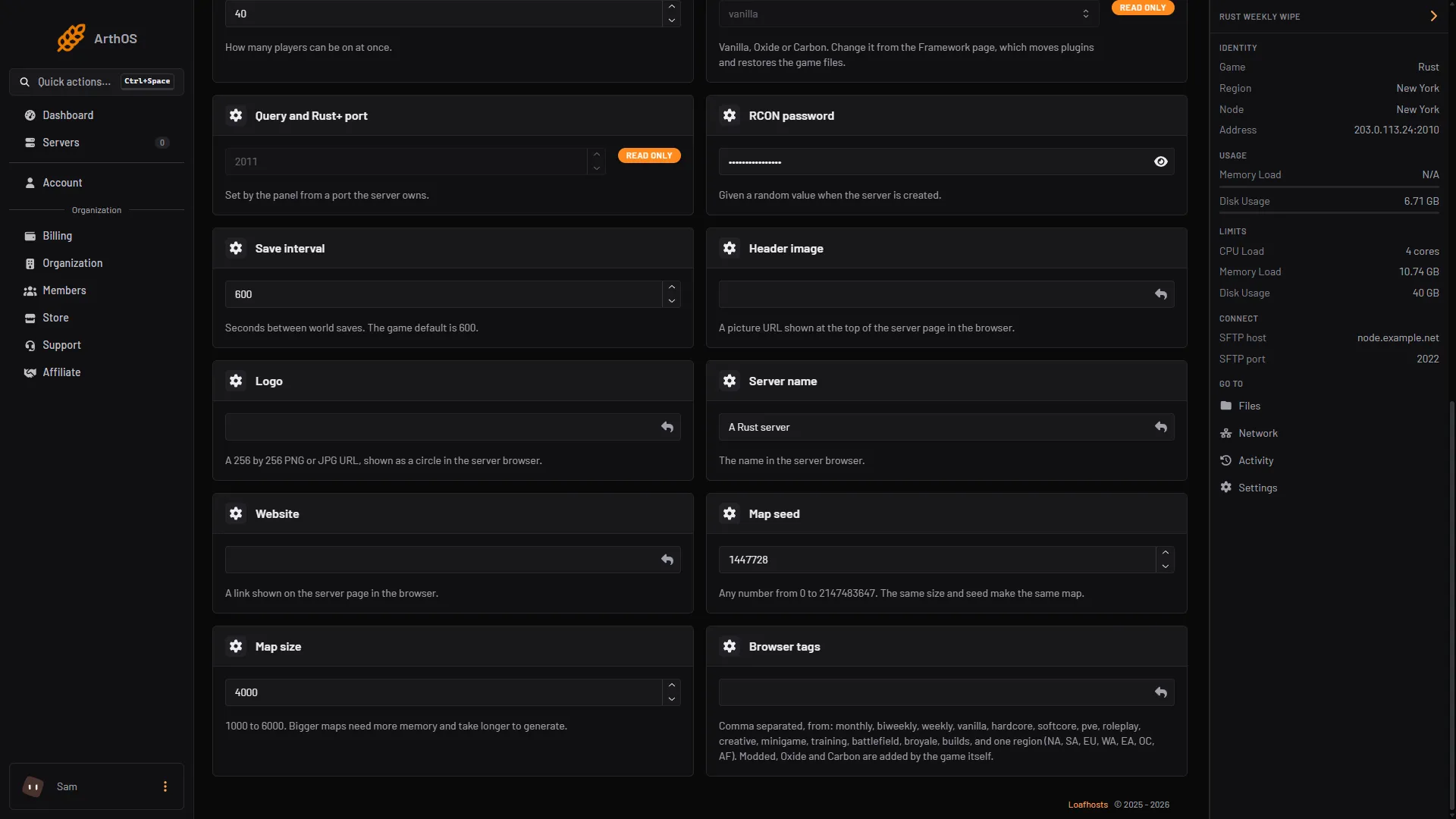
- Query and Rust+ port, read only
- Browser tags
If you host yourself, add +server.queryport 28017 to the start line, or leave it unset. When it is unset, the server uses one more than the game port or the RCON port, whichever is higher. Open both ports for UDP in your firewall and router.
3. Check the browser tags
Tags are what players filter the list by.
- Open Startup and find Browser tags. The Config Editor Server list group also lists Browser tags, but the Startup page wins over
server.cfg. - Use at most one tag from each group. Only one of
monthly,biweeklyorweekly. Only one ofvanilla,hardcoreorsoftcore. One region:NA,SA,EU,WA,EA,OCorAF. Two tags from one group stop the server from showing for some searches. - Separate them with commas and no spaces, such as
weekly,vanilla,EU. The tags are lower case and the region is upper case. The browser shows up to four. - Do not type
modded,oxideorcarbon. Rust adds those itself when you run a framework. - Press Save. On a running server the panel sends the new tags to the game as it saves, together with the name, description, website, header image and logo. A value the game does not confirm applies at the next start.
By hand, put server.tags weekly,vanilla,EU in server.cfg or on the start line.
4. Look in the right list
- A server running Oxide or Carbon is tagged as modded. Look on the modded side of the browser, not only the community list.
- Search for the exact server name, and turn off filters that hide empty or full servers, a region, or a tag.
- Give a new server a few minutes after it is ready before you decide it is missing.
5. Check the country
Rust works out the country of a server from its address with a third-party service. If that is wrong, the server shows in the wrong region. Ask the service for a correction, and tell your host. Facepunch’s wiki links the request form.
If it does not work
- You can join, but the list never shows it. Check the tags first. Clear Browser tags, save, and search by name. Restart if the panel says a value waits for the next start.
- You cannot join either. The server is not ready, or a port is closed. Check Server startup complete in the console, and the query port as above.
- You changed tags and nothing happened. If the game did not confirm the change, it applies at the next start. Restart the server.
More about Rust on the Rust page.
Sources: wiki.facepunch.com: Creating a server, wiki.facepunch.com: Server browser tags