









Every player on a 7 Days to Die server has a permission level, a number from 0 to 1000. 0 can run every command. 1000 is a normal player, and it is what everyone gets until you give them another number. A lower number means more power.
How the numbers work
- 0 is the highest level. That player can run every console command.
- 1000 is the lowest level. A player with no level of their own has 1000.
- A player can run a command when their number is the same as, or lower than, the number set for that command.
- A command with no number set needs level 0, so only level 0 can run it. The server’s own console can always run it.
So if you set the command kick to 1, a player at level 1 can kick, and a player at level 5 cannot.
In the panel
Give a player a level
- Open the Players page.
- Find the player in Online or in Seen before. A player who is away can be given a level too.
- Open their menu (three dots) and choose Make admin. If they already have a level, the choice is Change admin level.
- Type the Level (1). The box reminds you that 0 runs every command and a higher number can run fewer (2). The panel takes 0 to 999.
- Choose Save (3).
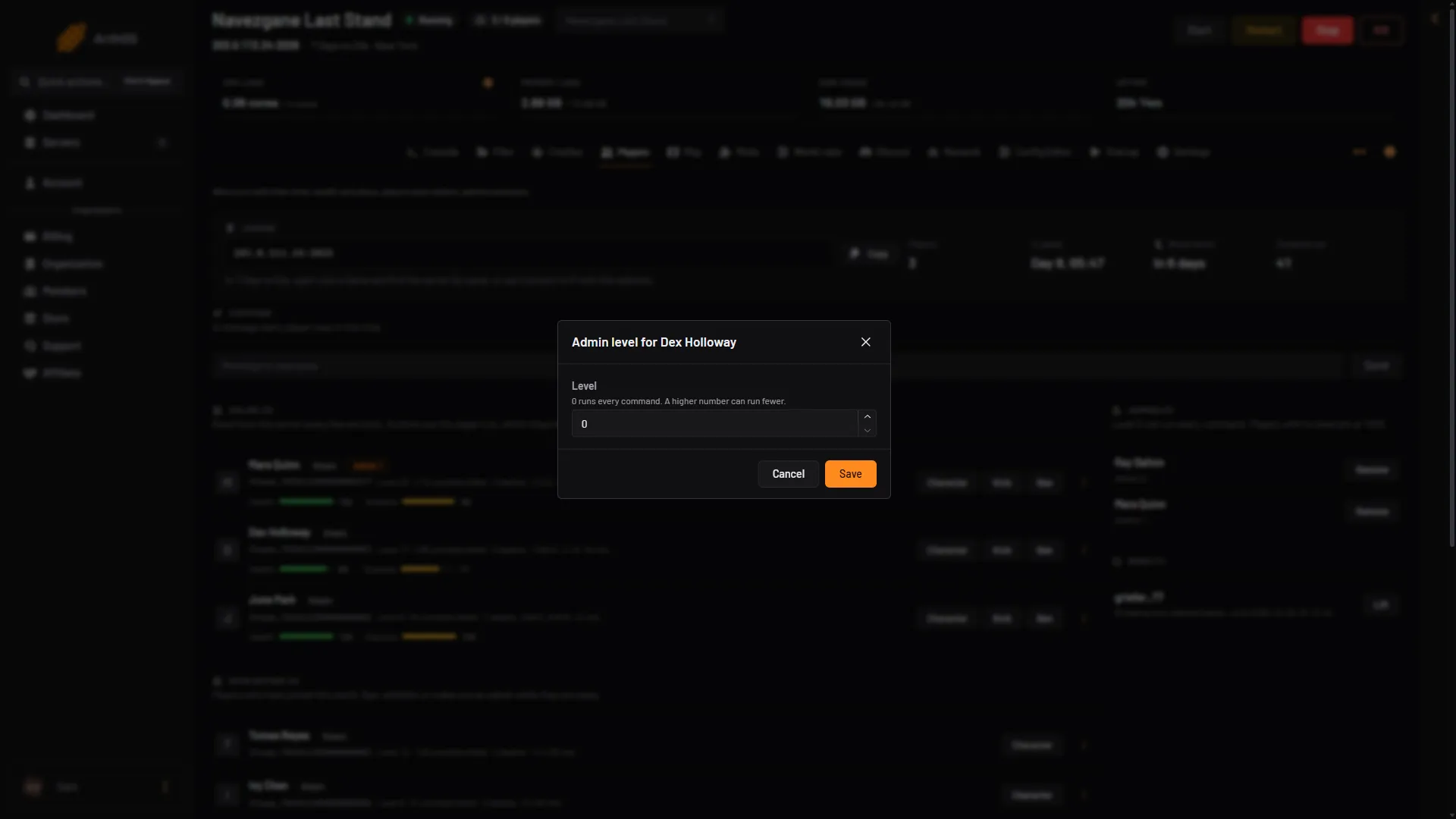
- Type the level
- What the number means
- Save
The player then shows the tag Admin with their level, and the Admins card lists them. To take the level away, choose Remove on that card. The player goes back to 1000.
Reserved slots and admin slots
Two pairs of settings use permission levels to hold places on a full server. Open Config Editor and look at the Slots group, or search for “slot”.
- Reserved slots: of the Maximum players, this many places can only be used by players at the level below. The default is 0.
- Reserved slots level: the level a reserved place needs. The default is 100, so a player at level 100 or lower can use one.
- Admin slots: how many admins can still join when the server is full. The default is 0.
- Admin slots level: the level an admin place needs. The default is 0.
Choose Save. While the server runs, the editor says “Saved. Restart the server to apply the changes.” Choose Restart now, or choose Restart at the top of the server page.
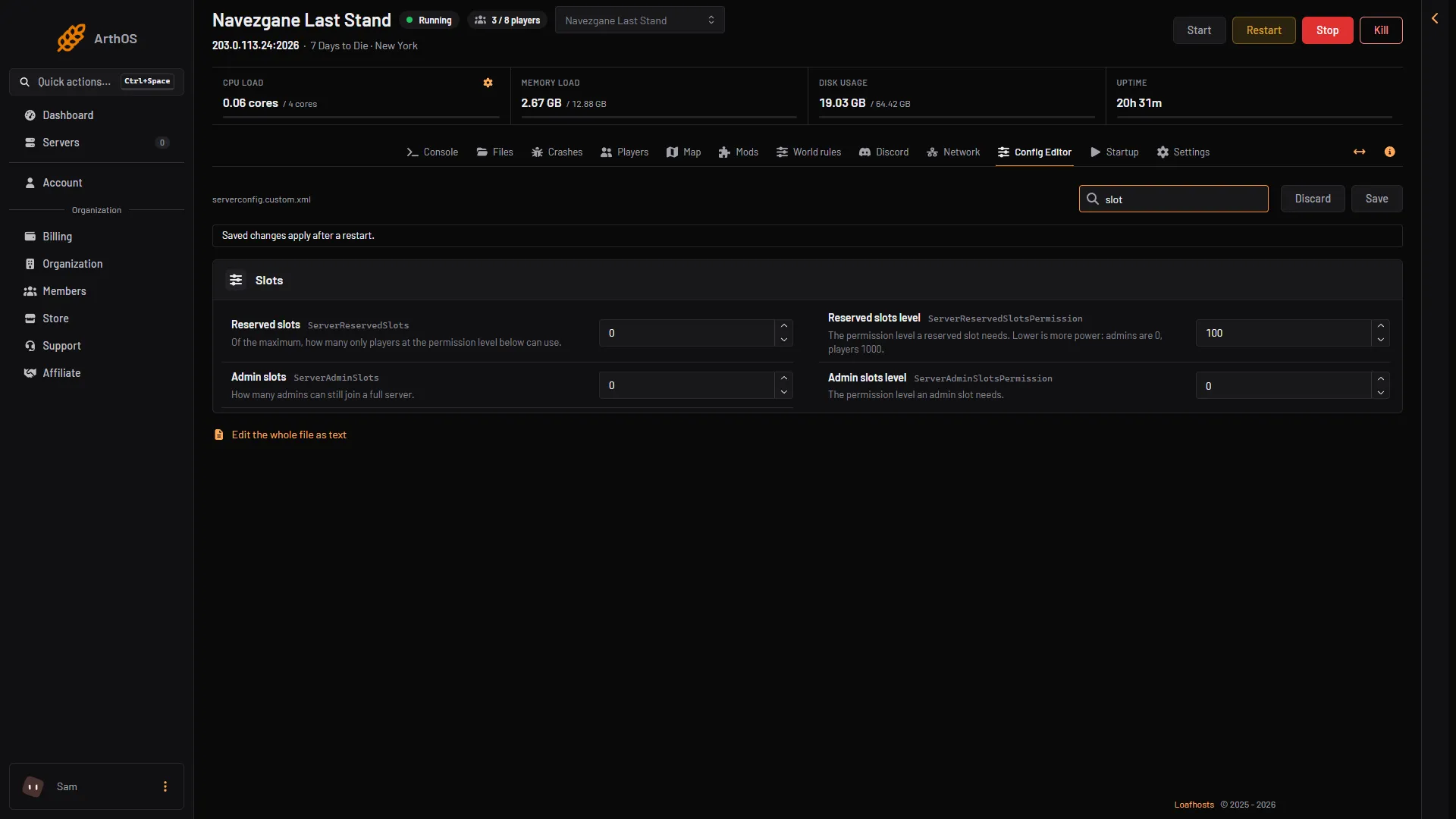
- Reserved slots
- Reserved slots level
- Admin slots
- Admin slots level
By hand
Type these on the Console page, without a slash.
admin add <id> <level>: gives a level. The id is the number fromlpifor a player who is online, or the player’s platform id for one who is away:Steam_<SteamID64>,EOS_<id>,XBL_<id>orPSN_<id>, as the Players page shows it.admin remove <id>: takes the level away.admin list: shows who has a level.cp add <command> <level>: sets the level a command needs. Example:cp add kick 1.cp remove <command>: takes the setting off. The command then needs level 0 again.cp list: shows every command that has a setting.
The game keeps all of this in the admin file, serveradmin.xml, inside data/Saves (on Loafhosts, open Files, then data, then Saves). The game’s own notes in that file ask you to change it only with these commands, not by editing the file. A command setting looks like this in the file:
<permission cmd="kick" permission_level="1" />The panel writes its own access key into the file before every start. Do not delete that entry.
Not checked on V3.3.0 as of 19 October 2026: whether a player who is online must rejoin before a new level applies.
If it does not work
- The player cannot run a command you gave them. The command may have no setting, so it needs level 0. Run
cp add <command> <level>. Or their number is too big for that command: it must be the same as, or lower than, the number set for it. - “Make admin” is missing. Your panel role may not allow changing admin levels.
- The panel refuses a level of 1000. 1000 is the level of a player with no level. Use Remove instead.
- The Players page says the server is stopped. Start the server first. Levels are changed through the running game.
More about the game: 7 Days to Die servers.
Sources: 7daystodie.wiki.gg: Serveradmin.xml, 7daystodie.wiki.gg: Command Console