









Join your server once. Then open the Players page, open your row and choose Make admin with level 0. A player can run a command when their number is the same as, or lower than, the number set for that command. Level 0 can run every command. The server must be running.
In the panel
- Join the server in the game, so the server has your name.
- Open the Players page.
- Find yourself in Online (N). If you have left the game, you are in Seen before (N). You can make a player admin while they are away.
- Open the menu (three dots) on your row and choose Make admin (the box in the first picture). The box is titled “Admin level for” and your name.
- Leave Level (box 1 in the second picture) at
0. The note (box 2) says: “0 runs every command. A higher number can run fewer.” - Choose Save (box 3).
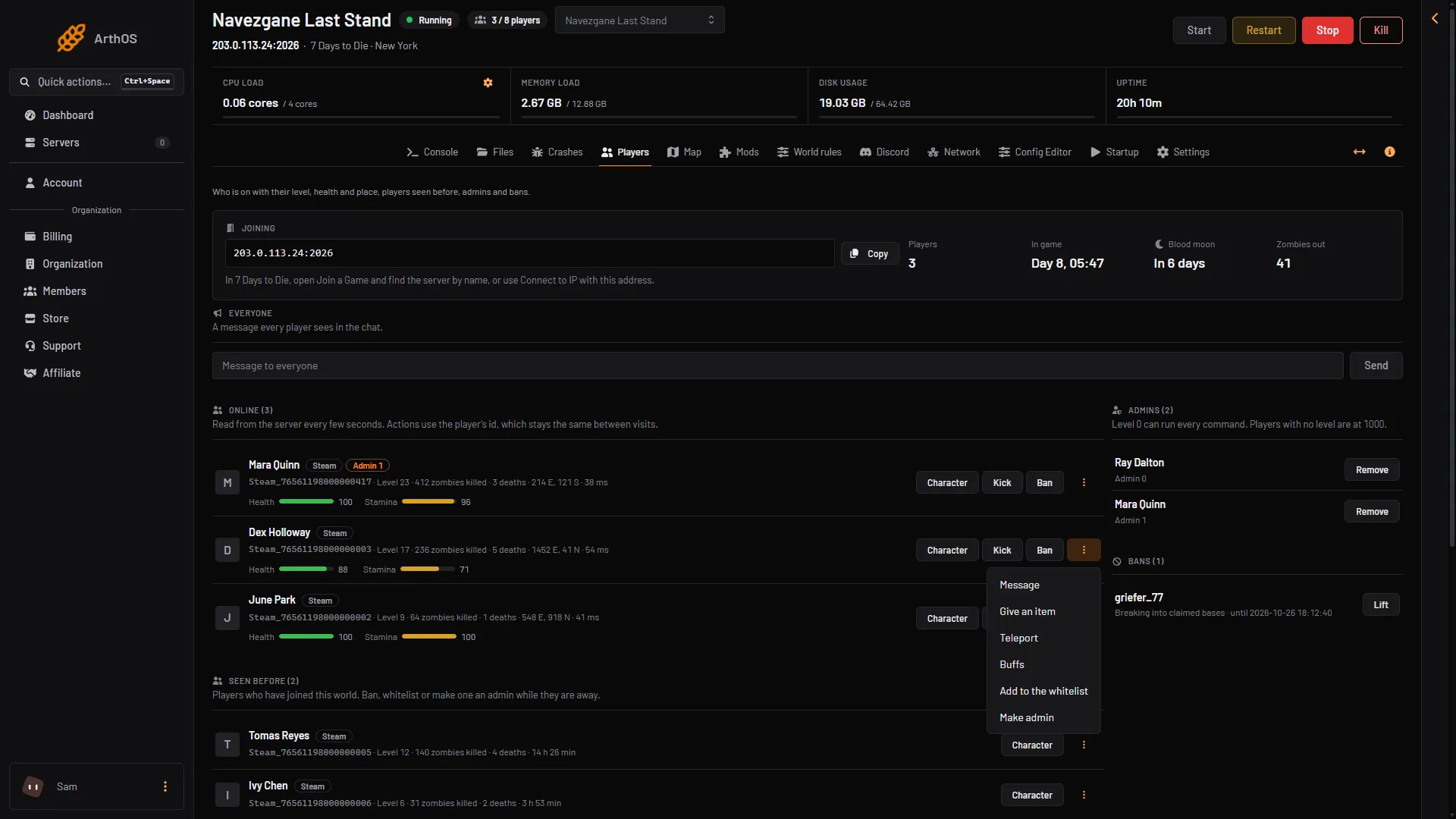
- Make admin
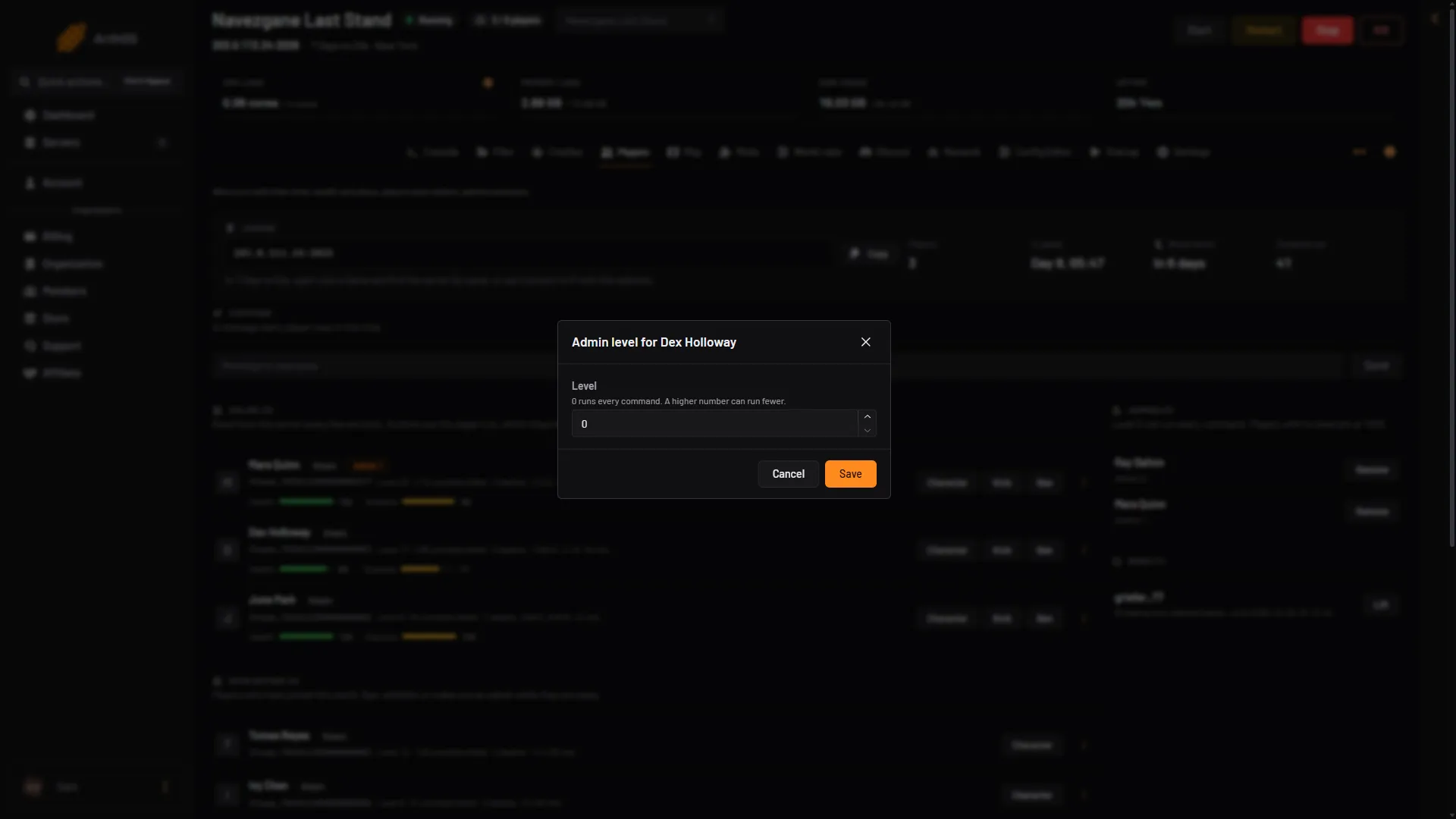
- Level
- Level hint
- Save
You are now listed in the Admins (N) card on the right of the page.
Change a level or remove an admin
- To change a level, open the player’s menu and choose Change admin level. Pick a new number and choose Save.
- To remove an admin, find them in the Admins (N) card and choose Remove.
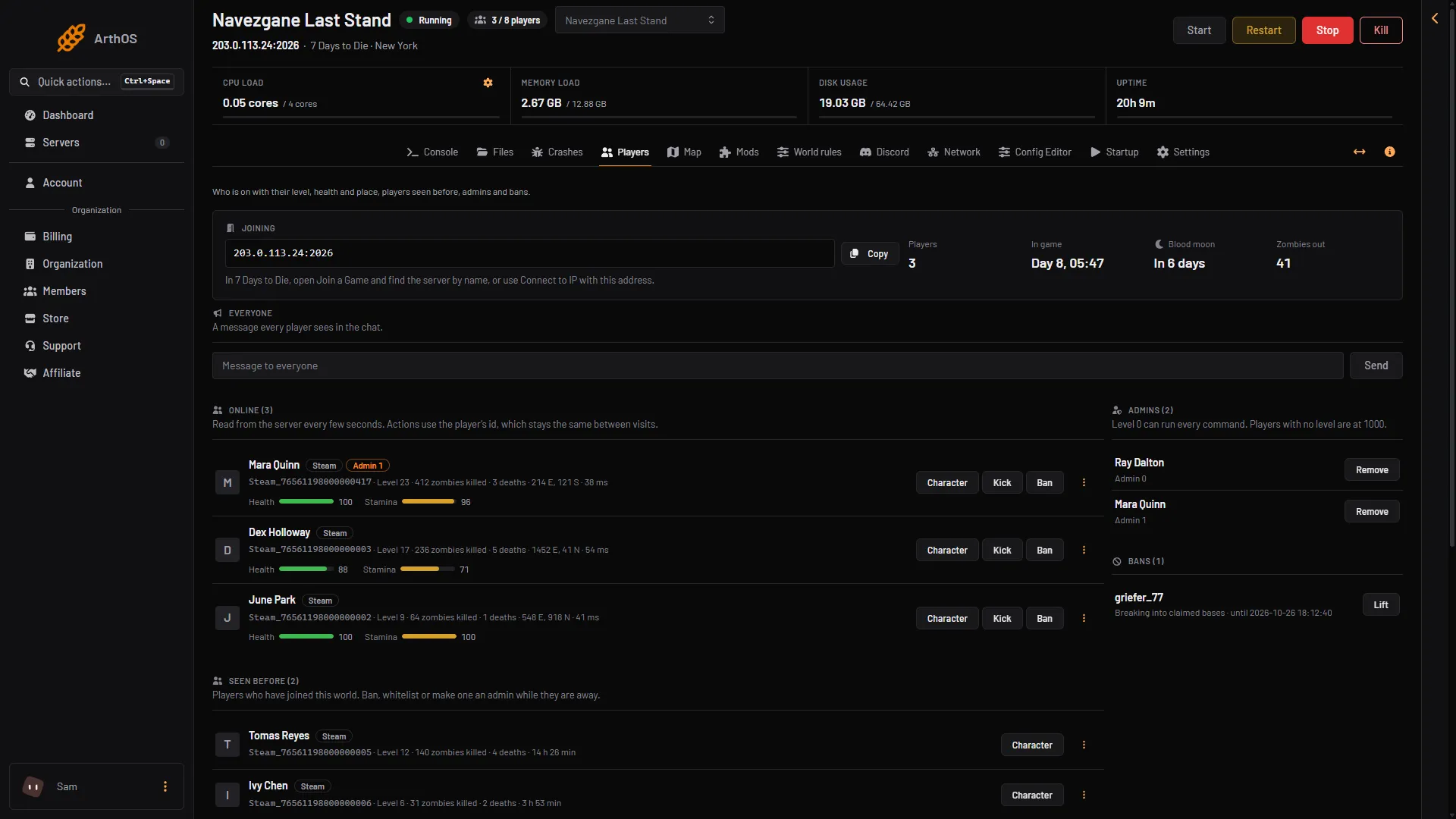
- Admins
- Remove admin
You can use any level from 0 to 999. A lower number is more power. A player with no level is at 1000 and has no admin rights. A player can run a command when their number is the same as, or lower than, the number set for that command.
By hand
Use the Console page, without a slash.
- Find your id. Type
listplayerids(orlpi). It lists every player with the ids the commands use. The game also writes your id in the server log when you join. - Type:
admin add <id> 0An id looks like Steam_76561190000000000. While you are online you can use your name or your entity number from lpi instead of the id. Players who are away can only be added with the platform id.
- Type
admin listto check. It lists every admin with the level.
To remove an admin, type admin remove <id>.
The game keeps admins in the file serveradmin.xml. On Loafhosts it is in the data/Saves folder of the server (the game’s rule: the path is relative to UserDataFolder/Saves). An entry looks like this:
<user platform="Steam" userid="..." name="..." permission_level="0" />The game’s own notes say to change it only with the admin command or the Web Dashboard, so use the Players page or the Console, not a text editor.
Check it in the game
- Join the server.
- Press F1 to open the console.
- Type
help.
The console lists the commands. If a command is refused, you are not an admin yet, or your level number is too big for that command. Type help <command> to see how a command is used. The commands are listed in 7 Days to Die console commands.
If it does not work
- There is no Make admin on your row. The server may be stopped: the lists only show while it runs. Choose Start at the top of the server page. Your role in the panel may also not allow changing admin levels.
- The panel says the server is not answering. Wait for it to finish loading its world, then try again.
- The command is refused in the game. Your level number is too big for that command. Use level 0.
- You cannot find yourself in the list. Join the server once. A player who has never joined cannot be found by name.
More about the game: 7 Days to Die servers.