









Open the Config Editor, go to the Slots group and change Maximum players. The panel accepts 1 to 100. The change applies at the next restart. A new Loafhosts server starts at 8 players, whatever plan was bought, and it has crossplay off.
Change Maximum players
- Open the Config Editor page.
- Find Maximum players in the Slots group.
- Type a new number in Maximum players. The help under it says: “How many can play at once. Crossplay servers allow 8 at most.”
- Choose Save. If the server is running, the page says “Saved. Restart the server to apply the changes.” Choose Restart now, or restart it later.
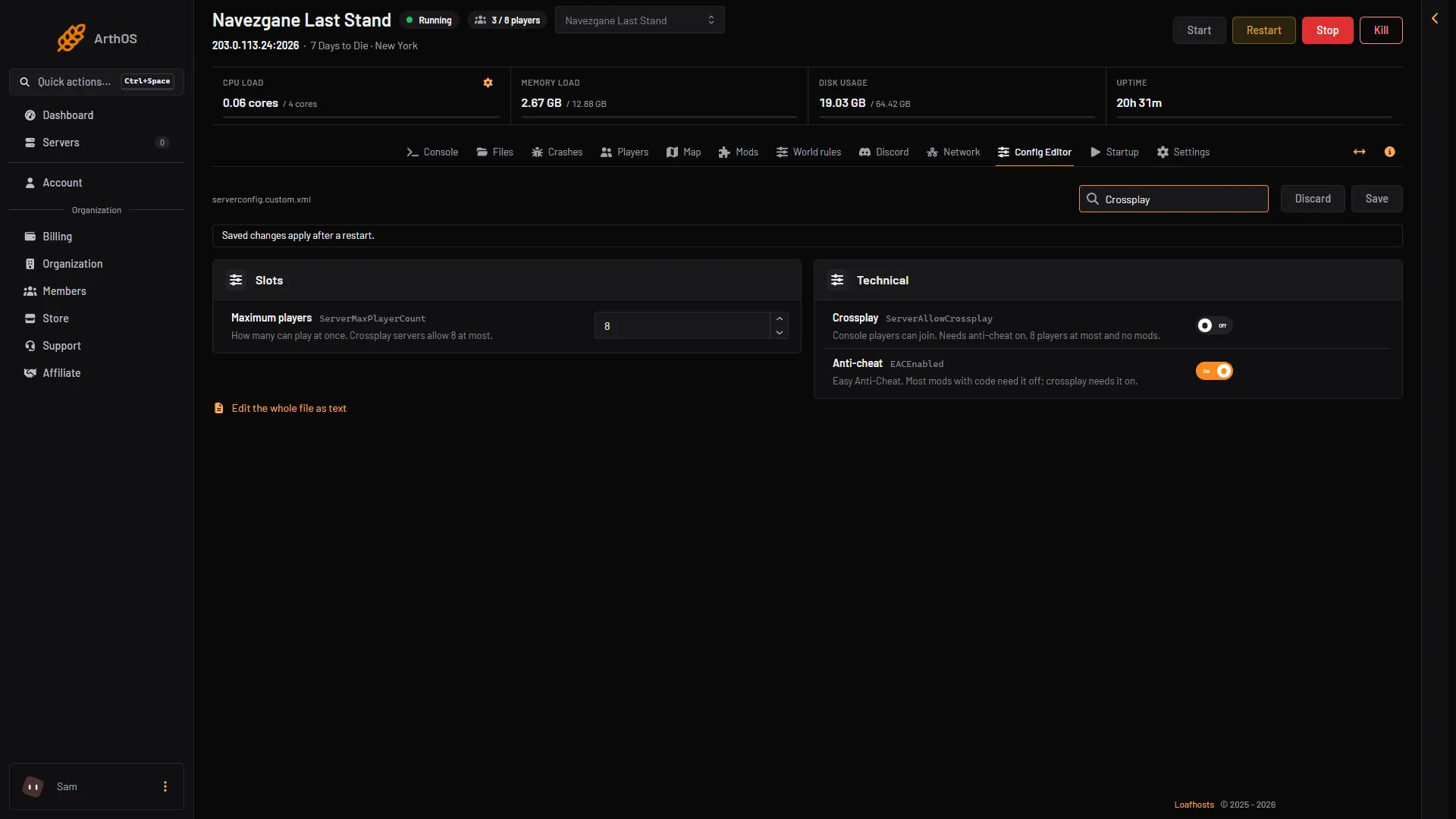
- Maximum players
- Crossplay
Type the number in Maximum players (box 1). Crossplay (box 2) sits in the Technical group.
The game’s own name for this setting is ServerMaxPlayerCount. Its default is 8.
Crossplay servers: 8 players at most
A server with crossplay on lets console players join. The game only lists and accepts a crossplay server that has the default number of slots or fewer. The default is 8, so 8 is the most. If you want more than 8 players, turn crossplay off first. See 7 Days to Die crossplay server.
Reserved slots
A reserved slot is a seat kept free for trusted players. Say the maximum is 10 and you set Reserved slots to 2. Then 2 of the 10 seats can only be used by players at the level set in Reserved slots level.
- Reserved slots: “Of the maximum, how many only players at the permission level below can use.” The default is 0.
- Reserved slots level: “The permission level a reserved slot needs. Lower is more power: admins are 0, players 1000.” The default is 100.
A level is a number from 0 to 1000 in the game. Level 0 is the strongest. The panel’s Make admin takes 0 to 999. A player who has no level set is at 1000. A player whose level is the number you set, or lower, can use a reserved slot. With the default 100, an admin at level 0 can, and a normal player at 1000 cannot. For commands the same rule holds: a player can run a command when their number is the same as, or lower than, the number set for that command. Level 0 can run every command. See 7 Days to Die permission levels.
Admin slots
Admin slots let your admins join even when the server is full.
- Admin slots: “How many admins can still join a full server.” The default is 0.
- Admin slots level: “The permission level an admin slot needs.” The default is 0, so only level 0 admins use them.
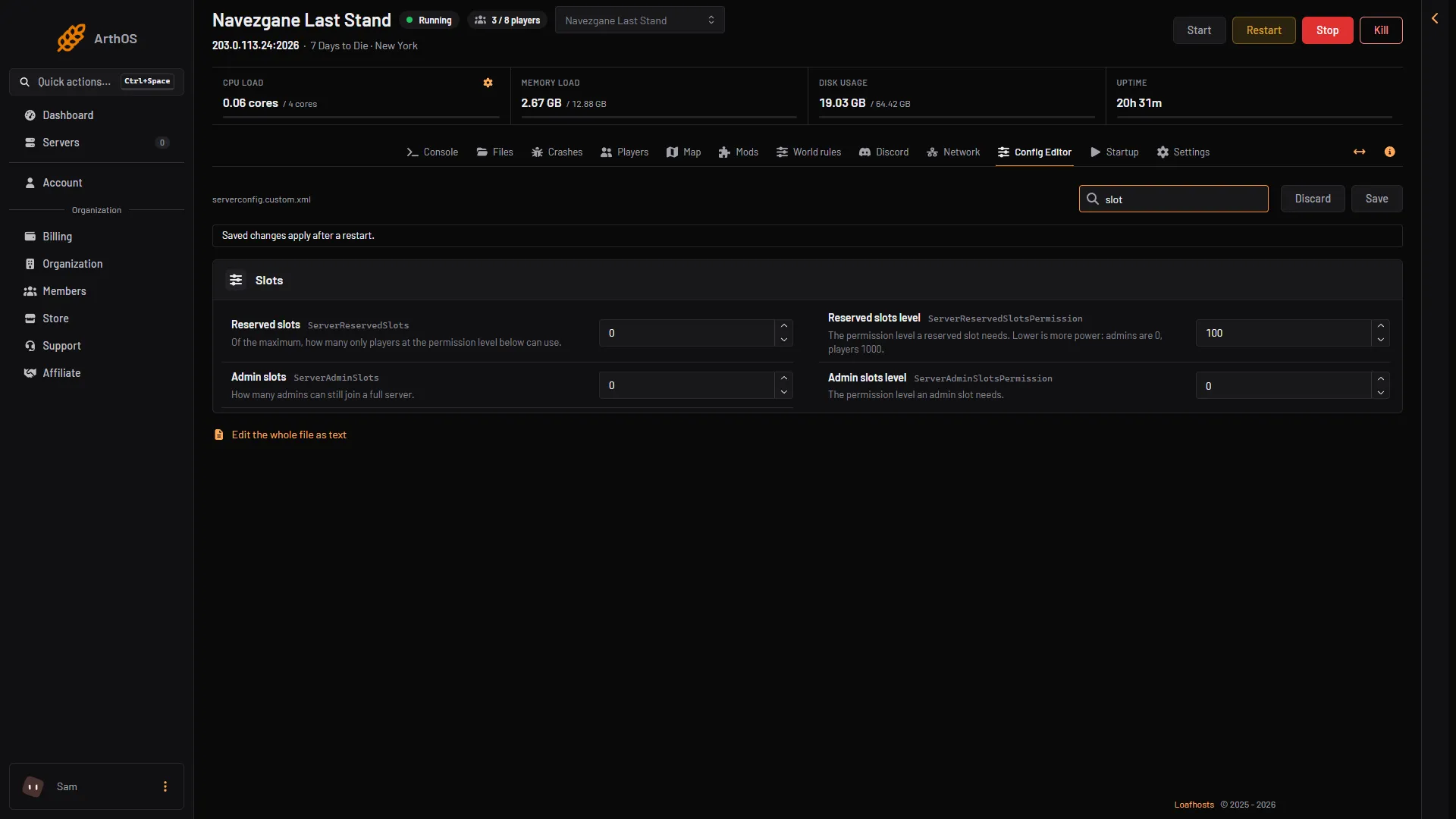
- Reserved slots
- Reserved slots level
- Admin slots
- Admin slots level
For example, with a maximum of 8 and 1 admin slot, eight players can be on and one more admin can still join as the ninth.
By hand
Open Files and edit serverconfig.custom.xml. Loafhosts servers start from this copy, because the game replaces serverconfig.xml at every update. The lines are:
<property name="ServerMaxPlayerCount" value="8"/>
<property name="ServerReservedSlots" value="0"/>
<property name="ServerReservedSlotsPermission" value="100"/>
<property name="ServerAdminSlots" value="0"/>
<property name="ServerAdminSlotsPermission" value="0"/>
Change only the number in value. Restart the server after the edit.
If it does not work
- The number did not change. The server was not restarted. Choose Restart at the top of the server page.
- A player cannot join a crossplay server with more than 8 slots. Set the maximum to 8 or less, or turn crossplay off.
- The server lags with more players. Lower the number, or lower Most view distance and Zombies at once in the Performance group of the Config Editor.
- Not checked on V3.3.0 as of 19 October 2026: how many players the game can hold before the saved world becomes unreliable.
More about the game: 7 Days to Die servers.
Sources: 7daystodie.wiki.gg: Serverconfig.xml, 7daystodie.wiki.gg: Server