









Open the Players page. To reach everyone, type in Message to everyone and choose Send. To reach one player, open their menu, choose Message, type and choose Send. The message shows in the game chat at once.
Message everyone
- Open the Players page.
- In Everyone, type your text in Message to everyone.
- Choose Send.
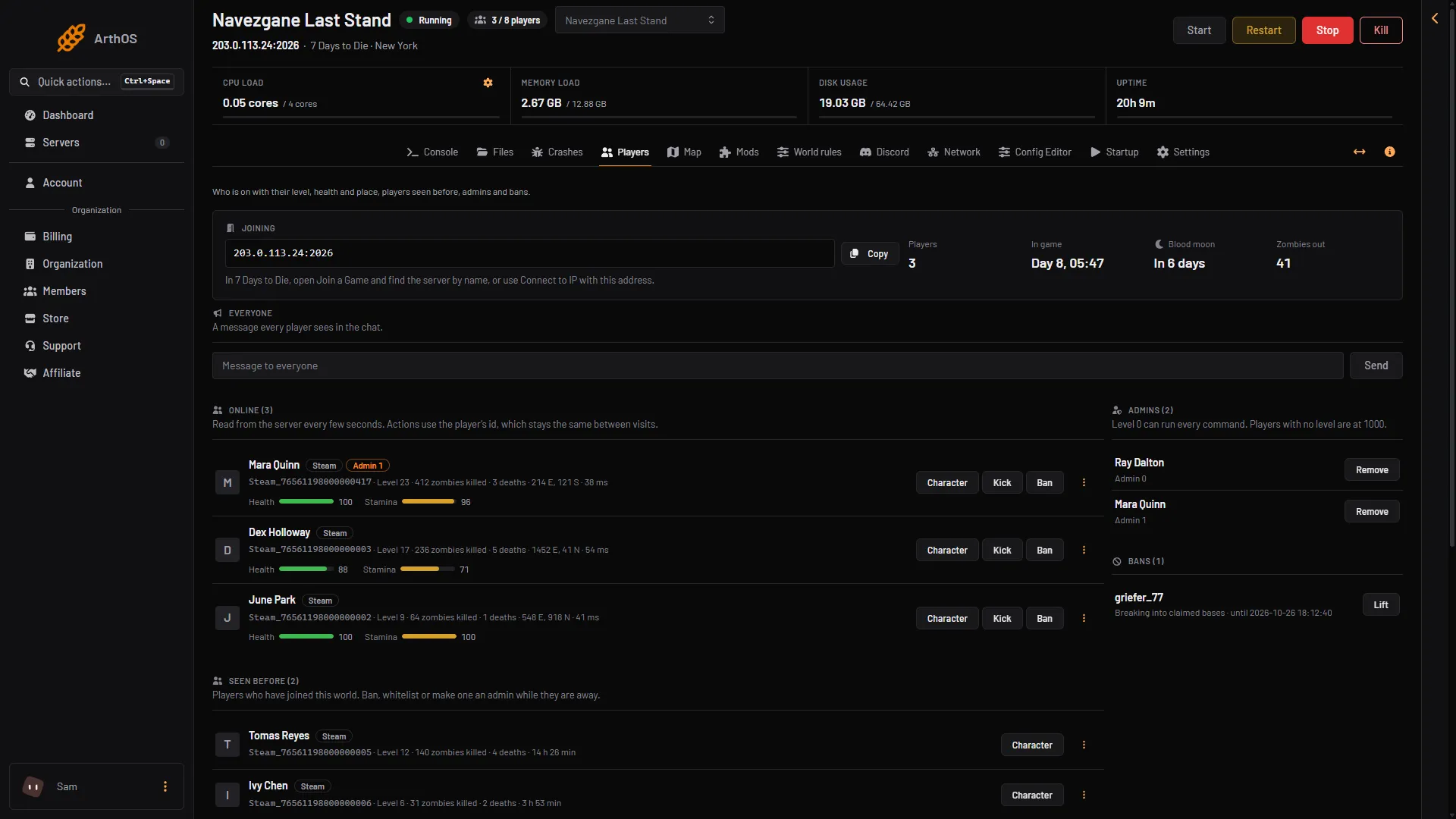
- Message box
- Send
Type in the box (1), then choose Send (2).
Every player who is online sees it in the chat. Someone who joins later does not.
Message one player
- Under Online (N), find the player and open the menu on their row.
- Choose Message. A box titled “Message (name)” opens.
- Type the text in Message. It can be 200 characters long.
- Choose Send.
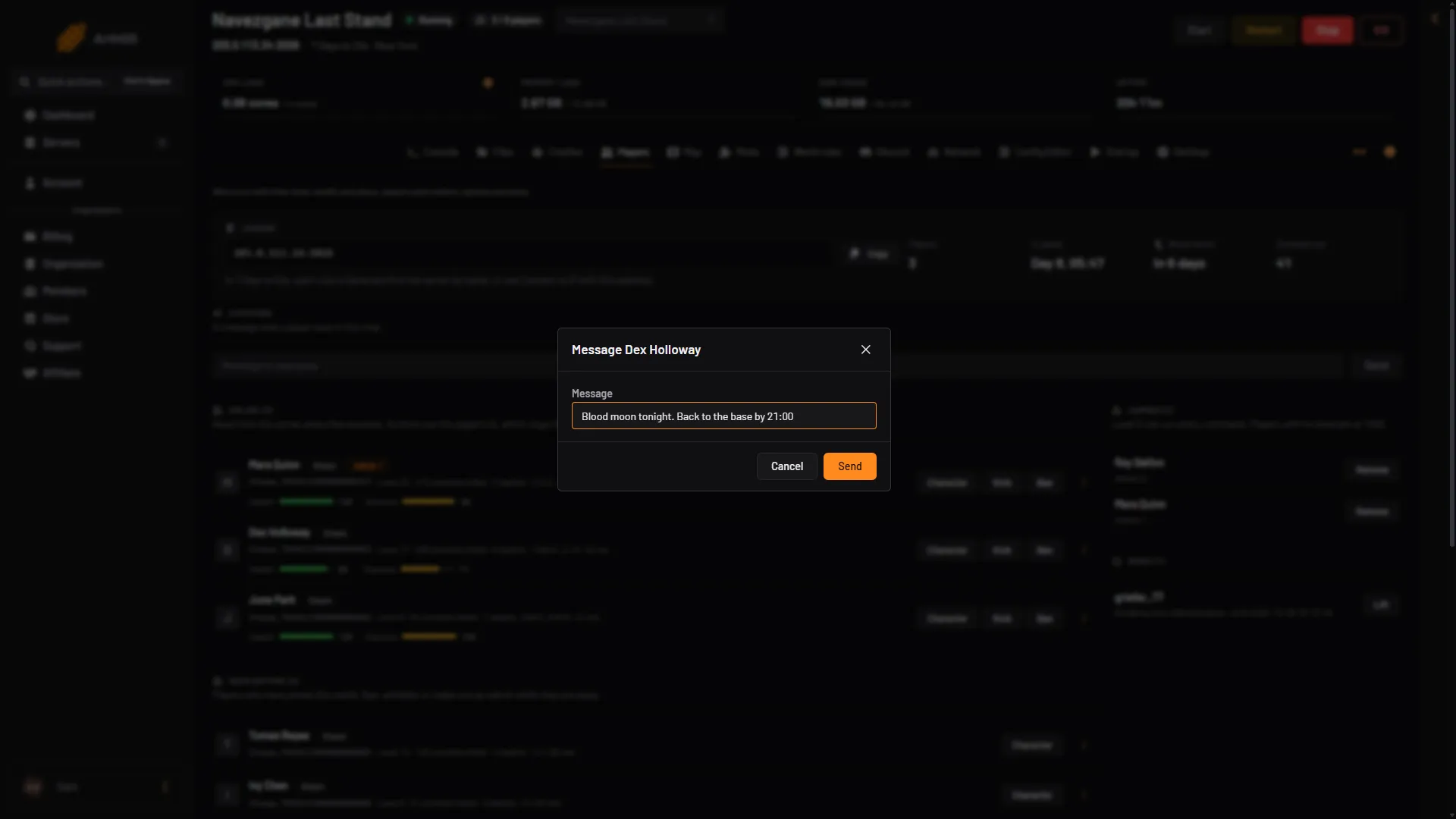
- Message
- Send
Only the player you chose gets it. The player must be online.
By hand
Type these on the Console page, without a slash:
say "text": sends a message to all connected players.sayplayer <player> "text": sends a message to one player. The short form ispm.
<player> is a player name, an entity id or a platform id. Type lpi to list them. Example: say "Blood moon tonight. Get inside.".
The game logs a message sent with say as coming from -non-player-. A private message is not logged with its receiver. See chat logs.
Send a message on a schedule
Use a schedule to warn players before a restart, or to repeat a reminder.
- Open Settings, then the Schedules tab.
- Open a schedule, or choose Create Schedule.
- Choose Add Step and pick Send Command.
- Type the command, for example
say "The server restarts in 5 minutes.". - Add the other steps after it, such as a wait and then the restart. See restarting the server.
Rules players accept when they join
A message in chat is easy to miss. The game can also show a window when a player joins. The player must accept it before they continue.
- Open the Config Editor page.
- In the Server group, find Rules shown on joining.
- Type your rules and choose Save.
- Restart the server (Restart now appears after saving). The change applies at the next start.
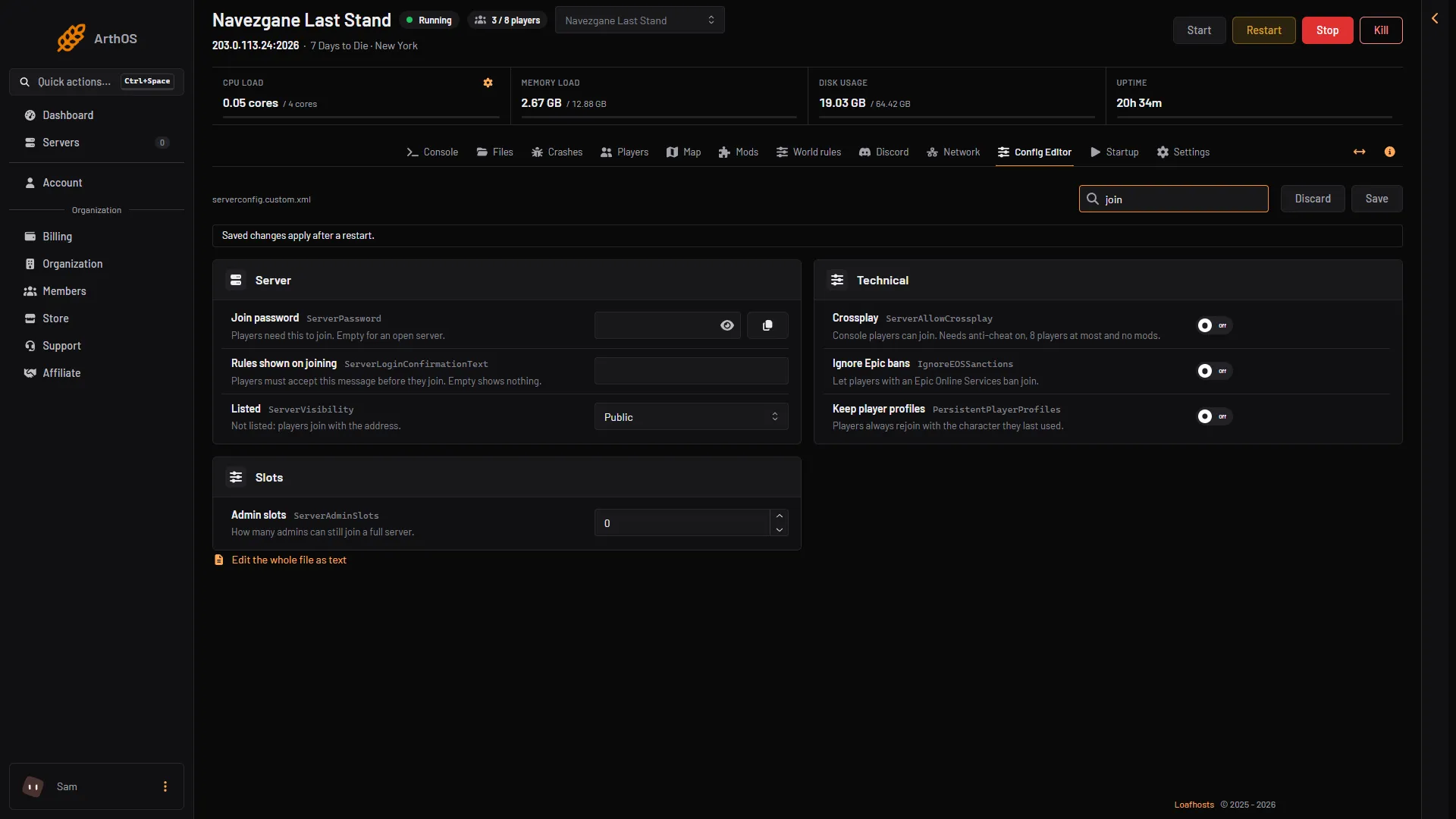
- Rules shown on joining
The setting in the file is ServerLoginConfirmationText. Empty shows nothing, and that is how a new server starts.
If it does not work
- There is no Message on the row. The player is not online, or your role does not allow in-game actions.
- The Everyone box is missing. Your role does not allow in-game actions.
- Nobody sees the message. The server is stopped, or nobody is online yet.
- The rules window does not appear. Restart the server after saving. Check that Rules shown on joining is not empty.
- A scheduled message never arrives. Open the schedule and check that it is turned on and that the step is Send Command.
More about the game: 7 Days to Die servers.
Sources: 7daystodie.wiki.gg: Command Console