









Choose Restart at the top of the server page. The panel asks you to confirm, stops the game so it saves, and starts it again. Players are dropped and can rejoin when the server is back. A restart drops every player, so warn them first with Message to everyone on the Players page. Then nobody loses a fight or a build.
Warn players, then restart
- Open the Players page.
- In the Everyone card, type your warning in Message to everyone. For example: “Server restarts in 5 minutes.”
- Choose Send. Every player sees it in the chat.
- Wait the time you promised.
- Choose Restart at the top of the server page.
- In the box “Restart this server?”, confirm. It says: “The server shuts down and starts again. Anyone connected is dropped and can rejoin once it is back.”
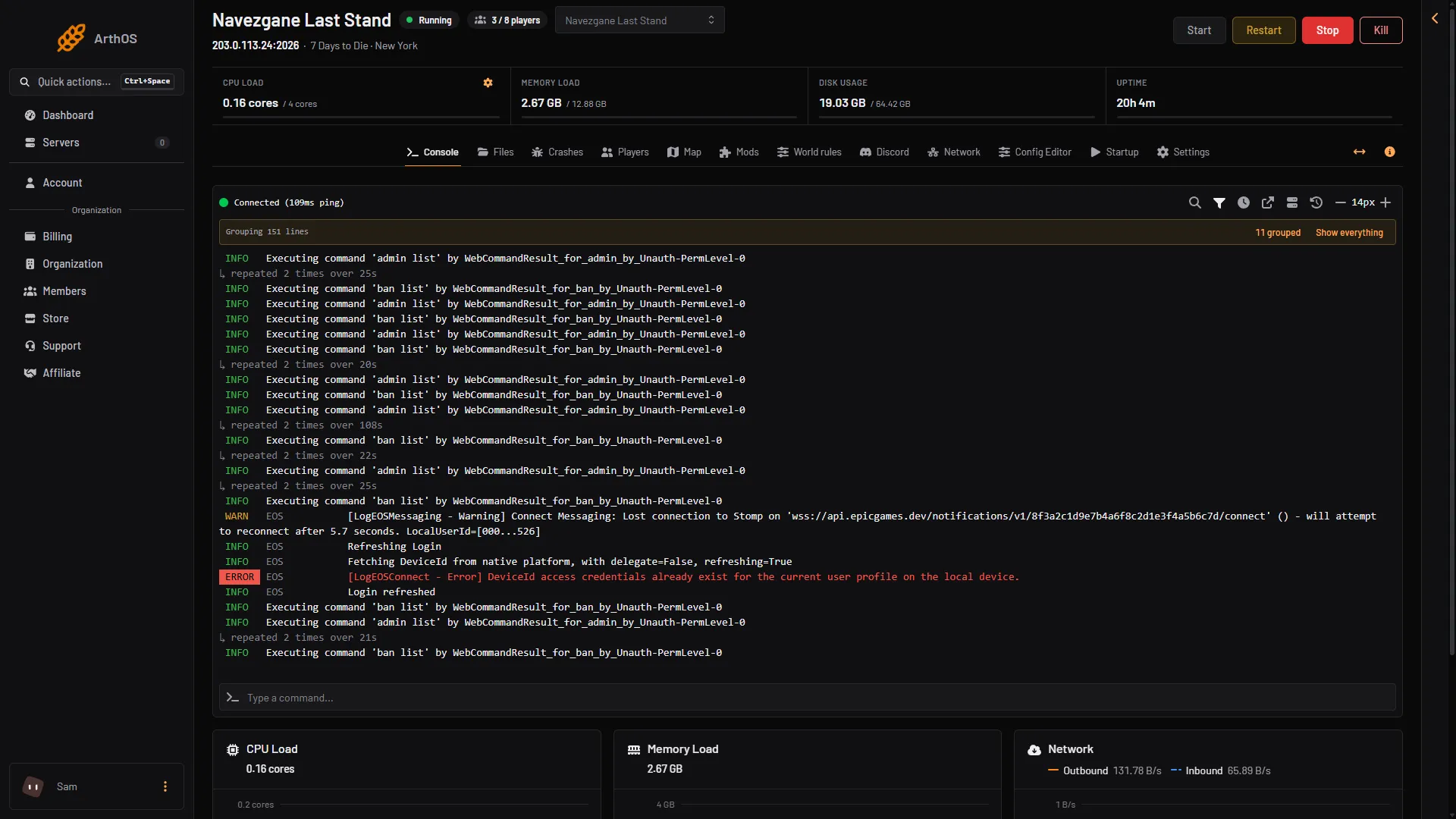
- Restart
- Stop
Restart (1) and Stop (2) are at the top right of every server page, not only on the Console page.
Hold Shift while you click to skip the question next time.
Does the restart save the world?
Yes, when you use Restart or Stop. The panel stops the server with the game’s own shutdown command, and the game saves before it quits. On a Loafhosts server this took about 2 seconds, and the log shows Preparing quit and then Shutdown handler: cleanup.
The panel says about Kill: “This ends the process immediately, without letting the server save first. Anything written since the last save is lost. Use Stop unless the server is already unresponsive.”
A new server on the Navezgane map was ready about 30 seconds after it started. The log line StartGame done means it is ready to join.
Restart on a timer
Use a schedule to restart every day. It also keeps the server fresh if its memory grows over days.
- Open Settings and then the Schedules tab.
- Choose Create Schedule and type a Schedule Name (1), for example “Daily restart”.
- Choose Add Trigger (2). Pick Time Interval (Cron), set Runs to Daily and pick the time in At. Times use the server timezone shown on the page.
- Choose Add Step. For Action Type pick Send Command. Type:
say "Server restarts in 5 minutes."- Add a Sleep step. Its Duration (milliseconds) is 240000 for 4 minutes.
- Add another Send Command step:
say "Server restarts in 1 minute." - Add a Sleep step of 50000, then a Send Command step:
say "Server restarts in 10 seconds." - Add a Sleep step of 10000.
- Add a last step with Action Type Send Power Signal and choose Restart the server.
The steps are added after the schedule exists.
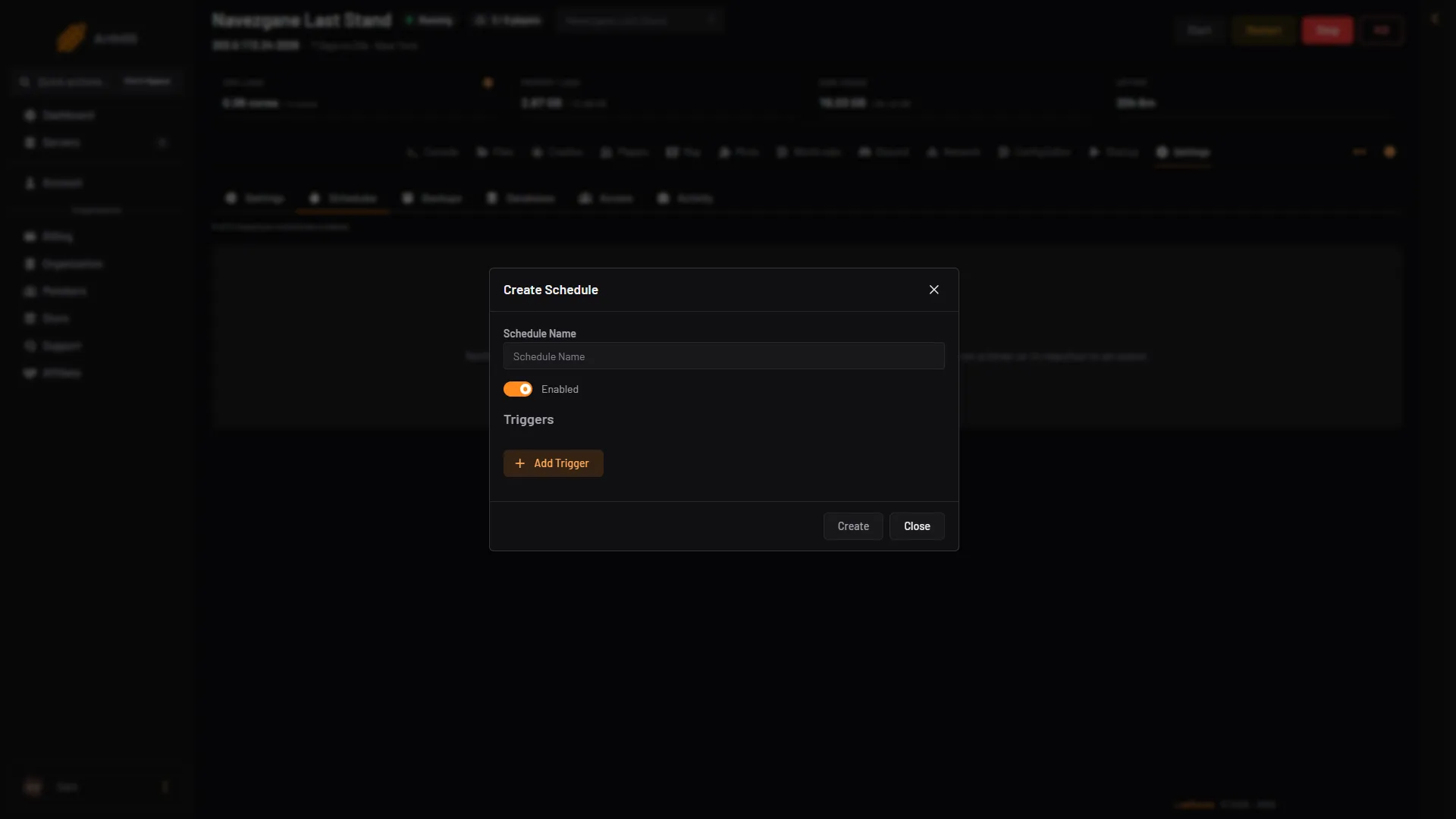
- Schedule Name
- Add Trigger
- Create
Use Run Now to try the schedule once at a quiet moment.
By hand
Type these on the Console page, in the box that says “Type a command…”, without a slash. The answer shows in the console.
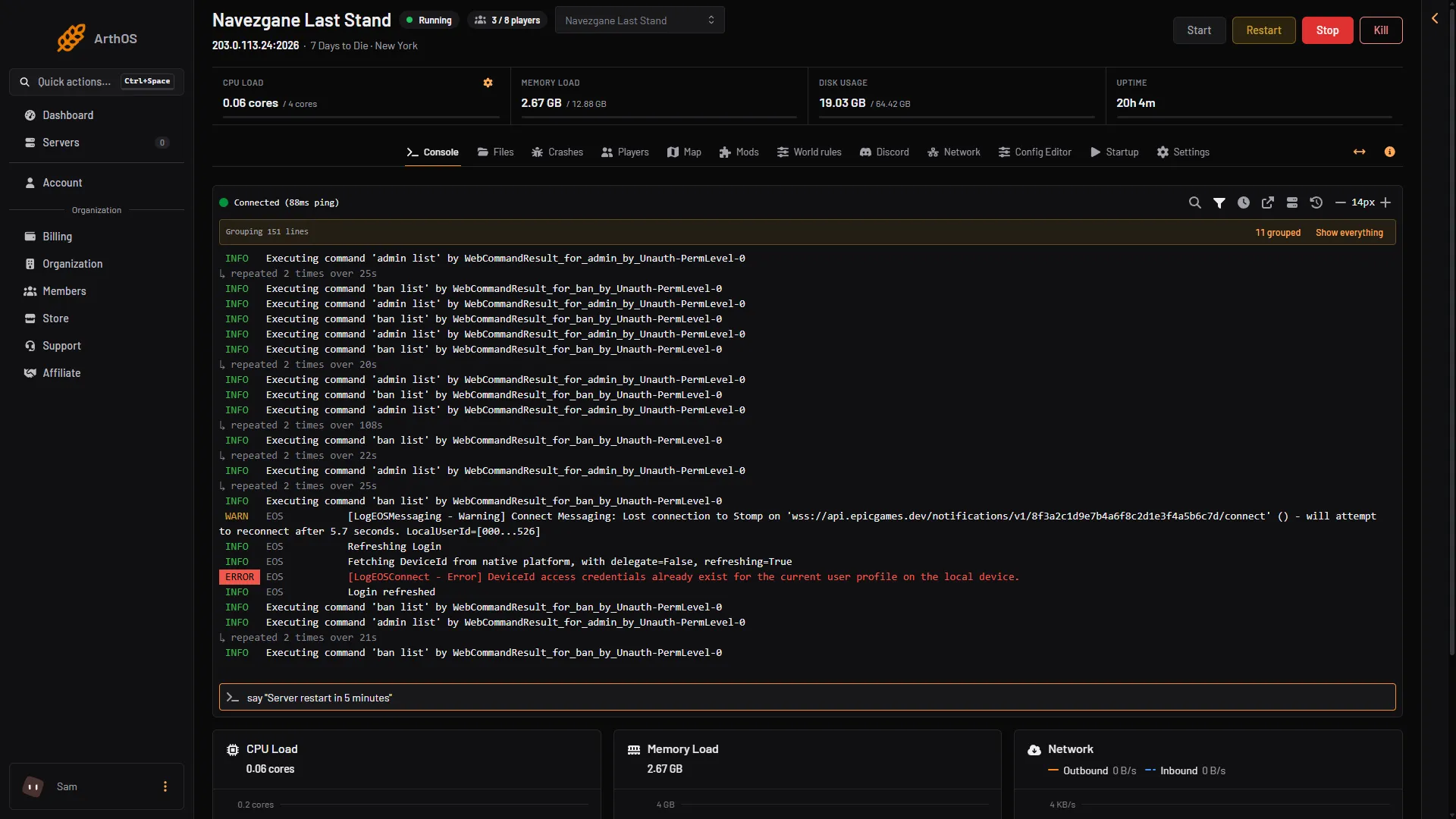
- Command box
say "text": sends a message to all connected players.saveworld: saves the world now. It has the short namesa.shutdown: shuts down the game. The Stop and Restart buttons send it for you, so prefer them.
If it does not work
- The Restart button is missing. Your role may not allow restarting the server.
- The server stops by itself after a long quiet time. The Standby card on the Settings page is on by default and stops a server nobody plays on for 3 days. It has a Wake link to start it again.
- Players do not see the warning.
sayreaches connected players only. Check the Console for the line that confirms it was sent. - The server does not come back. Open the Crashes page. It reads the last starts and says how each ended.
- A change in the Config Editor did not apply. The game reads its settings when it starts, so restart the server. The Config Editor offers Restart now after a save.
- Not checked on V3.3.0 as of 19 October 2026: how the server behaves if you type
shutdownyourself instead of using the buttons. - Not checked on V3.3.0 as of 19 October 2026: a finished restart schedule on a running server.
More about the game: 7 Days to Die servers.