









serverconfig.xml is the file that holds the settings of a 7 Days to Die server. In V3.3 it has 68 settings, called properties, and one more (UserDataFolder) that is commented out. It no longer holds game rules such as difficulty, XP, day length and blood moons. Those moved into one setting, SandboxCode.
On a server of your own, edit serverconfig.xml in the game folder. On Loafhosts the panel uses serverconfig.custom.xml instead.
The settings people change
The first column is the key in the file. The second is the label in the Config Editor.
| Key | Config Editor label | What it does | Default |
|---|---|---|---|
ServerName | Server name | The name in the server browser. | My Game Host |
ServerDescription | Description | Shown with the name. | A 7 Days to Die server |
ServerPassword | Join password | Players need it to join. Empty means open. | empty |
Region | Region | Where players searching by region find you. | NorthAmericaEast |
ServerVisibility | Listed | 2 public, 1 friends only, 0 not listed. | 2 |
ServerMaxPlayerCount | Maximum players | How many can play at once. | 8 |
GameWorld | World | Navezgane, RWG or a made world such as Pregen06k01. | Navezgane |
WorldGenSize | Generated world size | 6144, 8192 or 10240. | 6144 |
GameName | Save name | The save’s name. A new name starts a new save. | MyGame |
PlayerKillingMode | Player killing | 0 none, 1 allies only, 2 strangers only, 3 everyone. | 3 |
BuildCreate | Creative mode | Turns on creative mode. | false |
PlayerSafeZoneLevel | Safe zone up to level | Players at or below this level get a zone with no enemies when they spawn. | 5 |
LandClaimCount | Land claims per player | Most claims one player can have. | 5 |
LandClaimSize | Claim size (blocks) | Blocks a keystone protects. | 41 |
MaxSpawnedZombies | Zombies at once | Zombies in the whole world. A big effect on performance. | 64 |
ServerAllowCrossplay | Crossplay | Lets console players join. | false |
EACEnabled | Anti-cheat | Easy Anti-Cheat (EAC). | true |
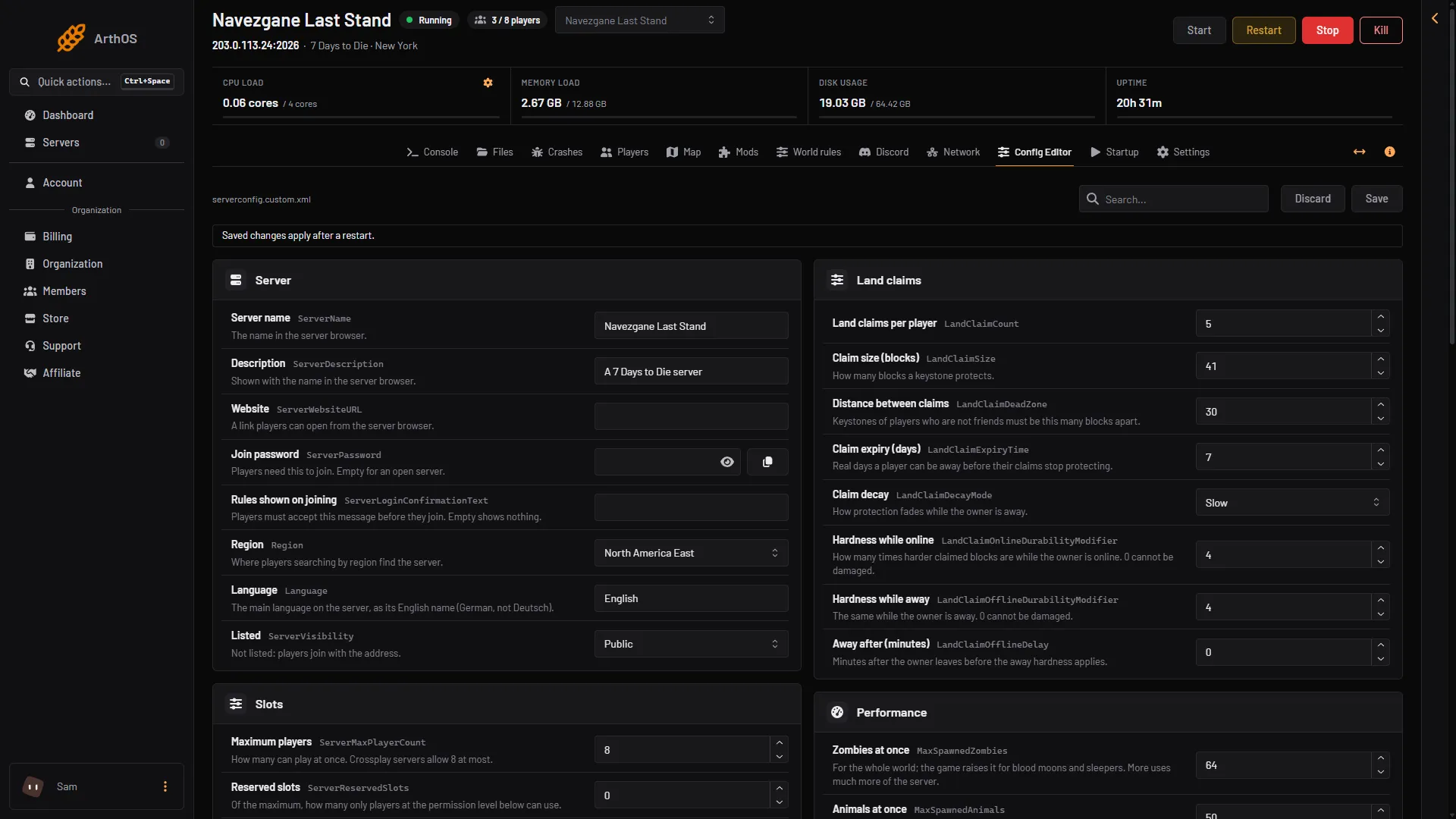
- Server name
- Listed
- Save
The file has more: bedrolls, safe zone hours, land claim expiry, slots, land claim hardness, view distance and others. The Config Editor shows them all, in the groups Server, Slots, World, Rules, Land claims, Performance, Technical and Advanced.
Settings that moved to World rules
In V3.0 The Fun Pimps (TFP, the developer) moved most gameplay settings into SandboxCode. The V3.3.0 file has no GameDifficulty, XPMultiplier, DayNightLength, BloodMoonFrequency, ZombieMove, DropOnDeath or AirDropFrequency. Each is now a World rule, and so are loot, traders, quests and more. Guides that tell you to edit those keys in serverconfig.xml are for older versions.
The shipped SandboxCode is AAAJABJACJADJARFBNC. The file’s own comment calls it the default difficulty of Adventurer. On Loafhosts, change the rules on the World rules page. See World rules and the SandboxCode.
Which file a Loafhosts server uses
The game replaces serverconfig.xml at every update, so edits there would be lost. A Loafhosts server starts from its own copy, serverconfig.custom.xml. It is made from serverconfig.xml when the server is installed, and kept after that. The Config Editor edits the same copy.
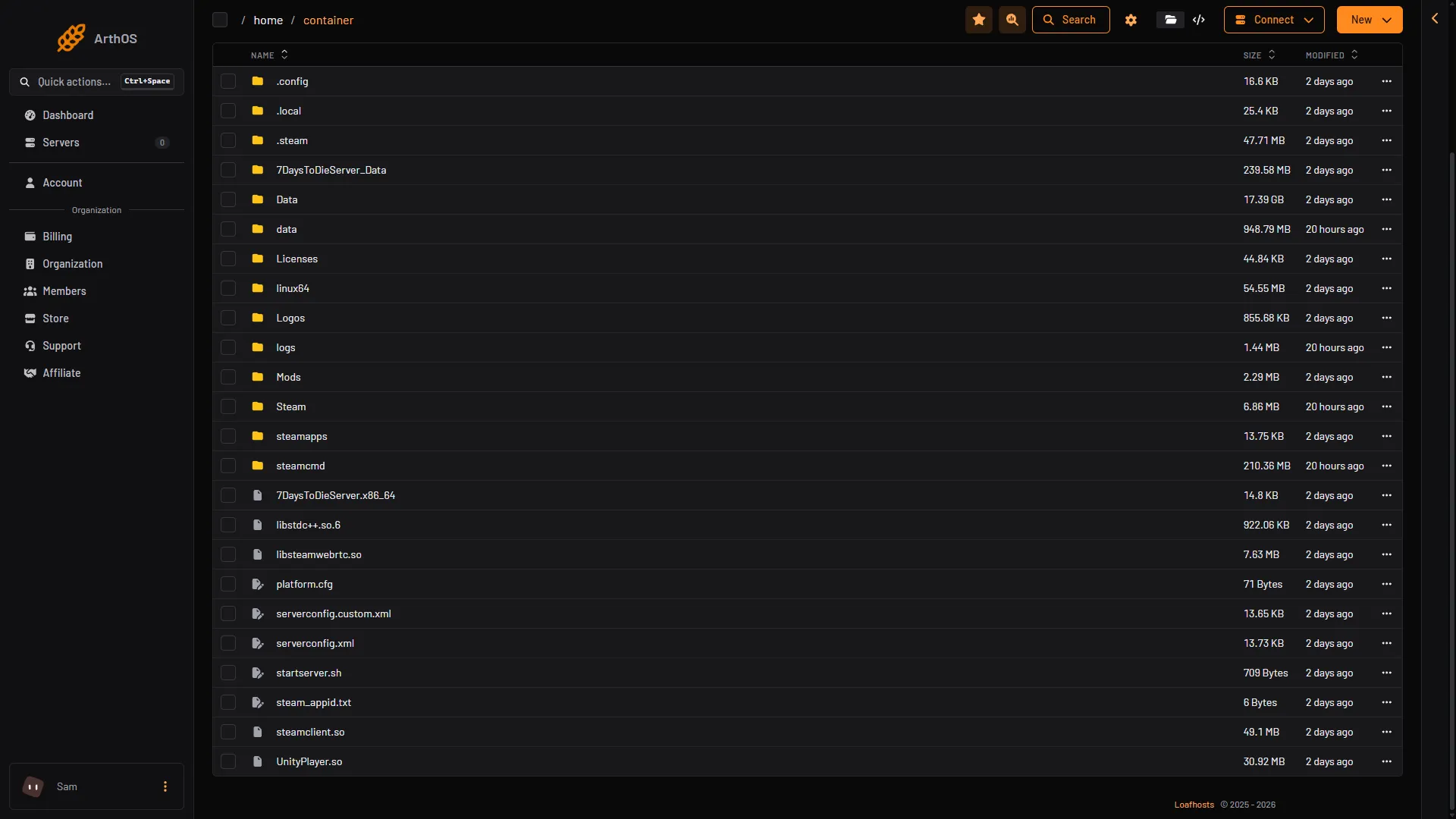
- Your copy, edit this
- The game's own copy
- data
- Mods
The name you gave when you ordered is written into ServerName while the file still holds the game’s default name.
Edit it by hand
- Stop the server.
- Open the Files page and open
serverconfig.custom.xml. - Change the
value. Keep the quotes. For example, to allow 16 players:
<property name="ServerMaxPlayerCount" value="16"/>- Save the file and start the server.
In the Config Editor the same rule holds: while the server runs, Save shows “Saved. Restart the server to apply the changes.” with Restart now.
The panel sets some keys on the start line, and the start line wins over the file: ServerPort, WebDashboardEnabled, WebDashboardPort, WebDashboardUrl, EnableMapRendering, TelnetEnabled, TelnetPort, TelnetPassword, AdminFileName and UserDataFolder. The Config Editor shows them under Advanced with the line “The panel sets this every time the server starts, so it cannot be changed here.” Editing them in the file does nothing.
If it does not work
- Your change did not apply. You edited
serverconfig.xml, notserverconfig.custom.xml, or the server was not restarted. - The file went back to an older version. If
serverconfig.custom.xmlstops reading as XML, the panel puts back the newest earlier copy that reads. The broken file is kept asserverconfig.custom.xml.broken. Look in it for a missing quote or a missing>. - A key you want is not there. Check World rules. It may be a rule now.
More about the game: 7 Days to Die servers.
Sources: 7daystodie.wiki.gg: Serverconfig.xml, 7daystodie.wiki.gg: Game Settings