









The World rules page lists every rule of the game’s Sandbox Options screen: difficulty, XP, day length, blood moons, loot, zombies, traders and more. Change a rule, choose Save, and restart the server. The game reads its rules when it starts.
In V3.3 there are 165 rules. Each has a key, shown in small type under its label. The rules are stored in the SandboxCode line of the server’s settings file, as one short code. The page turns that code into named rules, so you do not need the game open. See the SandboxCode.
Change a rule
- Open the World rules page of your server.
- Find the rule. The page has eight groups: Players, Zombies and animals, Crafting, World and blood moons, Loot and resources, Traders, Quests and challenges, and Vehicles, power and fun. Type in the search box at the top to find one by name or key.
- Pick a new value in the list. The game’s default is marked “(default)”. A rule not at the default gets the tag Not the default.
- Choose Save. Choose Discard instead to drop your changes.
- The page says “Saved. The game reads its rules when it starts, so restart the server to use them.” Choose Restart now, or Restart at the top of the server page.
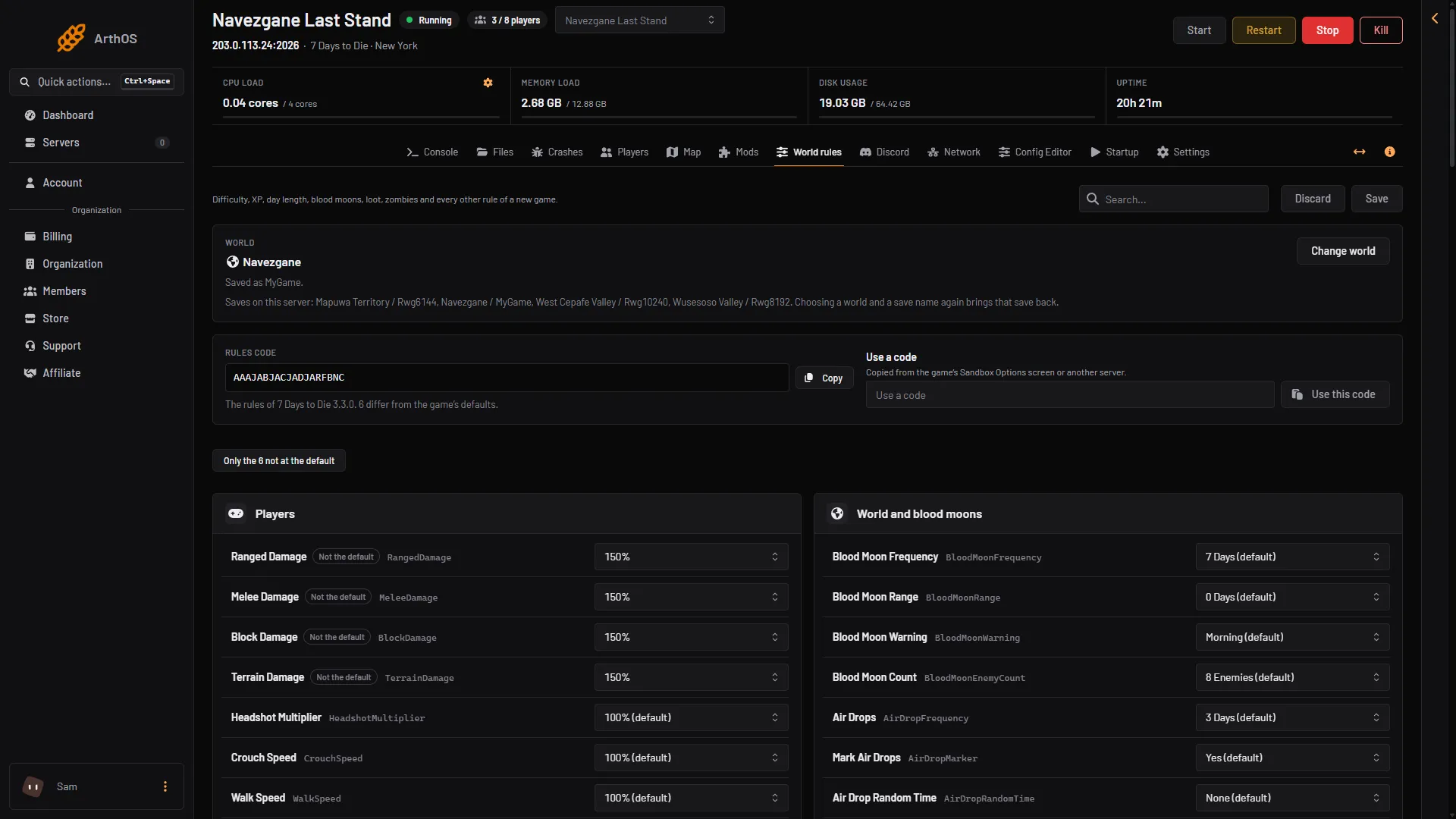
- Search for a rule
- Save
- Discard
- Change world
- Copy
You can change several rules and save once. Save is off while the server is starting or stopping.
See only what you changed
Choose Only the N not at the default. N is the number of rules that differ from the game’s defaults.
A new Loafhosts server starts from the file the game ships. That file carries the Adventurer difficulty, so a few rules already differ on a server you have not touched: Ranged Damage, Melee Damage, Block Damage and Terrain Damage at 150%, Incoming Damage at 75%, and Zombie AI Smell Mode at Jog.
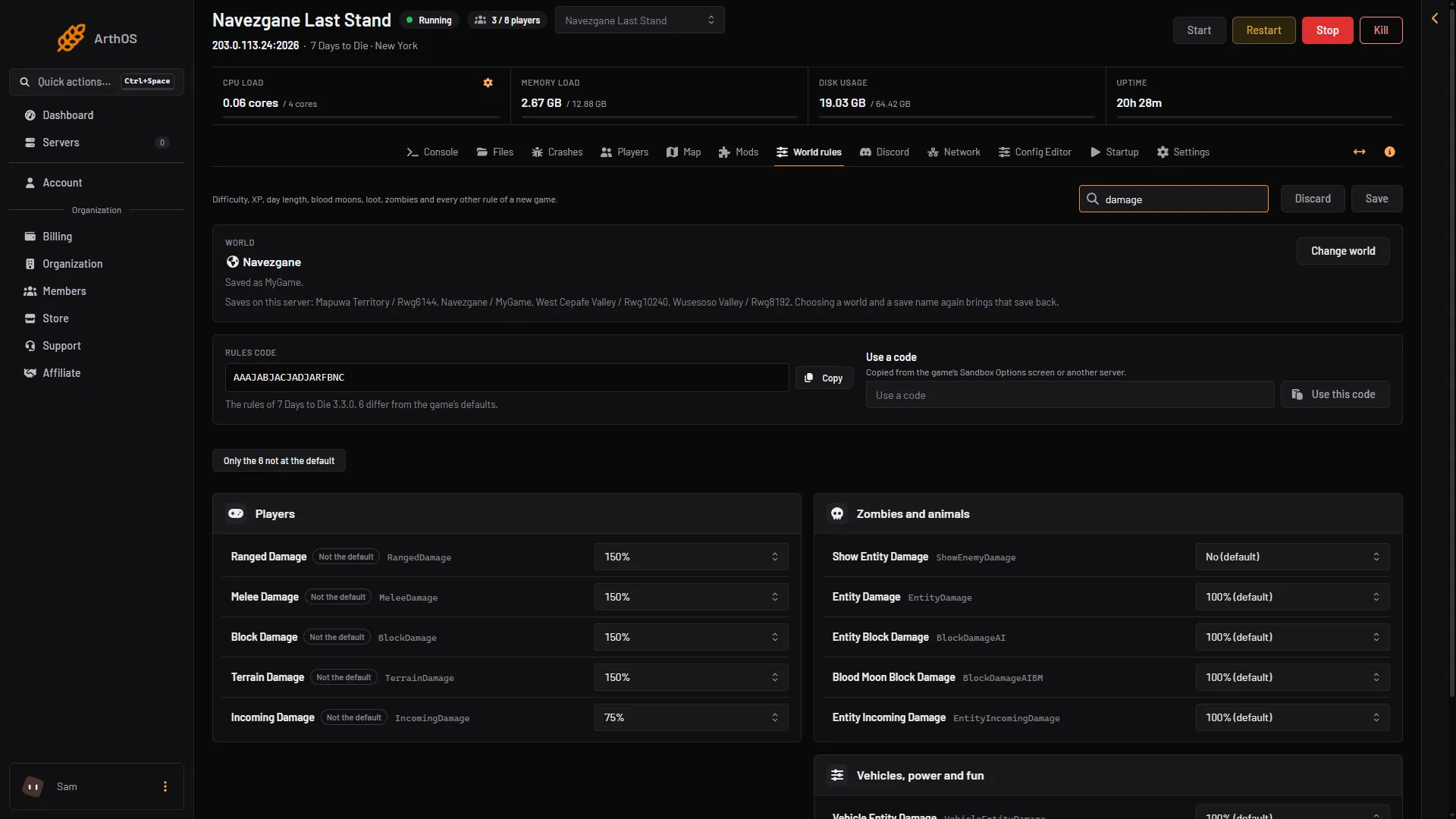
- Ranged Damage
- Melee Damage
- Block Damage
- Incoming Damage
The Rules code
Rules code shows the code of your server. Choose Copy (box 5 in the first picture) to copy it. Paste it into another server, or keep it as a note. The line under it reads “The rules of 7 Days to Die 3.3.0. N differ from the game’s defaults.”
Use a code
Paste a code from another server, or one made in the game, into Use a code and choose Use this code. A box asks “Replace every rule?”. Rules the code does not name go back to the game’s default. Choose Replace the rules to go on.
Change the world
The World card shows the world and the save, for example “Saved as MyGame.”. Change world (box 4) lets you pick World (Navezgane, a world made on this server, or A new random world), a Seed and Size for a random world, and a Save name, then Use this world. A new random world is made at the next start.
Some rules people change
The default is what a rule is set to when it is not in the code. This is a selection, not all 165.
| Rule | Key | Default | Guide |
|---|---|---|---|
| Blood Moon Frequency | BloodMoonFrequency | 7 Days | Blood moon settings |
| XP Multiplier | XPMultiplier | 100% | XP multiplier |
| 24 Day Cycle | DayNightLength | 60 (minutes of real time for one day) | Day length |
| Global Loot Abundance | GlobalLootCount | 100% | Loot settings |
| Zombie Night Speed | ZombieMoveNight | Sprint | Zombie settings |
| Drop On Death | DropOnDeath | All | Drop on death |
| Air Drops | AirDropFrequency | 3 Days | Air drops |
| Traders Sell Price | TraderSellPrices | 100% | Trader settings |
| Storm Frequency | StormFreq | 100% | Storms and temperature |
| Crafting Time | CraftingTime | 100% | Crafting settings |
| Stack Size Multiplier | StackSizeMultiplier | 100% | Stack size |
| Incoming Damage | IncomingDamage | 100% | Difficulty settings |
Server settings such as the name, password and player count are not rules. They are in the Config Editor. See serverconfig.xml explained.
If it does not work
- Save is off. You have not changed anything, or the server is starting or stopping.
- “The settings changed since you opened this page; reload to see them.” The settings file changed while the page was open. Reload and change it again.
- Your rules did not apply. The server was not restarted after you saved.
- A pasted code is refused. A code made for another game version may not read. The page says which rule it cannot read.
More about the game: 7 Days to Die servers.
Sources: 7daystodie.wiki.gg: Game Settings