






A rotation is a playlist of scenarios that the server plays one after another. In the ArthOS panel you build it in the Rotation tab and the panel moves the server to the next scenario for you. The game itself cannot do this: Bohemia’s Server Config page says only one scenarioId can be set and that the game does not allow mission rotation. The panel rewrites config.json between starts instead.
In the ArthOS panel
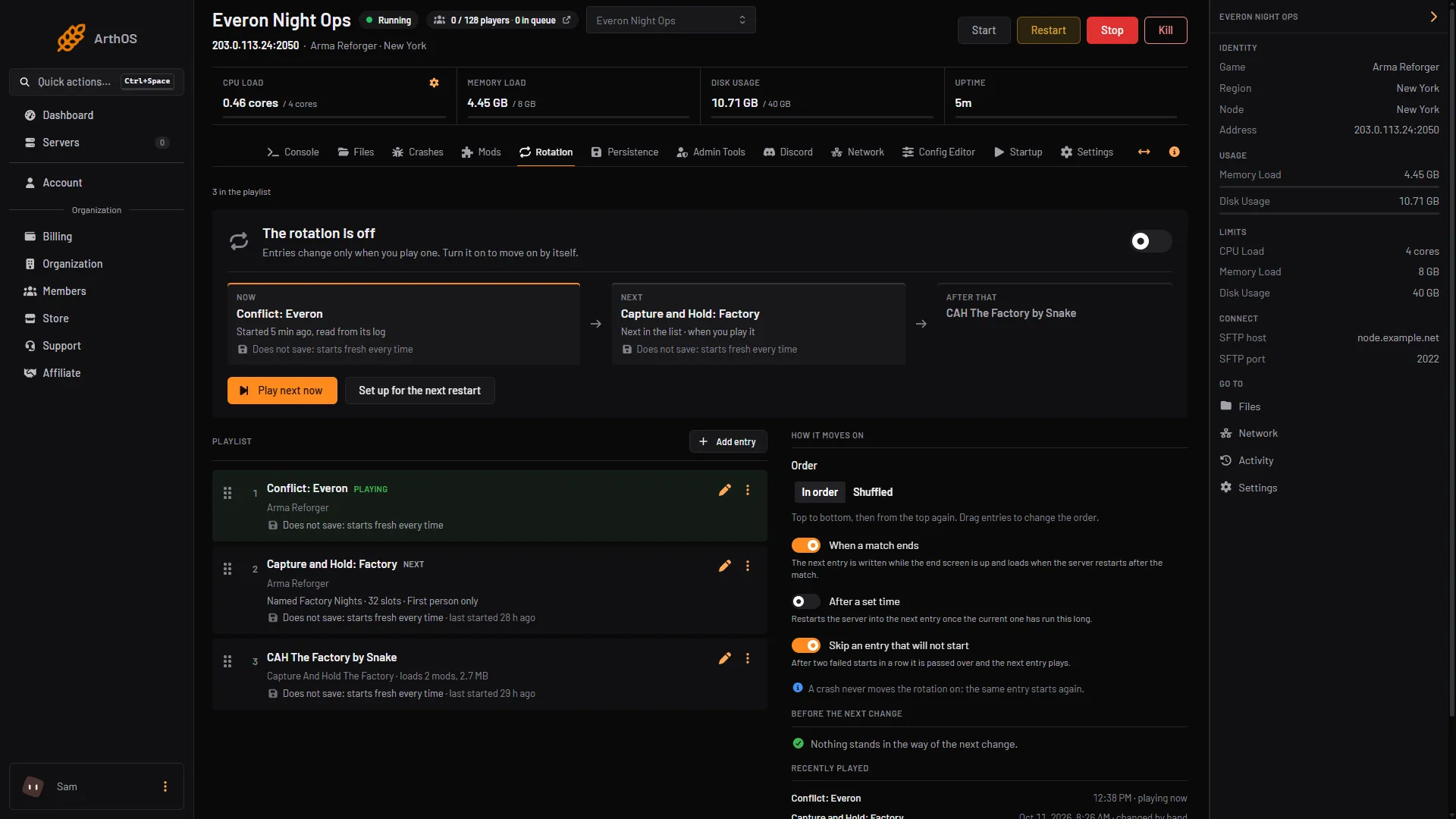
- Open your Arma Reforger server and choose the Rotation tab. With no entries it says “No entries yet”.
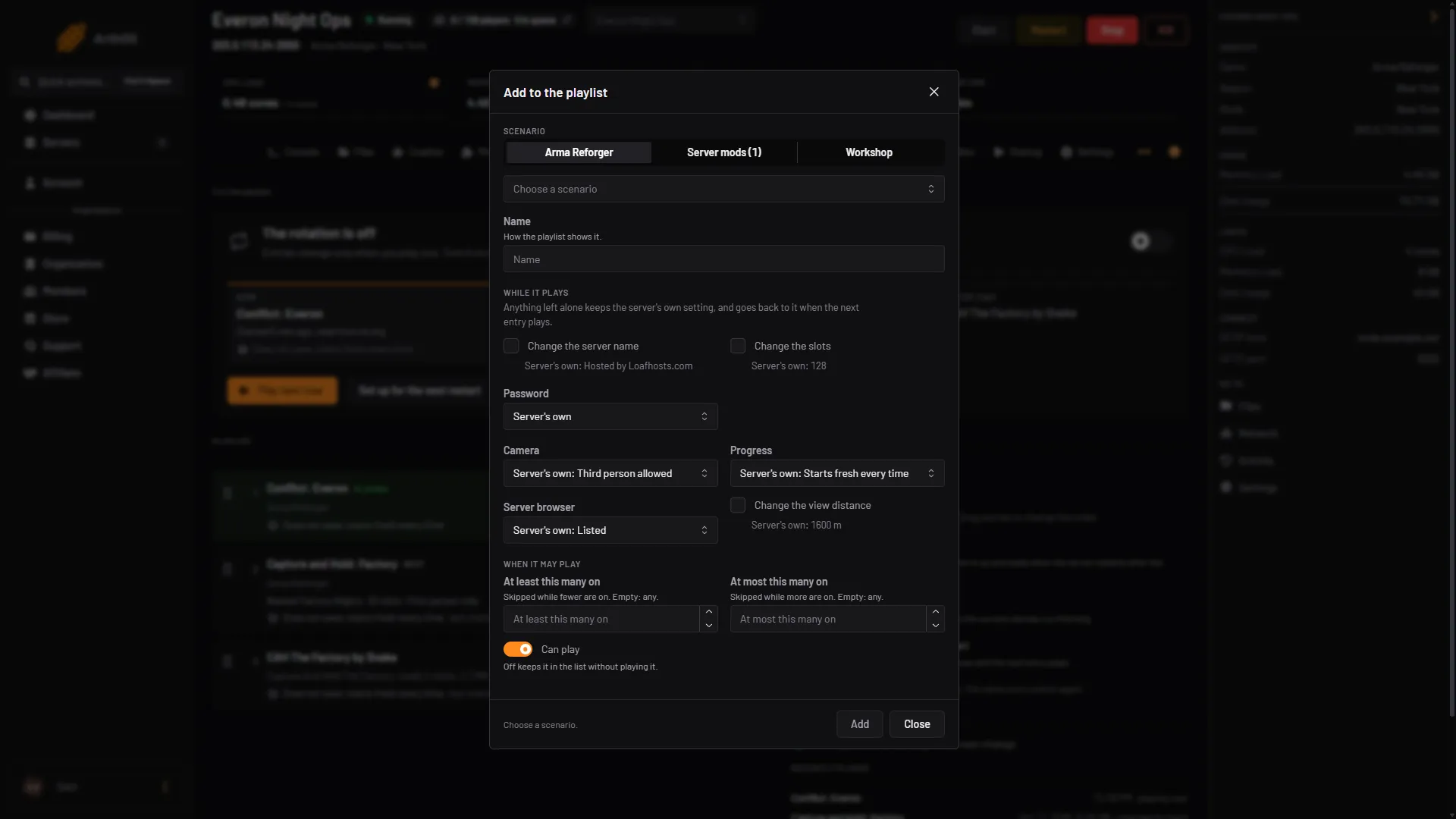
- Choose Add entry (1). In the Add to the playlist window pick a Scenario from Arma Reforger, from Server mods (mods already on this server that bring a scenario, an RHS scenario for example) or from the Workshop. Give the entry a Name. If a scenario is already playing, the page also offers a shortcut button, “Add” followed by its name and “playing now”.
- Under While it plays, change only what this entry should change: Change the server name, Change the slots, Password, Camera, Progress, Server browser and Change the view distance. Each one shows the server’s own value. Anything you leave alone keeps the server’s own setting, and goes back to it when the next entry plays.
- Under When it may play, set At least this many on and At most this many on to skip the entry when the player count does not suit it. When the order is Shuffled, Plays per round sets how often it comes up in a round. Can play off keeps it in the list without playing it.
- Choose Add. Add more entries, then drag them into order.
- Under How it moves on (2), choose Order: In order goes top to bottom and starts again; Shuffled plays every entry once a round.
- Turn on When a match ends, After a set time, or both. With After a set time, pick how long in the list (it reads “After” and a time) and turn on Only when nobody is on. A timed change then waits until the server is empty: the panel “Waits for the server to empty, so nobody is dropped mid-game.” With it off, the server “Restarts on time even with players on; they are disconnected.”
- Turn on the rotation switch (3). If the switch is off, the page says “The rotation is off” and “Entries change only when you play one. Turn it on to move on by itself.”
- Add entry
- How it moves on
- Rotation switch
The strip at the top shows NOW, NEXT and AFTER THAT, and why the next one was chosen.
- Choose a scenario
- While it plays
- When it may play
- Add
How it moves on
- When a match ends. The panel reads the match end in the server log and writes the next entry while the end screen is up. The game then restarts and loads it.
- After a set time. The panel restarts the server into the next entry once the current one has run that long.
- By hand. Use Play next now or Set up for the next restart under the strip, or open the menu on an entry. Play next makes it the next one. Restart into it now restarts the server straight away and disconnects the players on it. Set up for the next restart writes it to the config and waits.
If the server does not close after a match, Hang recovery in Settings restarts it. See server hang recovery.
What a crash does
A crash never moves the rotation on. The server starts the same entry again. If an entry fails to start twice in a row, the rotation marks it Skipped and plays the next one, as long as Skip an entry that will not start is on. Fix the cause, then choose Let it play again.
How the server goes back to its own settings
An entry changes only the settings it names. The panel remembers the server’s own value of each one and puts it back when the next entry leaves it alone. An entry that needs mods adds them only while it plays, and the panel removes only the mods it added.
Saves in a rotation
The game keeps saves per scenario, so each entry has its own progress and continues from its last save when the entry plays again. Two things can surprise you:
- When a match ends, its saves are deleted unless Keep saves after a match ends is on in the Persistence tab.
- A change on a timer restarts the server. Turn on saving when the server stops in Persistence, or progress since the last autosave is lost.
The Before the next change box warns about both. See persistence and save games.
By hand
Without the panel you change game.scenarioId in config.json between restarts:
- Stop the server.
- Set
scenarioIdto the next ID from the scenario ID list. - Start the server.
Bohemia’s -autoreload startup parameter reloads the scenario when a session ends. It reloads the same scenario, not a different one.
If it does not work
- The rotation never changes. Check that the rotation switch is on and When a match ends or After a set time is on. Entries change only when you play one otherwise.
- It plays the same scenario again. Fewer than two entries can play. Add another.
- An entry never plays. It may be Skipped, Can play may be off, or the player count is outside its limits.
- An entry will not start. A mod it needs may be gone from the Workshop. Before the next change says so.
- The old scenario returns after a match. The server did not restart. Check Hang recovery.
Running on Loafhosts? See Arma Reforger servers.
Sources: Bohemia wiki: Server Config, Bohemia wiki: Startup Parameters, Bohemia wiki: Persistence System