






An Arma Reforger server does not update its mods while it runs. It checks the Workshop when it starts, and a mod set to the latest version is downloaded then. So to update your mods, restart the server.
How updating works
Each mod on your list is either on Latest or locked to one version. This is the version key of the mod in config.json. Bohemia’s server config page says that if version is missing, the latest mod version is used.
- Latest: at every start the server fetches the newest version from the Workshop. Updating is a restart.
- Locked: the server keeps asking for that exact version, so the mod never changes until you change the lock.
Players get the same mods. Bohemia says players download the mods of a server when they join it, so an update also means a download for them.
In the ArthOS panel
- Open your server and choose Mods, then On this server.
- Read each row. It shows the mod’s ID, its size, “built for” with the game version, and “installed” with the version on the server (1). When a newer version is waiting, the row also says “{version} downloads at the next start”. The version menu (2) shows Latest or the locked version.
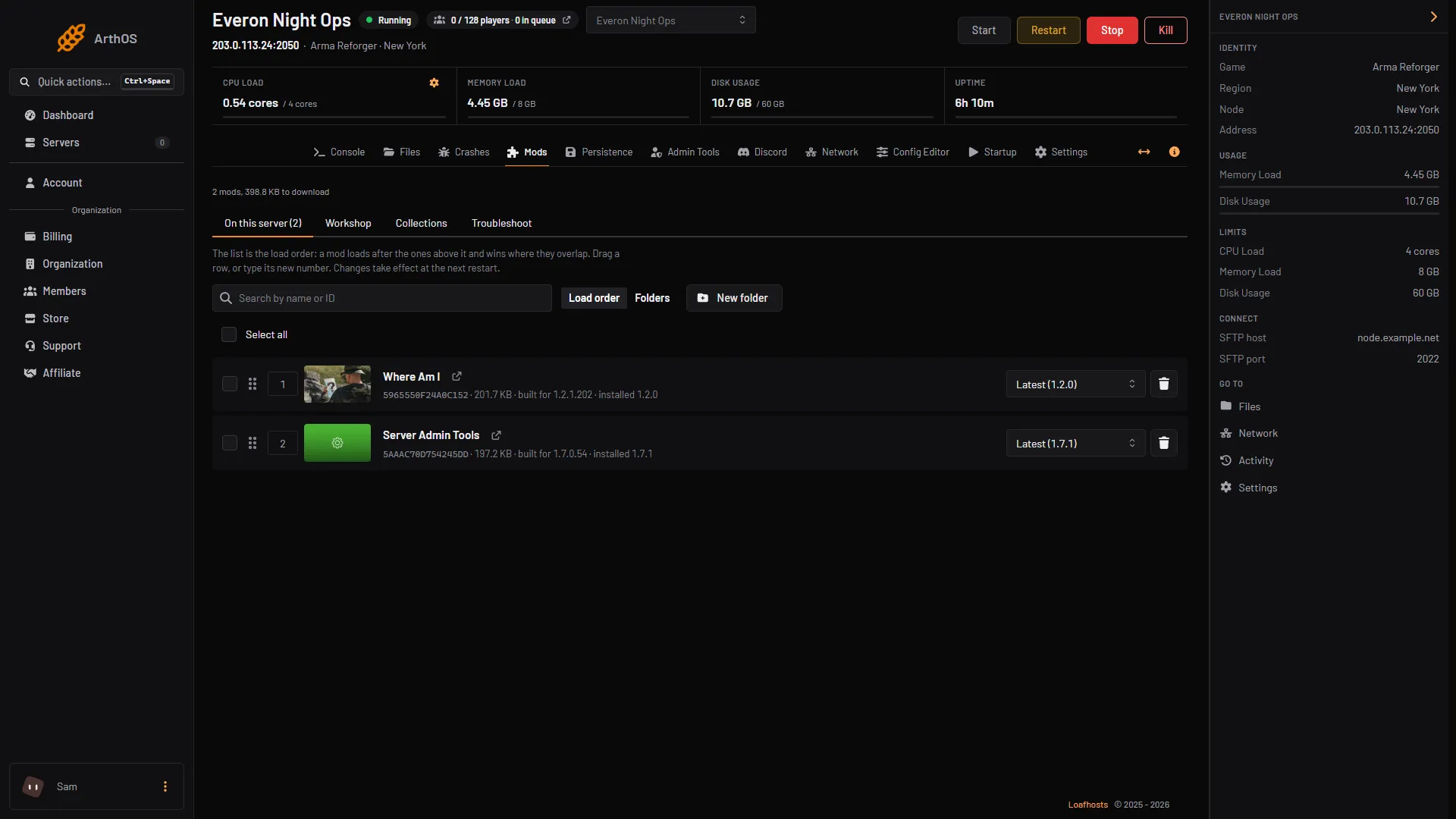
- Built for and installed
- Version menu
- Read what changed before you update. Use the Open on the Workshop link on the row, then the Changelog tab of the Workshop page. On the Workshop tab of the panel, selecting a mod’s picture shows “What changed” and a list of Versions.
- Take a backup of the server.
- Restart the server. It downloads the new versions as it starts, and each row then shows the new installed version.
If you do not want a mod to change, lock it first. Tick the mod and choose Lock to installed versions, or use the version menu on its row. Follow latest puts a ticked mod back on the newest version. See lock mod versions.
Saves and updates
A save keeps what mods placed in the world. Bohemia’s persistence page says the system works with modded data. An update can change what a mod saves, and a broken update can stop a save from loading.
Open the Persistence tab before you update. If your mods follow the latest version, the Before the next start box offers Lock mods to the versions on disk. Take a backup, update, and look at the server. If the world is wrong, restore the backup and lock the mods. See persistence and save games.
By hand
- Open
config.json. Each mod is an entry ingame.mods. - Leave out
versionto follow the latest version. Add it to lock a version:
{
  "modId": "59D64ADD6FC59CBF",
  "name": "Project Redline - UH-60",
  "version": "1.4.1"
}- Save the file and restart the server.
To update a locked mod, change version to the new number, or delete the line. The Workshop keeps only recent versions of a mod, so an old one may be gone. In the panel, open the version menu on the row; it lists older versions the Workshop still offers.
If it does not work
- The mod did not change after a restart. It is locked. Look for the lock label on its row, or a
versionline inconfig.json. - The server does not start after an update. The new version may be broken or built for another game version. Open the Troubleshoot tab of Mods, or follow find the mod that stops your server. Locking that one mod to its old version is a quick way back.
- The world looks wrong after an update. Stop the server, restore your backup, and lock the mods to the versions you had.
Sources: Bohemia wiki: Server Config, Bohemia wiki: Workshop, Bohemia wiki: Persistence System, reforger.armaplatform.com: Update september 3 2026