






Open the Players page, find the player and choose Kick or Ban. A kicked player can join again straight away. A banned player cannot join until the ban ends or you remove it. DayZ bans work through BattlEye, using the player’s BattlEye GUID.
Kick a player
The server must be running. The page shows “The server is not running, or BattlEye RCon is not answering yet” until it is up.
- Open the Players page.
- Under Online, find the player. Each row shows the name, the BattlEye GUID and the ping.
- Choose Kick. A box titled “Kick” and the player’s name opens.
- Type a reason if you want. If you leave it empty, the player sees “Kicked by an admin”. A reason is at most 120 characters.
- Choose Kick to confirm.
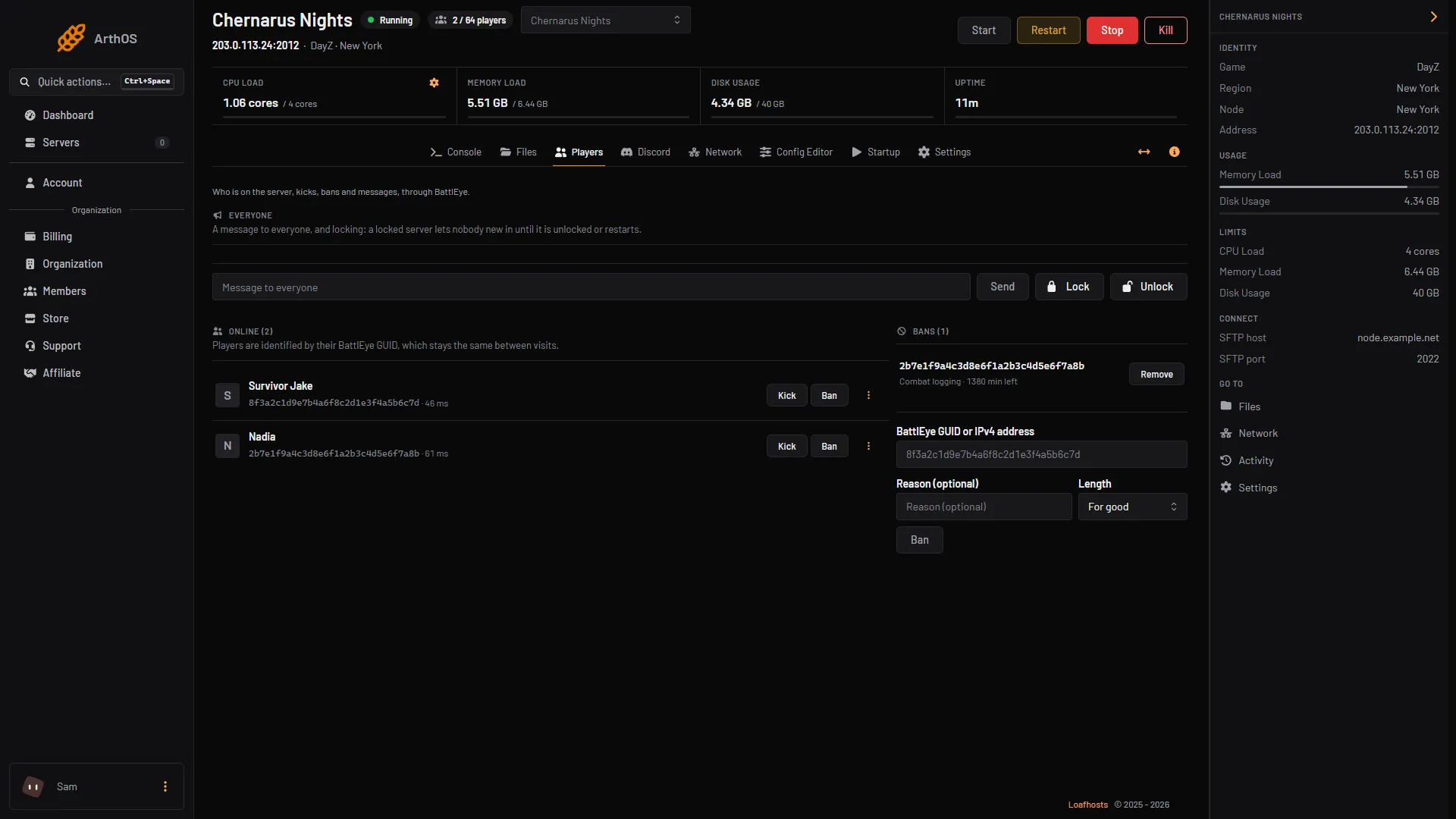
- Player, GUID and ping
- Kick and Ban
- Bans
- Remove
In this picture, box 1 is the name, GUID and ping of a player, box 2 is Kick and Ban, box 3 is the Bans list and box 4 is Remove.
Ban a player who is online
- On the player’s row, choose Ban. A box titled “Ban” and the player’s name opens.
- Pick a Length: For good, 1 hour, 1 day, 3 days, 7 days or 30 days.
- Type a Reason (optional). Without one, the ban reads “Banned by an admin”.
- Choose Ban to confirm. The player is removed from the server and cannot join again until the ban ends.
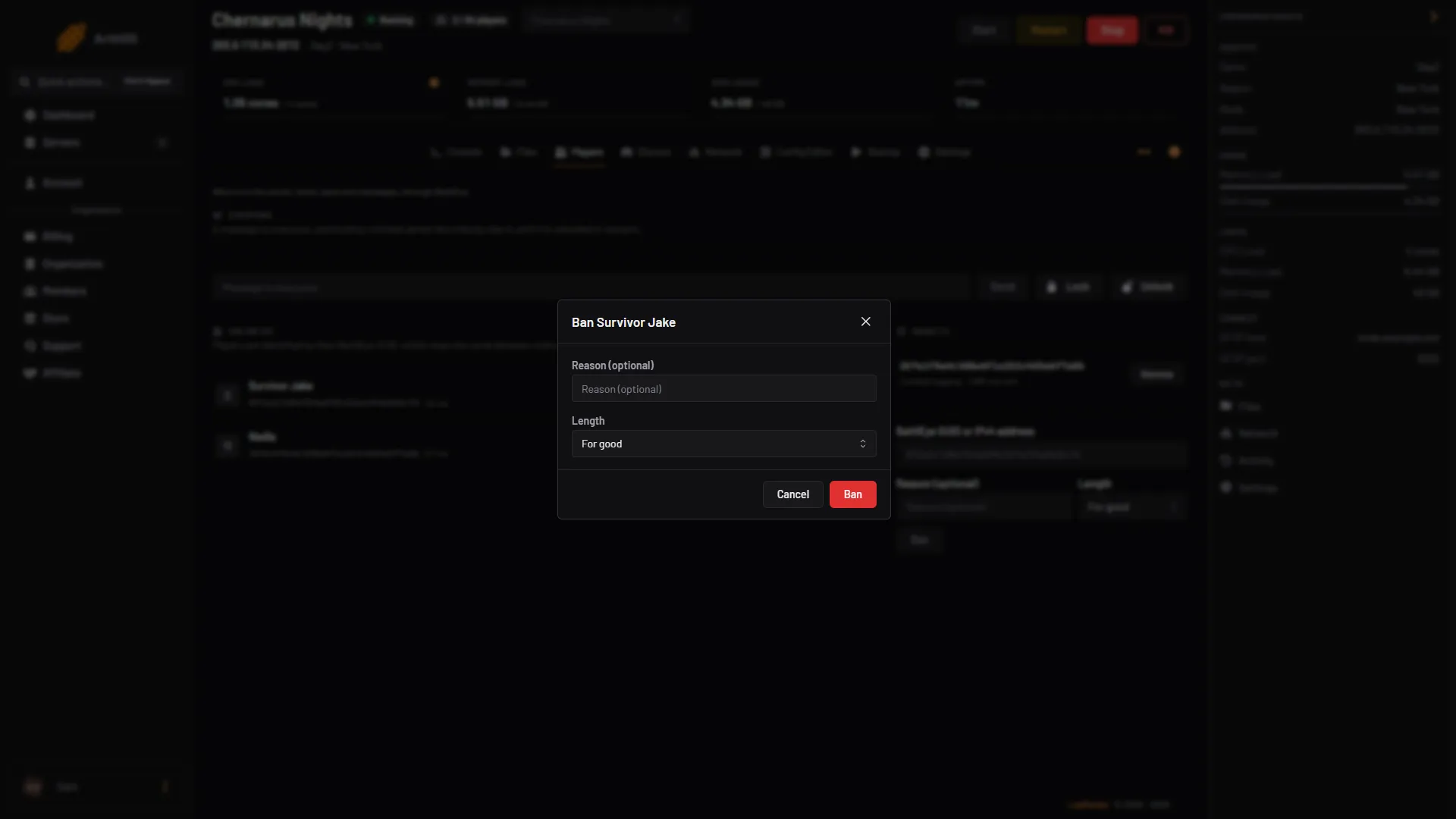
- Reason
- Length
- Ban
In this picture, box 1 is Reason, box 2 is Length and box 3 is Ban.
The panel checks the ban list afterwards and tells you if the ban is not in it yet.
Ban someone who is not online
You need their BattlEye GUID, which is 32 letters and digits. You can also ban an IPv4 address if your role may see addresses.
- On the Players page, find the Bans section, with the ban form below its list.
- In BattlEye GUID or IPv4 address (labelled just BattlEye GUID if your role may not see addresses), type the GUID or the address.
- Pick a Length and, if you want, a Reason (optional).
- Choose Ban.
Remove a ban
- In the Bans section, find the ban. It shows the time left, “for good”, or “ran out” for a ban that has ended.
- Choose Remove.
The player can join again at once. If the ban is no longer in the list, the panel says so.
By hand
BattlEye has its own commands. You send them with a BattlEye RCon tool that can reach your server’s RCon port, using the port and password set for the server. On this panel they are RCON Port and RCON Password on the Startup page. The Players page does this for you, so you only need the commands for your own tools.
players: lists players with their number and GUID.kick [player #] [reason]: kicks the player.ban [player #] [time in minutes] [reason]: bans the player’s GUID. No time, or 0, is permanent.addBan [GUID or IP address] [time in minutes] [reason]: the same for someone who is not online.bans: lists all bans.removeBan [ban #]: removes a ban. Take the number frombans.writeBans: rewritesbans.txt, which also drops expired bans.loadBans: reloads the ban list frombans.txt.
Ban numbers change after you remove a ban, so run bans again before every removeBan. Player numbers change between visits, so use addBan with the GUID when you can.
BattlEye keeps its bans in bans.txt in its working folder, which on your server is the battleye folder. It loads the file when the server starts. You can read it in Files. Add and remove bans with the commands above rather than by editing the file.
DayZ also has a ban list of its own, ban.txt, in the server folder. The file’s own instructions say to add a player’s 44-character ID, which you find in the admin log (.ADM) as the id= value of a “Player … is connected” line, and that changes take effect immediately while the server runs, kicking the player. Comments start with //, also after an ID. This ID is neither the Steam ID nor the BattlEye GUID the Players page shows. The Ignore the ban list row in the Config Editor switches this list off. Bohemia does not say whether bans made through BattlEye are affected by that row. Leave it off. See find a DayZ player’s ID.
If it does not work
- Nothing happens, or the page says the server is not running. Start the server and wait until it is up. Bans and kicks go through BattlEye RCon.
- The player is not in the list. They left, or have not finished joining. Ban their GUID in the Bans section instead.
- A ban was sent but is not in the list yet. Check the Bans section again after a few seconds.
- You cannot ban or remove a ban. Your role may not allow moderating players.
- A banned player still joins. Check that Ignore the ban list is off in the Config Editor, that you banned the right GUID, and that the ban is still in the Bans list.
- Players are kicked with “Client not responding”. That is not one of your kicks. See DayZ “Client not responding” kick.
More about the game: DayZ servers.
Sources: battleye.com: Documentation, Bohemia wiki: Server Configuration, store.steampowered.com: 221100