






There are two ways in. Search for the server by name in the in-game server browser, or press F1 in Rust and type client.connect followed by the server’s address and game port. The second works even when the server is not listed.
You need a Steam account that owns Rust. The server itself needs none.
Find it in the server browser
- Start Rust and open the server browser from the main menu.
- Use the search box and type the server name.
- A server without plugins is under the Community tab. A server running Oxide or Carbon is under the Modded tab, because the game tags it by itself.
- Select the server and join. Mark it as a favourite if you will come back, so you do not search again.
Servers can also carry tags for the wipe schedule, the difficulty and the region, which you can filter by. The owner sets those. See the server name and description.
Connect by address
This always works. It needs the address and the game port, for example 203.0.113.24:28015. Your port will differ. The port is not the query port.
- Press F1 in the game to open the console.
- Type
client.connectand the address, then press Enter:
client.connect 203.0.113.24:28015The address above is an example. Facepunch, the maker of Rust, lists the same command on its wiki as connect IP:Port.
Where the owner finds the line
In the ArthOS panel, open the server and the Players tab. The page shows the whole line, client.connect and the address (1). Press Copy (2), then press F1 in Rust, paste the line and press Enter.
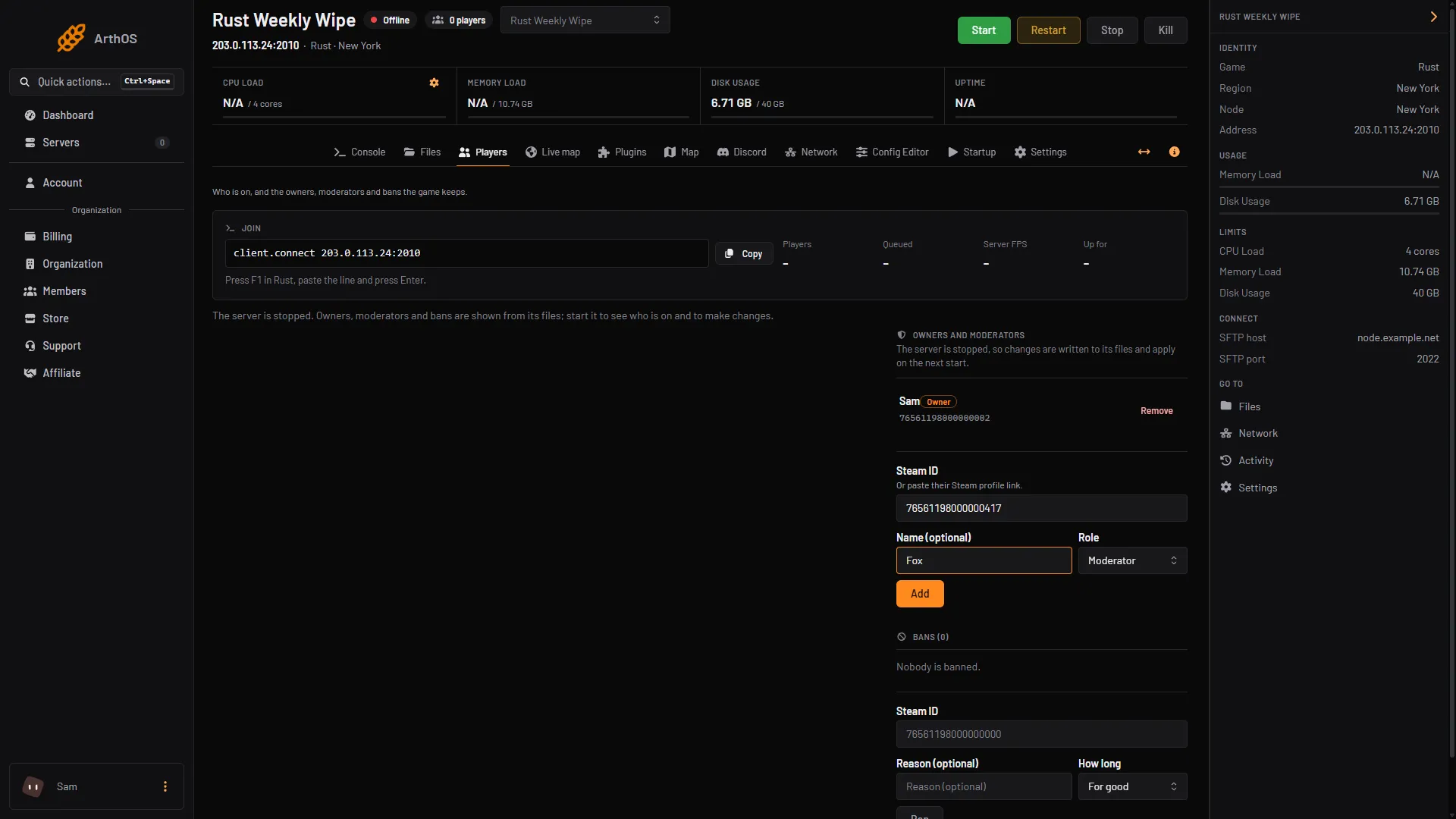
- The line to paste
- Copy
On your own machine
If the server runs on the same computer as the game, Facepunch’s example is connect localhost:28015, using whatever game port the server has.
If it does not work
- The server is not in the list. A new or just restarted server can take a few minutes to appear. Wait a few minutes and search again. Meanwhile the F1 line works.
- Nothing happens when you press Enter. Check the address and port. The game port is UDP and is the number after the colon, not the query port.
- The server is full. You wait in a queue until a slot opens.
- Your game and the server are on different versions. After a monthly update, a server that has not updated yet cannot be joined. Wait for the owner to restart it.
- It works for you, but not for friends outside your home. On a server at home, the game port must be forwarded on the router. This does not apply to a Loafhosts server.
Running your own? Set up a Rust server from scratch, or see Rust servers.
Sources: wiki.facepunch.com: Creating a server, wiki.facepunch.com: Useful commands, wiki.facepunch.com: Server browser tags