









Download the mod’s archive, open the Mods page, choose Add a mod and install it. Restart the server if it was off. Then check that the mod shows Loaded.
There is no Steam Workshop for 7 Days to Die. A mod is a folder, and you put the folder in Mods on the server.
In the panel
- Find a mod. The Mods page lists three places under Where to find mods: 7 Days to Die Mods, Nexus Mods and the game’s forum, Mods.
- Check that the mod’s page says it works with your game version (V3.3 for a new server). A mod made for an older version may not load. Check also whether players need the mod too.
- Download the mod’s archive. It is a
.zip,.7z,.raror.tar.gzfile. Use the release file. On GitHub, download the file from the release’s assets, not the source code. - Open the Mods page and choose the tab Add a mod.
- Choose how to install:
- Upload an archive: pick the file in Archive.
- From a link: only for a mod on GitHub. Paste the release download link in Download link. Other sites do not work here. Download the file there and upload it.
- Choose Install, then confirm. The server stops, the mod is unpacked and put in
Mods, and the server starts again if it was running. A banner at the top shows how it goes. - If the server was off, start it. The game reads
Modsonly when it starts. - Open the tab Installed (N). The mod should show the chip Loaded.
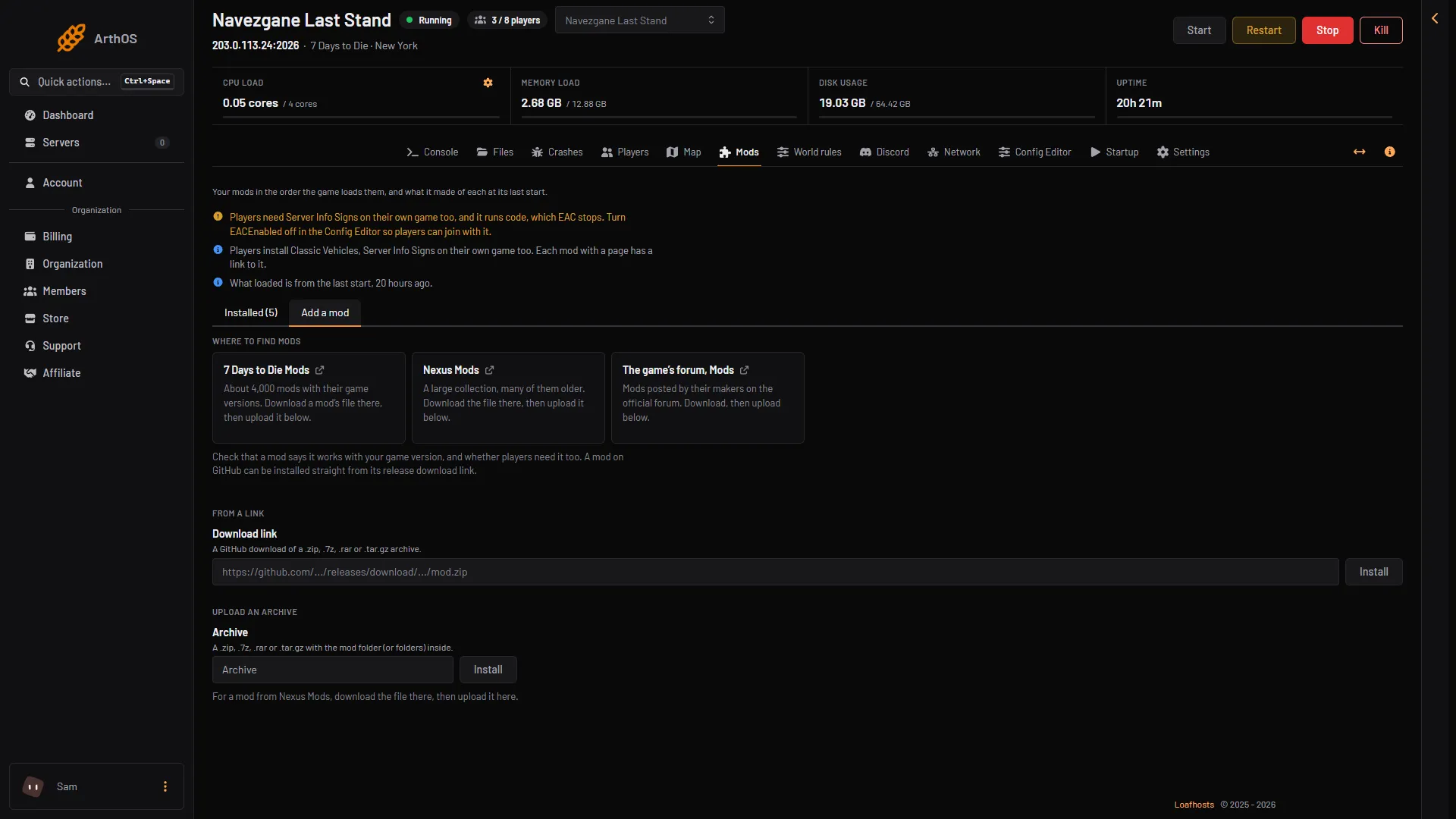
- Download link
- Install from a link
- Archive
- Install an upload
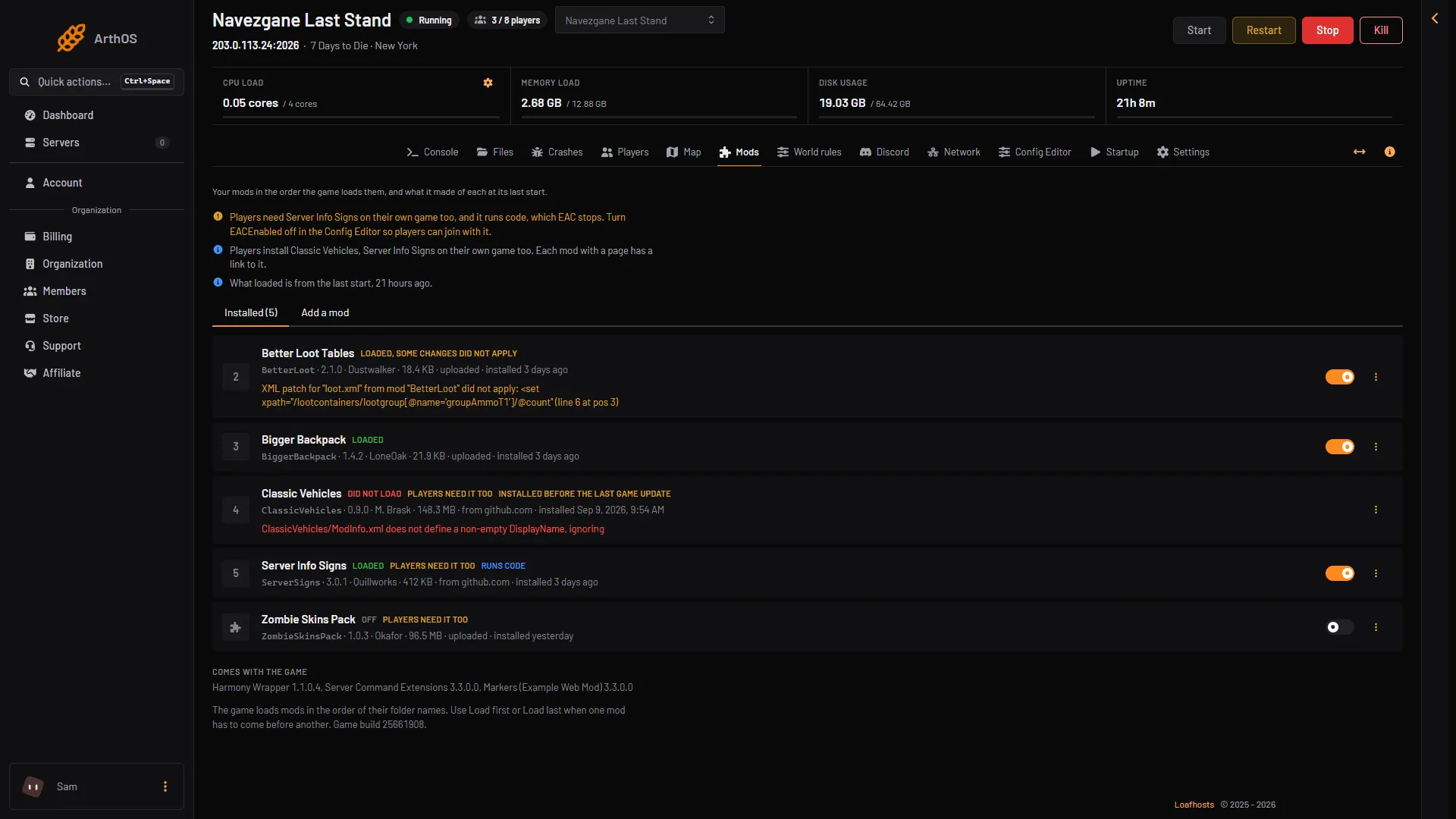
- Installed tab
- Comes with the game
If the chip says Loads at the next start, the server has not started since the install. If it says Did not load, the reason is written under the mod.
If the chip Players need it too shows, every player needs the mod in their own game. See which mods players need.
What a mod folder looks like
The game loads a mod only if its folder sits directly in Mods and has a ModInfo.xml inside:
Mods/MyMod/ModInfo.xml
Mods/MyMod/Config/items.xml
The ModInfo.xml needs a Name and a DisplayName. Without both, the game skips the mod:
<?xml version="1.0" encoding="UTF-8" ?>
<xml>
    <Name value="SomeInternalName" />
    <DisplayName value="Official Mod Name" />
    <Version value="1.0.3.243" />
</xml>
The panel finds every folder with a ModInfo.xml in your archive and puts it in Mods. An archive with no ModInfo.xml is refused.
By hand
- Unpack the archive on your computer. Find the folder that has
ModInfo.xmlin it. - Open the Files page, or connect with an SFTP program.
- Open the folder
Mods. If there is none, create it at the top of the server’s files. - Upload the whole folder that holds
ModInfo.xml. Do not upload only what is inside it. - Restart the server.
A mod put there by hand appears on the Mods page like any other.
If it does not work
- The mod shows nothing at all. The folder may be one level too deep, for example
Mods/MyMod/MyMod/ModInfo.xml. Move the inner folder up. - Did not load, with a message about
DisplayNameorName. TheModInfo.xmlneeds both. Ask the mod’s author for a current version. - Loaded, some changes did not apply. One XML change of the mod failed or matched nothing. This often means the mod is for another game version, or another mod must load first. See mod load order.
- Players cannot join. Check whether Anti-cheat is still on and the mod runs code: turn it off and restart. Players must run the same game version as the server, and a mod with files of its own must be on their game too.
More about the game: 7 Days to Die servers.
Sources: 7daystodie.wiki.gg: How to Install Modlets, 7daystodie.wiki.gg: Mod Structure