









Open the Mods page, choose the Add a mod tab, find your mod and choose Install. The panel installs the mod and every mod it needs, stops the server, puts the files in place and starts it again. More about the game: Valheim servers.
Mods load through BepInEx, the loader that lets Valheim run mods. You do not install it yourself. The panel adds it with your first mod.
Install a mod
- Open the Mods page.
- Choose the Add a mod tab.
- Choose Mods (box 1).
- Type a name or words in the search box (box 2) and choose Search (box 3). To browse instead, pick a Category and a sort.
- Read the mod before you install it. Each mod has a page, linked from its card. Check two things there:
- The game version it was made for. Your server runs Valheim 1.0.20 as of 21 October 2026. A mod made for an older version may fail to load.
- Whether players need it too. A mod with the chip Players need it too must also be installed on every player’s own game. A mod marked Server only needs nothing from players, as its categories say.
- Choose Install (box 4) on the mod’s card.
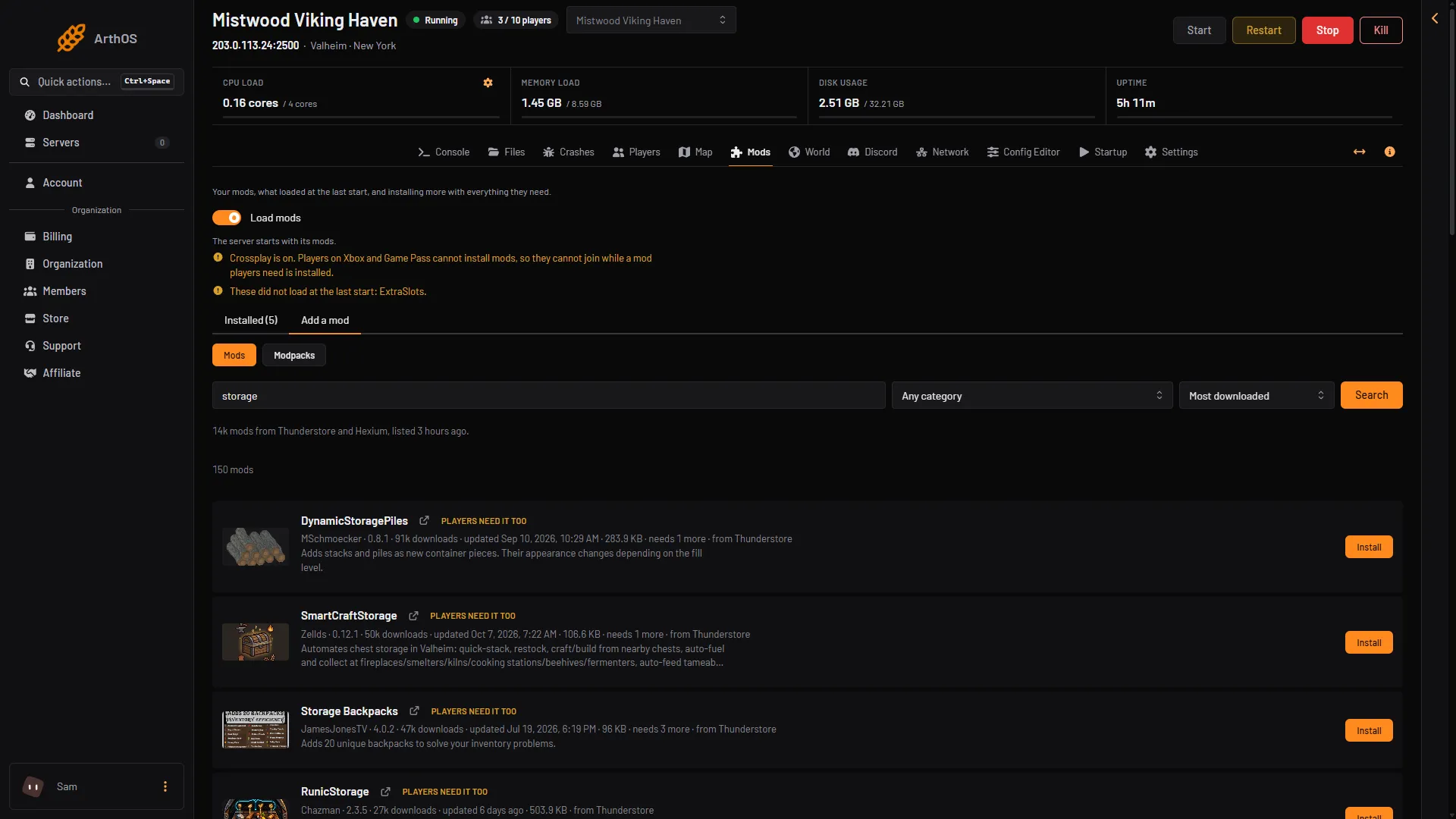
- Mods
- Search box
- Search
- Install
Check the list of packages
A box opens with the title “Install (name)?”. It lists every package the panel will install (box 1). Your mod is there, and so is each mod it needs, marked “needed” (box 2). On the first mod, BepInEx is listed too. The box also says about how big the download is (box 3).
- Read the list. Make sure you want everything on it.
- Choose Install (box 4).
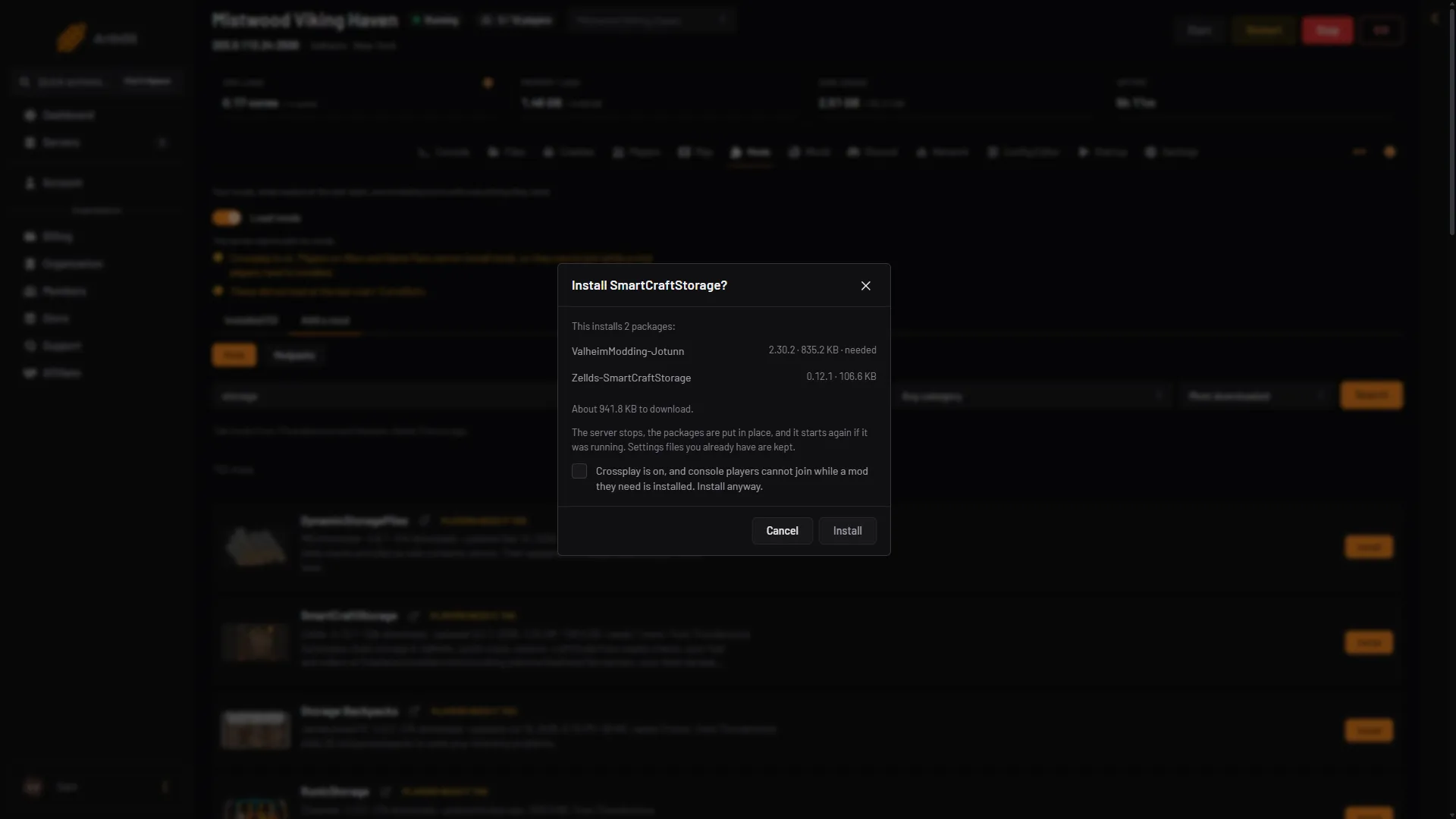
- Packages
- Needed by it
- Download size
- Install
At most 150 packages are installed at once. Settings files you already have are kept.
What happens next
The banner at the top of the page shows how the install goes. The server stops, the packages are put in place, and the server starts again if it was running. Everyone on the server is disconnected while it restarts. If it was stopped, it stays stopped and the mod loads at its next start.
Check that it loaded
- Wait for the server to finish starting. A new Valheim server takes about 17 seconds to start. It takes longer with mods or after an update.
- Open the Installed tab.
- Look for the chip Loaded on your mod.
If Load mods at the top of the Mods page is off, the server starts as the plain game and the mod does not run. Turn it on and restart.
If the chip says Loads at the next start, the server has not restarted since the install. If it says Did not load, see Valheim mods not loading.
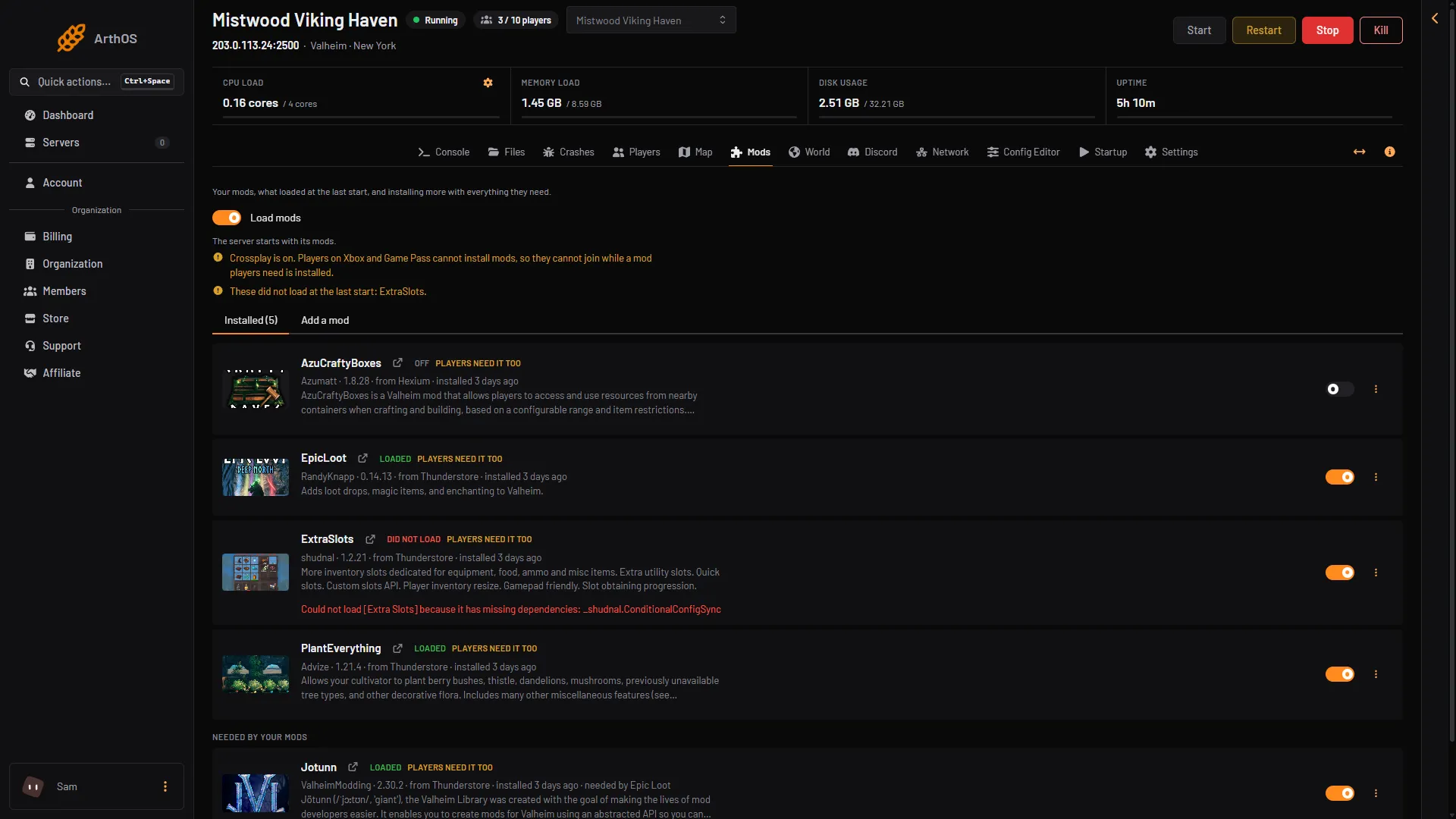
- Installed
- Loaded
- Did not load
Tell your players
If the mod has the chip Players need it too, your players must install the same mod before they join. See how players install Valheim mods. A mod manager for the game does this with a click.
Crossplay
With crossplay on, the install box warns you before it installs a mod players need. Players on Xbox and Game Pass cannot install mods, so they cannot join while it is installed. Tick the box to install anyway. A mod marked Server only does not cause this.
If it does not work
- The panel says the install would be too many packages. At most 150 can go in at once. It is refused before anything happens. Install fewer mods in one go.
- Nothing happens after Install. Look at the banner at the top of the page. It shows the progress or the reason.
- The mod is not in the search. Try other words, or upload its .zip with Upload a mod on the Add a mod tab. See the Valheim mod manager.
Sources: thunderstore.io: BepInExPack Valheim, github.com: R2modmanPlus