









When a mod does not load, the Mods page marks it Did not load and says why. Most often the mod needs another mod that is not installed. Install the missing one, restart, and it loads. Mods are read once, when the server starts, so every fix needs a restart: choose Restart at the top of the server page.
Find the reason
- Open the Mods page and the Installed tab.
- Look for the chip Did not load on a mod. A note above the list names every mod that failed at the last start.
- Open the Crashes page. The finding “A mod did not load” names the mod and the reason BepInEx gave. BepInEx is the program that loads mods.

- Note above the list
- Did not load
- Why it did not load
The note (box 1) says what the last start did. The chip (box 2) marks the mod and its reason (box 3) is in red under it. A mod you just installed shows Loads at the next start until the server has started.
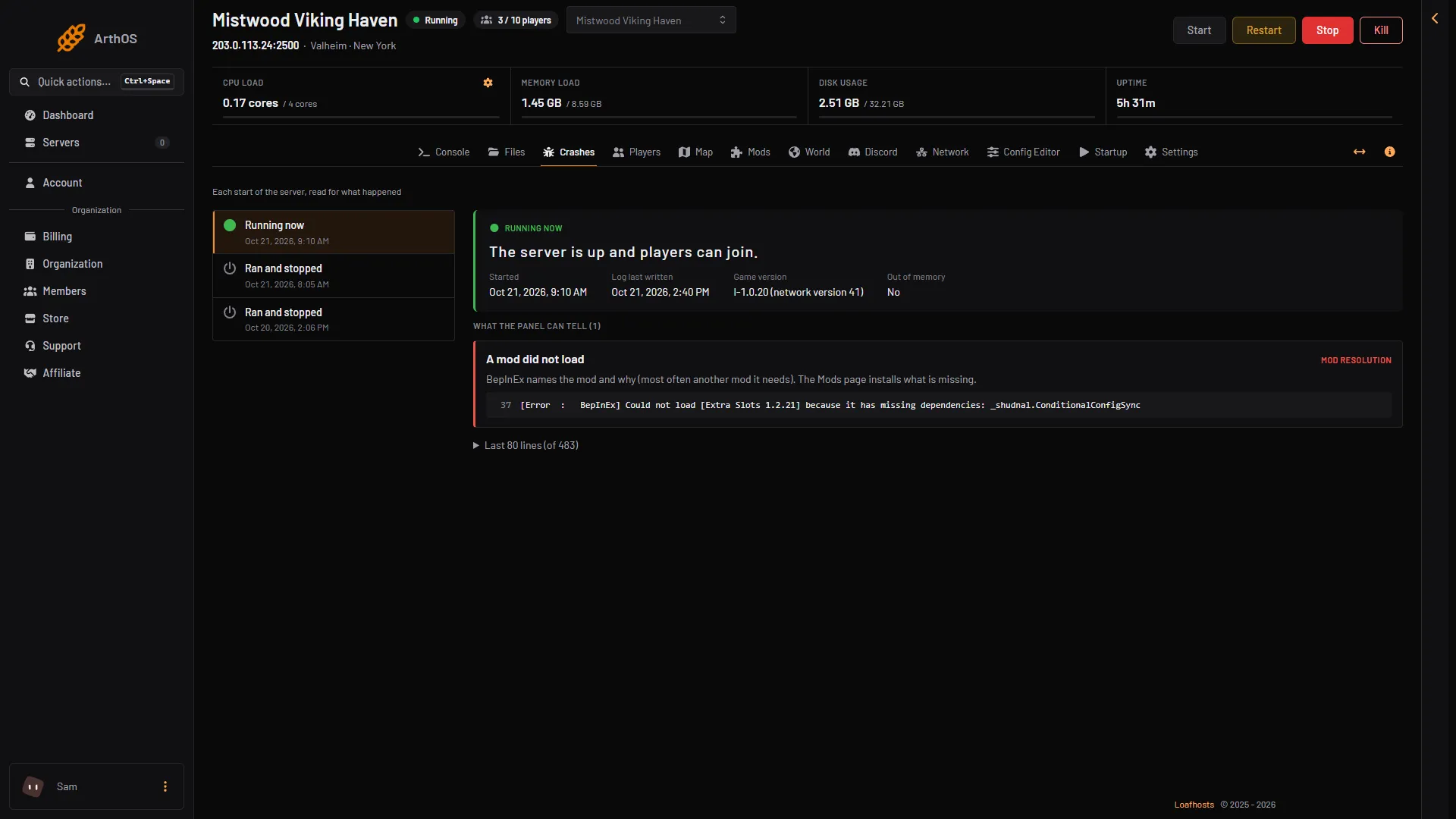
- A mod did not load
Missing dependencies
A mod can need other mods to work. BepInEx writes a line like this in BepInEx/LogOutput.log:
[Error : BepInEx] Could not load [Extra Slots 1.2.21] because it has missing dependencies: _shudnal.ConditionalConfigSyncThe name after the colon is what is missing. It has the author, a dot, then the mod. Search for the part after the dot, for example ConditionalConfigSync. To fix it:
- Open Add a mod and search for that part of the name. Install it.
- Check Needed by your mods on the Installed tab. Mods the panel pulled in for you are listed there.
- If you uploaded a mod with Upload a mod, its needs are not fetched for you. Add them by hand.
- Restart the server.
Do not remove a mod that others need. The Remove box warns you when other mods need it.
BepInEx stopped before any mod ran
If every mod shows Did not load, the Mods page may show a different note: “BepInEx stopped before loading any mod at the last start, so none of them ran.” It then repeats the error BepInEx gave. Follow what it says: install the mod again with Install again, or ask support.
A mod made for an older game version
Valheim 1.0 came out on 9 September 2026, and the server runs 1.0.20 as of 21 October 2026. A mod last updated before that may not work on it.
- Look for Update to (version) or a chip like “(version) out” next to the mod. Update all updates every mod.
- If there is no newer version, the mod may be out of date. Turn it off with Turn off, or remove it.
Run the plain game
To check that a mod is the cause, turn Load mods off on the Mods page and restart. The server starts as the plain game. Nothing is removed, so turning it on again brings every mod back. If the server starts well, the fault is in one of the mods. Turn mods back on and use Turn off on one mod at a time, restarting each time.
If it does not work
- A mod still says Did not load after you installed its needs. Restart once more and read the note again. The page shows what the last start did.
- The server will not start at all. Turn Load mods off and start it. Then read the start on the Crashes page, or see server crash.
- Players on Xbox and Game Pass cannot join. A mod that players must install keeps them out. See players need the mod too.
More about BepInEx: BepInEx on a Valheim server. More about the game: Valheim servers.
Not checked on 1.0.20 as of 21 October 2026: which popular mods work on 1.0.20.