









Players install a server’s mods on their own PC with a mod manager. They need the same mods, at the same versions, as the Installed list on the server. A mod marked Server only should need nothing on the player’s side (a label from the mod’s categories; the mod’s own page has the last word). Players on Xbox and Game Pass cannot use mods at all.
Which mods a player needs
- Open the Mods page and the Installed tab.
- Read each row. A row with Players need it too must be on every player’s game. A row with Server only does not.
- Write down each name and the version shown on its row.
- Mods listed under Needed by your mods are there because another mod needs them. A mod manager installs these by itself.
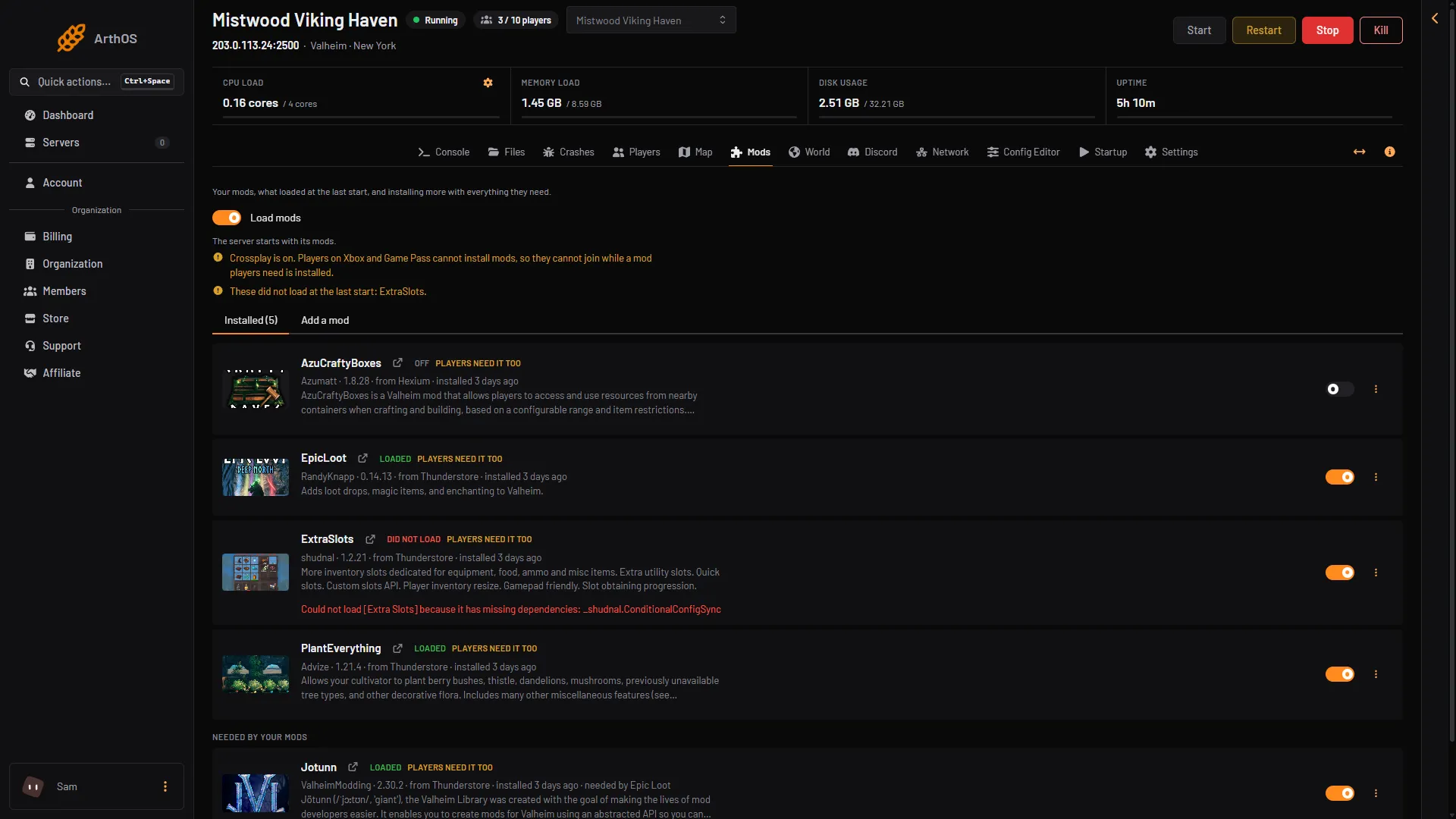
- Installed tab
- Players need it too
- Needed by your mods
The mod list is the Installed tab (1). Each row shows Players need it too (2) unless the mod is a server-only one. The panel marks a mod Server only when its Thunderstore categories say Server-side and not Client-side. That is a label from the categories, not a test, so the mod’s own page has the last word. The mods below the list (3) are needed by other mods.
Players also need the same game version as the server. See update the server if a player is on a different one.
Pick a mod manager
Two managers are listed on Thunderstore, from their own pages:
- Thunderstore Mod Manager, the Thunderstore app, for Windows. Get it at
get.thunderstore.io. - r2modman, a free manager. Its Thunderstore page lists Thunderstore, GitHub and
ebkr.devas the only real places to download it. Others that claim to be official are not.
Both download mods from Thunderstore and keep them in profiles, so you can switch between sets of mods. A manager also installs what a mod depends on, such as BepInEx, which mods need to load.
Install the same mods by hand
- Start the manager and choose Valheim.
- Make a new profile for this server.
- Search for each mod from your list and download the version the server has. The manager installs what the mod needs.
- Start Valheim from the manager, with that profile.
- Join the server.
Check the version on the mod’s page in the manager. A different version can refuse the join, or break the mod.
Share a profile with a code
Instead of searching for each mod, one person can make a profile and share it.
- Someone installs the mods, at the server’s versions, in a profile.
- In the Thunderstore Mod Manager they choose the Share button, or go to Settings, Profile, Export profile as code. The code is copied.
- They send the code on Discord or any other chat.
- Each player imports the code in their mod manager. The manager downloads the mods and their settings.
The Thunderstore wiki says a profile code carries the mods and their settings. Check that the versions match the server’s Installed list.
Players on Xbox and Game Pass
Players on Xbox and Game Pass cannot install mods. The panel says they cannot join while a mod that players need is installed. With crossplay on, the Mods page asks you to agree before it installs such a mod. A mod marked Server only does not keep them out.
If it does not work
- The player cannot join. Their mod versions or game version may differ from the server’s. Compare with the Installed list.
- A mod seems to do nothing. Make sure the right profile is the one that is active in the manager, then start Valheim again.
- The server shows the mod as not loaded. See install Valheim mods.
More about the game: Valheim servers.
Sources: valheim.thunderstore.io: R2modman, wiki.thunderstore.io: Modpacks and profiles, wiki.thunderstore.io: Creating a package