






A colour code is the section sign § followed by one character: §c is red, §l is bold. A code stays active until the next colour code or a §r reset. On a Java server they work in the MOTD in server.properties; plugins that read & codes convert them for you.
Colour codes
| Code | Name | Hex |
|---|---|---|
§0 | Black | #000000 |
§1 | Dark blue | #0000AA |
§2 | Dark green | #00AA00 |
§3 | Dark aqua | #00AAAA |
§4 | Dark red | #AA0000 |
§5 | Dark purple | #AA00AA |
§6 | Gold | #FFAA00 |
§7 | Gray | #AAAAAA |
§8 | Dark gray | #555555 |
§9 | Blue | #5555FF |
§a | Green | #55FF55 |
§b | Aqua | #55FFFF |
§c | Red | #FF5555 |
§d | Light purple | #FF55FF |
§e | Yellow | #FFFF55 |
§f | White | #FFFFFF |
These are the Java Edition values. Bedrock draws gray, dark gray, blue and the brighter colours with slightly different shades.
Formatting codes
| Code | Effect | Notes |
|---|---|---|
§k | Obfuscated (scrambled characters) | |
§l | Bold | |
§m | Strikethrough | Java only |
§n | Underline | Java only |
§o | Italic | |
§r | Reset all colour and formatting |
Put the colour code first and repeat the formatting code after each colour change. A colour code cancels a formatting code that came before it: §nX§cY underlines only the X.
Where they work
- Server MOTD (Java): yes, in
server.properties. Typing&there does not work. See set the MOTD. - Plugins: most plugins accept
&in their own settings and convert it to§. If a plugin shows&6as plain text, that field does not convert it. - Java chat, signs, books and anvils: you cannot type
§there. Java only allows it in text outside gameplay, such as resource packs, and using it in chat disconnects the player. Chat and sign colours come from plugins. - Bedrock:
§works in books, chat, signs and anvil names. Bedrock adds extra colours with the codesg,h,i,j,m,n,p,q,s,t,uandv(so§mand§nare colours there, not strikethrough and underline). Most Bedrock menus do not display colours at all.
Hex colours
The sixteen codes above are all the section sign offers. For any other colour you need a plugin that supports it. Plugins built on the MiniMessage format take <#FF8800>Text</#FF8800>, and MiniMessage also has <gradient:#FF5555:#5555FF> and <rainbow>.
In the ArthOS panel
On a Java server, the Config Editor has a Text tools button above the Message of the day box. The dialog has two modes, Format text and Gradient. Type with & codes or MiniMessage, and copy the line you need: “With & codes (most plugins)”, “With § codes (server.properties, the game itself)” or “MiniMessage”. Nothing is saved to your server until you paste the line and save.
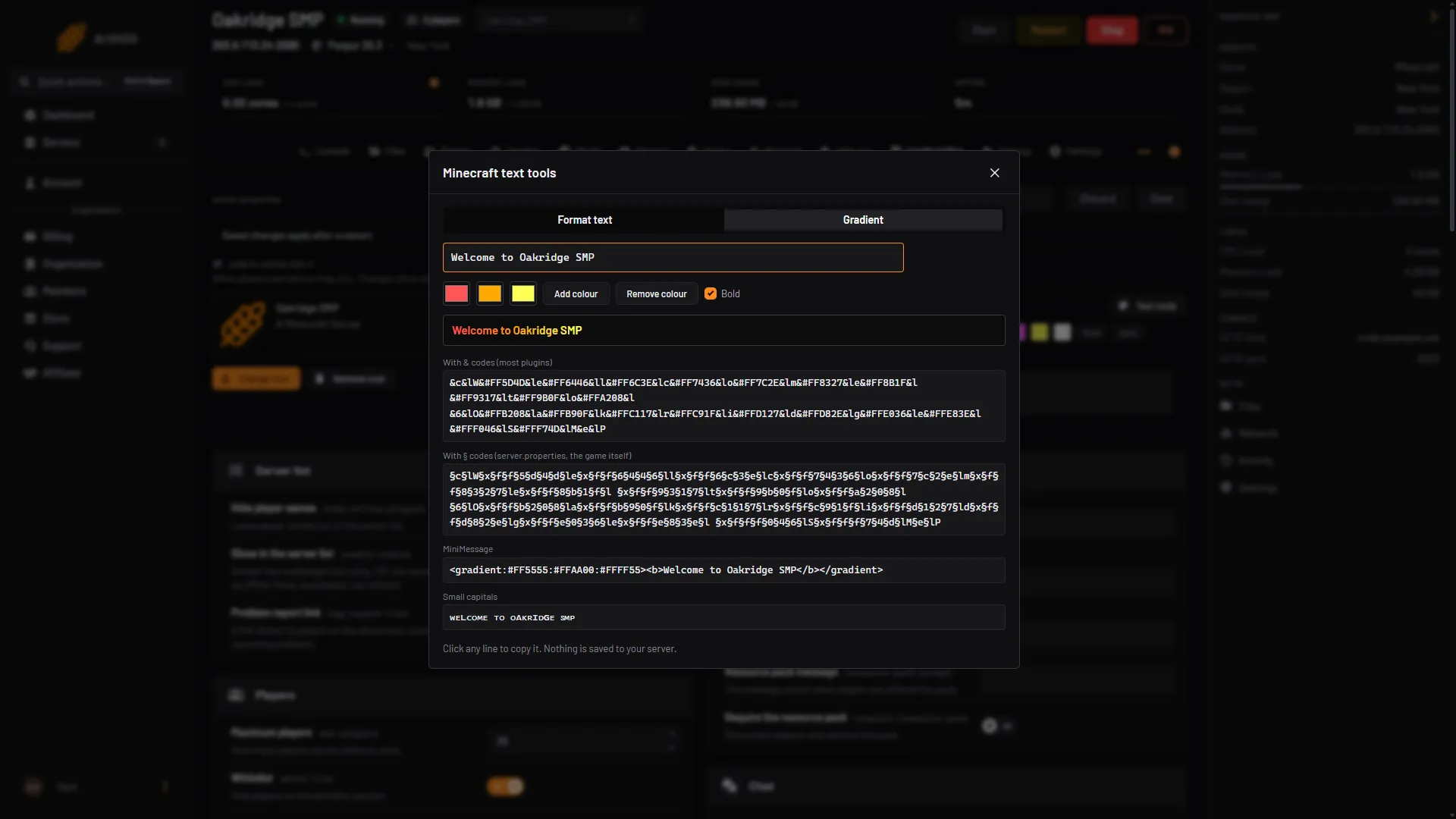
- Gradient mode
By hand in server.properties
Write the section sign as \u00A7:
motd=\u00A7cRed \u00A7lbold red\u00A7r normalIf it does not work
- You see
&cas text. The place you typed it does not convert&. Use§there, or a plugin field that supports&. - You see a symbol instead of colour. The file was saved with the wrong character set. Use
\u00A7. - Colours bleed into the next text. Add
§rafter the coloured part. - Hex colours do nothing. The setting or plugin does not support hex. Use one of the sixteen colours.
More Minecraft servers? See Minecraft on Loafhosts.
Sources: minecraft.wiki: Formatting codes, minecraft.wiki: Server.properties, docs.advntr.dev: Format.html