






server.properties is the plain text file where a Java server keeps its main settings: the message under the server name, how many players fit, the difficulty, the game mode and more. The Config Editor in the ArthOS panel shows each setting as a labelled field, so you never edit the file by hand. Every change takes effect after a restart.
In the ArthOS panel
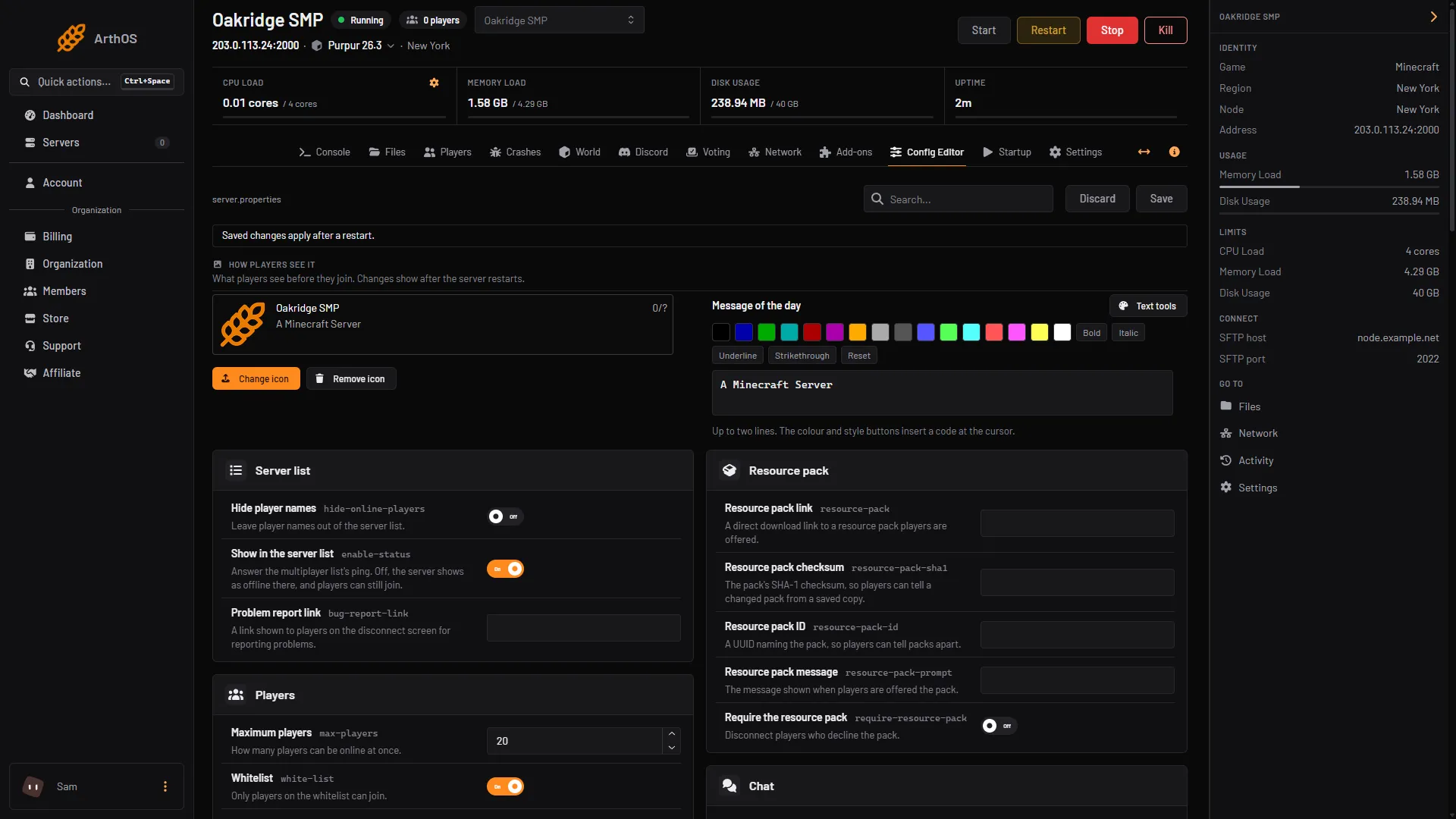
- Open your Minecraft server and choose Config Editor in the tab row.
- The
server.propertiessettings are grouped as Server list, Players, World, Performance, Resource pack, Chat, Remote access, Management service and Network. Use the Search… box to find one by name. - Change a value. Each field names the setting, shows the key in small type under it (for example
max-players) and says what it does. A small Changed tag marks fields you edited, and Unsaved changes counts them. - Choose Save. To throw your edits away, choose Discard.
- The panel says Saved. Restart the server to apply the changes. Choose Restart now, or restart later. If the server is stopped it says the changes apply when the server starts.
- Search for a setting
- Save
- Restart banner
The banner under the buttons reads “Saved changes apply after a restart.”
Settings most servers never touch are tucked into an Advanced group with a Show them button. If you want to see the raw file, choose Edit the whole file as text.
Three keys show a note instead of a field: server-ip, server-port and query.port. The panel writes them on every start so players can reach the server, so they cannot be changed here.
By hand
Open Files, then server.properties. Each line is key=value. Lines that start with # are comments. Save the file and restart the server. The game reads the file when it starts, so a change made while the server runs does nothing until then.
At every start the game rewrites the file: a missing key is added with its default, and a value the game cannot read is replaced by the default.
The settings people change most
| Key | What it does | Default |
|---|---|---|
motd | The message under the server name in the multiplayer list | A Minecraft Server |
max-players | How many players can be online at once | 20 |
difficulty | peaceful, easy, normal or hard | easy |
gamemode | The game mode new players start in | survival |
white-list | Only listed players can join | true |
online-mode | Check every player against Minecraft accounts | true |
view-distance | Chunks sent around each player | 10 |
simulation-distance | Chunks around each player that keep running | 10 |
spawn-protection | Blocks around spawn only operators can change, 0 turns it off | 16 |
hardcore | One life: a player who dies becomes a spectator | false |
allow-flight | Stop kicking players the server thinks are flying, for mods that allow flight | false |
Defaults are what a new Java 26.3 file contains. Two settings do nothing for a world that already exists: level-seed and level-type only matter when a new world is generated.
Lowering view-distance and simulation-distance is the first thing to try on a server that lags.
Keep Check Minecraft accounts (online-mode) on. With it off, anyone can join under any name.
If it does not work
- The change has not happened. The server has not restarted since you saved. Restart it.
- A value went back to the default. The game replaced a value it could not read. The Config Editor checks numbers and choices before it saves, so this mostly happens when editing by hand. Fix the value and restart.
- A setting keeps resetting after restarts. Something else is writing it. On a server with a world-management plugin see why difficulty resets.
- It says the file does not exist yet. The game creates
server.propertiesthe first time the server starts. Start it once. - It cannot be edited. The fields are read only when you do not have the permission to change files, or while the server is starting or stopping.
Hosting a Java server? See Minecraft on Loafhosts.
Sources: minecraft.wiki: Server.properties