






The MOTD (message of the day) is the text players see under your server’s name in the multiplayer list. Edit it in the Config Editor under How players see it: type the message, click a colour, check the preview, save and restart. It can have two lines.
In the ArthOS panel
- Open your Minecraft Java server and choose Config Editor in the tab row.
- At the top, find the How players see it card: it shows the icon, the name and a preview of the message (“What players see before they join. Changes show after the server restarts.”). Next to it is the Message of the day box.
- Type your message in the box (1). The 16 colour squares and the Bold, Italic, Underline, Strikethrough and Reset buttons insert a code at the cursor. A code colours everything after it until the next code, so put a colour where you want it to start.
- Press Enter for a second line. The box says “Up to two lines.”
- Choose Save (2), then restart the server.
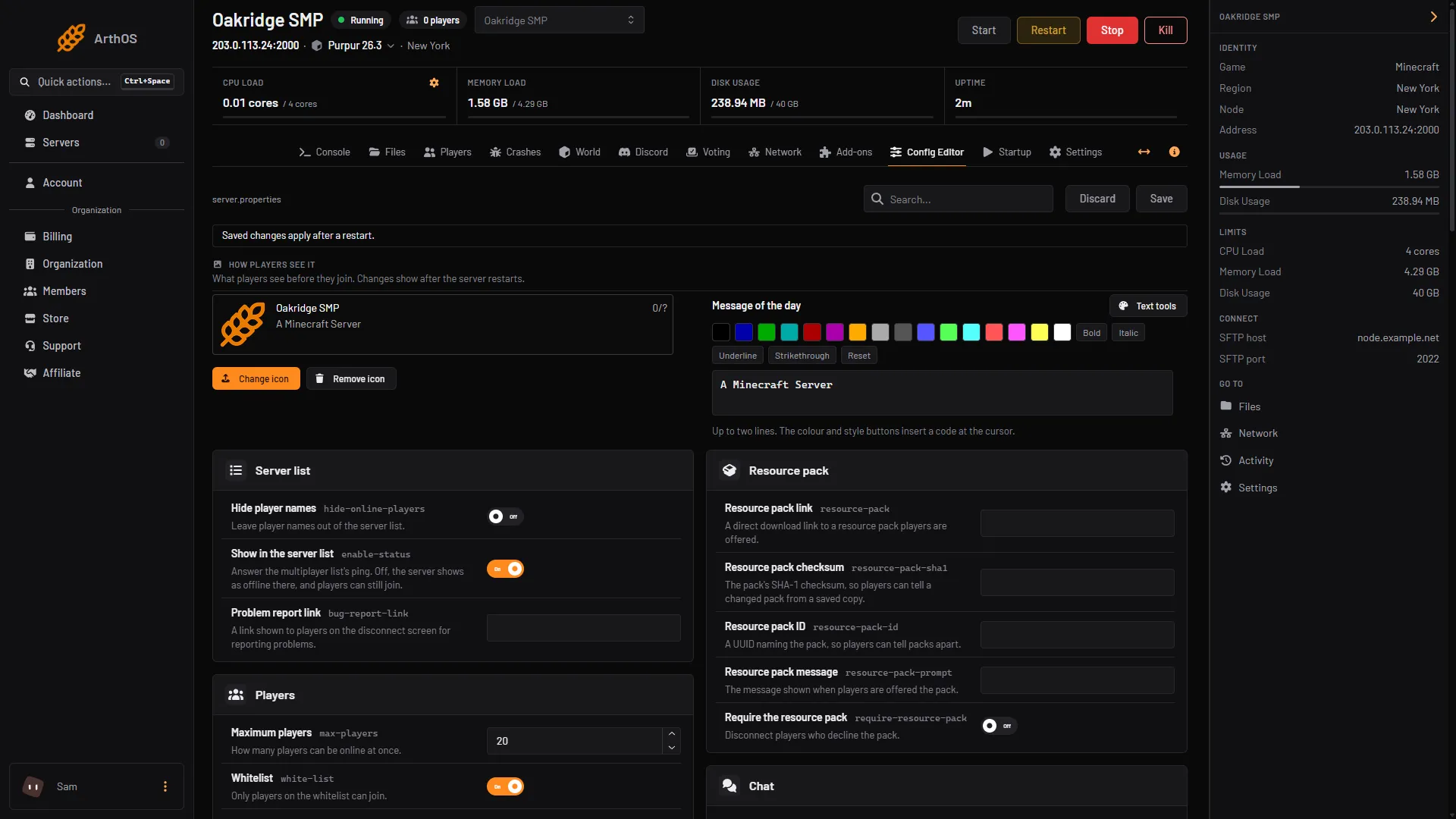
- Message of the day box
- Save
- Text tools
Choose Text tools (3) for longer messages. The dialog is called “Minecraft text tools”. It has two modes, Format text and Gradient, and you type with & codes or MiniMessage. It prints lines you can copy, and says “Nothing is saved to your server.” The line labelled With § codes (server.properties, the game itself) is the one to paste into the MOTD box.
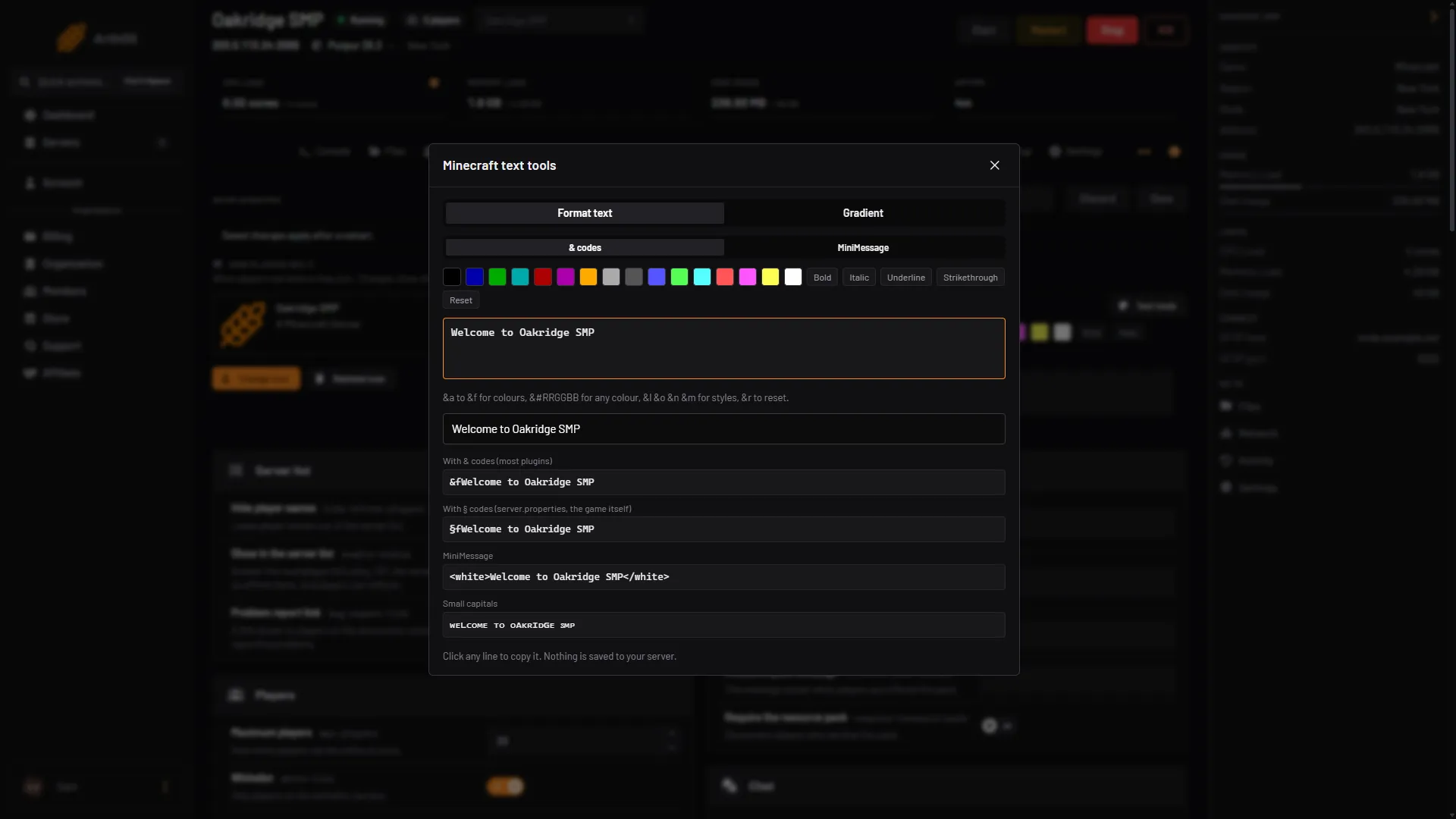
- Format text or Gradient
- Type the message
- Copy the § line
Keep it short. The wiki warns that a MOTD over 59 characters can make the server list report a communication error.
By hand
-
Open Files, then
server.properties. -
Find the
motdline and write your message after the equals sign. The section sign that starts a colour code is written as\u00A7, so gold text is\u00A76:motd=\u00A76Welcome to the SMP\n\u00A7bJoin our Discord -
\nstarts the second line. -
Save the file and restart the server.
Colour letters and formatting codes are listed in Minecraft colour codes. Typing a plain & here does not work: server.properties needs the section sign.
If it does not work
- The old message still shows. The server list reads the MOTD at start. Restart the server.
- The text shows
&6or a strange symbol. The file needs\u00A7(the section sign), not&. - Only part of the message shows, or the list reports an error. The message is too long. Shorten each line.
- The colour carries into the next line. Add a Reset after the part that should end.
- The box is greyed out. You can see these settings but not change them with your permissions.
- The server shows as offline in the list but players can join. Show in the server list (
enable-status) is off in the same Config Editor page.
Running Minecraft? See the Minecraft game page.
Sources: minecraft.wiki: Server.properties, minecraft.wiki: Formatting codes