






A corrupted chunk is a small square slice of the world whose saved data cannot be read. Find the damaged chunk in the Crashes and World tabs. Stop the server, then either delete the chunk so the game builds it again, or restore a backup. Never edit the world files while the server runs.
Signs of a corrupted chunk
- The server stops by itself. The Console says “The server stopped unexpectedly.” and names the cause.
- The Crashes tab shows Part of the world could not be read under Detected issues. The panel’s advice is to restore the world from a backup, or delete the damaged chunk (the game regenerates it).
- The log has lines about a chunk or a region file. The panel looks for wording such as “failed to read chunk”, “couldn’t load chunk”, “chunk file at”, “region file”, “is truncated”, “invalid chunk” and “corrupt”.
- In the World tab, clicking a chunk on the map says “This chunk could not be read:” and a reason.
One chunk can be bad while the rest of the world is fine. A crash that blames a plugin or the memory is a different problem. See find out why your server crashed.
Step 1: make a backup
Open Settings, then Backups, and choose Create. A backup works on a running server. The panel saves the world first and says so on the backup’s row.
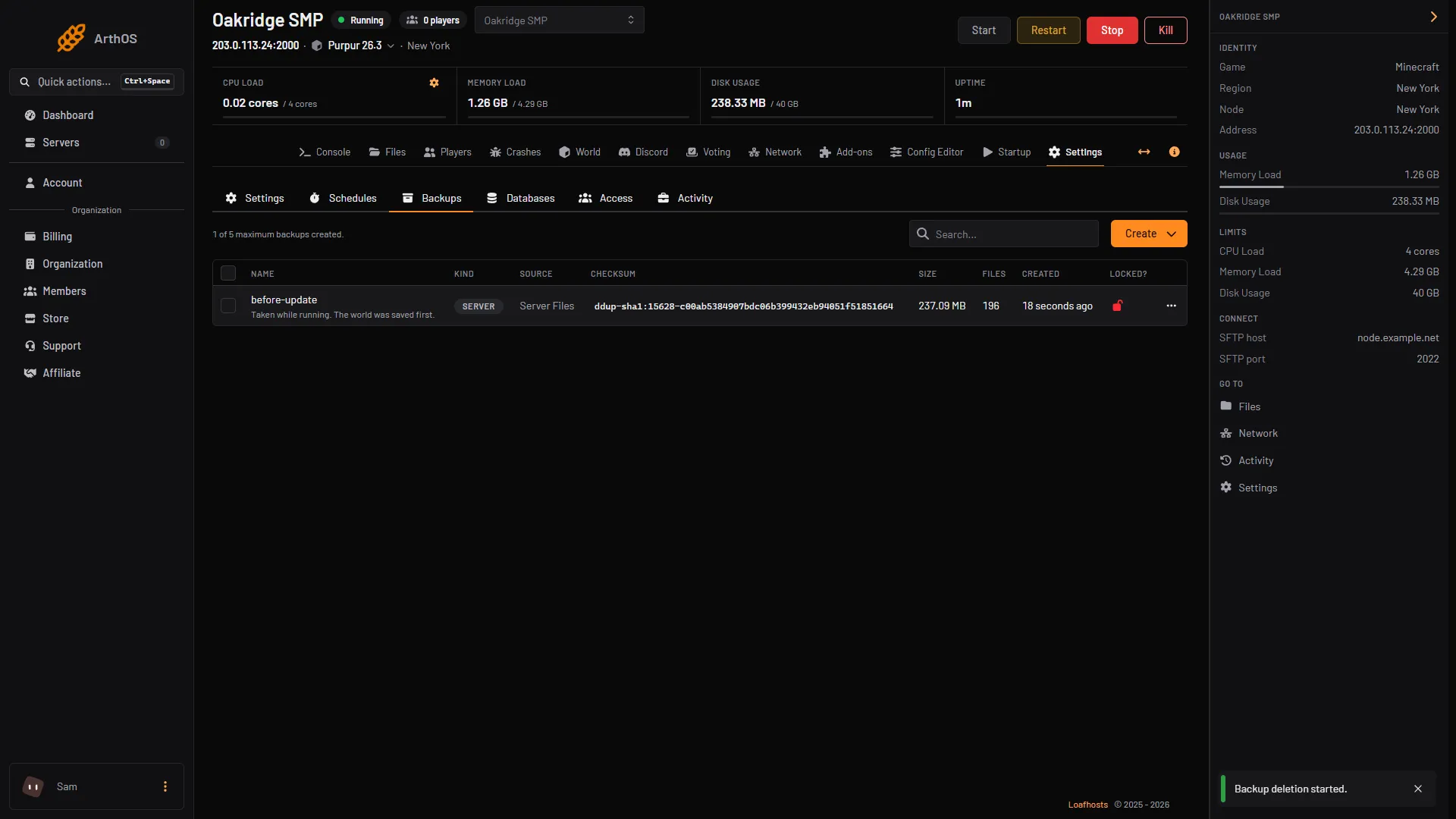
- Backups used
- Create
- The new backup
At the backup limit you cannot make a manual backup: Create is greyed out, so delete one first. Only a scheduled backup removes the oldest unlocked one by itself. Lock the ones you want to keep. See back up and restore.
Step 2: find the damaged chunk
- Open the Crashes tab. It works while the server runs.
- Choose Logs (1), or Crash reports if the game wrote one, and open the newest file.
- Read Detected issues (2). Look at the numbered lines it points to, and at Recent output (3).
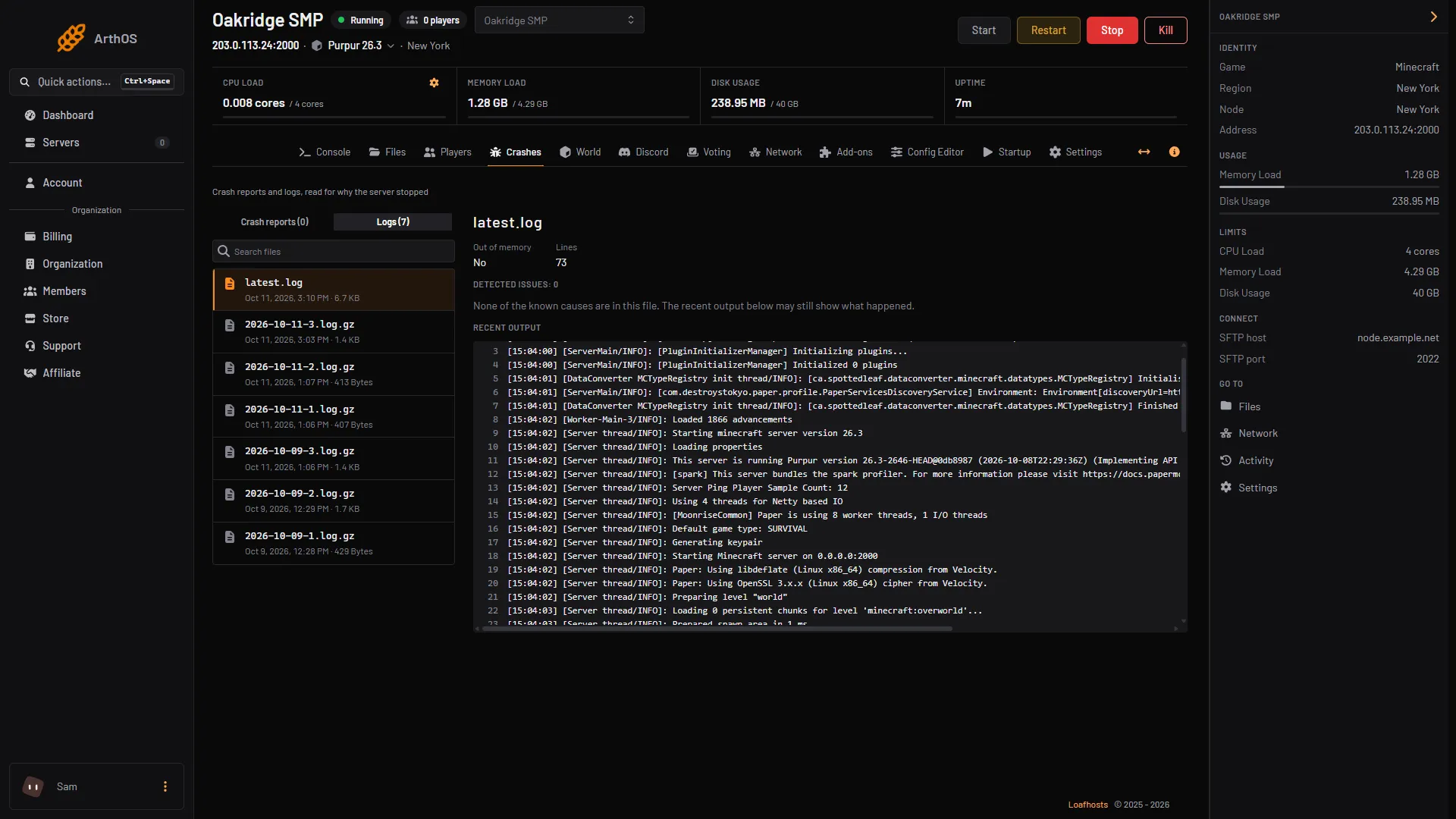
- Crash reports or Logs
- Detected issues
- Recent output
- Look for numbers near the words about a chunk or a region file. They show where in the world the problem is.
- Open the World tab. Choose Overworld, Nether or The End. Type the X and Z numbers and choose Go to. The map shows the region. Point at it to see the block and chunk numbers, and click the chunk.
If the chunk is the damaged one, the map says “This chunk could not be read.” If you cannot tell which chunk it is, restore a backup instead of deleting.
Step 3: delete the chunk
The panel deletes chunks only on a stopped server.
- Choose Stop at the top of the page. Wait until it stops. Until then the World tab says “Stop the server to delete chunks.”
- In the World tab, choose Select chunks.
- Click the damaged chunk on the region map (1). The count shows “Selected: 1” (2). Choose Delete 1 (3).
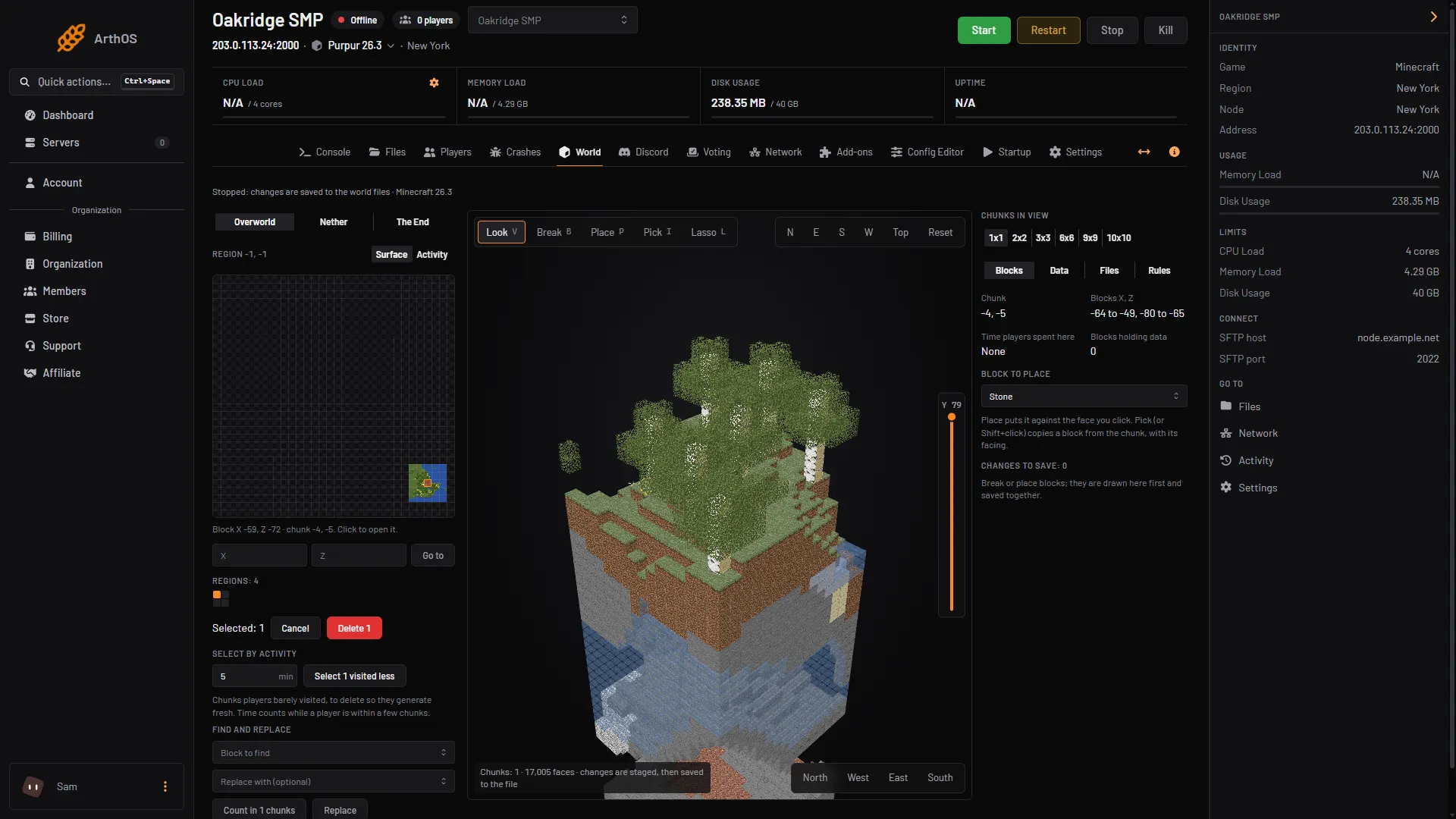
- Click the chunk
- Selected count
- Delete 1
- A box asks “Delete the selected chunks (1)?” It says: “The game generates them again, fresh, the next time a player comes near. Everything built in them is gone. A copy of the region file is kept beside it.” Confirm.
- The panel says “Deleted 1.” and names the copy it kept. The panel keeps the newest three copies of each region file.
- Start the server.
If deleting does not help: restore a backup
- Stop the server.
- Open Settings, Backups. Open the backup row’s menu and choose Restore.
- The box has two switches. The first deletes all files of the server before the restore and cannot be undone. Leave it off unless the server must match the backup exactly.
- Choose Restore, then start the server.
A restore replaces files, so anything built since that backup is lost.
By hand
Stop the server. The world’s region files are in <world>/dimensions/minecraft/overworld/region, and the_nether and the_end beside it on Minecraft 26.1 and newer. Older versions use region, DIM-1/region and DIM1/region. Each r.<x>.<z>.mca file holds a region of 32 by 32 chunks (Minecraft Wiki). A chunk number times 16 is the chunk’s first block. The Go to boxes take block numbers: X and Z are block numbers, not chunk numbers. Do not edit region files while the server runs.
Not checked: taking one region file out of a panel backup. To use a backup, restore the whole backup as described above.
If it does not work
- The panel will not delete. The server is not stopped, or the region file changed since you opened it. Stop the server and load the region again. If the panel says the region’s file is damaged, restore a backup instead.
- There is no Select chunks button. The World tab may need the server stopped, or your role may not allow it.
- The same crash comes back. The log may point at a different chunk. Read the log again and repeat. Or a plugin or mod makes the damage. See find out why your server crashed.
More on the map is in the world editor. More about the game is on the Minecraft page.