






Open the server’s Crashes tab, choose the newest file and read Detected issues. The panel reads the file for known causes (a plugin that failed to load, running out of memory, the wrong Java version, a damaged world) and tells you the fix. If it names nothing, the stack trace in the file still shows where the problem was.
In the ArthOS panel
- When a Java server stops by itself, the Console shows The server stopped unexpectedly. with the cause it found. Choose Open crash details to jump to the file. You can also open the Crashes tab yourself at any time, even while the server is stopped.
- Use the switch to pick Crash reports (N) for the files the game wrote when it crashed, or Logs (N) for the server’s log files, where N is how many there are. Each file shows its date and size.
latest.logis the current log and the older ones are dated.log.gzfiles. Search files filters the list.
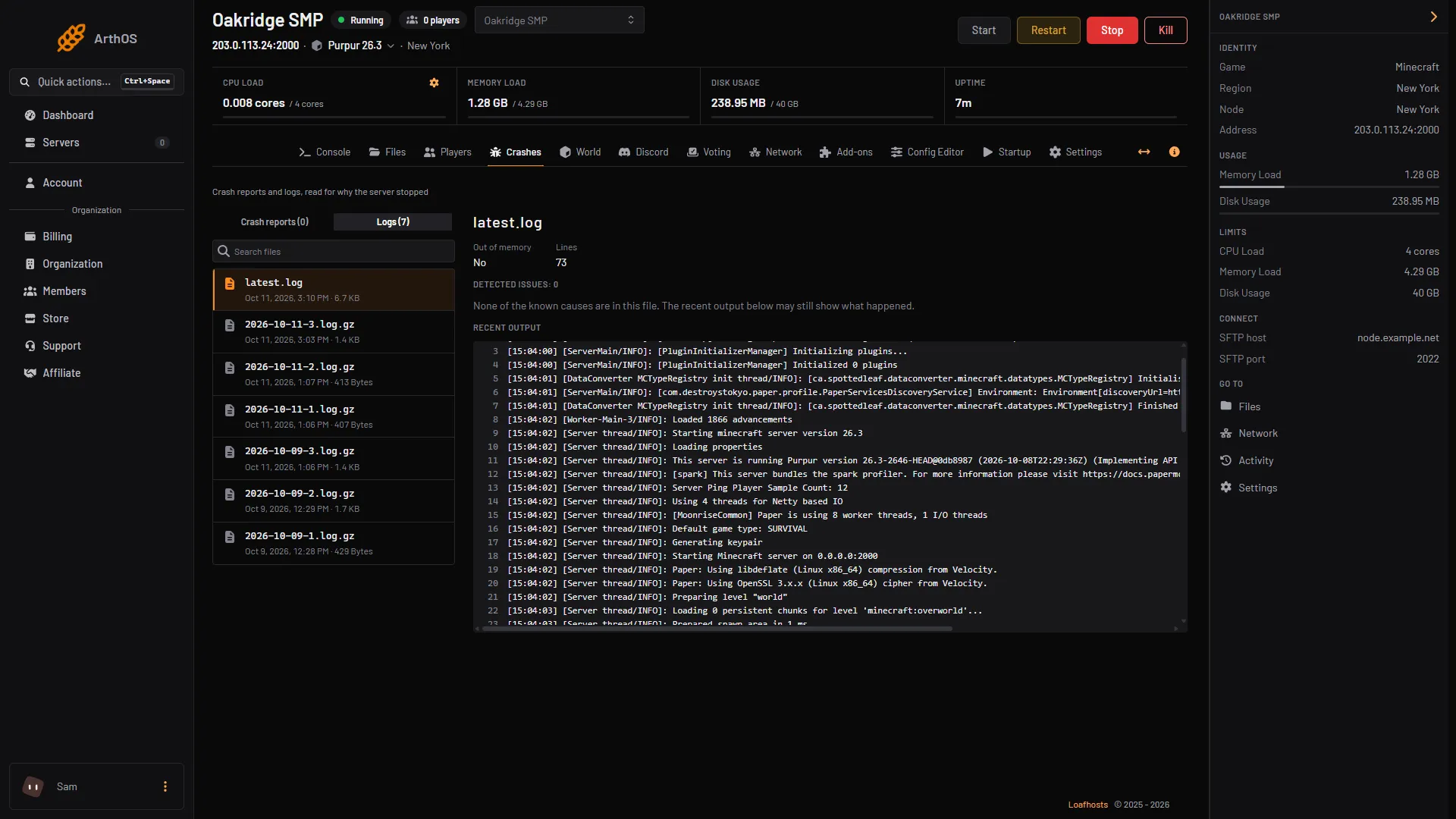
- Crash reports or Logs
- Pick a file
- Detected issues
- Recent output
- Opening a file shows Out of memory (No or Yes) and the number of Lines.
- Detected issues counts the causes found, each with a fix and the numbered lines that show it. Check those lines yourself: the panel only matches known wording. When it finds none it says “None of the known causes are in this file. The recent output below may still show what happened.”
- Recent output at the bottom shows numbered lines from the file. Read Recent output even when no issue was found.
Read a crash report
A crash report is a text file named like crash-2026-10-11_18.04.11-server.txt. It starts with a short comment, then a Time: line and a Description: line saying what the game was doing, then a stack trace: lines starting with at that show where the error happened. The top line of the stack trace names the place. Sections below it, such as -- Entity being ticked --, tell you what the game was working on.
The usual causes and what to do
| The panel says | What it means | What to do |
|---|---|---|
<Name> failed to load (Plugin) | A plugin broke while starting. | Update it to a build for your Minecraft version, or remove it. |
| The server ran out of memory (Memory), Out of memory: Yes | The game ran out of the memory your plan gives it. | Remove memory-heavy plugins or mods, lower the view and simulation distance, or move to a plan with more memory. |
| The server runs on the wrong Java version (Java version) | The version needs a newer Java than the server runs. | Open Add-ons, Versions. The panel sets the right Java when you choose a version. |
| Part of the world could not be read (World) | A chunk or world file is damaged. | Restore a backup, or delete the damaged chunk. The game builds it again. |
| An entity or block entity crashed the world tick (World) | One thing in the world makes every tick fail. | Remove that entity or block with the world editor, or delete its chunk. |
| The server stopped responding (Performance) | One tick took too long and the server stopped itself. | See lag and TPS. |
| Mods are missing a dependency, or a client-only mod is installed (Mod resolution) | Mods are missing a dependency, or only run in the game client. | Install the mods named, remove the client-only one, or reinstall the modpack. |
| The server’s port is already in use (Port) | Something else uses the port. | Check the Network tab. |
| The Minecraft EULA has not been accepted (Notice) | The server cannot start. | Accept the EULA in the Console. |
A plugin or mod
Find the plugin’s name in the Detected issues lines. Open Add-ons, Plugins, Manage all, tick it and choose Turn off, then restart. If the server now starts, update that plugin or ask its author. See install and manage plugins.
Out of memory
The server’s Java heap is a share of the memory your plan includes, so you cannot raise it by editing a startup line. Fewer plugins, fewer loaded chunks and a smaller view distance all lower use. The Memory Load chart on the Console shows how close you run to the limit.
World damage
Stop the server, then restore the last good backup from Settings, Backups. See back up and restore. The restore dialog has two switches. The first deletes every file on the server before the restore, and that cannot be undone.
Deleting a chunk
Deleting a chunk removes everything built in it. Take a backup first. The world editor shows how to open a chunk.
By hand
Without the panel: look in crash-reports for the newest crash-...-server.txt and in logs/latest.log. Older logs are packed into compressed files. If crash-reports does not exist, the Java process itself may have crashed. Look for a file named hs_err_pid followed by a number in the main folder.
If it does not work
- The lists are empty. The server has never written a log. Start it once.
- “None of the known causes are in this file”. Read Recent output and the stack trace. The first
atline and any plugin name in it are your lead. - The server stops with no crash report. Check the end of
logs/latest.log. A stop someone asked for ends with “Stopping server”. A log that ends in the middle of start-up, with no such line, means the process was killed.
More on the game: Minecraft servers.
Sources: minecraft.wiki: Obtaining a crash report, minecraft.wiki: Crash, docs.papermc.io: Basic troubleshooting, docs.papermc.io: Getting started