






In the ArthOS panel, open Settings, then Backups, and choose Create. A backup copies the server’s files, so the world, server.properties, plugins and their settings are all in it. To make one every day, add a schedule with a Create Backup step.
You can back up while the server is running. For a Minecraft Java server the panel saves the world and pauses its writes for the copy, then turns saving back on. The backup row says “Taken while running. The world was saved first.”
Make a backup
- Open the Settings tab and choose Backups. The page shows how many backups you have, for example “0 of 5 maximum backups created.”
- Choose Create, then Create Backup.
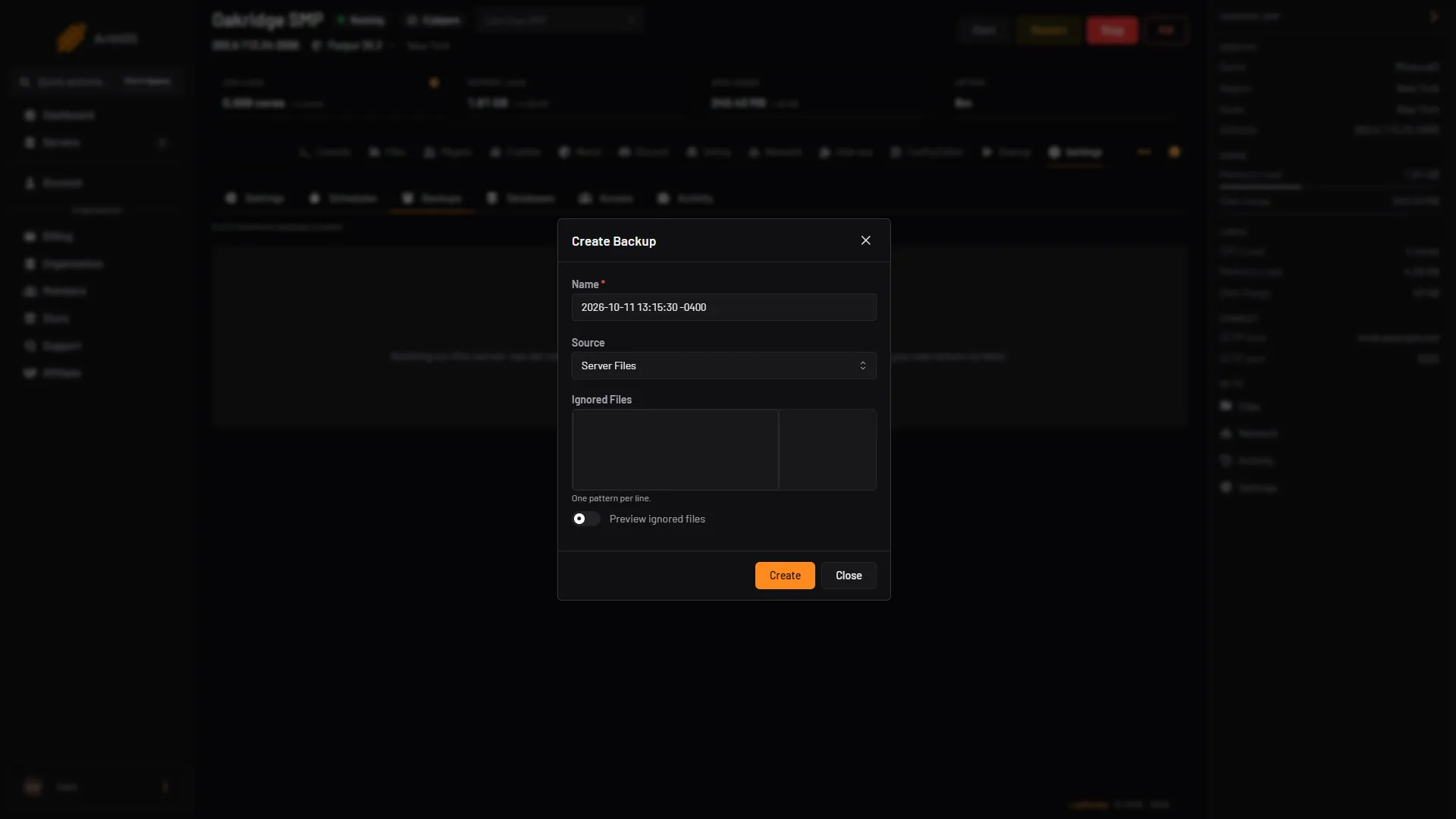
- Give it a Name that says why you took it, such as
before-update. Leave Source and Ignored Files as they are. - Choose Create. It appears in the list when it finishes.
To leave files out of a backup, list them in Ignored Files, one pattern per line, and choose Preview ignored files to check what they match.
The list shows the count, with the limit (5 in the picture) (1), the Create button (2) and one row per backup (3). A backup taken on a running server says “Taken while running. The world was saved first.”
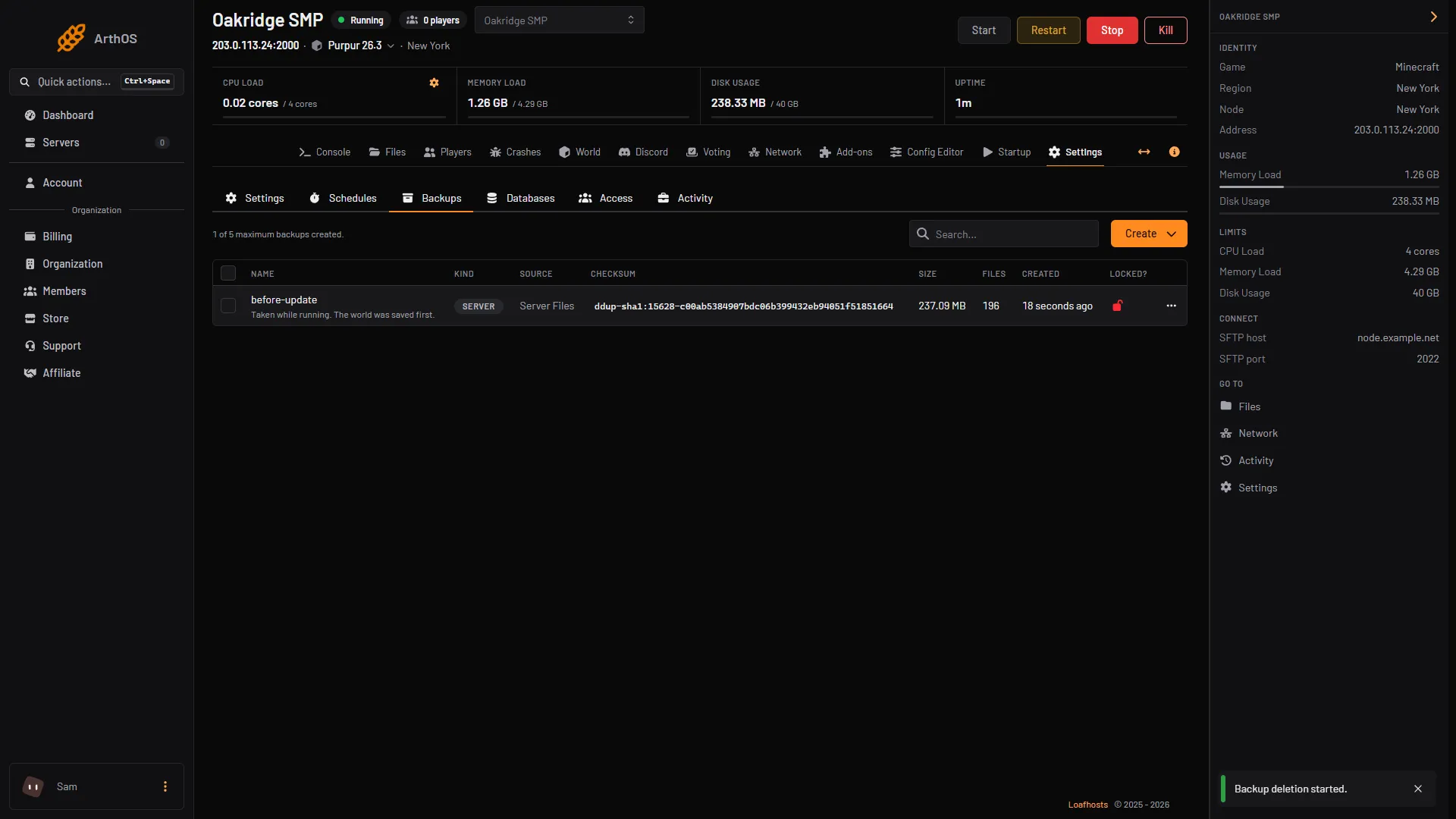
- Backup count
- Create
- Backup row
Back up on a timer
- Open Settings, then Schedules, then Create Schedule. Give it a Schedule Name.
- Choose Add Trigger, then Time Interval (Cron). Under Runs, pick Daily and set At. Times use the server timezone.
- Choose Add Step, set Action Type to Create Backup, and leave Backup Name empty for an automatic name.
When a server is at its backup limit, each scheduled backup removes the oldest unlocked backup to make room. A daily schedule therefore keeps only as many days as the limit, which depends on your plan. Lock the ones you want to keep; a locked backup is never removed. If every backup is locked, the scheduled backup cannot run.
Keep the one that matters
Choose Edit on a backup’s row and turn on Locked, or select rows and use Lock. A locked backup is skipped when older backups are cleared, and it cannot be deleted until you unlock it.
When you are at the limit, Create is greyed out with a message saying the server is limited to a number of backups, which is your own backup limit. Delete a backup you no longer need, or unlock and delete an old locked one.
Restore a backup
- Stop the server. A restore overwrites its files, and anything built since the backup is gone.
- If you can, make a fresh backup of the current state first, even a broken one. At the limit, delete one you do not need to make room.
- In Settings, Backups, open the backup’s row menu (right click the row, or use the dots at its end) and choose Restore.
- The Restore Backup dialog has two switches. “Do you want to delete all files of this server before performing this action? This cannot be undone.” (1) deletes every file on the server before the restore and cannot be undone. Leave it off unless the server must match the backup exactly. With it off, the backup’s files are put over what is there and other files stay. “Restore the startup command, image, and variables from this backup.” (2) brings those back too. With both off, only the backup’s files go over what is there.
- Choose Restore (3). The server shows that it is restoring. Start it when that is done, then check the world and your plugins.
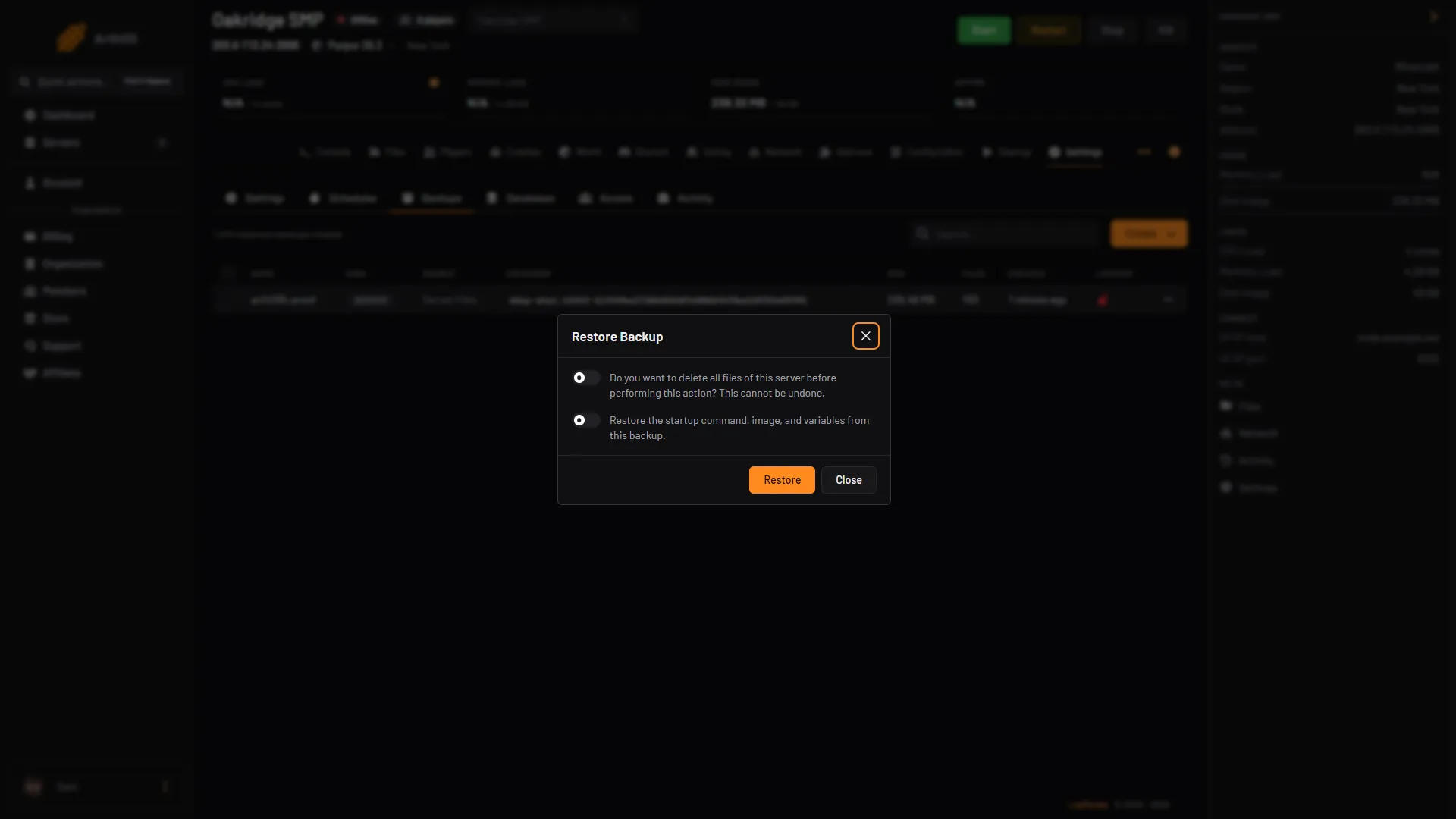
- Delete all files first
- Restore startup command
- Restore
From the same row menu, Download saves a copy on your computer, and Export to Files puts it in your server’s files. A backup stored only on the server shares the server’s fate, so download one you cannot afford to lose.
By hand
Panel users can skip this section.
To copy a world yourself on a running server, stop it from writing first. Type these in the server console, without a slash.
save-offstops the server writing to the world files. Changes wait in memory.save-all flushwrites everything to disk at once. The server freezes for a moment. Wait for “Saved the game” in the console.- Copy the files. In Files, select the world folder, choose Archive, pick
zip, then Download the archive. save-onturns writing back on.
Copy server.properties, ops.json and whitelist.json too, and your plugins folder if you want their settings. On Minecraft 26.1 and newer the whole world is one folder, world unless you changed level-name. On older Paper servers it is three folders: world, world_nether and world_the_end.
A copy of a world made without these commands can catch a file half written. A backup made in the panel does them for you.
If it does not work
- Create is greyed out. You are at your backup limit. Delete or unlock and delete one.
- A scheduled backup did not run. Every backup is locked, so there is nothing it may remove. Unlock one you no longer need.
- The backup says “The game did not confirm a save.” The game did not answer the save within two minutes. The copy is of a running world. Take another when the server is quiet, or stop it first.
- I cannot delete a backup. It is locked. Unlock it first.
- Plugin data is missing after a restore. A backup holds the server’s files only. A plugin that keeps its data in an outside database needs that database backed up separately.
More about the game: Minecraft servers.
Sources: minecraft.wiki: Save, minecraft.wiki: Java Edition level format, minecraft.wiki: Server, docs.papermc.io: Migration