






To change the version or the software of a Java server, open Add-ons, choose Versions, pick the software, pick the version and press Switch now. The panel takes a backup first when it can, then swaps the server jar and sets the Java and startup command for you. Your world, settings and player data stay.
In the ArthOS panel
- Open the server and go to Add-ons and press the Versions button (1). The top card, Running now, shows what the server runs, for example Purpur 26.3, and the Java it uses. Shortcut: click the software chip in the server header, for example “Purpur 26.3”.
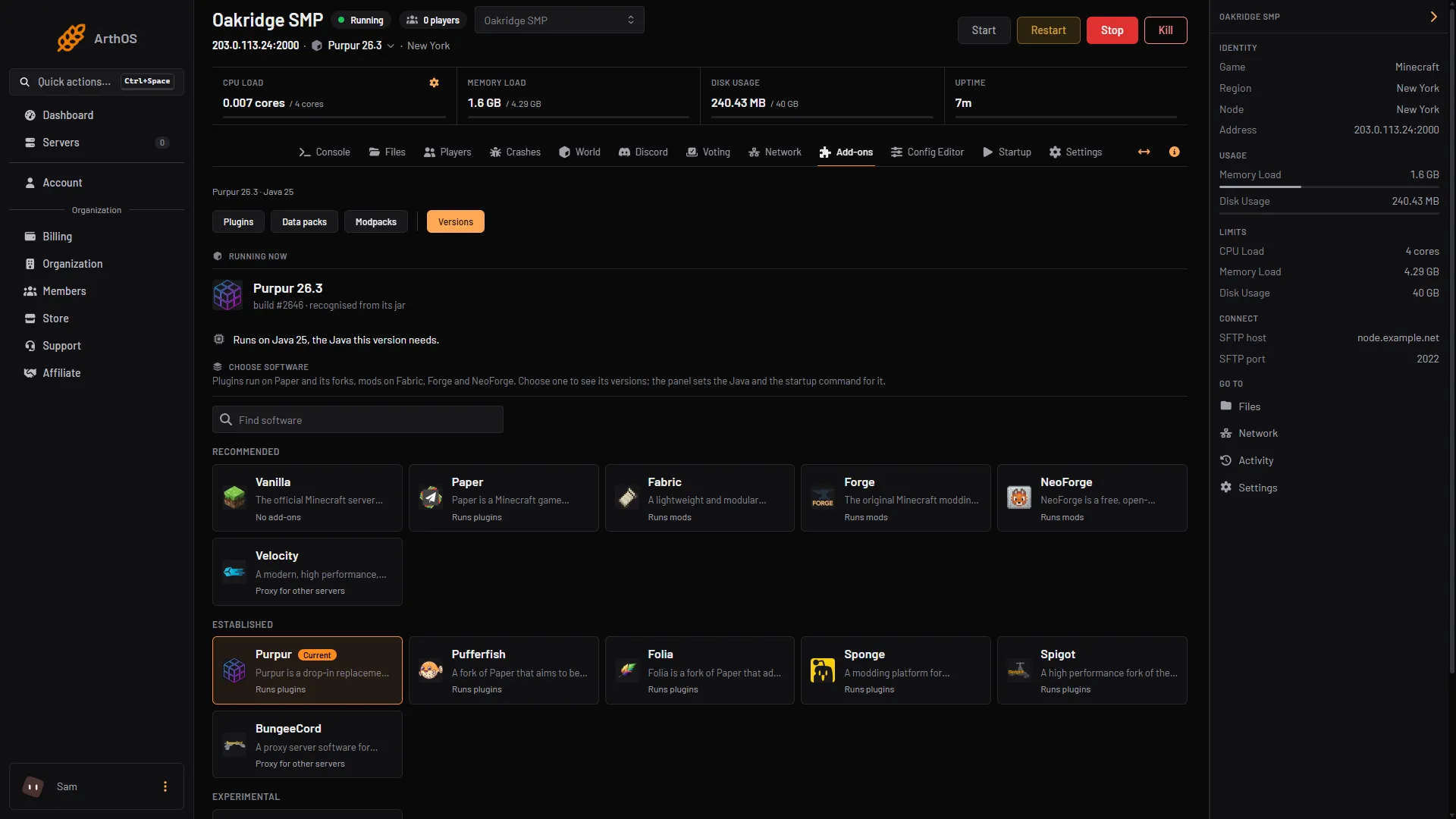
- Open Versions
- See what runs now
- Find software
- Pick Paper
- Under Choose software, pick one:
- Paper and its forks, such as Purpur, run plugins.
- Fabric, Forge and NeoForge run mods.
- Vanilla runs neither. Use Find software to search. Software is grouped as Recommended, Established and Experimental.
- A list of versions opens, with Releases first. Use Snapshots for test versions or Find a version to search; Show more lists older ones. Each card shows the Java it needs. Press Choose.
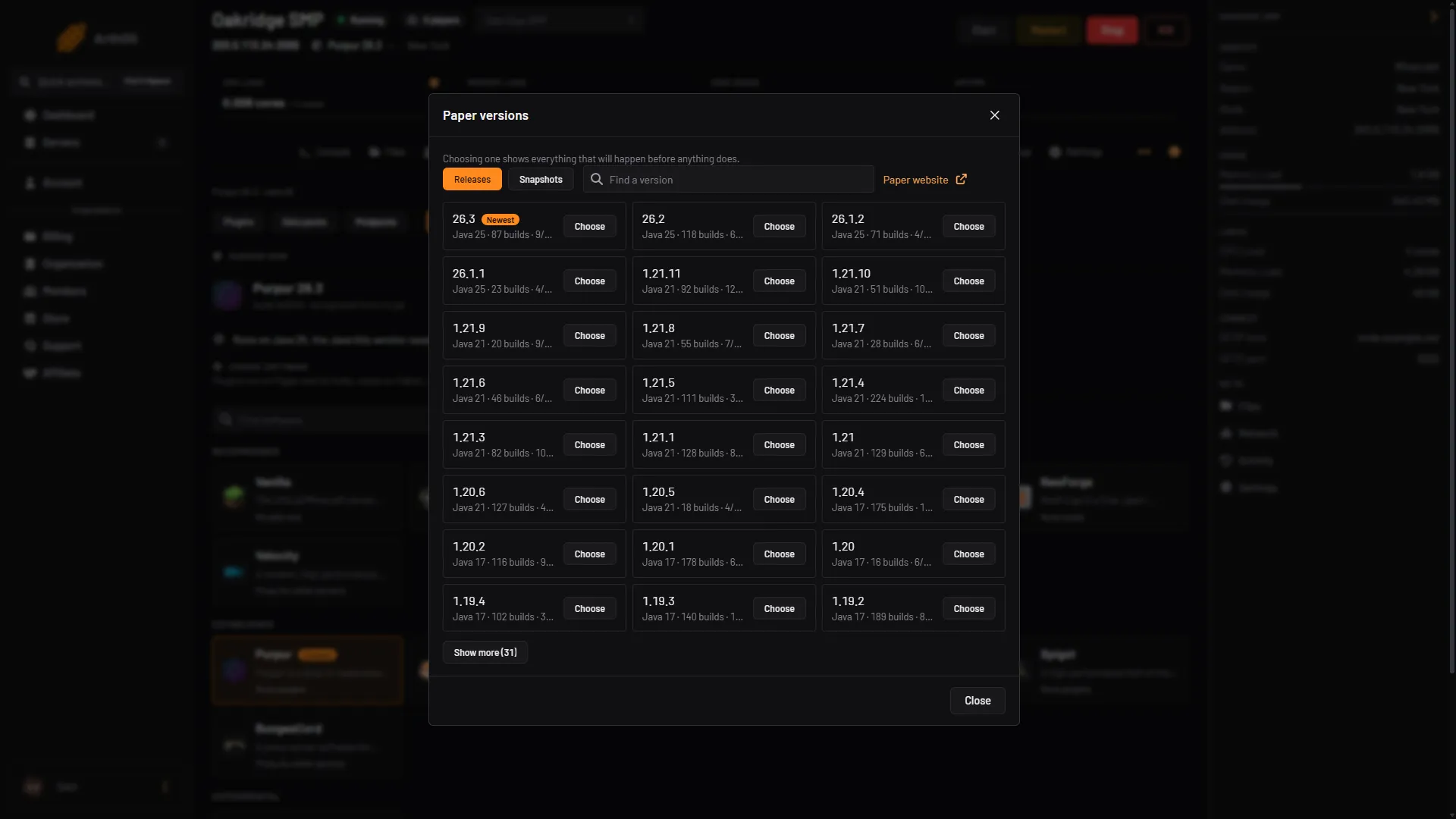
- Releases or Snapshots
- Find a version
- Choose a version
- A “Switch to” dialog opens and lists what will happen before anything does. Read it before you press anything. It covers the backup, the Java it moves to and what happens to mods or plugins that will not load on the new software.
- If a Build list appears, keep the newest unless you need an older one. Tick Clean install only when moving between mod loaders, for example Fabric to Forge: it removes files, and the dialog says which folders it keeps.
- Press Switch now. The server is unavailable while this runs, and progress shows at the top of every page. Start the server when it finishes and watch the Console.
Backups first
The panel takes a backup first when it can. If it cannot, the dialog says why, and you must tick Continue without a backup to go on. Do not. Free a slot under Settings, then Backups, and try again. To roll back, restore that backup from the same tab. See Minecraft server backups.
Going to an older version
An older Minecraft version cannot read a world saved by a newer one. If your world was last saved by a newer version than the one you chose, the panel warns you: the server refuses its chunks and can hang instead of starting. It will not continue until you tick the box named for that version, such as Change to 26.1.2 anyway.
Your options:
- Keep the current version, or pick the version the world was saved on or a newer one.
- Or start a new world after the change. The old world stays in the backup.
On any downgrade the panel notes that a world saved by a newer version may not load. The backup keeps a copy. A newer Minecraft version also upgrades an older world the first time it loads it, and an upgraded world cannot go back to the older version.
Mods and plugins after a change
Plugin and mod files are not deleted, unless you tick Clean install; the dialog says what it keeps. The dialog tells you how many will not load on the new software, because plugins need Paper or a fork and mods need Fabric, Forge or NeoForge. Changing only the Minecraft version has the same effect on mods: builds for the old version stop loading until you install builds for the new one, so pick a version your mods support. Move them with the plugin manager or the mods manager. Newer versions need newer Java too: Minecraft 26.1 and up needs Java 25. The panel picks the right Java for the version you choose. The Running now card shows the Java the server runs on.
By hand
- Stop the server. Replacing the jar of a running server is not recommended.
- Back up the world folders, the server configuration files and the plugin files.
- Download the new jar. For Paper, take it from the PaperMC downloads page.
- Rename it to the name your start command uses, and replace the old jar.
- Start the server and read the startup log for plugin problems.
Do not run the server option --forceUpgrade on a world you may want to take back to an older version: once upgraded, it is no longer compatible with older level formats.
If it does not work
- The server hangs on start after a downgrade. The world is newer than the server. Restore the backup, or start a new world.
- The server says it needs a different Java. Choose the version again from Versions: the panel sets the Java that version needs.
- Plugins are ignored after switching to Fabric. Plugins only load on Paper and its forks. Install the mod versions instead.
- The Choose button is missing. You need permission to change software, and nothing else may be running on the server.
More on the game: Minecraft servers.
Sources: docs.papermc.io: Updating, minecraft.wiki: Setting up a Java Edition server, minecraft.wiki: Server.jar, mcjars.app: Types