






To put a world on your server, zip the world folder, upload it in Files, extract it, and set World folder in the Config Editor to its name. To take a world off the server, select its folder in Files and download it as a .zip. Do both with the server stopped.
A world is a folder with a level.dat file in it. Everything else, the Nether, the End and the players, is inside that folder on current versions.
Moving from another host
The Settings page of a Minecraft server has an Import from another host card: “Copy a server’s files in from your old host over SFTP or FTP. The copy runs on the node; the panel never keeps your password.” Choose Import files to use it.
Before the first start, check which Minecraft version the old world was saved in, and set this server to that version or a newer one in Versions. A newer version upgrades an older world the first time it loads it, and an upgraded world cannot go back to the older version.
If the old world is the three-folder kind (world, world_nether and world_the_end), copy all three. How a 26.1 or newer server takes in an older three-folder world is not covered here, so keep a copy and check the Nether and the End after the first start.
Upload a singleplayer world
- On your computer, open the saves folder. On Windows, press the Windows key and R, type
%APPDATA%\.minecraft\savesand press Enter. On macOS it is~/Library/Application Support/minecraft/saves. On Linux it is the.minecraft/savesfolder in your home folder. - Zip the world’s folder, so that the zip holds one folder and
level.datis directly inside it. - Stop the server, and make a backup if the world on it matters. Minecraft keeps a lock on a world while it runs, so never write into a running world.
- Open Files in the ArthOS panel. Drop the zip onto the page, or choose Upload, then Upload from computer. Upload from URL works if the world is hosted somewhere with a direct link.
- Open the menu on the zip’s row and choose Extract. In Destination Directory, keep the server’s main folder. The world lands in a folder named like your world.
- Open Config Editor, find World folder in the World group, and type that folder’s name. Save, then start the server.
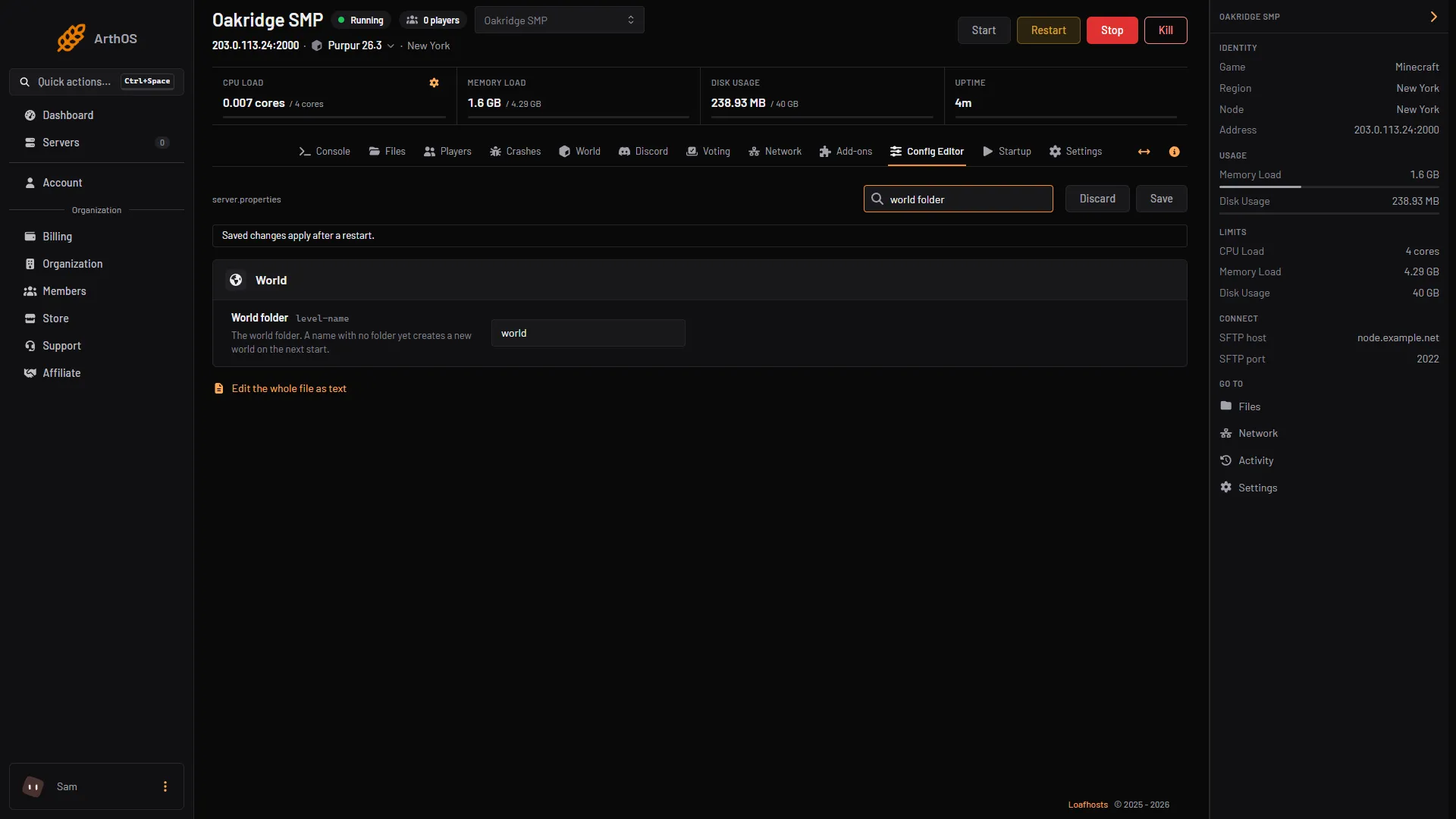
- Type the folder name
To keep the name world instead, rename the old world folder in Files first, then rename the new one to world. The name must match exactly. If the folder named in World folder does not exist, the server creates a new empty world on its next start.
After the first start, open the World tab. It shows the Minecraft version the world was saved in. If your server runs an older version than that, change the server version first.
Download your world
- Stop the server so the files are not changing.
- In Files, open the menu on the world folder’s row (1) and choose Download (2), then Download as .zip (3). You can also select the row and use Download in the action bar, which makes a
.zip. - Keep the zip. To use it in singleplayer, unzip it into your
savesfolder.
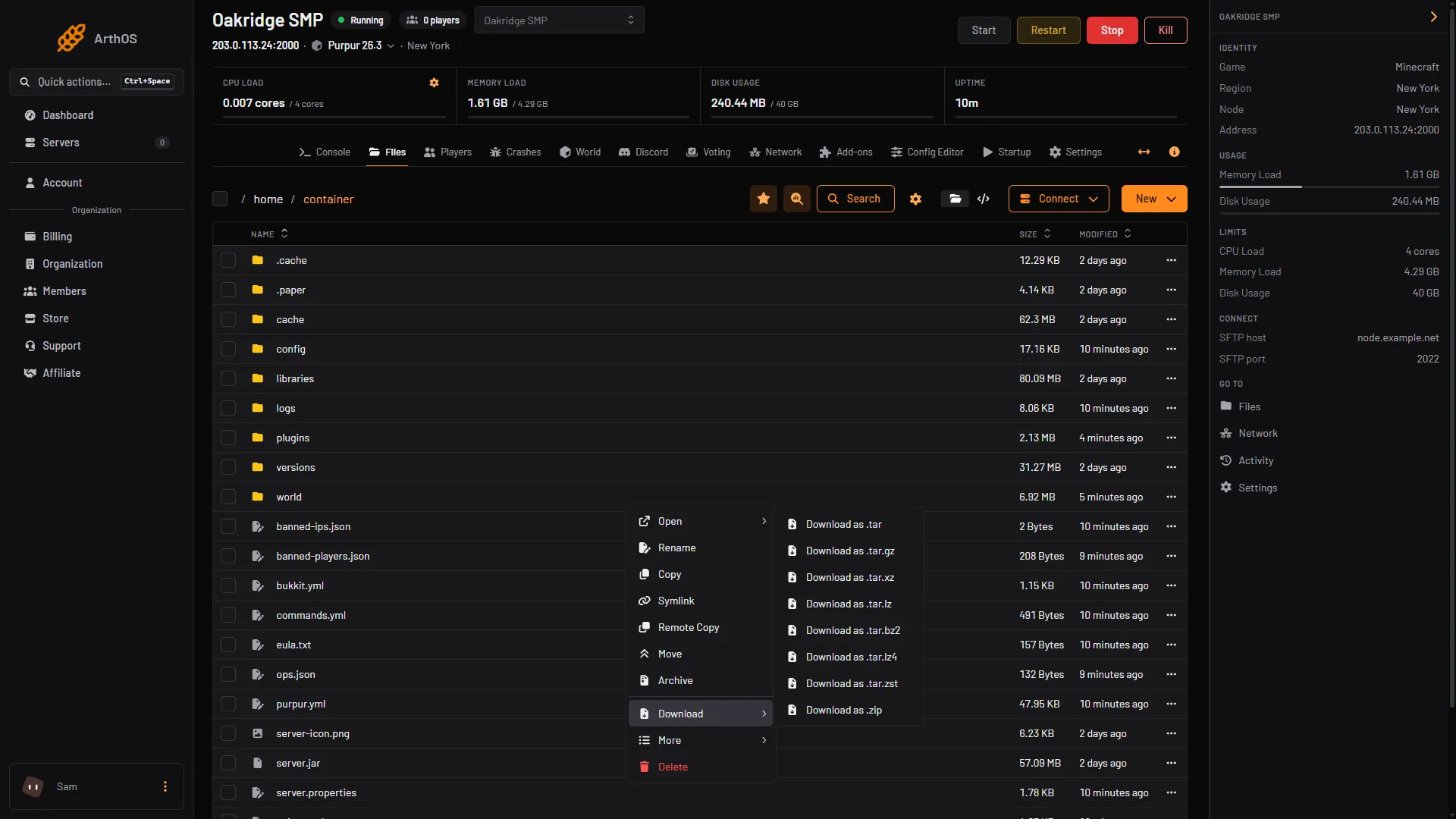
- Open the world's menu
- Download
- Download as .zip
To copy a world while the server is running, use a backup instead. In Settings, Backups, a running Minecraft server is saved and paused for the copy, and the row menu has Download.
By hand: where the world folders are
The folder layout changed in Minecraft 26.1.
| Server | Overworld | Nether | End |
|---|---|---|---|
| 26.1 and newer, any server | world/dimensions/minecraft/overworld | world/dimensions/minecraft/the_nether | world/dimensions/minecraft/the_end |
| Older vanilla | world/region | world/DIM-1 | world/DIM1 |
| Older Paper | world/region | world_nether/DIM-1 | world_the_end/DIM1 |
Older Paper servers keep the Nether and the End in their own folders, so copy all three when you move such a world. Player files are in players/data (older versions: playerdata), named after each player’s UUID.
The world’s folder name is the level-name line in server.properties. It is world unless you changed it.
If it does not work
- The server makes a new empty world. World folder names a folder that is not there, or the name differs in case or spelling. Check it against the folder in Files.
- The zip extracted into a folder inside a folder. The server looks in the folder named in World folder, and
level.datmust be directly inside it. Move the inner folder up and rename it. - The Nether and End are empty after moving an older Paper world. On older Paper servers they are in
world_nether/DIM-1andworld_the_end/DIM1. Check that you uploaded all three folders. - The world will not load, or is lost after a change. Restore the backup you took before. See back up a Minecraft server.
More about the game: Minecraft servers.
Sources: minecraft.wiki: Java Edition level format, minecraft.wiki: .minecraft, docs.papermc.io: Migration