









Paste the collection’s link into Add by link or ID on the Mods page and choose Look up. The panel shows every mod in the collection, and what each one needs, before anything changes. Choose Add, then Apply and restart.
A collection can mix Build 41 and Build 42 mods. A new Loafhosts server runs the newest Build 42 release (42.21 on 18 October 2026), and Build 41 mods do not load on it. The panel flags those.
In the ArthOS panel
- Open the collection on the Steam Workshop and copy its link from the address bar. Add a collection by its link.
- Open the Mods page and choose the Workshop tab.
- Paste the link into Add by link or ID (box 1).
- Choose Look up (box 2).
- A box titled “Add the mods in” and the collection’s name opens. Read it. Each item shows its size. A line says “needed by” and a name when another item needs it, and “already on the list” when you have it.
- At the bottom, the box shows the total to download. It says “They go on the list now and download when you apply.”
- Choose the button that reads Add and the number of mods, for example “Add 2”.
- Open On this server and read the list. Choose Apply and restart while the server runs, or Apply when it is stopped, then confirm.
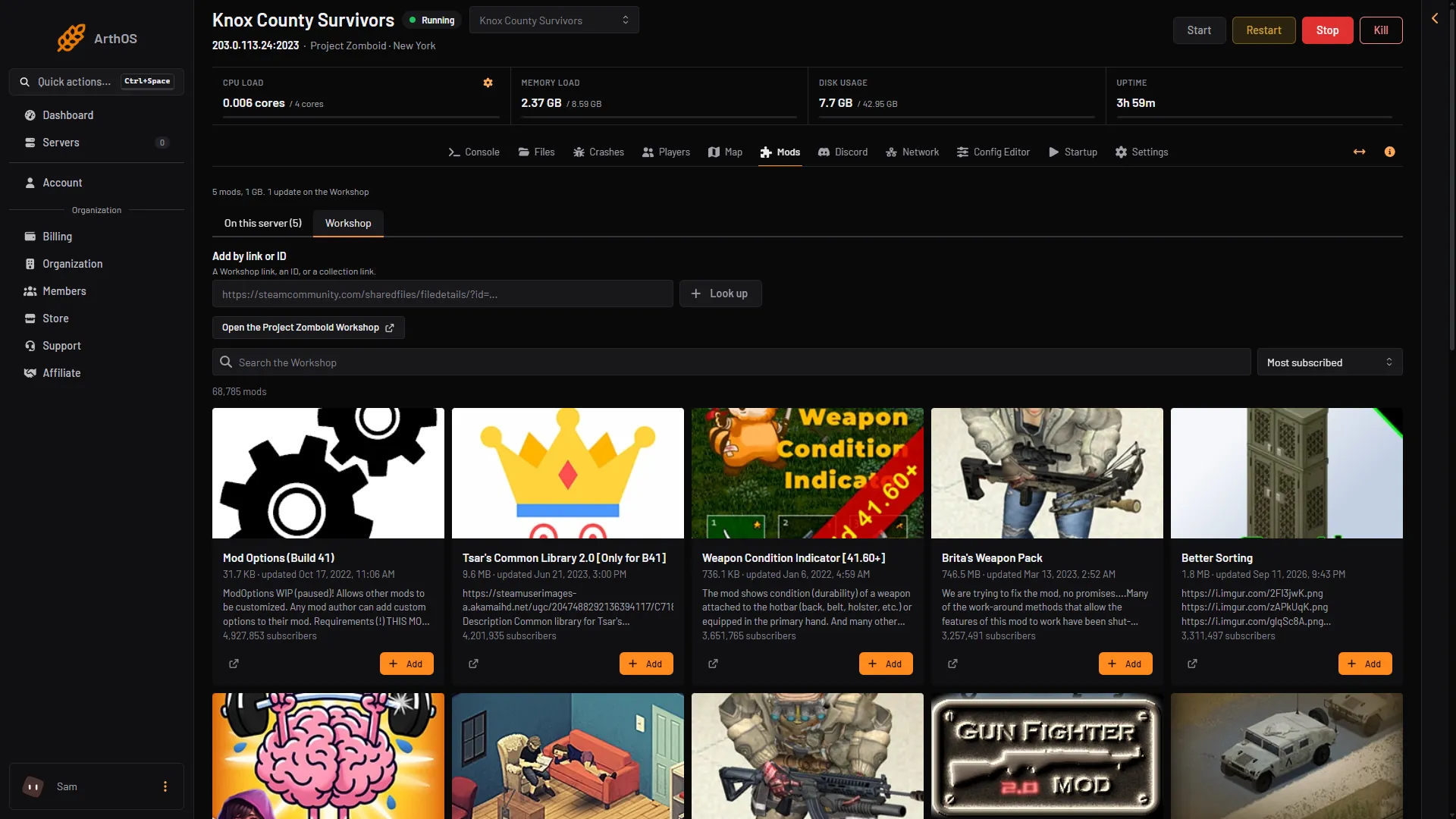
- Add by link or ID
- Look up
Nothing is downloaded until you apply. Until then, a row can say “The mods inside it are read when it is downloaded.”
If a collection is large, the download takes time. The server is stopped while it downloads, and players online are disconnected. Apply a big collection when the server is empty.
Items with no Build 42 version
After applying, check each row on On this server.
- “It has no version for this server’s game build, so it cannot load.” The item has no mods for Build 42.21. Take it off the list.
- “1 more for the other game build, not loaded.” The item holds a mod for the other build. The panel loads only the mods for your build.
Do not keep an item that cannot load. See mods for Build 42.
If an item needs a mod that is not in the collection, the plan adds it and names it. If one cannot be added, the box shows the item’s ID and the reason.
Put the list in order
The list on On this server is the load order. Choose Sort by what each needs to put every mod after the ones it needs. See mod load order.
By hand
The game’s wiki gives a manual way. Save the mods to a Workshop collection, list the Workshop IDs in WorkshopItems= and the Mod IDs in Mods= in <Server Name>.ini, separated by semicolons. Copying the IDs of a big collection by hand is slow. The Mods page does it for you.
If it does not work
- “Nothing to add.” Every item is already on your list.
- An item is listed with its ID and a reason. The panel did not take that item. The reason is in the box. The other items can still be added.
- You cannot choose Add. Adding needs permission to change the startup. Ask the owner of the server.
- Apply changed nothing. A mod needs one that is missing, or two mods cannot load together. The page says which. See add Workshop mods and maps.
Sources: pzwiki.net: Dedicated server, pzwiki.net: Mod structure