









Guides / Project Zomboid
Project Zomboid server guides.
One task per guide: how to do it in the ArthOS panel, and by hand where there is a way.
Basics
13 guides-
 Basics
 Back up and restore a Project Zomboid server
Create and restore backups in Settings, then Backups. Know where the world is saved and what the game's own backups do. - Basics
Change your Project Zomboid server name
Players see the Config Editor's Server name. The Startup Server Name is the save name: changing it starts a new world. Restart to show a new name. - Basics
Connect a Project Zomboid server to Discord
Show your Project Zomboid server in a Discord channel, post its events there, and bridge in-game chat to Discord with the game's own bot setting. - Basics
Connect to a Project Zomboid server
Join a Project Zomboid server from the game: Join, add the address and game port, make your account, enter the join password, and let mods download. - Basics
Project Zomboid server requirements: RAM, disk, CPU
An idle Project Zomboid server used about 2.4 GB of memory on Build 42.21, and the install takes about 7.7 GB of disk. What players and mods add. - Basics
Reset a Project Zomboid server (wipe the world)
Back up, stop the server, delete the world folder in Files for a fresh start, or change the Server Name to keep the old world. - Basics
Restart a Project Zomboid server
Restart a Project Zomboid server with the Restart button at the top of the server page. It saves the world first. Warn players, or restart on a schedule. - Basics
Set a password on a Project Zomboid server
Type a Join password in the Config Editor's Joining group, save and restart. Leave it empty and anyone can join. It is not the admin password. - Basics
Set the max players on a Project Zomboid server
Change Maximum players in the Config Editor, then restart. The game default is 32, admins do not count, and above 32 the map can stream poorly. - Basics
Set up a Project Zomboid server
Start your Project Zomboid server, wait for it to finish starting, set the Startup page and Config Editor, add mods, then join with the server's address. - Basics
Update a Project Zomboid server
Restart your Project Zomboid server and it checks Steam for a game update when Steam Auto Update is on. Mods update separately. Back up first. - Basics
Project Zomboid server ports
A Project Zomboid server uses three ports: the game port, the direct connection port next to it, and an RCON port. Find them on the Network page. - Basics
Run a Project Zomboid Build 41 server
Set Steam Beta Branch to legacy41 on the Startup page, then reinstall the server from Settings to run Build 41.78 instead of Build 42.
Players and admin
18 guides- Players and admin
Ban and kick players on a Project Zomboid server
Kick or ban a Project Zomboid player from the Players page, ban a SteamID, and unban from the Bans list. By hand: kickuser, banuser, banid, unbanuser. - Players and admin
Give a player an item on a Project Zomboid server
Open the Players page, pick Give item, search the list and send it to an online player. By hand: the additem command and where to find item ids. - Players and admin
Make yourself admin on a Project Zomboid server
Join your Project Zomboid server with the admin account from the Startup page. Then make other players admin from the Players page or with setaccesslevel. - Players and admin
Project Zomboid admin commands
The Project Zomboid admin commands that matter, with what each does and an example. Type them in chat with a slash, or in the panel Console without one. - Players and admin
Set up a Project Zomboid whitelist
Make a Project Zomboid server closed: turn off open accounts in the Config Editor, then add players or allow their SteamIDs on the Players page. - Players and admin
Set up safehouses on a Project Zomboid server
Turn on player safehouses in the Config Editor, decide who can enter, loot and burn them, and find every claimed safehouse on the server Map. -
Teleport players on a Project Zomboid server
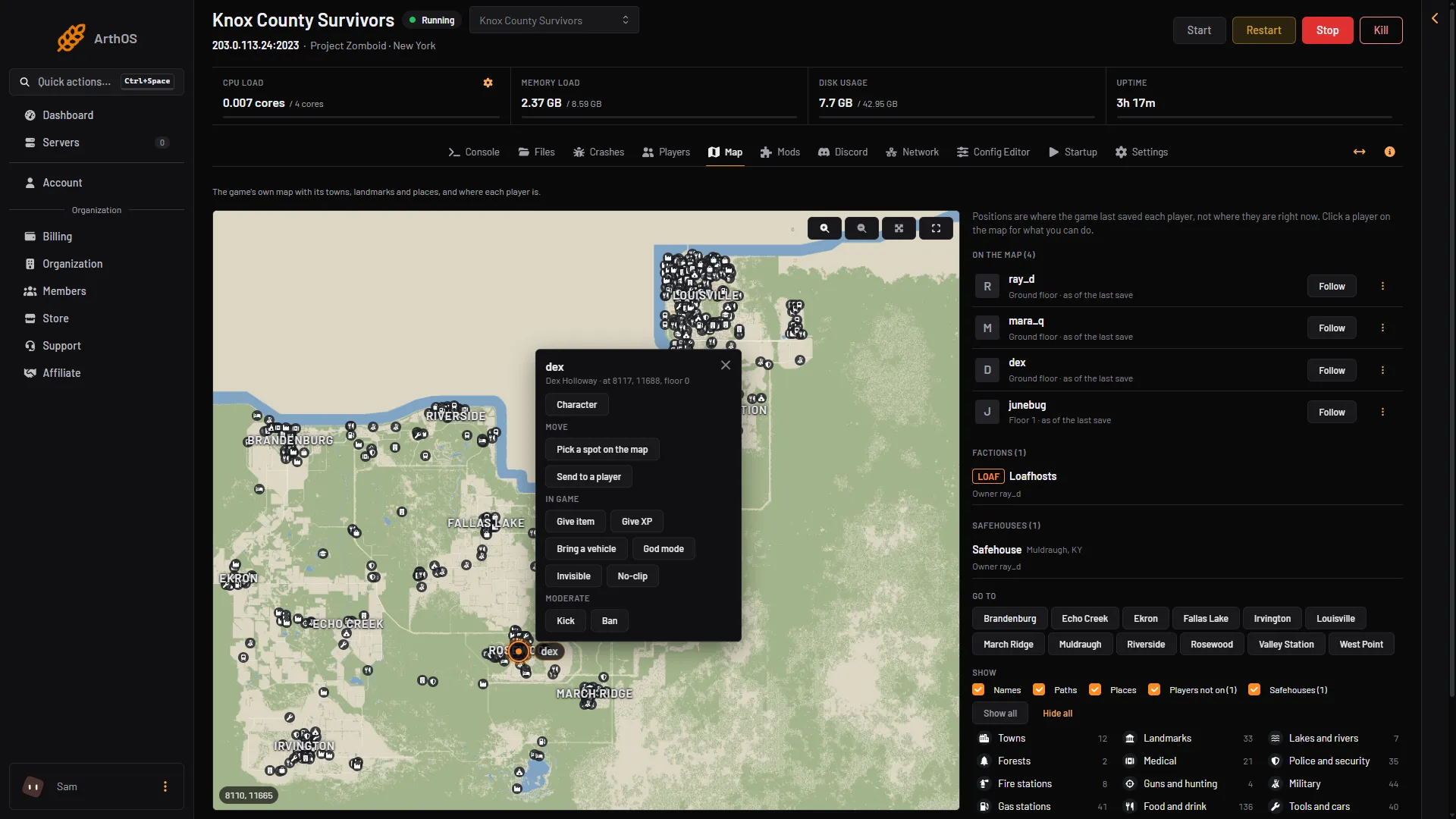
Send a player to another player or to map coordinates from the Players page, or click a spot on the Map. By hand: teleportplayer and teleportto. -
Use the Project Zomboid server map
Open the Map page to see towns, landmarks, safehouses and where each player was at their last save, then send a player to a spot with one click. - Players and admin
Check a player's inventory on a Project Zomboid server
Open the Players page and choose Character to see what a player carries, wears and holds, plus skills, needs and wounds, even while the server is stopped. - Players and admin
Give a player XP on a Project Zomboid server
Use Give XP on the Players page: pick a skill, set the XP and send it to an online player. By hand: addxp with the skill ids the game uses. - Players and admin
Project Zomboid access levels explained
The access levels of a Project Zomboid server, from user to admin, how to set one with setaccesslevel or the Players page, and why staff cannot be banned. - Players and admin
Project Zomboid RCON and server console
Send commands to your Project Zomboid server from the panel Console. RCON on a Loafhosts server belongs to the panel. By hand: RCONPort and RCONPassword. - Players and admin
Read the chat logs on a Project Zomboid server
See every message players wrote on your Project Zomboid server, private ones too, in the Players page Chat section or in the _chat.txt log files. - Players and admin
Reset a Project Zomboid player's password
A player forgot their Project Zomboid password? Set a new one with setpassword in the Console, or remove their account so they make a new one when they join. - Players and admin
Send a message to all players on a Project Zomboid server
Message everyone on your Project Zomboid server from the Players page or the console, set the welcome message, and send scheduled messages. - Players and admin
Set up factions on a Project Zomboid server
Players form factions with a four letter tag and a private chat. Switch factions on or off and set the days a player must survive first, in the Config Editor. - Players and admin
Spawn a vehicle on a Project Zomboid server
Use Bring a vehicle on the Players page to put a car or truck beside an online player. By hand: addvehicle with a vehicle script like Base.PickUpTruck. - Players and admin
Turn on god mode, invisible and no-clip in Project Zomboid
Use God mode, Invisible and No-clip on the Players page, or type godmodplayer, invisibleplayer and noclip as an admin. Each one turns on and off.
Mods and maps
7 guides- Mods and maps
Add a custom map mod to a Project Zomboid server
Add the map mod on the Mods page and apply. The panel reads the maps inside it, writes the Map line and keeps Muldraugh, KY last. - Mods and maps
Add Workshop mods and maps to a Project Zomboid server
Open the Mods page, add a Workshop item from the Workshop tab or by link or ID, then Apply and restart. By hand: three lines in the server ini. - Mods and maps
Project Zomboid mod load order: set it and fix it
The Mods list is your load order. Drag a mod or type a number, sort by what each needs, and Apply: the panel moves any mod that loads before what it needs. - Mods and maps
Project Zomboid Workshop ID and Mod ID: the difference
The Workshop ID is the number in a Workshop link and goes in WorkshopItems. The Mod ID is the id in mod.info and goes in Mods. Here is how to find both. - Mods and maps
Update mods on a Project Zomboid server
When a Workshop mod updates, players with the new version cannot join until your server has it. Update it on the Mods page, then restart. - Mods and maps
Add a Workshop collection to a Project Zomboid server
Paste a Workshop collection link into Add by link or ID, choose Look up, read the plan, then Add and Apply. Items with no Build 42 version are flagged. - Mods and maps
Do Build 41 mods work on a Build 42 server?
No. Build 41 mods do not load on Build 42. Look for a Build 42 version of each mod, and read the note the Mods page shows for items it cannot load.
Server and sandbox settings
20 guides- Server and sandbox settings
Change day length and start date in Project Zomboid
Set how long a Project Zomboid day lasts, from 15 minutes to real time, and pick the start month, day and hour, in the Config Editor. Restart to apply. - Server and sandbox settings
Change loot amounts and loot respawn in Project Zomboid
Set how much of each item type spawns and make looted containers refill in Project Zomboid Build 42, using the Config Editor. Takes effect after a restart. - Server and sandbox settings
Change the XP multiplier on a Project Zomboid server
Make skills level up faster in Project Zomboid Build 42 with the Global rate in the Config Editor, set a rate per skill, or give one player XP. - Server and sandbox settings
Change the zombie population on a Project Zomboid server
Set the Zombies option from Insane to None, then fine tune the population multipliers, respawn and migration. More zombies cost more server power. - Server and sandbox settings
Change when water and power shut off in Project Zomboid
Pick when the water and electricity shut off on a Project Zomboid server, from instant to never, and tune generators in the Config Editor. Restart to apply. - Server and sandbox settings
Change zombie settings on a Project Zomboid server
Open the sandbox file in the Config Editor and change the Zombie lore group: speed, strength, toughness, memory, sight and hearing. Restart to apply. - Server and sandbox settings
Make zombies run (sprinters) on a Project Zomboid server
Set Speed to Sprinters in the Zombie lore group of the sandbox file, or use Random and set a Sprinter percentage. Restart the server to apply it. - Server and sandbox settings
Project Zomboid Config Editor: change server settings
Open the Config Editor to change your Project Zomboid server ini and sandbox settings, search them and Save. Changes apply after a restart. Spawn files: Files. - Server and sandbox settings
Project Zomboid sandbox settings and the sandbox file
The sandbox file holds Project Zomboid world rules: zombies, loot, time and more. See the groups, edit them in the Config Editor and learn what applies when. - Server and sandbox settings
Project Zomboid server ini settings explained
What the main keys in a Project Zomboid server ini do, with their Config Editor label and default, where the file is, and how to change options live. - Server and sandbox settings
Turn PVP on or off on a Project Zomboid server
Choose whether players can hurt each other, let them opt in with the skull toggle, tune PVP damage, and announce deaths, all from the Config Editor. - Server and sandbox settings
Change the zombie infection settings in Project Zomboid
Set how the Knox virus spreads (Transmission), how fast it kills (Mortality) and how fast the dead rise (Reanimate) in the sandbox file. Restart to apply. - Server and sandbox settings
Pause Project Zomboid time when nobody is online
Switch on Pause time when nobody is on to stop the world clock while empty, or use Standby to stop the whole server. - Server and sandbox settings
Project Zomboid anti-cheat settings
Project Zomboid anti-cheat settings explained: game file checks, Steam VAC, ping limit and the ten AntiCheat keys with ban, kick, log and disable modes. -
Project Zomboid respawn and death settings
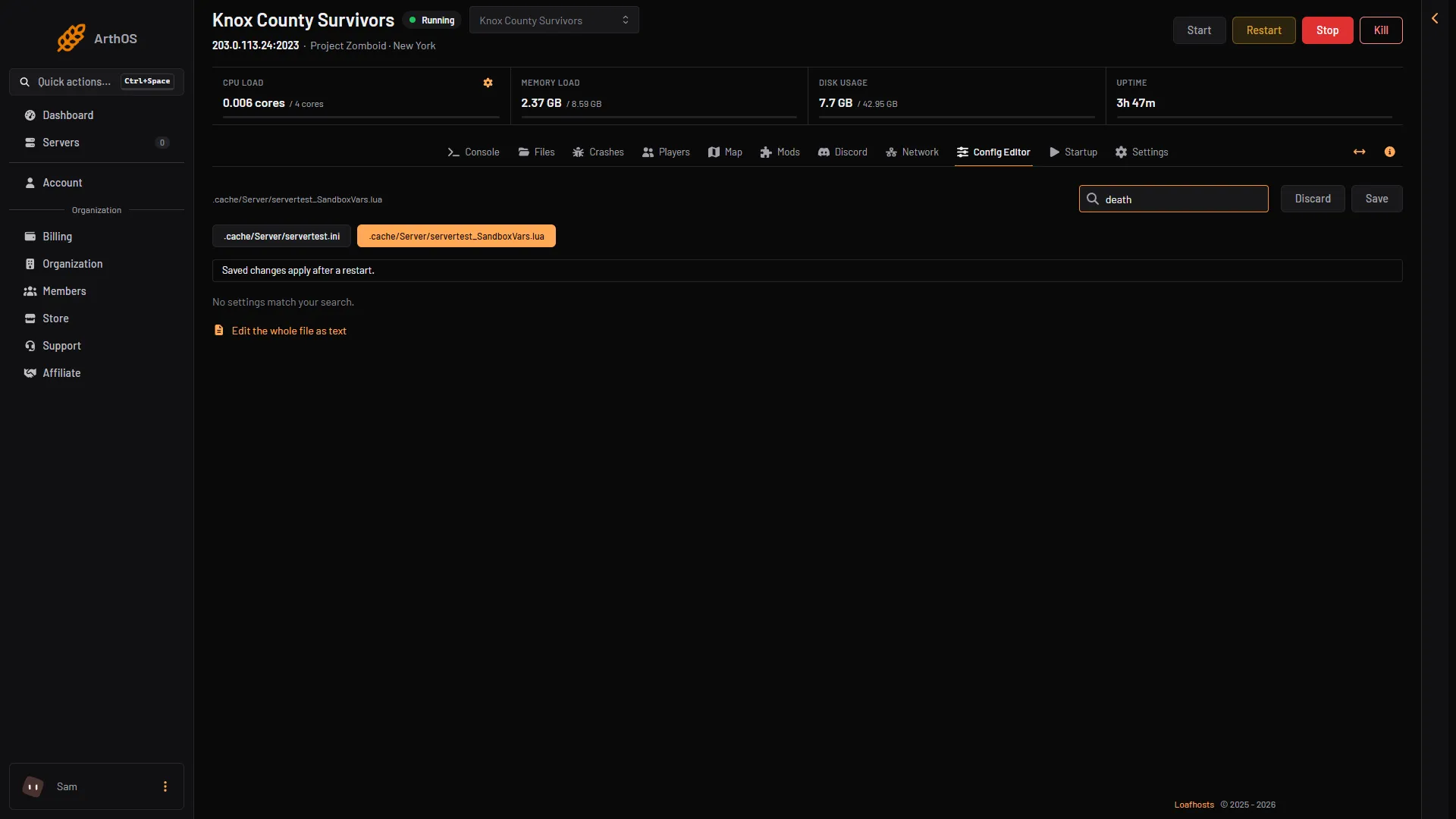
Choose what happens when a player dies: respawn where they died or in their safehouse, close the account, or announce deaths in chat. - Server and sandbox settings
Project Zomboid vehicle settings
Turn cars on or off and set how many spawn, how much fuel they hold, how often they are locked and how badly they crash, in the Config Editor. - Server and sandbox settings
Project Zomboid voice chat and chat settings
Turn Project Zomboid proximity voice and global chat on or off, set how far voices carry, pick chat streams and limit radio. Restart after you save. - Server and sandbox settings
Set starting items and a spawn point in Project Zomboid
Give every new player the same items and send them to one place. Set Starting items and Fixed spawn point in the Config Editor, then restart. - Server and sandbox settings
Set the Project Zomboid autosave interval
Set Save the world every (minutes) in the Config Editor. At 0 the game saves an area only when players leave it. - Server and sandbox settings
Turn the helicopter event on or off in Project Zomboid
Choose how often the Project Zomboid helicopter flies over a server, from never to often, in the Config Editor, or call it yourself with the chopper command.
Fixes
9 guides- Fixes
Fix Project Zomboid server lag and desync
What makes a Project Zomboid server lag or desync, from player count and memory to mods and zombie settings, and where to look before you change anything. - Fixes
Project Zomboid cannot connect to server
Fix a Project Zomboid join failure: check the address and port, wait for the server to start, then the password, whitelist, player limit, ping and mods. - Fixes
Project Zomboid server crashed: find out why
Open the Crashes page to see how each of the last 15 starts ended, what the panel found, and the fix for each finding. Healthy starts log many ERROR lines. - Fixes
Project Zomboid server logs: where they are
Project Zomboid server logs live in the .cache/Logs folder: the server log, joins, admin actions, chat and commands. Older starts move to logs_ folders. - Fixes
Project Zomboid server not showing in the list
A new Project Zomboid server stays out of the in-game list until List in the in-game browser is on. Turn it on, restart, and join by address meanwhile. - Fixes
Project Zomboid server out of memory: how to fix it
Out of Java memory or stopped for memory: give the server more memory, use fewer heavy mods, lower zombies. The panel caps the Java heap at memory less 2.15 GB. - Fixes
Project Zomboid version mismatch with the server
A player on one Project Zomboid build cannot join a server on another. Find both builds, then update the server or the player's game so they match. - Fixes
Project Zomboid Workshop item version mismatch
Players cannot join when their Workshop mod differs from the server's. Update the mod on the Mods page and restart, then have players update in Steam. - Fixes
Project Zomboid server fails after adding mods
Read the Crashes page for the mod that broke your Project Zomboid server, follow the fix it gives, and find the culprit by taking mods off half at a time.
- Add a custom map mod to a Project Zomboid server Add the map mod on the Mods page and apply. The panel reads the maps inside it, writes the Map line and keeps Muldraugh, KY last.
- Add Workshop mods and maps to a Project Zomboid server Open the Mods page, add a Workshop item from the Workshop tab or by link or ID, then Apply and restart. By hand: three lines in the server ini.
- Back up and restore a Project Zomboid server Create and restore backups in Settings, then Backups. Know where the world is saved and what the game's own backups do.
- Ban and kick players on a Project Zomboid server Kick or ban a Project Zomboid player from the Players page, ban a SteamID, and unban from the Bans list. By hand: kickuser, banuser, banid, unbanuser.
- Change day length and start date in Project Zomboid Set how long a Project Zomboid day lasts, from 15 minutes to real time, and pick the start month, day and hour, in the Config Editor. Restart to apply.
- Change loot amounts and loot respawn in Project Zomboid Set how much of each item type spawns and make looted containers refill in Project Zomboid Build 42, using the Config Editor. Takes effect after a restart.
- Change the XP multiplier on a Project Zomboid server Make skills level up faster in Project Zomboid Build 42 with the Global rate in the Config Editor, set a rate per skill, or give one player XP.
- Change the zombie population on a Project Zomboid server Set the Zombies option from Insane to None, then fine tune the population multipliers, respawn and migration. More zombies cost more server power.
- Change when water and power shut off in Project Zomboid Pick when the water and electricity shut off on a Project Zomboid server, from instant to never, and tune generators in the Config Editor. Restart to apply.
- Change your Project Zomboid server name Players see the Config Editor's Server name. The Startup Server Name is the save name: changing it starts a new world. Restart to show a new name.
- Change zombie settings on a Project Zomboid server Open the sandbox file in the Config Editor and change the Zombie lore group: speed, strength, toughness, memory, sight and hearing. Restart to apply.
- Connect a Project Zomboid server to Discord Show your Project Zomboid server in a Discord channel, post its events there, and bridge in-game chat to Discord with the game's own bot setting.
- Connect to a Project Zomboid server Join a Project Zomboid server from the game: Join, add the address and game port, make your account, enter the join password, and let mods download.
- Fix Project Zomboid server lag and desync What makes a Project Zomboid server lag or desync, from player count and memory to mods and zombie settings, and where to look before you change anything.
- Give a player an item on a Project Zomboid server Open the Players page, pick Give item, search the list and send it to an online player. By hand: the additem command and where to find item ids.
- Make yourself admin on a Project Zomboid server Join your Project Zomboid server with the admin account from the Startup page. Then make other players admin from the Players page or with setaccesslevel.
- Make zombies run (sprinters) on a Project Zomboid server Set Speed to Sprinters in the Zombie lore group of the sandbox file, or use Random and set a Sprinter percentage. Restart the server to apply it.
- Project Zomboid admin commands The Project Zomboid admin commands that matter, with what each does and an example. Type them in chat with a slash, or in the panel Console without one.
- Project Zomboid cannot connect to server Fix a Project Zomboid join failure: check the address and port, wait for the server to start, then the password, whitelist, player limit, ping and mods.
- Project Zomboid Config Editor: change server settings Open the Config Editor to change your Project Zomboid server ini and sandbox settings, search them and Save. Changes apply after a restart. Spawn files: Files.
- Project Zomboid mod load order: set it and fix it The Mods list is your load order. Drag a mod or type a number, sort by what each needs, and Apply: the panel moves any mod that loads before what it needs.
- Project Zomboid sandbox settings and the sandbox file The sandbox file holds Project Zomboid world rules: zombies, loot, time and more. See the groups, edit them in the Config Editor and learn what applies when.
- Project Zomboid server crashed: find out why Open the Crashes page to see how each of the last 15 starts ended, what the panel found, and the fix for each finding. Healthy starts log many ERROR lines.
- Project Zomboid server ini settings explained What the main keys in a Project Zomboid server ini do, with their Config Editor label and default, where the file is, and how to change options live.
- Project Zomboid server logs: where they are Project Zomboid server logs live in the .cache/Logs folder: the server log, joins, admin actions, chat and commands. Older starts move to logs_ folders.
- Project Zomboid server not showing in the list A new Project Zomboid server stays out of the in-game list until List in the in-game browser is on. Turn it on, restart, and join by address meanwhile.
- Project Zomboid server out of memory: how to fix it Out of Java memory or stopped for memory: give the server more memory, use fewer heavy mods, lower zombies. The panel caps the Java heap at memory less 2.15 GB.
- Project Zomboid server requirements: RAM, disk, CPU An idle Project Zomboid server used about 2.4 GB of memory on Build 42.21, and the install takes about 7.7 GB of disk. What players and mods add.
- Project Zomboid version mismatch with the server A player on one Project Zomboid build cannot join a server on another. Find both builds, then update the server or the player's game so they match.
- Project Zomboid Workshop ID and Mod ID: the difference The Workshop ID is the number in a Workshop link and goes in WorkshopItems. The Mod ID is the id in mod.info and goes in Mods. Here is how to find both.
- Project Zomboid Workshop item version mismatch Players cannot join when their Workshop mod differs from the server's. Update the mod on the Mods page and restart, then have players update in Steam.
- Reset a Project Zomboid server (wipe the world) Back up, stop the server, delete the world folder in Files for a fresh start, or change the Server Name to keep the old world.
- Restart a Project Zomboid server Restart a Project Zomboid server with the Restart button at the top of the server page. It saves the world first. Warn players, or restart on a schedule.
- Set a password on a Project Zomboid server Type a Join password in the Config Editor's Joining group, save and restart. Leave it empty and anyone can join. It is not the admin password.
- Set the max players on a Project Zomboid server Change Maximum players in the Config Editor, then restart. The game default is 32, admins do not count, and above 32 the map can stream poorly.
- Set up a Project Zomboid server Start your Project Zomboid server, wait for it to finish starting, set the Startup page and Config Editor, add mods, then join with the server's address.
- Set up a Project Zomboid whitelist Make a Project Zomboid server closed: turn off open accounts in the Config Editor, then add players or allow their SteamIDs on the Players page.
- Set up safehouses on a Project Zomboid server Turn on player safehouses in the Config Editor, decide who can enter, loot and burn them, and find every claimed safehouse on the server Map.
- Teleport players on a Project Zomboid server Send a player to another player or to map coordinates from the Players page, or click a spot on the Map. By hand: teleportplayer and teleportto.
- Turn PVP on or off on a Project Zomboid server Choose whether players can hurt each other, let them opt in with the skull toggle, tune PVP damage, and announce deaths, all from the Config Editor.
- Update a Project Zomboid server Restart your Project Zomboid server and it checks Steam for a game update when Steam Auto Update is on. Mods update separately. Back up first.
- Update mods on a Project Zomboid server When a Workshop mod updates, players with the new version cannot join until your server has it. Update it on the Mods page, then restart.
- Use the Project Zomboid server map Open the Map page to see towns, landmarks, safehouses and where each player was at their last save, then send a player to a spot with one click.
- Add a Workshop collection to a Project Zomboid server Paste a Workshop collection link into Add by link or ID, choose Look up, read the plan, then Add and Apply. Items with no Build 42 version are flagged.
- Change the zombie infection settings in Project Zomboid Set how the Knox virus spreads (Transmission), how fast it kills (Mortality) and how fast the dead rise (Reanimate) in the sandbox file. Restart to apply.
- Check a player's inventory on a Project Zomboid server Open the Players page and choose Character to see what a player carries, wears and holds, plus skills, needs and wounds, even while the server is stopped.
- Do Build 41 mods work on a Build 42 server? No. Build 41 mods do not load on Build 42. Look for a Build 42 version of each mod, and read the note the Mods page shows for items it cannot load.
- Give a player XP on a Project Zomboid server Use Give XP on the Players page: pick a skill, set the XP and send it to an online player. By hand: addxp with the skill ids the game uses.
- Pause Project Zomboid time when nobody is online Switch on Pause time when nobody is on to stop the world clock while empty, or use Standby to stop the whole server.
- Project Zomboid access levels explained The access levels of a Project Zomboid server, from user to admin, how to set one with setaccesslevel or the Players page, and why staff cannot be banned.
- Project Zomboid anti-cheat settings Project Zomboid anti-cheat settings explained: game file checks, Steam VAC, ping limit and the ten AntiCheat keys with ban, kick, log and disable modes.
- Project Zomboid RCON and server console Send commands to your Project Zomboid server from the panel Console. RCON on a Loafhosts server belongs to the panel. By hand: RCONPort and RCONPassword.
- Project Zomboid respawn and death settings Choose what happens when a player dies: respawn where they died or in their safehouse, close the account, or announce deaths in chat.
- Project Zomboid server fails after adding mods Read the Crashes page for the mod that broke your Project Zomboid server, follow the fix it gives, and find the culprit by taking mods off half at a time.
- Project Zomboid server ports A Project Zomboid server uses three ports: the game port, the direct connection port next to it, and an RCON port. Find them on the Network page.
- Project Zomboid vehicle settings Turn cars on or off and set how many spawn, how much fuel they hold, how often they are locked and how badly they crash, in the Config Editor.
- Project Zomboid voice chat and chat settings Turn Project Zomboid proximity voice and global chat on or off, set how far voices carry, pick chat streams and limit radio. Restart after you save.
- Read the chat logs on a Project Zomboid server See every message players wrote on your Project Zomboid server, private ones too, in the Players page Chat section or in the _chat.txt log files.
- Reset a Project Zomboid player's password A player forgot their Project Zomboid password? Set a new one with setpassword in the Console, or remove their account so they make a new one when they join.
- Run a Project Zomboid Build 41 server Set Steam Beta Branch to legacy41 on the Startup page, then reinstall the server from Settings to run Build 41.78 instead of Build 42.
- Send a message to all players on a Project Zomboid server Message everyone on your Project Zomboid server from the Players page or the console, set the welcome message, and send scheduled messages.
- Set starting items and a spawn point in Project Zomboid Give every new player the same items and send them to one place. Set Starting items and Fixed spawn point in the Config Editor, then restart.
- Set the Project Zomboid autosave interval Set Save the world every (minutes) in the Config Editor. At 0 the game saves an area only when players leave it.
- Set up factions on a Project Zomboid server Players form factions with a four letter tag and a private chat. Switch factions on or off and set the days a player must survive first, in the Config Editor.
- Spawn a vehicle on a Project Zomboid server Use Bring a vehicle on the Players page to put a car or truck beside an online player. By hand: addvehicle with a vehicle script like Base.PickUpTruck.
- Turn on god mode, invisible and no-clip in Project Zomboid Use God mode, Invisible and No-clip on the Players page, or type godmodplayer, invisibleplayer and noclip as an admin. Each one turns on and off.
- Turn the helicopter event on or off in Project Zomboid Choose how often the Project Zomboid helicopter flies over a server, from never to often, in the Config Editor, or call it yourself with the chopper command.