









Project Zomboid uses two different ids for a mod. The Workshop ID is the number at the end of the item’s Steam Workshop link. It goes in WorkshopItems. The Mod ID is the id= line in the mod’s mod.info file. It goes in Mods. They are not the same, and a server needs both.
Why there are two
A Workshop item is one download. It can hold one mod or several. The Workshop ID names the download. Each mod inside has its own Mod ID.
The game’s docs say it plainly: a mod’s id “is not the same as the Workshop ID”.
So a server’s ini has two lists:
WorkshopItems=lists Workshop IDs. The server downloads these.Mods=lists Mod IDs. The game switches these on.
If you list only the Workshop ID, the files download but no mod is switched on.
In the ArthOS panel
On Loafhosts the Mods page finds both ids for you; the rest of this page is for editing by hand. Paste the link into Add by link or ID on the Mods page, or choose Add on the Workshop tab. See add Workshop mods and maps.
The panel reads the mods inside the item when it downloads it, and shows what it found on the item’s row:
- An item with one mod shows “Mod ID:” and the id.
- An item with several mods shows “Mods in this item that load:” and one button for each mod, with its name and its ID. Press a button to switch that mod on or off. Each mod is switched on by itself.
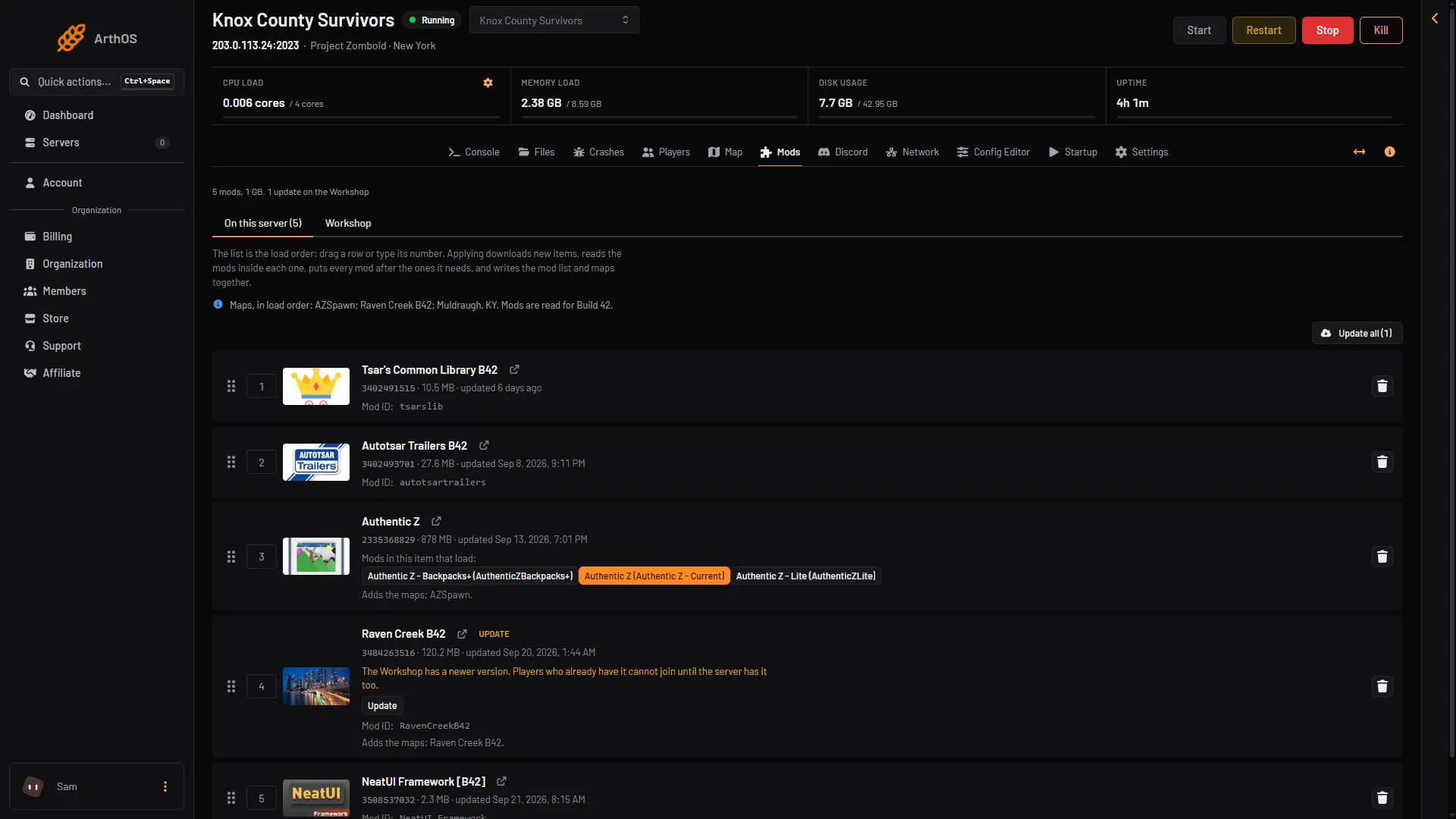
- Mod ID
- Mods in the item
Box 1 is a Mod ID. Box 2 is the list of mods inside an item.
Until the item is downloaded the row says “The mods inside it are read when it is downloaded.” The ids appear after you apply.
When you apply, the panel writes WorkshopItems, Mods and Map for you.
By hand: find the Workshop ID
Open the item’s page on the Steam Workshop. The link ends in ?id= and a number. That number is the Workshop ID. For https://steamcommunity.com/sharedfiles/filedetails/?id=514427485 it is 514427485.
By hand: find the Mod ID
- Open the item’s Workshop page. Many authors list the Mod ID in the description. Not every author does.
- If it is not there, read it from the files. In Files, find the downloaded item. On a Loafhosts server, Workshop items sit in Files at
steamapps/workshop/content/108600/<Workshop ID>, from the server’s top folder. - Open
mods, then the mod’s folder. In Build 42 themod.infofile is inmods/<Mod>/42/mod.infoormods/<Mod>/common/mod.info. - Read the line that starts
id=. That is the Mod ID.
A Mod ID can contain spaces and capital letters. Copy it exactly. An item that holds several mods has a folder and a mod.info for each. Each one has its own id=.
Then put the ids in the server ini:
WorkshopItems=514427485
Mods=YourModID
Separate several entries with semicolons.
If it does not work
- The mod downloads but does nothing. Its Mod ID is missing from
Mods. Add it. - The server cannot find the mod. The Mod ID was typed wrong. Copy it again from
mod.info. - You put the Workshop ID in
Mods. Move it toWorkshopItems. - An item in the panel says “It has no version for this server’s game build, so it cannot load.” It has no mod for Build 42.21. Look for a Build 42 version.
Sources: pzwiki.net: Workshop ID, pzwiki.net: Mod structure, pz-wiki-modding.github.io: Modinfo.html