









You have three ways to stop a mod. Turn it off to keep it for later. Remove it to delete it. Or switch Load mods off to run the plain game. All three apply at the next start of the server.
Turn a mod off
Use this when you may want the mod back.
- Open the Mods page, on the Installed tab.
- Use the switch on the mod’s row (Turn off (name)).
- The mod shows the chip Off. The panel says it “stays on the server and is skipped from the next start”.
The mod’s folder is moved aside, and nothing is deleted. Turn the switch back on and the mod loads again at the next start.
Remove a mod
Use this to delete the mod.
- On the Installed tab, open the menu (three dots) on the mod’s row.
- Choose Remove.
- Read the box and press Remove.
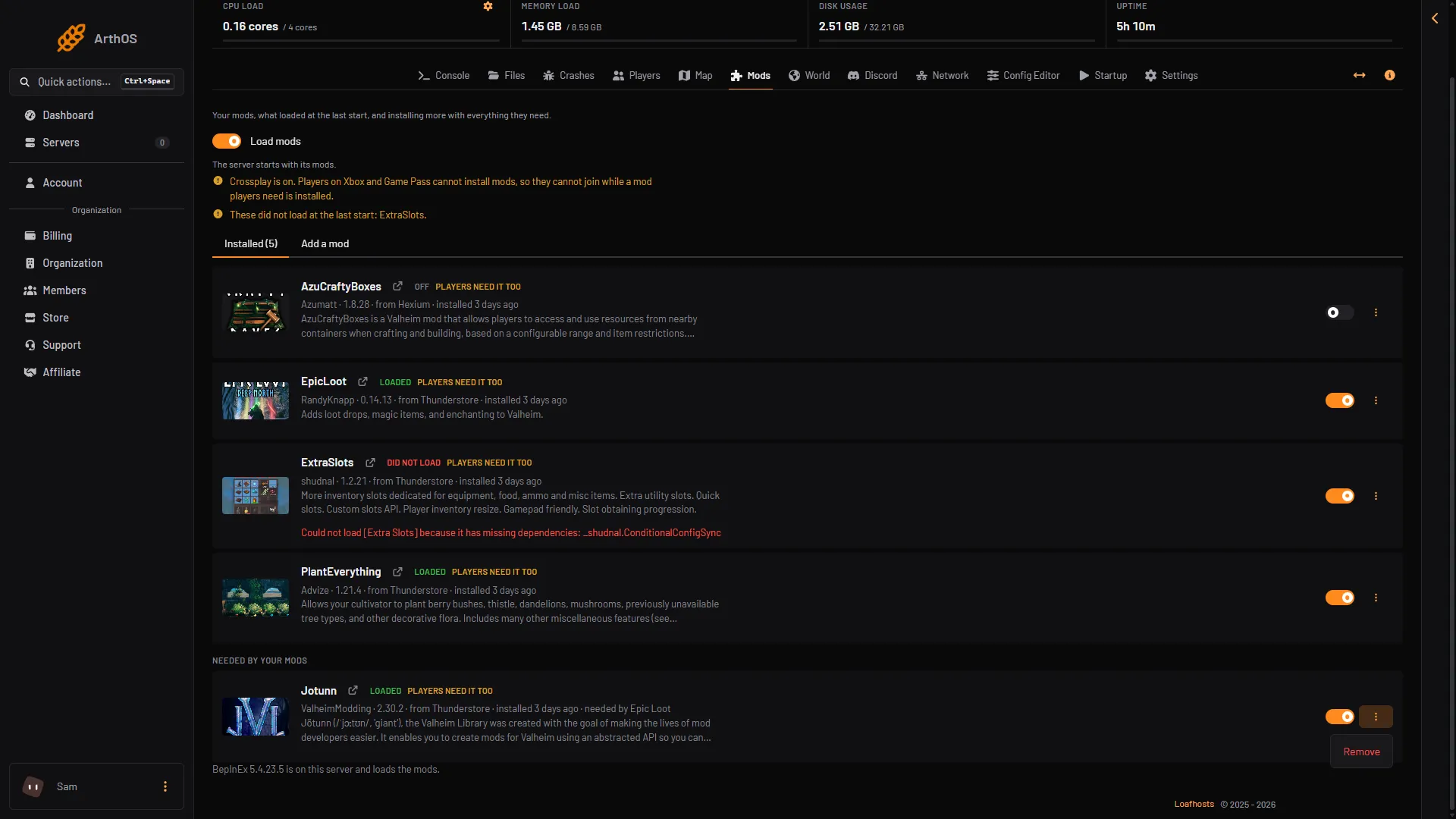
- Remove
The mod’s folder is deleted from the server. The game stops loading it at the next start. Its settings file stays in BepInEx/config, so if you install the mod again, your settings are still there. To delete that file as well, use the Files page.
If other mods need the one you are removing, the box says “Other mods need it” and names them (box 2). They may not load without it.
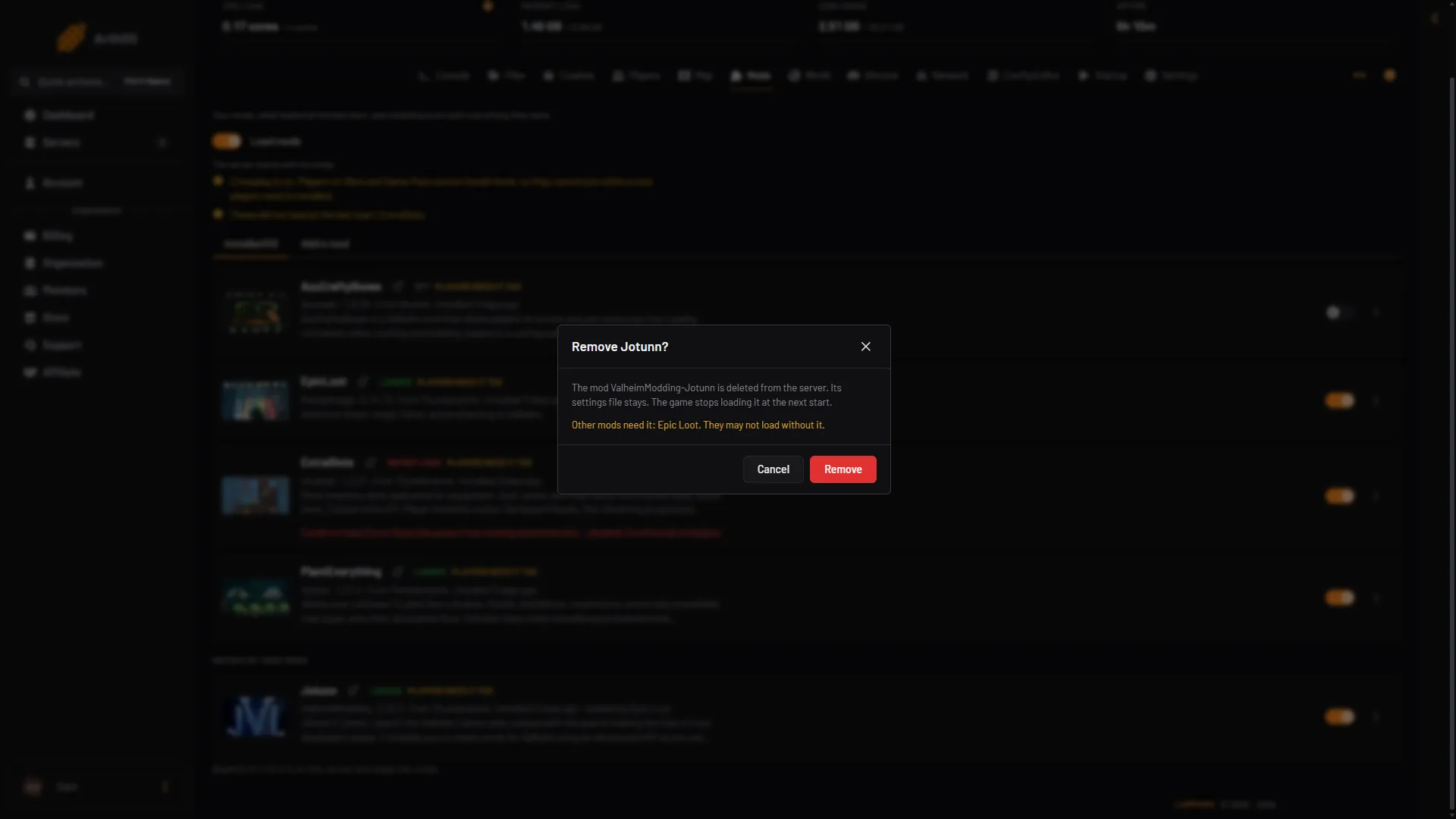
- What is deleted
- Mods that need it
- Remove
Mods that were installed only because another mod needed them stay on the server. They are listed under Needed by your mods. Remove them in the same way when nothing needs them.
Switch Load mods off
The Load mods switch at the top of the Mods page decides if the server starts with its mods. Off runs the plain game, and nothing is removed. Your mods and settings stay on the server. Turn it back on to use them again.
Turning Load mods off also turns off the panel’s own tools, such as the live player list, because they load the same way.
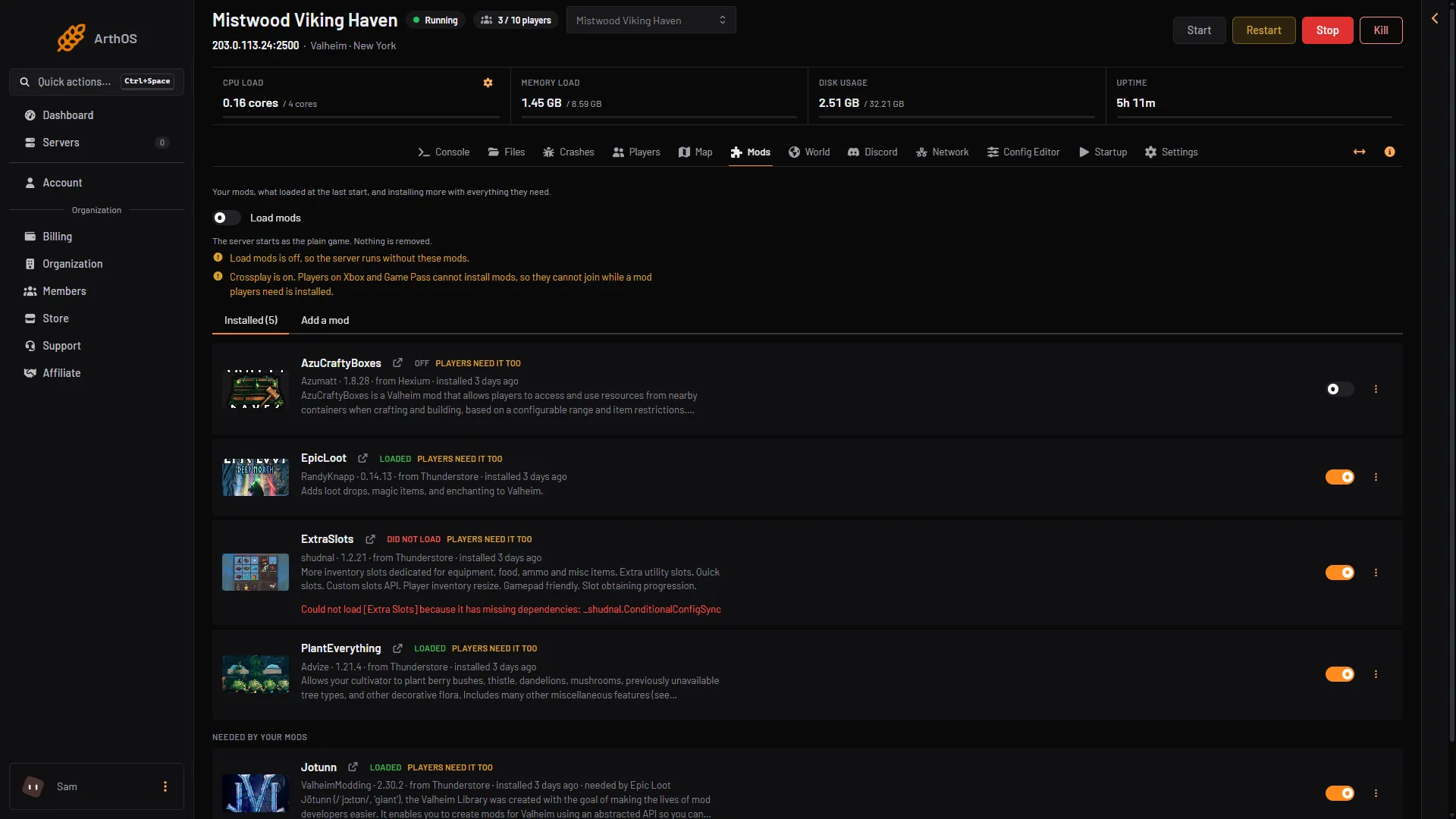
- Load mods
- Plain game note
When it takes effect
Turn off, Remove and Load mods do not restart the server for you. The change applies the next time it starts. To apply it now, choose Restart at the top of the server page. A restart drops everyone who is playing.
Players and worlds
The panel changes only the mod files. It does not touch your world files. Before you remove a mod that added things to the world, make a backup, so you can go back. What the game does with items from a mod that is gone is not checked on 1.0.20 as of 21 October 2026.
If the mod had the chip Players need it too, players can remove it from their own game when they like. See server-side mods.
If it does not work
- The mod still runs. The server has not restarted yet. Restart it.
- There is no Remove option. Your role may not allow deleting files.
- Other mods stopped loading. The mod you removed was needed by them. Install it again, or remove those mods too. See mods not loading.
More about the game: Valheim servers.
Sources: thunderstore.io: BepInExPack Valheim