






Rust lag usually means the server cannot finish its work in time, and you can see that as a low Server FPS. Open the Players tab to read it, then look at what the server is holding: old bases, plugins, a big map or too little memory.
Read the numbers first
- Open the Players tab. Server FPS is beside Players, Queued and Up for. It is blank while the server is stopped.
- Open the Live map tab. Server FPS shows there too, at the top of the map.
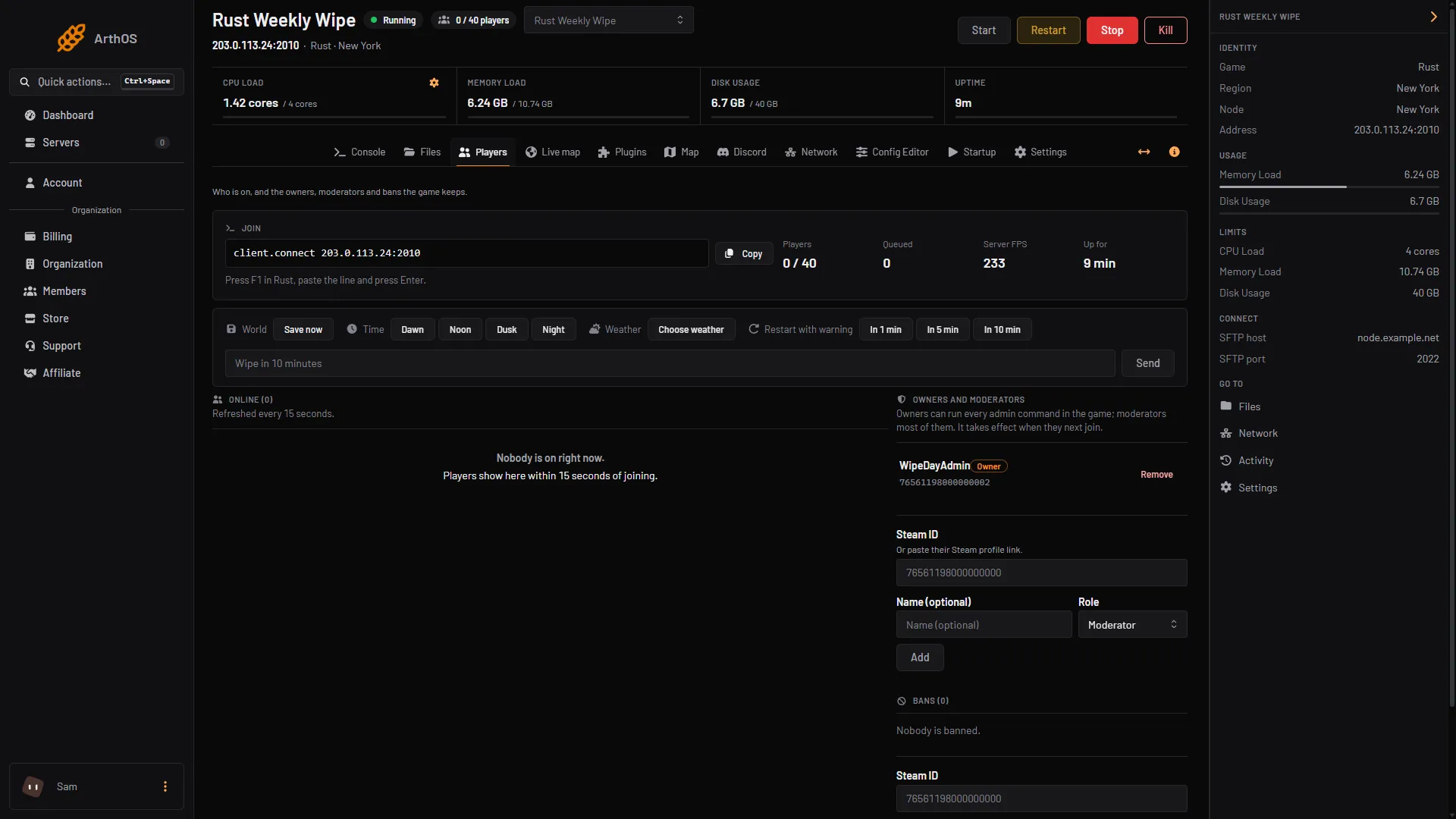
- Server FPS tile
- Restart with warning
The Restart with warning button is on the same tab. It warns the players before the server restarts, so use it when you restart a busy server.
- For the entity count and more, open the Console and type
serverinfo. It prints the server’s state as JSON, includingFramerate,EntityCount,Players,MemoryandUptime.
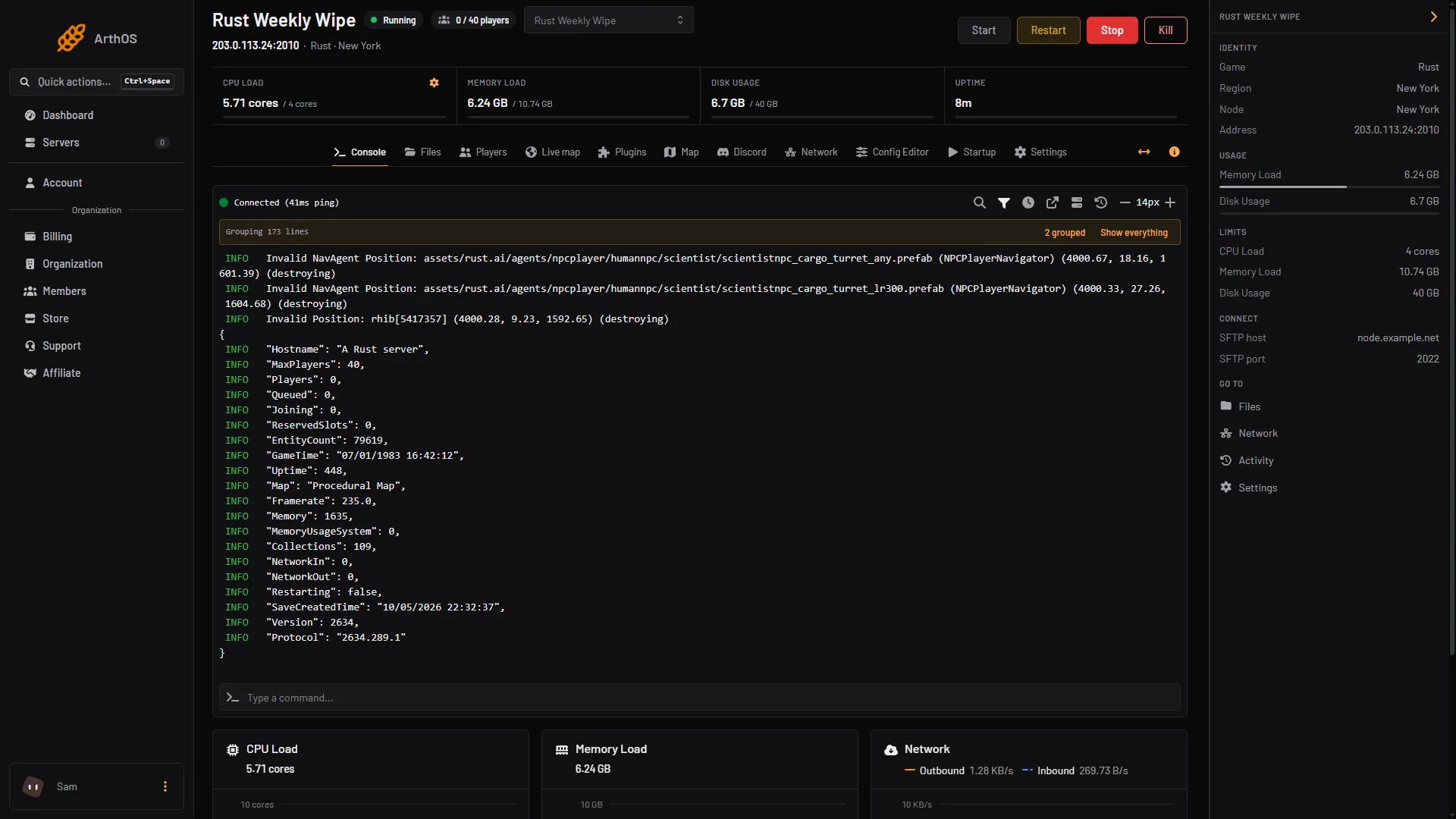
- The serverinfo reply
- Framerate
Write down the numbers at three moments: right after a restart, when the server is quiet and when it is full. The change between them tells you more than any single value. If one player lags and the others do not, look at that player’s Ping in their window on the Live map, which opens when you click them. That is their connection, not the server.
The Live map reads a server less often when it runs below 15 frames a second. See Use the Rust live map to watch and manage players.
Fix it
- Remove old bases. Every base and deployable is an entity the server tracks. Decay removes abandoned bases over time, so leave Decay speed at
1or higher if the entity count keeps growing. Turning decay off keeps everything until the wipe. See Change decay and upkeep on a Rust server. A wipe clears the lot, because the save file holds the map entities, buildings and deployables. - Test your plugins. On a server with Oxide or Carbon, every plugin adds work. Remove the plugins you do not need. The plugin files are in
carbon/pluginson Carbon andoxide/pluginson Oxide. To find a heavy one, stop the server and move half of the plugin files out of that folder in Files. Start the server and compare Server FPS at a similar player count. If the FPS is better, the heavy plugin is among the files you moved, so put half of those back and compare again. Keep halving until one plugin is left. The panel’s Remove button deletes the file, so use it only when you mean to. - Check the map size and memory. Facepunch says: “The larger the map, the more disk space and memory you need”. Its guide lists 12 GB free RAM and notes a 6000 map uses more. In our test a 4000 map with nobody online used about 6.2 GB. Compare that with Memory load at the top of the server page and the Limits on the right. If you are near the limit, a smaller map at the next wipe or a larger plan helps more than any setting.
- Check the player count. Facepunch says “The more players, the faster your computer CPU needs to be”. Maximum players is on the Startup tab.
- Use the performance settings. Open the Config Editor and look at the Performance group.
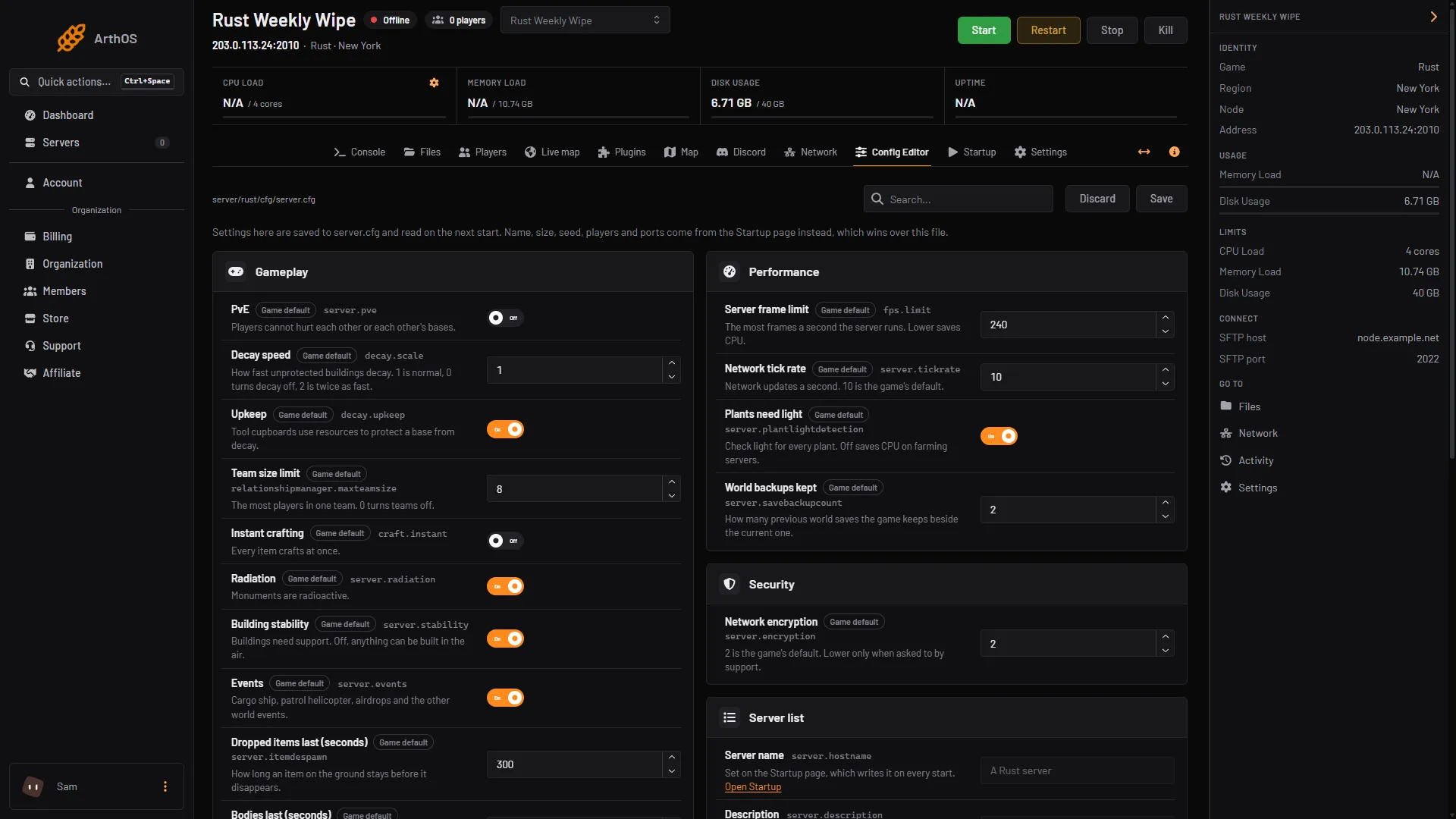
- Server frame limit
- Network tick rate
- Plants need light
| Setting | Default | What to do |
|---|---|---|
Server frame limit (fps.limit) | 240 | The most frames a second the server runs. Lower saves CPU |
Network tick rate (server.tickrate) | 10 | Network updates a second. Leave it at the game’s default of 10 |
Plants need light (server.plantlightdetection) | On | Checks light for every plant. Turn it off to save CPU on farming servers |
Choose Save and restart. The settings are read on the next start.
By hand
An RCON tool can send serverinfo too. Set the frame limit with fps.limit in server.cfg. See Connect an RCON tool to a Rust server for connecting.
If it does not work
- The FPS is blank. The server is stopped, or the panel cannot reach its remote console. Start it and wait for
Server startup complete. - It is low right after a start. A new map is generated on the first start and takes minutes. Wait for the console to say
Server startup complete. - Lower settings did nothing. Check you saved and restarted. Then check Memory load: a server at its memory limit lags whatever the settings say.
- It lags only when the server is full. The load then comes from the player count and the entities. See steps 1, 3 and 4.
More about Rust hosting on the Rust page.
Sources: wiki.facepunch.com: Useful commands, wiki.facepunch.com: Creating a server, wiki.facepunch.com: The tool cupboard, wiki.facepunch.com: Getting Started w Server