






Open the Live map tab of your Rust server to see the world in 3D, with players, events, vehicles and bases where the game says they are. Click a player to open their menu, or click a tool cupboard to open the base window. Anything live needs the server running; the map itself is drawn from the server’s own map file.
What you see
- Players. The panel says it updates them every second (the panel’s own figure).
- Events such as the patrol helicopter, cargo ship and supply drops.
- Vehicles such as minicopters and boats.
- Bases, one per tool cupboard. The panel says they appear within a minute of the map opening (the panel’s own figure).
- Monuments and smaller places.
Buildings, rocks and vehicles are simple models. They are close, not exact.
In the ArthOS panel
- Open the Live map tab. While the server is stopped the page says “The server is not running, or its remote console is off” and still shows the map. Choose Start; players and events appear once the game answers. When it does, the page reads “LIVE Reading the game.” and shows the map’s size, seed, grid, Server FPS (2) and when it last updated.
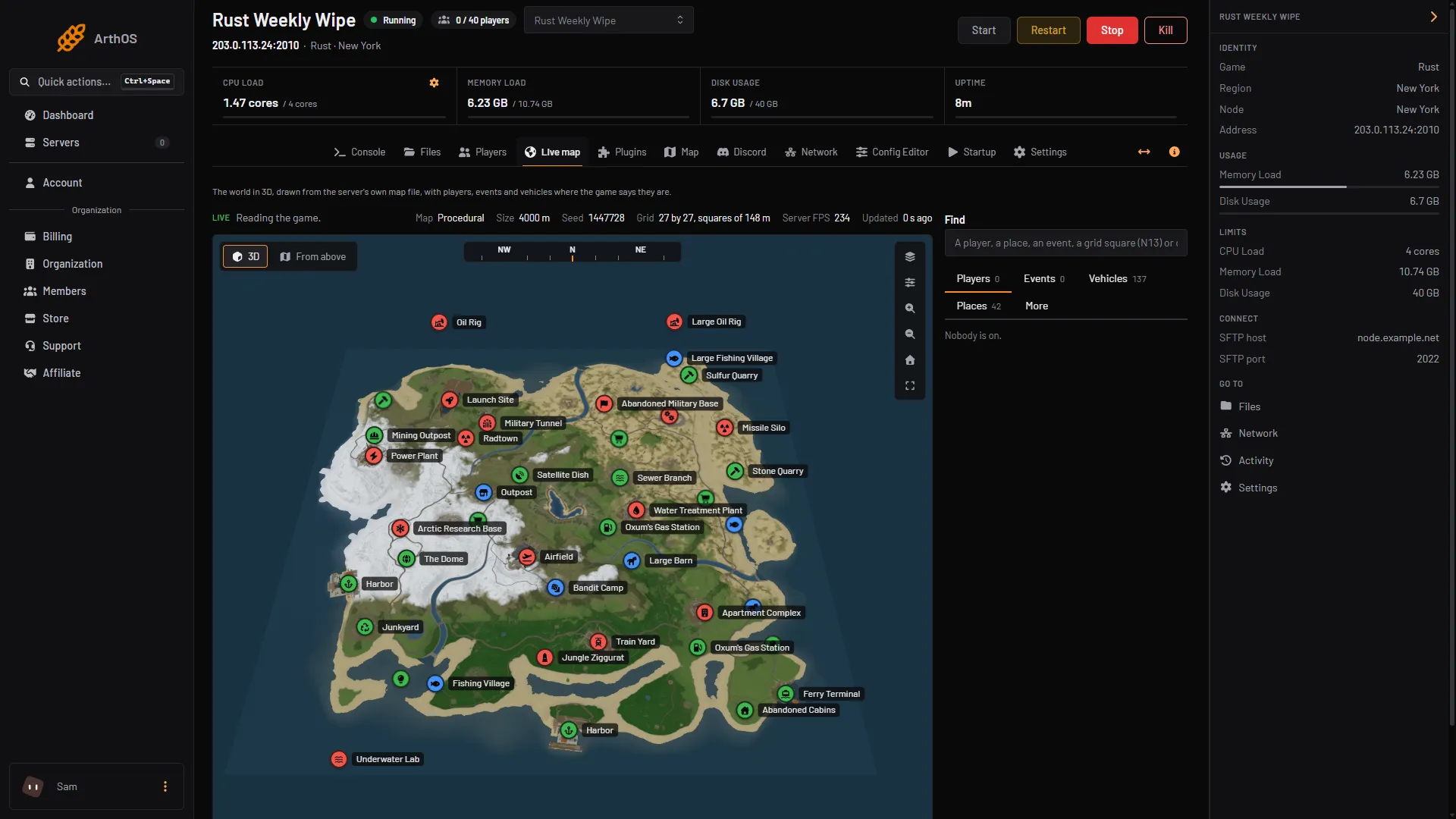
- 3D or From above
- Server FPS
- Find
- Players, Events, Vehicles, Places
- Move around. Choose 3D or From above (1). Drag to move, right-drag to turn and scroll to zoom.
W A S Dor the arrow keys move,QandEturn,RandFzoom, andShiftis faster. The buttons down the right edge of the map hold layers, settings, zoom, home and full screen. - Find something. Type a player, a place, an event, a grid square such as
N13or coordinates such as120, -340in Find (3). The tabs beside it (4) list Players, Events, Vehicles and Places with a count each, and More holds the rest. With nobody on, the Players tab says “Nobody is on.” Follow keeps the camera on the one you picked. - Click a player. Their window shows health, ping, how long they have been connected, kills, deaths, times reported, team and position. Kills and deaths count from the last restart.
- Use the buttons at the top of the window.
| Button | What it does |
|---|---|
| Give item | Gives the player an item you pick by name |
| Teleport | Sends the player to another player, or brings another player to them |
| Knock down | The player falls wounded, as if shot |
| Kill | The player dies and drops what they carry |
| Kick, Ban, Chat mute | The same actions as the Players tab |
| Make owner, Make moderator | Adds the player to the game’s admin list |
| Remove everything they built | Deletes every base, wall, door, box and deployable they own |
Everything from here to the end of step 7 needs a player online, or a placed tool cupboard, so it can only be shown once your server has them.
- Under Health, food and water, move a slider and choose Set. Under Inventory, Give item adds an item and Empty clears the belt, the main slots, the clothing, the backpack or everything.
- Click a tool cupboard on the map to open the base window. It shows who placed it, how many players are authorised and how many building pieces the base has. Destroy cupboard and Delete base are in it.
If a button is missing, your role does not have that permission. Ask the server owner.
Where players have been
Someone who can moderate players can choose Record positions. The panel then notes where each player is every 10 seconds and keeps 24 hours, for a heatmap and trails. Turning it off deletes the record.
What the panel does not show
The panel talks to the game through its remote console and installs nothing on the server. The game’s own console does not give it:
- It cannot list what a player carries, so items cannot be edited one by one.
- Health is reported. Food and water are not, so they show as “not reported”. The sliders only set a level.
- A tool cupboard reports how many players are authorised, not who, and the panel cannot read what is inside it.
- It cannot see what a piece is built from, so every piece is drawn in grey.
If it does not work
- “This browser cannot draw 3D maps”. WebGL is off or not available in this browser. Check the browser’s settings for WebGL, or try another browser.
- “This server has no map file yet”. A new server makes its map the first time it starts. Start it and wait for
Server startup completein the console. - Players and events never appear. Look at the status line. “The server is not running, or its remote console is off” means start the server. “The game refused the panel” means the remote console password the panel holds is not the one the game is using. If you changed the RCON password on the Startup tab, the game keeps the old one until it restarts.
- Readings come slowly. Events and vehicles are read one kind at a time. When the server runs below 15 frames a second the panel reads it less often to leave it alone. See Fix lag and low server FPS on a Rust server.
More about Rust hosting on the Rust page.
Sources: wiki.facepunch.com: The tool cupboard, wiki.facepunch.com: Useful commands