









Open the Config Editor, type a password in Join password, save, and restart the server. Players type it when they join. An empty Join password means anyone can join. A new server has no password.
Set the password
- Open your server in the panel and open the Config Editor.
- In the Server group, find Join password.
- Type the password. The row is hidden, with a button to reveal it and one to copy it. To remove the password, empty the row.
- Choose Save.
- Restart the server, with Restart now in the message after saving or Restart at the top of the server page. The game reads this file only when it starts.
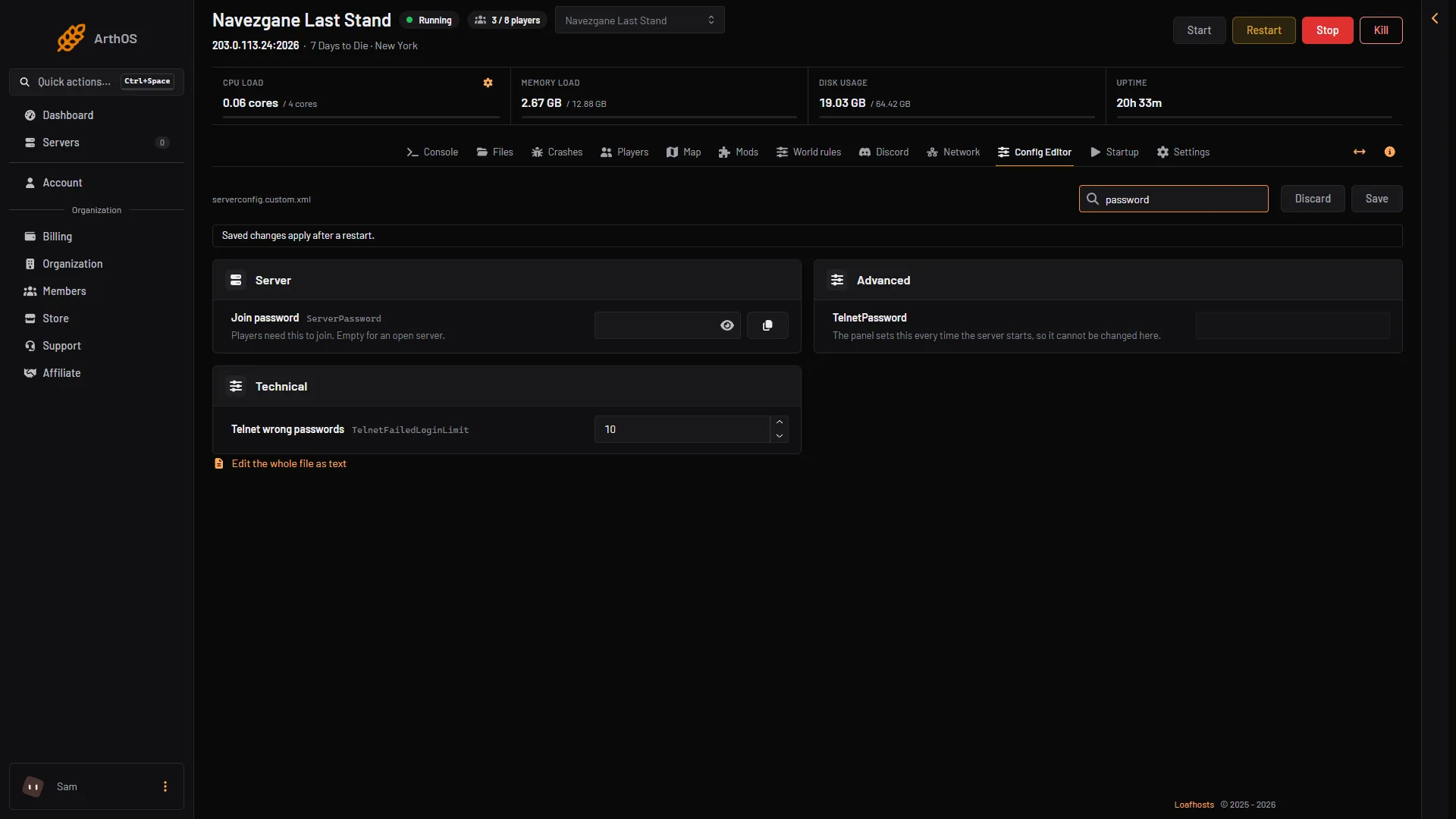
- Join password
The picture also shows a second password row, TelnetPassword. The panel sets it and it is not the join password. Leave it alone.
What players see
When a player joins from Join a Game or Connect to IP, the game asks for the password. They type it once per join. Share it only with the people you want. See connect to a server.
Other ways to make a server private
- Whitelist. For a members-only server, list the players who may join. The first player you add turns on whitelist-only mode at once. From then only listed players and admins can join. See the whitelist guide.
- Listed. In the same group, set Listed to Not listed. The server then does not show in the server browser. Players must use Connect to IP. The other choices are Public and Friends only. Friends only does not work on a server like this one: players cannot find it in the list. Use Public or Not listed.
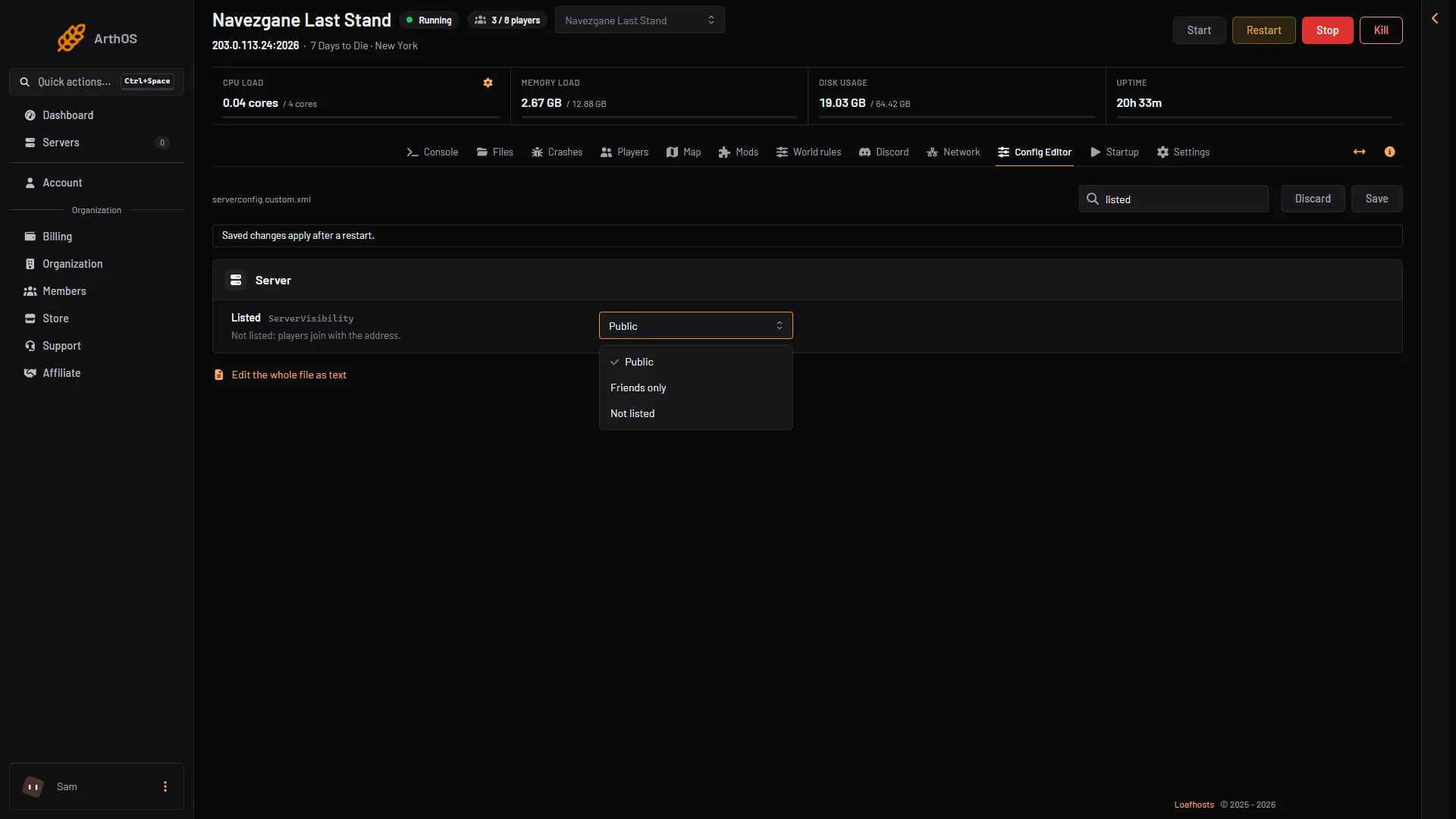
- Listed
A password and Not listed work well together. A password alone still lets people find the server in the browser.
If it does not work
- Players join without a password. The server has not restarted since you saved. Restart it.
- Nobody can join after a whitelist change. Whitelist-only mode is on. Add the player or remove the list.
More about the game: 7 Days to Die servers.
Sources: 7daystodie.wiki.gg: Server