









The 7 Days to Die whitelist is a list of players who may join. You cannot turn it on or off with a setting. The first time you add a player, the whitelist turns on. From then on only players on the list, and admins, can join. Everyone else is kept out.
Before you start
Admins can always join. If you are not an admin, add yourself first: once the list has one name on it, everyone else who is not on it is refused. Join the server, then add your own name before you add others.
In the panel
- Open the Players page.
- Find the player. Someone online is under Online. Someone who joined before is under Seen before, and you can add them while they are away.
- Open their menu (three dots) and choose Add to the whitelist. A box titled “Add (name) to the whitelist” opens. It reminds you that while the whitelist has anyone on it, only those players and admins can join (box 1 in the second picture).
- Choose Add to the whitelist (box 2) in the box.
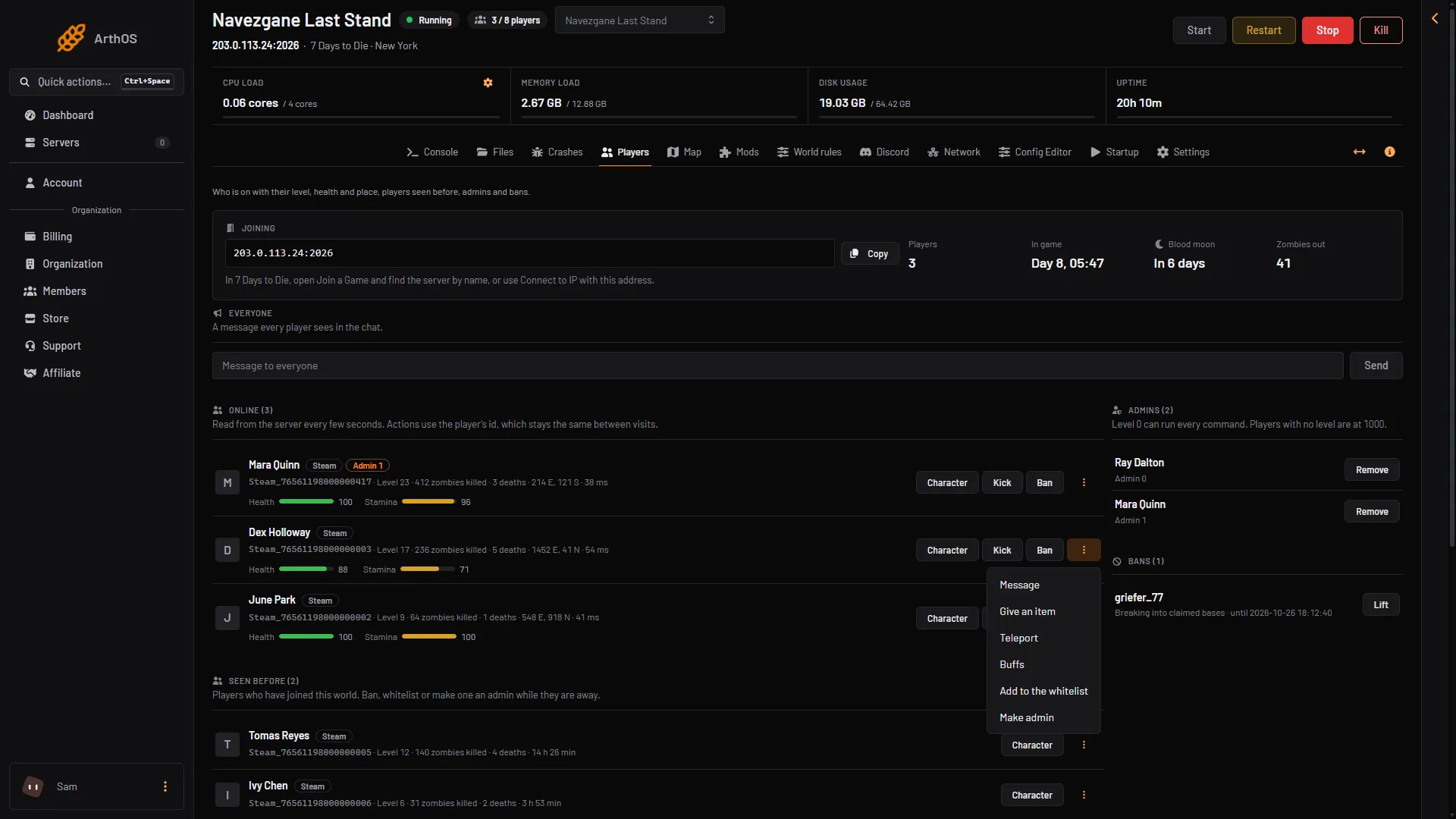
- Add to the whitelist
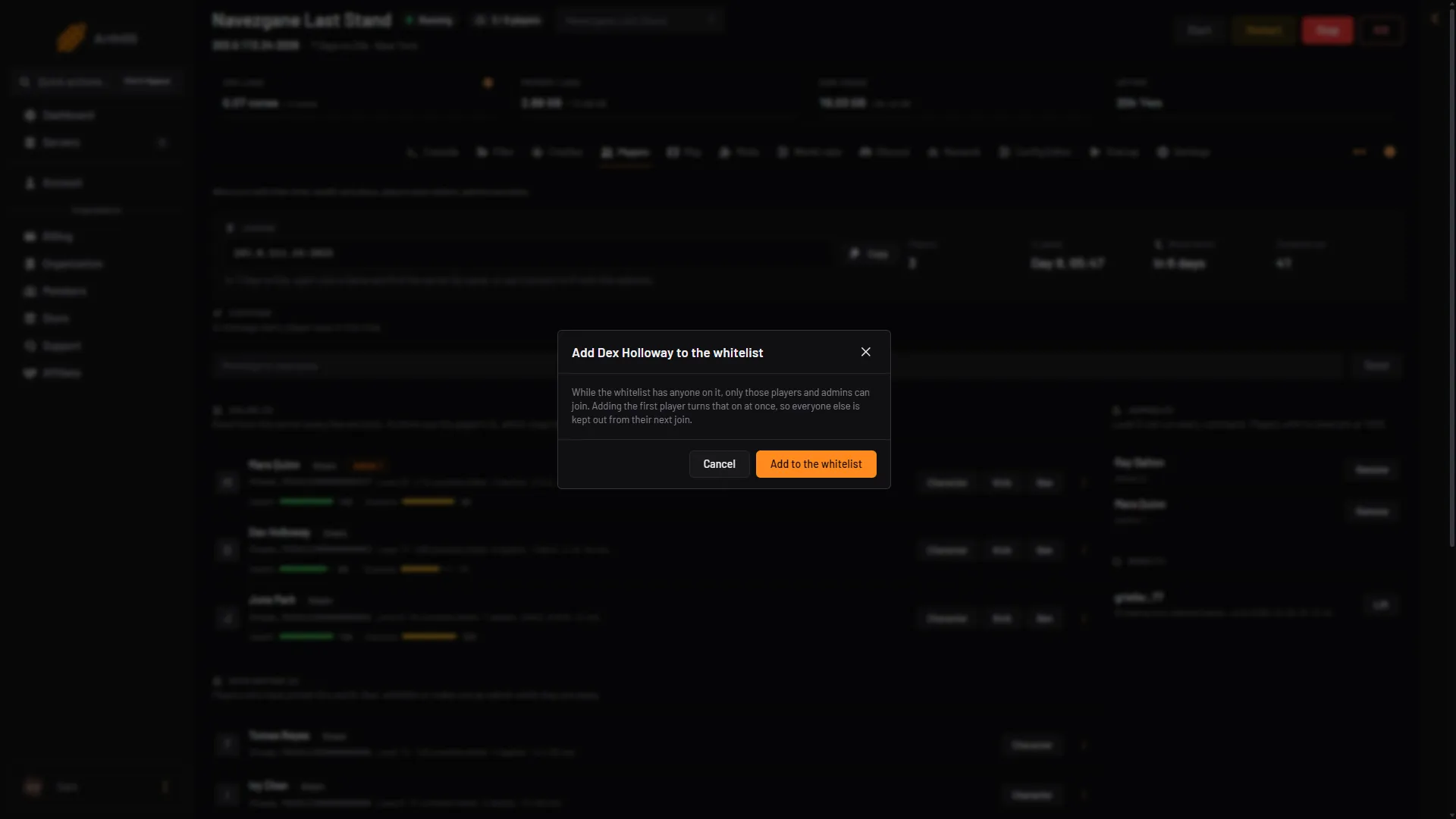
- What it does
- Add to the whitelist
A friend who has never joined
The Players page lists only people who have joined. For anyone else, open the Console page and type whitelist add Steam_<SteamID64>, one line for each player. The game’s help for the command is whitelist add <name / entity id / platform + platform user id>. A name only works while the player is online. Other platforms use EOS_<id>, XBL_<id> or PSN_<id>.
The panel answers that the player is added and that only listed players and admins can join now.
A player who is not on the list is refused when they try to join. Not checked on V3.3.0 as of 19 October 2026: whether the game removes players who are already on and not listed.
By hand
Type these on the Console page, without a slash.
whitelist add <id>: adds a player. For a player who is online, the id is the number fromlpior their name. For a player who is away, write their platform id, such asSteam_<SteamID64>.whitelist remove <id>: takes a player off.whitelist list: shows the list.
You can add a Steam group with whitelist addgroup <steam id> and remove it with whitelist removegroup <steam id>.
Turn the whitelist off
The game’s own notes in the admin file say: “If there are any items in the whitelist, the whitelist only mode is enabled”. To turn it off, take every entry off.
- Run
whitelist listto see who is on it. - Run
whitelist remove <id>for each one. If you added a group, runwhitelist removegroup <steam id>as well. - Run
whitelist listagain. When it is empty, anyone can join again.
The list is kept in the admin file, serveradmin.xml, in data/Saves. The game’s notes ask you to change it with the commands, not by editing the file. An entry in the file looks like this:
<user platform="" userid="" name="" />If it does not work
- Nobody can join, including you. The list has names and yours is not one of them. Admins can still join. Give yourself a level with make yourself admin, or add yourself from the Console page.
- A friend is refused. They are not on the list. Add them, then ask them to join again.
- The page says the server is stopped. Start the server. The list is changed through the running game.
- You want a password instead. See set a server password.
More about the game: 7 Days to Die servers.
Sources: 7daystodie.wiki.gg: Serveradmin.xml, 7daystodie.wiki.gg: Command Console