






The most common reason: your server has no Offworld licence, so it is on the Custom tab of the server browser, not the main one. Look there first. If it is not there either, work down the list below.
1. Look on the Custom tab
Servers with a licence from Offworld are on the main Server Browser tab. All other servers are under Custom, and so is any server that runs mods. A new Loafhosts server has no licence, so it is on Custom.
In Squad, open the server browser, choose Custom and search for the exact server name. The Players page in the panel shows the same hint under How players find it.
2. Check the server is up
A server that is still starting is not listed yet. Open the Console and wait for the line Engine is initialized. The Players page says “The server is starting” until the game answers.
3. Check Show in the server browser
- Open Config Editor and choose
Server.cfg. - In the group Server list, make sure Show in the server browser (1) is on. Off hides the server. Typing
browserin Search shows the Server list group. - In the group Advanced, make sure LAN only is off. A LAN server can only be found from the same local network.
- Choose Save, then restart. Saved changes apply after a restart.
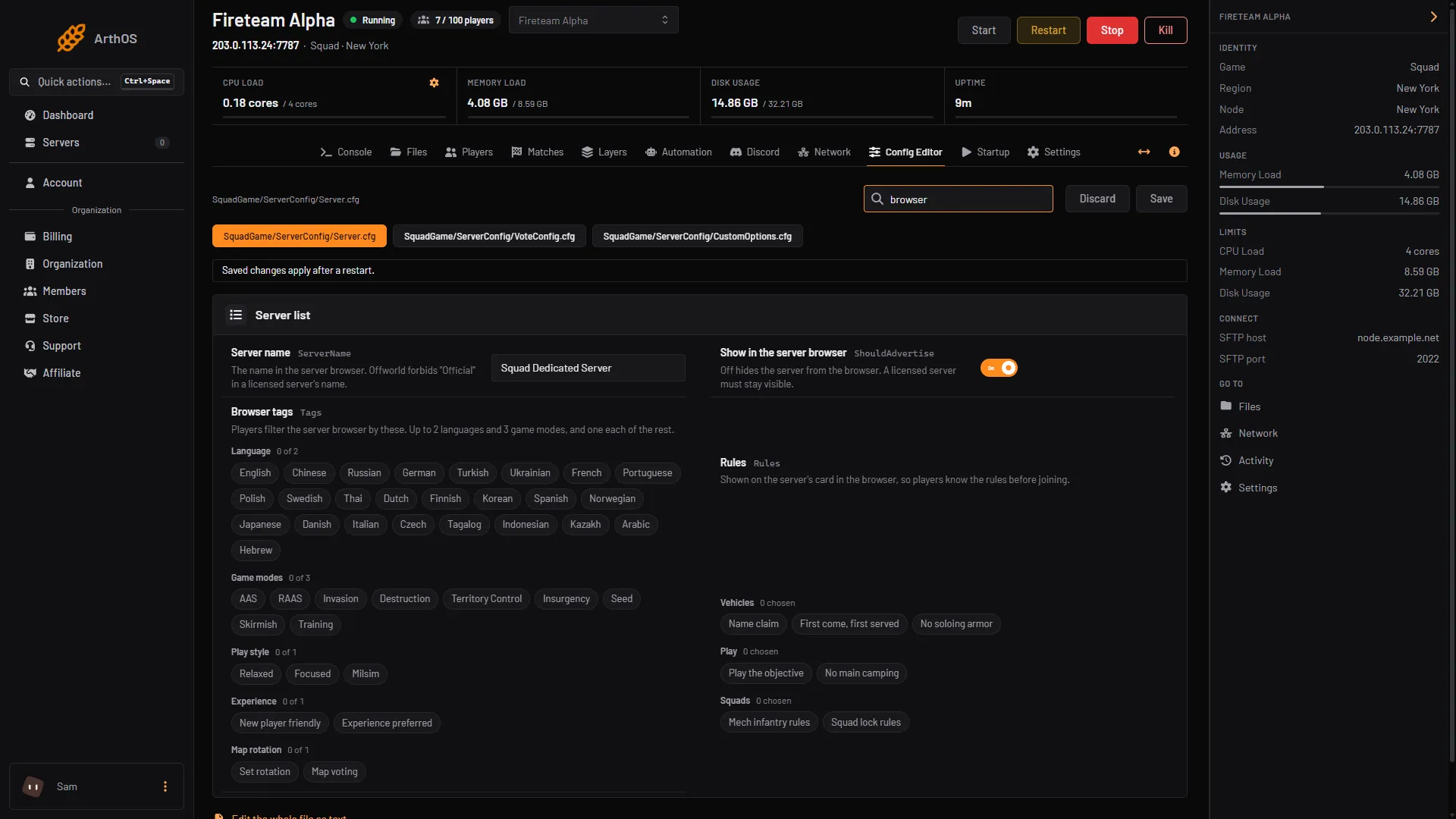
- Show in the server browser
4. Check the server name
Offworld’s wiki says ServerName needs double quotes in Server.cfg for the server to show up. If you edit the file by hand, write it like this:
ServerName="My Squad Server"5. Check the game version
Squad needs the server to have the current update. A server missing the Steam update does not show in the browser. Offworld’s wiki lists this as a cause and gives no steps. On Loafhosts:
- Open Startup and check Update on start is
1. It checks Steam for an update every time the server starts. - Restart the server. See Squad crashes after an update.
Also check Beta branch is empty, unless Offworld gave you a branch.
6. Check the filters
A player who filters the list by tags only sees servers with those tags. With no filter, players see every server, tagged or not. Your server is hidden from a player who filters on a tag category you did not fill in.
Pick the tags that fit in Config Editor, Server.cfg, Browser tags. You can choose up to 2 languages and 3 game modes, and one each of playstyle, experience and map rotation. See Squad browser tags and rules.
Find Match works another way. It does not use your tags. It searches by the game mode running now, never lists a full server, and only lists a modded server if the player has the mods.
7. By hand in Server.cfg
If you edit Server.cfg in Files, these two lines must read:
ShouldAdvertise=true
IsLANMatch=false
8. Ports
The ports of a Loafhosts Squad server are set by the panel and the Network page lists them. Do not change the query, beacon or RCON ports in the files. A server that starts normally in the console but cannot be found is the case Offworld’s wiki describes as a closed port or firewall; if the ports on Network match your server, contact support.
If it does not work
- Players see the server but cannot join. Check Join password, and that the player has the mods.
- You need it on the main tab. That needs an Offworld licence. See Squad server licence.
More about the game: Squad servers.
Sources: squad.fandom.com: Server browser, squad.fandom.com: Server licensing, squad.fandom.com: Unable to Find Server, squad.fandom.com: Server Configuration, squad.fandom.com: Server Installation, joinsquad.com: Server licensing and administration policies