






Guides / Squad
Squad server guides.
One task per guide: how to do it in the ArthOS panel, and by hand where there is a way.
Basics
13 guides-
 Basics
 Change your Squad server name
Change the Squad server name in the Config Editor. The name is what players search for in the server browser. Restart to apply it. - Basics
Connect to a Squad server
Find a Squad server in the in-game Server Browser: use the Custom tab for unlicensed servers, search by name, and enter the password if it has one. - Basics
Set a password on your Squad server
Set or remove the Squad server join password in the Config Editor. A licensed server may not have one. Restart the server to apply it. -
Set up a Squad dedicated server from scratch
Start a Squad server, wait for Engine is initialized, name it, set a password, add admins, and learn how players find it with or without a licence. - Basics
Set up seeding on your Squad server
Seeding is the quiet time while a Squad server fills up. Turn on seeding messages, put seed layers in the low-population vote, and set the seed rules. - Basics
Squad Config Editor: Server.cfg, votes and seeding
The Config Editor edits Server.cfg, VoteConfig.cfg and CustomOptions.cfg as a form. See what each group holds, what is locked, and what other pages edit. - Basics
Squad max players and queue size
Set the player limit and queue on a Squad server. Startup Maximum players caps the Config Editor limit. Queue size 0 is off, -1 is no limit. - Basics
Squad reserved slots: keep seats for chosen players
Set Reserved slots in the Config Editor, then give players the reserve access level in Admins.cfg so they can join a full Squad server. - Basics
Squad server license: what it is and how to add it
A Squad licence from Offworld lists your server in the main browser tab. Learn the rules, how to apply, and where to paste the key in the panel. - Basics
Restart your Squad server, or just the match
Restarting the Squad server drops everyone and reloads its files. Restart match and End match keep it running. Which to use, and how to schedule restarts. - Basics
Squad server browser tags and rules
Pick the Tags and Rules for your Squad server in the Config Editor. Tags set which filters list you; Rules show on your server's card. Includes the limits. - Basics
Squad server tick rate: what it is and how to check it
Tick rate is how many times a second your Squad server updates the game. Set the cap on Startup, read the live number on Matches, and know what lowers it. - Basics
Squad team balance and team changes
Control who can change team on your Squad server: allow or block changes, keep teams even, set the player gap, and shuffle or move players by hand.
Layers and rotation
8 guides- Layers and rotation
Change the layer on your Squad server
Pick a layer on the Players page, then choose Set as next or Change now. Change now ends the match at once. RCON commands can also set factions. - Layers and rotation
Set a layer rotation on your Squad server
Choose In order or Shuffled on the Layers page, build the Rotation list, and press Save. The mode change applies at the next restart. - Layers and rotation
Set up layer voting on your Squad server
Choose Players vote on the Layers page, fill the Vote pool, and tune the vote in the Config Editor: layers to vote on, lengths and Low population. - Layers and rotation
Find Squad layer IDs for your server
A Squad layer ID like AlBasrah_AAS_v1 is not its display name. Find IDs in the Layers browser, add by ID, or list them with ListLayers. - Layers and rotation
Hide layers and factions on your Squad server
Use the Hidden from admins list for layers, edit ExcludedFactions.cfg and ExcludedLevels.cfg by hand, and leave factions out of a single vote entry. -
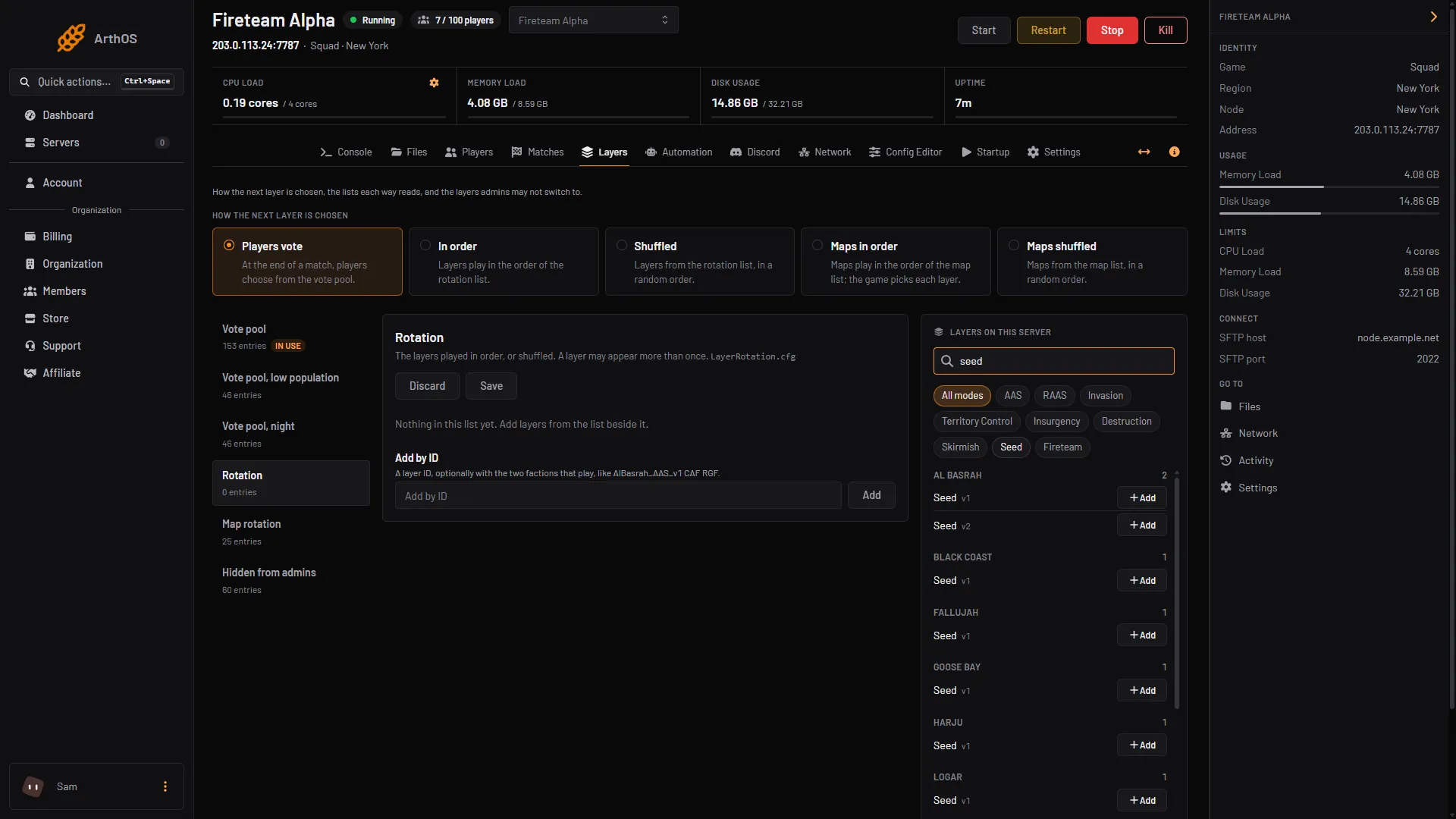
Seed and Skirmish layers for a Squad server
Put Seed and Skirmish layers in the low population vote pool so a quiet Squad server offers small layers, then switches back to full layers as it fills. - Layers and rotation
Set the first layer on a Squad server
Choose which layer a Squad server loads after it starts: set First layer in VoteConfig when players vote, or shuffle the rotation on start. - Layers and rotation
Squad map rotation or layer rotation: which to use
Layer modes play the exact layers you list. Map modes play your map list and let the game pick each layer. Here is how to choose and set each.
Admin and moderation
14 guides- Admin and moderation
Ban and kick players on a Squad server
Open the Players page, choose Kick or Ban from the player's menu, add a reason and a ban length. Lift a ban with Unban, or edit Bans.cfg by hand. - Admin and moderation
How to add admins to your Squad server
Add a Squad admin from the Players page with their Steam or EOS ID and a group. The running server reloads Admins.cfg at once. - Admin and moderation
Squad RCON port and password
Find your Squad RCON port, set the RCON password on the Startup page, and learn why you should not edit Rcon.cfg by hand on the panel. - Admin and moderation
Kick Squad players who are not in a squad
Turn on Automation, Kick players without a squad to warn players outside a squad and kick them after a set time. Admins.cfg players are never kicked. - Admin and moderation
Record demos on your Squad server
Turn on Record demos in the Config Editor, let chosen players record with clientdemos, and know what the demos access levels do and cost in disk space. - Admin and moderation
See Squad match history and the killfeed
The Matches page lists each match with its winner, most players, deaths and teamkills, and shows the current match's killfeed, all read from the server log. - Admin and moderation
Send broadcast messages on a Squad server
Send one message to everyone now, show a list of messages in turn with Timed messages, or rotate lines from ServerMessages.cfg on a set interval. - Admin and moderation
Set a Squad server message of the day (MOTD.cfg)
Edit MOTD.cfg in SquadGame/ServerConfig to show players a text box when they join, and use Rules tags to show your rules in the server browser. - Admin and moderation
Show your Squad server's player count in Discord
Link a Discord channel to your Squad server to show its status and player count, and post start, stop, crash and backup events with a webhook. - Admin and moderation
Squad admin permissions and access levels explained
What each Squad access level does in Admins.cfg, from kick and ban to changemap and reserve, with example groups you can copy. - Admin and moderation
Squad chat commands like !rules and !discord
Add chat commands to your Squad server. A player types ! and a word, such as !rules, and gets your reply, privately or shown to everyone. - Admin and moderation
Squad teamkill settings: kicks, bans and warnings
Choose how many teamkills get a player banned, for how long, and send teamkillers a private warning. Teamkill counts show on the Matches page. - Admin and moderation
Use the admin camera on your Squad server
Give an admin the cameraman access level, press Shift and P in game to use the free spectator camera, and see camera use in the panel's Players feed. - Admin and moderation
Warn players on a Squad server
Warn one Squad player privately from the Players page, send AdminWarn over RCON, or turn on the Teamkill warning to do it for you.
Mods and fixes
5 guides- Mods and fixes
Squad server not showing in the server browser
An unlicensed Squad server is under Custom, not the main tab. Also check Show in the server browser, a missing update, the server name quotes and tag filters. - Mods and fixes
Install Steam Workshop mods on a Squad server
The Squad server has no mod setting on its Startup page. Copy the mod's folder from your PC into SquadGame/Plugins/Mods, named by its Workshop ID. - Mods and fixes
Squad licence key not working: causes and fixes
Licence key added but the Squad server still sits under Custom? Restart the server, check License.cfg, and meet Offworld's rules. - Mods and fixes
Squad server crashes or won't start after an update
After an Offworld update, restart so Update on start can download it. Then check mods built for the old version, new config keys, and the crash logs. - Mods and fixes
Squad server lag and low tick rate: causes and checks
Read your Squad server's tick rate on the Matches page. Above 35 is healthy. Then check player count, mods, restarts and the plan's CPU and memory.
- Ban and kick players on a Squad server Open the Players page, choose Kick or Ban from the player's menu, add a reason and a ban length. Lift a ban with Unban, or edit Bans.cfg by hand.
- Change the layer on your Squad server Pick a layer on the Players page, then choose Set as next or Change now. Change now ends the match at once. RCON commands can also set factions.
- Change your Squad server name Change the Squad server name in the Config Editor. The name is what players search for in the server browser. Restart to apply it.
- Connect to a Squad server Find a Squad server in the in-game Server Browser: use the Custom tab for unlicensed servers, search by name, and enter the password if it has one.
- How to add admins to your Squad server Add a Squad admin from the Players page with their Steam or EOS ID and a group. The running server reloads Admins.cfg at once.
- Set a layer rotation on your Squad server Choose In order or Shuffled on the Layers page, build the Rotation list, and press Save. The mode change applies at the next restart.
- Set a password on your Squad server Set or remove the Squad server join password in the Config Editor. A licensed server may not have one. Restart the server to apply it.
- Set up a Squad dedicated server from scratch Start a Squad server, wait for Engine is initialized, name it, set a password, add admins, and learn how players find it with or without a licence.
- Set up layer voting on your Squad server Choose Players vote on the Layers page, fill the Vote pool, and tune the vote in the Config Editor: layers to vote on, lengths and Low population.
- Set up seeding on your Squad server Seeding is the quiet time while a Squad server fills up. Turn on seeding messages, put seed layers in the low-population vote, and set the seed rules.
- Squad Config Editor: Server.cfg, votes and seeding The Config Editor edits Server.cfg, VoteConfig.cfg and CustomOptions.cfg as a form. See what each group holds, what is locked, and what other pages edit.
- Squad max players and queue size Set the player limit and queue on a Squad server. Startup Maximum players caps the Config Editor limit. Queue size 0 is off, -1 is no limit.
- Squad RCON port and password Find your Squad RCON port, set the RCON password on the Startup page, and learn why you should not edit Rcon.cfg by hand on the panel.
- Squad reserved slots: keep seats for chosen players Set Reserved slots in the Config Editor, then give players the reserve access level in Admins.cfg so they can join a full Squad server.
- Squad server license: what it is and how to add it A Squad licence from Offworld lists your server in the main browser tab. Learn the rules, how to apply, and where to paste the key in the panel.
- Squad server not showing in the server browser An unlicensed Squad server is under Custom, not the main tab. Also check Show in the server browser, a missing update, the server name quotes and tag filters.
- Find Squad layer IDs for your server A Squad layer ID like AlBasrah_AAS_v1 is not its display name. Find IDs in the Layers browser, add by ID, or list them with ListLayers.
- Hide layers and factions on your Squad server Use the Hidden from admins list for layers, edit ExcludedFactions.cfg and ExcludedLevels.cfg by hand, and leave factions out of a single vote entry.
- Install Steam Workshop mods on a Squad server The Squad server has no mod setting on its Startup page. Copy the mod's folder from your PC into SquadGame/Plugins/Mods, named by its Workshop ID.
- Kick Squad players who are not in a squad Turn on Automation, Kick players without a squad to warn players outside a squad and kick them after a set time. Admins.cfg players are never kicked.
- Record demos on your Squad server Turn on Record demos in the Config Editor, let chosen players record with clientdemos, and know what the demos access levels do and cost in disk space.
- Restart your Squad server, or just the match Restarting the Squad server drops everyone and reloads its files. Restart match and End match keep it running. Which to use, and how to schedule restarts.
- See Squad match history and the killfeed The Matches page lists each match with its winner, most players, deaths and teamkills, and shows the current match's killfeed, all read from the server log.
- Seed and Skirmish layers for a Squad server Put Seed and Skirmish layers in the low population vote pool so a quiet Squad server offers small layers, then switches back to full layers as it fills.
- Send broadcast messages on a Squad server Send one message to everyone now, show a list of messages in turn with Timed messages, or rotate lines from ServerMessages.cfg on a set interval.
- Set a Squad server message of the day (MOTD.cfg) Edit MOTD.cfg in SquadGame/ServerConfig to show players a text box when they join, and use Rules tags to show your rules in the server browser.
- Set the first layer on a Squad server Choose which layer a Squad server loads after it starts: set First layer in VoteConfig when players vote, or shuffle the rotation on start.
- Show your Squad server's player count in Discord Link a Discord channel to your Squad server to show its status and player count, and post start, stop, crash and backup events with a webhook.
- Squad admin permissions and access levels explained What each Squad access level does in Admins.cfg, from kick and ban to changemap and reserve, with example groups you can copy.
- Squad chat commands like !rules and !discord Add chat commands to your Squad server. A player types ! and a word, such as !rules, and gets your reply, privately or shown to everyone.
- Squad licence key not working: causes and fixes Licence key added but the Squad server still sits under Custom? Restart the server, check License.cfg, and meet Offworld's rules.
- Squad map rotation or layer rotation: which to use Layer modes play the exact layers you list. Map modes play your map list and let the game pick each layer. Here is how to choose and set each.
- Squad server browser tags and rules Pick the Tags and Rules for your Squad server in the Config Editor. Tags set which filters list you; Rules show on your server's card. Includes the limits.
- Squad server crashes or won't start after an update After an Offworld update, restart so Update on start can download it. Then check mods built for the old version, new config keys, and the crash logs.
- Squad server lag and low tick rate: causes and checks Read your Squad server's tick rate on the Matches page. Above 35 is healthy. Then check player count, mods, restarts and the plan's CPU and memory.
- Squad server tick rate: what it is and how to check it Tick rate is how many times a second your Squad server updates the game. Set the cap on Startup, read the live number on Matches, and know what lowers it.
- Squad team balance and team changes Control who can change team on your Squad server: allow or block changes, keep teams even, set the player gap, and shuffle or move players by hand.
- Squad teamkill settings: kicks, bans and warnings Choose how many teamkills get a player banned, for how long, and send teamkillers a private warning. Teamkill counts show on the Matches page.
- Use the admin camera on your Squad server Give an admin the cameraman access level, press Shift and P in game to use the free spectator camera, and see camera use in the panel's Players feed.
- Warn players on a Squad server Warn one Squad player privately from the Players page, send AdminWarn over RCON, or turn on the Teamkill warning to do it for you.