









Open the Discord page, add the panel’s bot to your Discord server, link your Discord account, and choose Link a channel. The bot then keeps one message in that channel up to date, about once a minute. More about the game: Valheim servers.
What the message shows
For a Valheim server the message holds:
- The server’s name, as players see it in the server list, and whether it is up.
- The world and its day, like
Dedicated (day 12). - Bosses: the names of the bosses your world has beaten. The line is left out until the first one falls.
- Online: who is on now, the first ten names, then “and 3 more”. It shows while the server is running.
- Join code: the crossplay join code, while the server is running with Crossplay on.
- Short notes: “password protected” and “crossplay on”.
- A Show mods button, when mods are on. Anyone in the channel can press it. Only the person who presses it sees the list, with each mod’s name and version.
The day and the bosses come from the world’s last save. They change when the game saves, which is every 30 minutes by default.
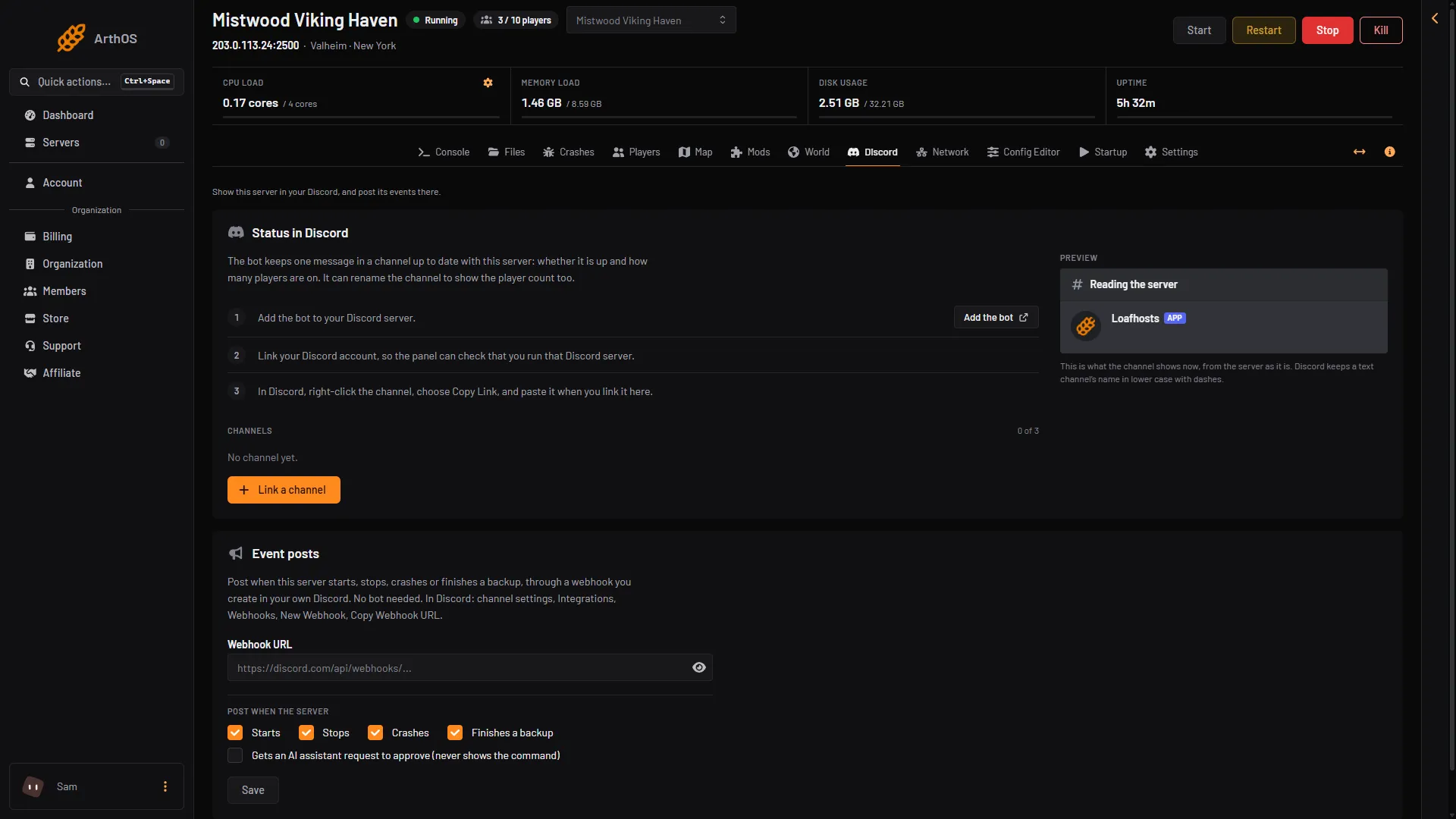
- Add the bot
- Link a channel
- Preview
- Event posts
- Webhook URL
Add it to a channel
The page shows three steps while nothing is linked.
- Choose Add the bot (1). Discord opens. Pick your Discord server and allow the bot. You need to run that Discord server to do this.
- Link your Discord account. Choose Link your account. It takes you to your account page. Come back to the Discord page afterwards, where the step shows Linked. The panel uses this to check that you run the Discord server.
- In Discord, right-click the channel, choose Copy Link. Back on the page, choose Link a channel (2) and paste the link in Channel link or ID.
Then choose Link channel. The panel says “Linked. The status message is posted and updates every minute.”
A server can post to up to three channels. The list Channels shows how many are used.
Choose how it looks
On the same form, under The message:
- Show mods button: on by default.
- Show the join address: off by default, because players find a listed server in the game’s own server list. Turn it on if you want the address in the message.
Under The channel name, Rename the channel to show the server makes the bot rename the channel with the server’s state and player count. Discord allows only two renames in ten minutes, so the name changes at most every 11 minutes, or every 5 when the server goes up or down. The bot needs the Discord permission Manage Channels for this. Turn the switch off to keep your own channel name.
The panel shows a Preview (3) of the message as you change these.
Update, edit or remove
Each linked channel has buttons:
- Update now: posts fresh details at once.
- Edit: change the options above.
- Unlink: deletes the status message from the channel and stops the updates. The channel name stays as it is.
- Open in Discord: opens the message.
Posts when something happens
The card Event posts (4), lower on the same page, is a different feature. It sends a short post when the server starts, stops, crashes or finishes a backup. Paste a webhook that you create in your own Discord into Webhook URL (5), tick the events you want, and save. It needs no bot.
Not checked on 1.0.20 as of 21 October 2026: the status message of a Valheim server in a real Discord channel.
If it does not work
- Link a channel is greyed out. The account step is not done. Link your Discord account first.
- The page says the panel has no Discord bot. Status channels are off on the panel for now. Contact support.
- The message says nothing about who is online. Names show only while the server is running.
- No join code. The code shows only with Crossplay on and while the server runs. A server that has just started needs about half a minute.
- There are no mods in the list. Load mods on the Mods page must be on.
- The channel name does not change. Give the bot the Manage Channels permission, or turn the rename switch off.