









The world on a Valheim server is saved every 30 minutes and again when the server stops. If the server crashes or is killed, the game loses everything since the last save. That is up to 30 minutes of building, chests and kills. The world then comes back as it was at that save.
Why it happens
The server keeps the world in memory and writes it to disk at each save. If the server stops in the normal way, it saves first. If it crashes, the last save is all that exists. The game’s own wiki says the same: progress that was never saved cannot be brought back, because it never reached the disk.
Loafhosts stops a server in the normal way, so a stop or a restart from the panel saves first. A crash does not.
Players can also see a world that looks rolled back for a short time when their game and the server disagree. Leaving and joining again fixes that.
What is saved where
- The world is saved on the server: builds, chests, boss progress and the day.
- The character is saved on each player’s own computer, not on the server. Items, food and skills are part of the character. A server crash does not roll them back. Players keep what their own game saved.
So after a crash, a player can have items that the world no longer shows, such as a chest that is missing.
Put back a world backup
If the world is worse than you want, go back to a backup.
- Choose Stop at the top of the server page.
- Open the World page.
- Find World backups (N) (box 1). Each backup has a date, a kind such as Automatic (box 2) and a folder name.
- Choose Put back (box 3) on the backup you want, and read the box. The world as it is now is kept as a backup too, so nothing is lost. Confirm.
- Choose Start at the top of the server page.
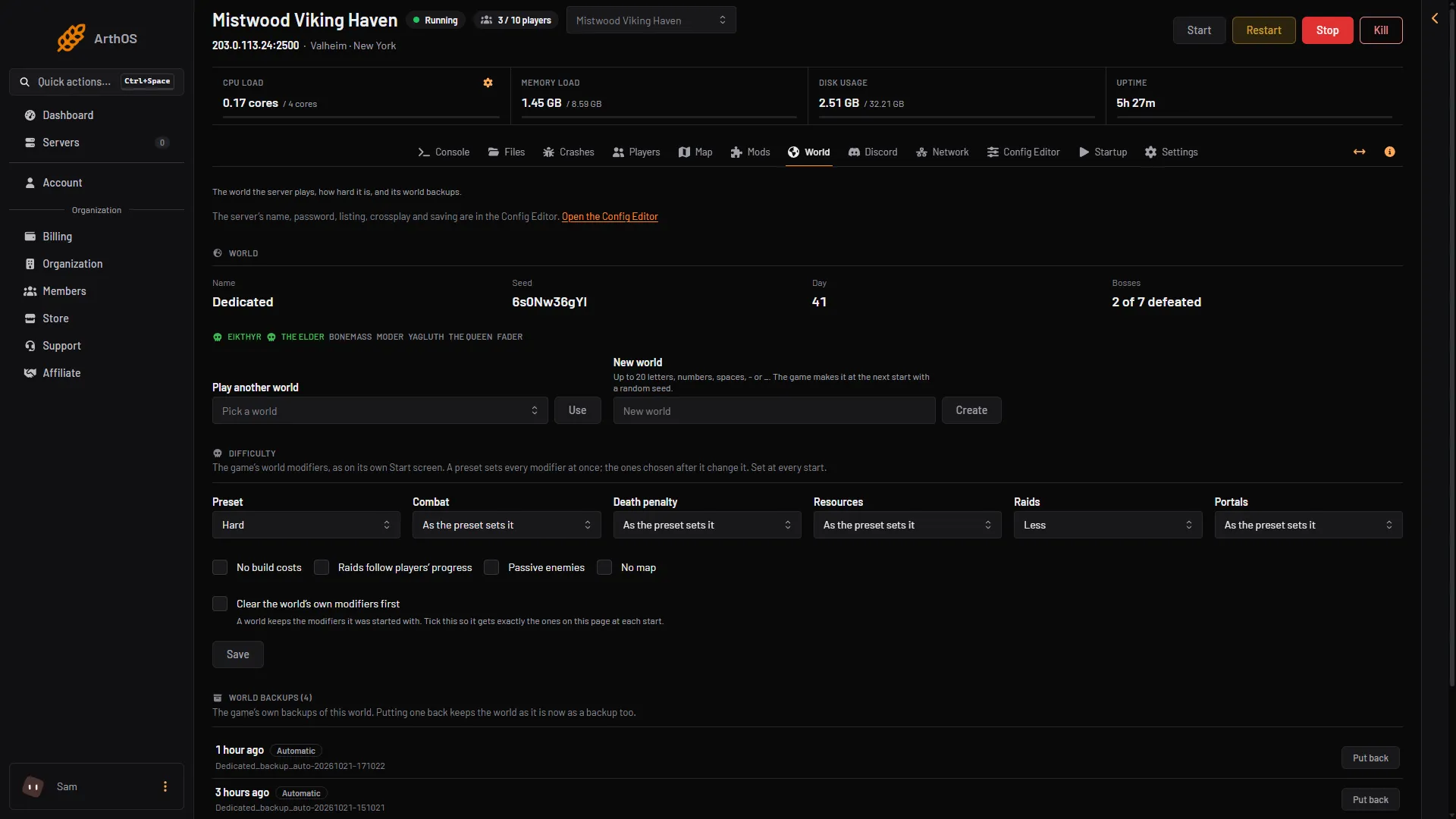
- World backups
- Automatic
- Put back
While the server runs, the foot of the list says “Stop the server to put a backup back.”
Put back only works while the server is stopped.
By default the game keeps four automatic backups: one about 2 hours old, and three that are 12 hours apart. A backup made by the old single-file format is not on the World page. Restore those in Files.
Save more often
- Open the Config Editor and choose Server settings.
- In the Saving group, change Save every (minutes). The range is 5 to 120. 30 is the game’s own.
- Save. The new value applies at the next start.
A shorter time means less to lose after a crash. In the same group, World backups kept sets how many backups are kept, from 0 to 10.
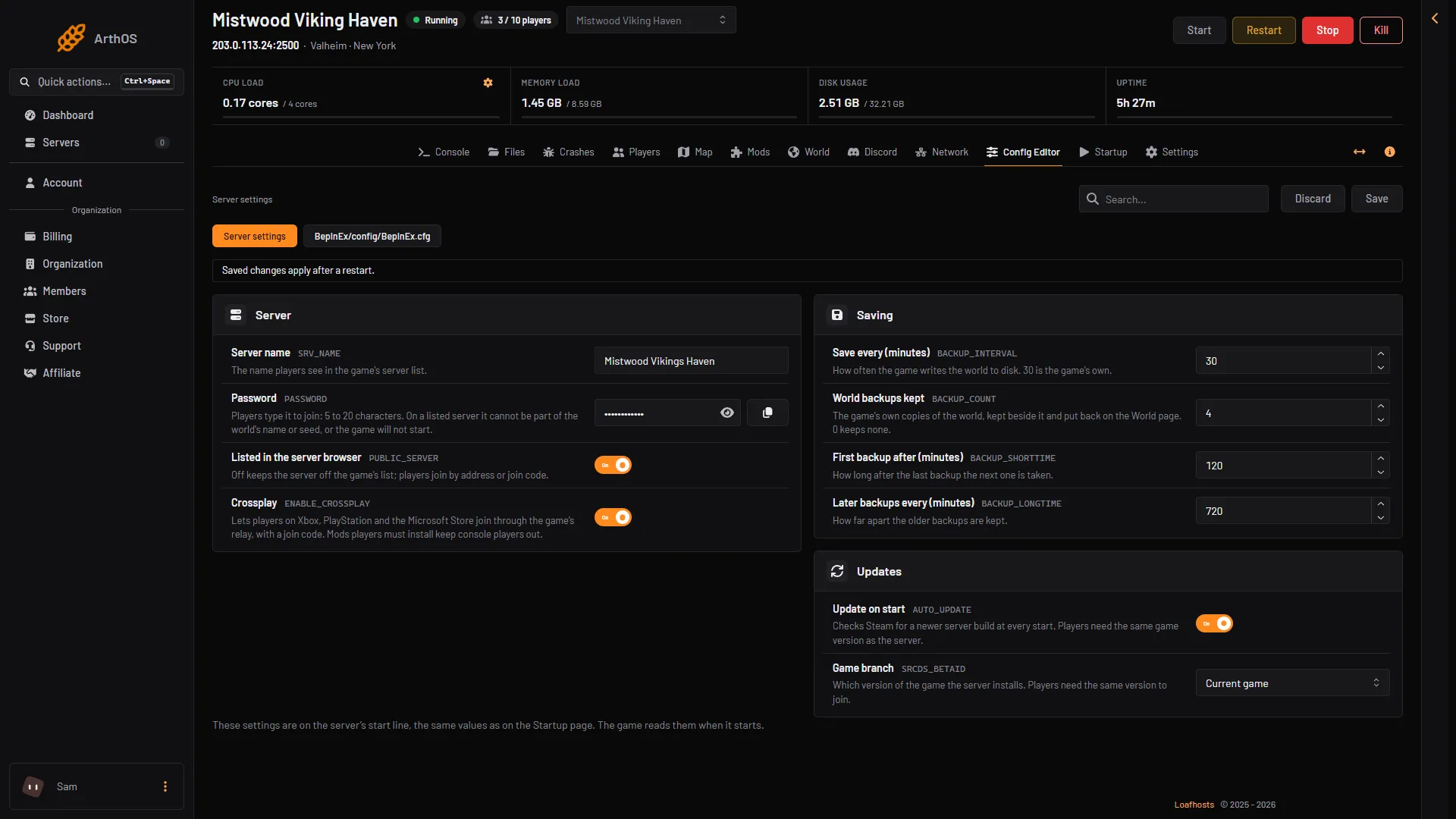
- Save every (minutes)
- World backups kept
Save before a risky change
Before you add a mod, change the world settings or restart for an update, save the world. The simplest way: choose Stop at the top of the server page. The game saves as it stops, then choose Start. See world backups.
With the panel tools you can save the world without stopping the server:
- Open the Players page and choose Turn on panel tools. This restarts the server once. Players need to install nothing.
- Choose Save the world now on the Players page or the Map page.
If it does not work
- The save fails. The Crashes page shows “The world could not be saved”. Check Disk usage at the top of the server page. Lower World backups kept in the Config Editor (the panel accepts 0 to 10), save and restart. With the server stopped, you can also remove old backup folders in Files, under
.config/unity3d/IronGate/Valheim/worlds_local: only folders named likeDedicated_backup_auto-20261021-171022, never the world’s own folder. - The world looks new and empty. The game may have started another world. Open the World page and check the world name, or put back a backup.
- A player lost items. Items are saved on the player’s computer. The server cannot return them.
More about the game: Valheim servers. If the server crashed, see server crash.