









Valheim makes its own world backups beside the world. Set how many it keeps in the Config Editor under Server settings. To put one back, stop the server and choose Put back in World backups on the World page. For the whole server, including mods and settings, use Settings, Backups. More about the game: Valheim servers.
What the game keeps
The game’s defaults keep four automatic backups. The game’s manual describes them as one backup that is 2 hours old, and three backups that are 12 hours apart. The first setting below spaces the first, newest backups. The second spaces the older ones.
Each backup is a folder next to the world. Its name is the world’s name, then _backup_auto-, then the date and time in UTC, like Dedicated_backup_auto-20261021-171022.
Change the settings
- Open the Config Editor page and choose Server settings.
- In the group Saving, set:
- World backups kept: the panel accepts 0 to 10. 0 keeps none.
- First backup after (minutes): the spacing of the first, newest backups. The panel accepts 5 to 2880. The game default is 120 minutes.
- Later backups every (minutes): the spacing of the older backups. The panel accepts 5 to 10080. The game default is 720 minutes.
- Choose Save, then Restart at the top of the server page. The values apply at the next start.
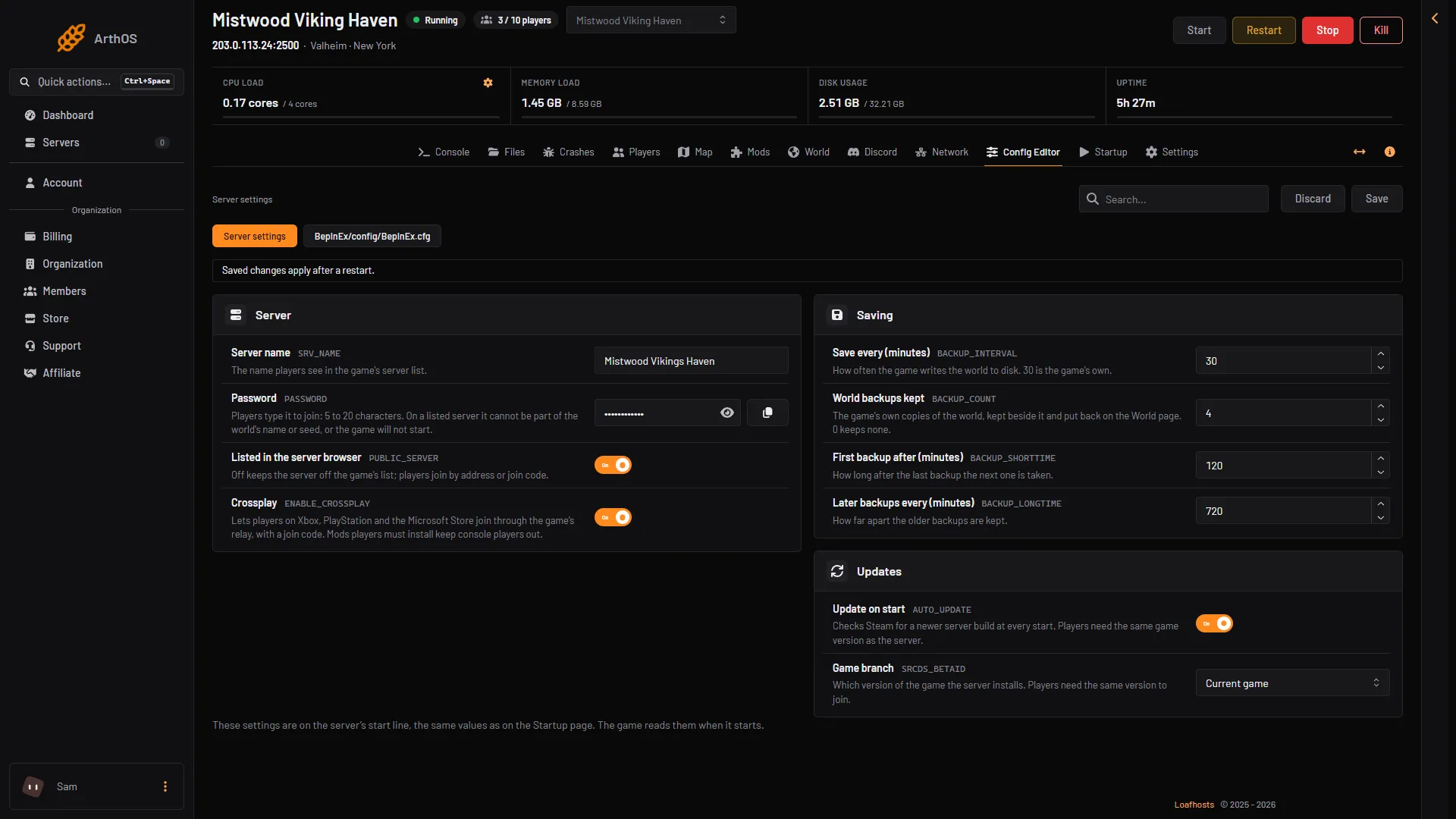
- World backups kept
- First backup after
- Later backups every
The same three values are on the Startup page in seconds: 4, 7200 and 43200 by default.
Backups take disk space. The whole server’s disk use, game files included, measured 2.5 to 6 GB on Loafhosts Valheim servers (21 October 2026). If the disk fills, the game cannot save. Keep fewer backups, or delete old ones in Files.
Put a backup back
- Choose Stop at the top of the server page. While the server runs, the card says “Stop the server to put a backup back.”
- Open the World page.
- In World backups, find the backup (1). Each row shows when it was made, Automatic and its folder name.
- Choose Put back (2) and confirm.
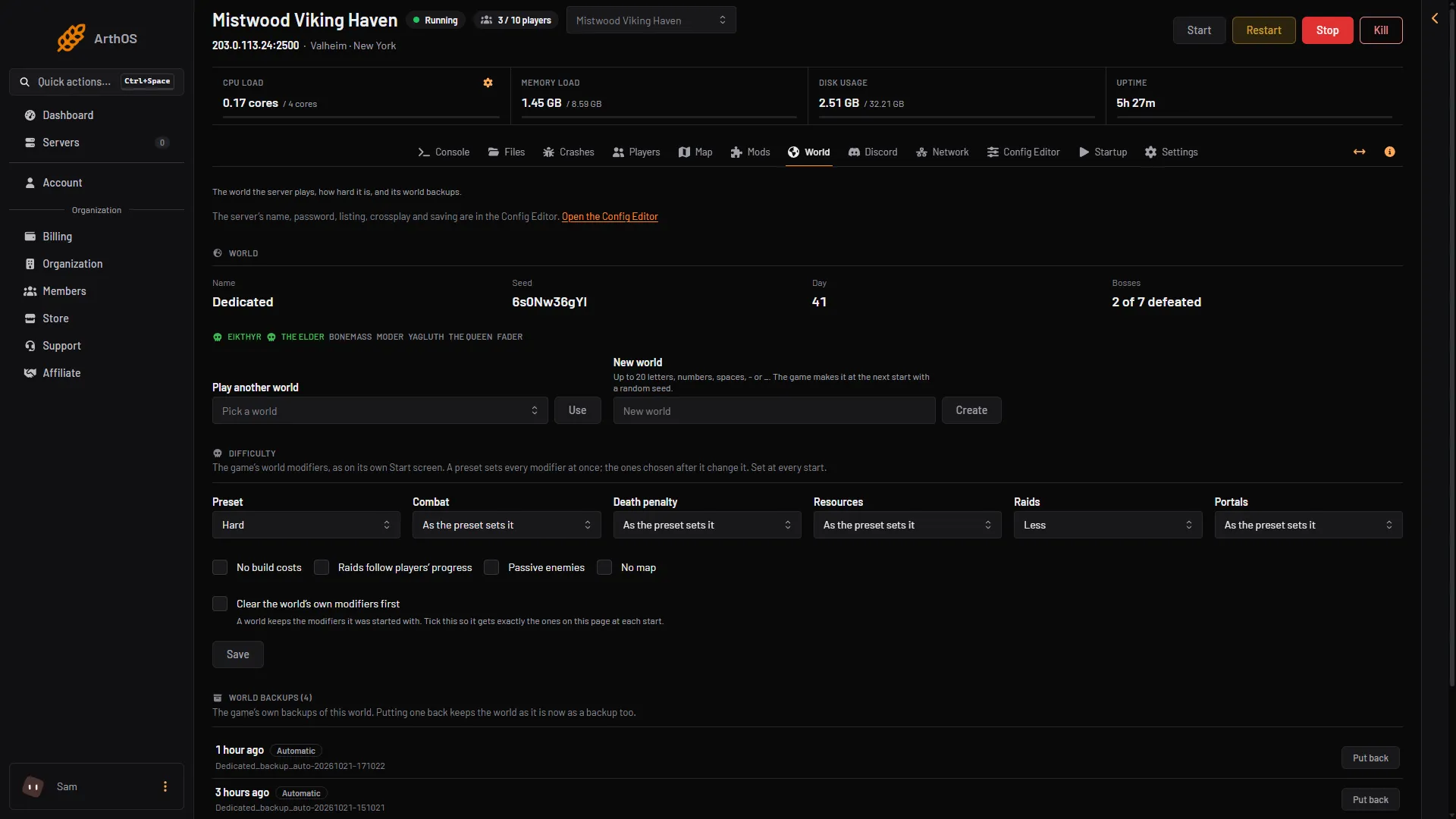
- Automatic backup
- Put back
The world as it is now is kept as a backup too, so nothing is lost. Start the server to play the backup. The page says so when it is done.
Backups made by older Valheim versions were two files. The World page does not put those back. Restore them in Files.
Whole-server backups
The game’s backups hold the world only. For the whole server, use the Backups tab in Settings. That is the place for your settings, mods and files. Choose Create, then Create Backup. Above the list the panel shows “(N) of (M) maximum backups created.”
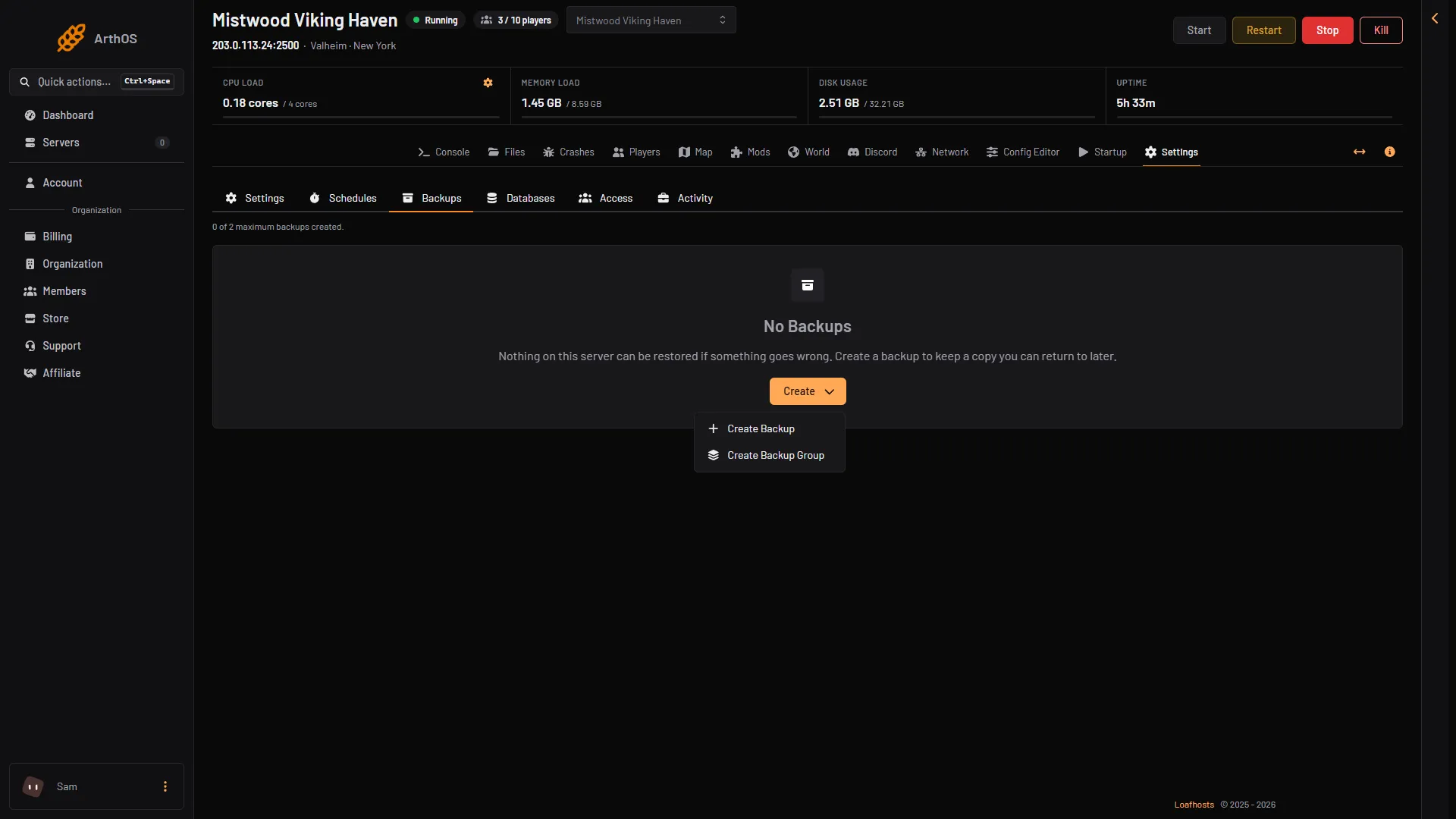
- Create
- Create Backup
A scheduled backup at the limit deletes the oldest one that is not locked. A manual one is refused at the limit.
For a whole-server backup on a timer, use a schedule. Open Settings, then the Schedules tab, press Create Schedule, add a trigger with Add Trigger, then add a step with Add Step that runs the action Create Backup. The steps are the same as in restart your Valheim server.
Not checked on 1.0.20 as of 21 October 2026: settings that make the game itself keep exactly one backup a day.
By hand
The game’s start options are -backups, -backupshort and -backuplong, in seconds. -backups 4 keeps four, -backupshort spaces the first backups and -backuplong the older ones.
If it does not work
- Put back is off. The server is running. Stop it.
- No backups yet. The game makes its first at its first save.
- Backups never appear. World backups kept is 0, or the disk is full.