









Your world is saved in the data/Saves folder, which you can open on the Files page. To keep a copy, open Settings, then the Backups tab, and choose Create Backup. If the server is running, type saveworld on the Console first, because the panel does not save this game’s world before a backup.
Where the files are
Open the Files page. Everything that belongs to your world is in the data folder.
data/Saves/<world>/<save name>/is one save. It holds the buildings, the players and their items, land claims and bedrolls. A new server hasdata/Saves/Navezgane/MyGame/.data/GeneratedWorlds/holds worlds the game made from a seed (random worlds).data/Saves/serveradmin.xmlholds your admins, bans and whitelist. It sits next to the world folders, not inside a save.
Your settings are in serverconfig.custom.xml in the main folder. The Config Editor edits that file.
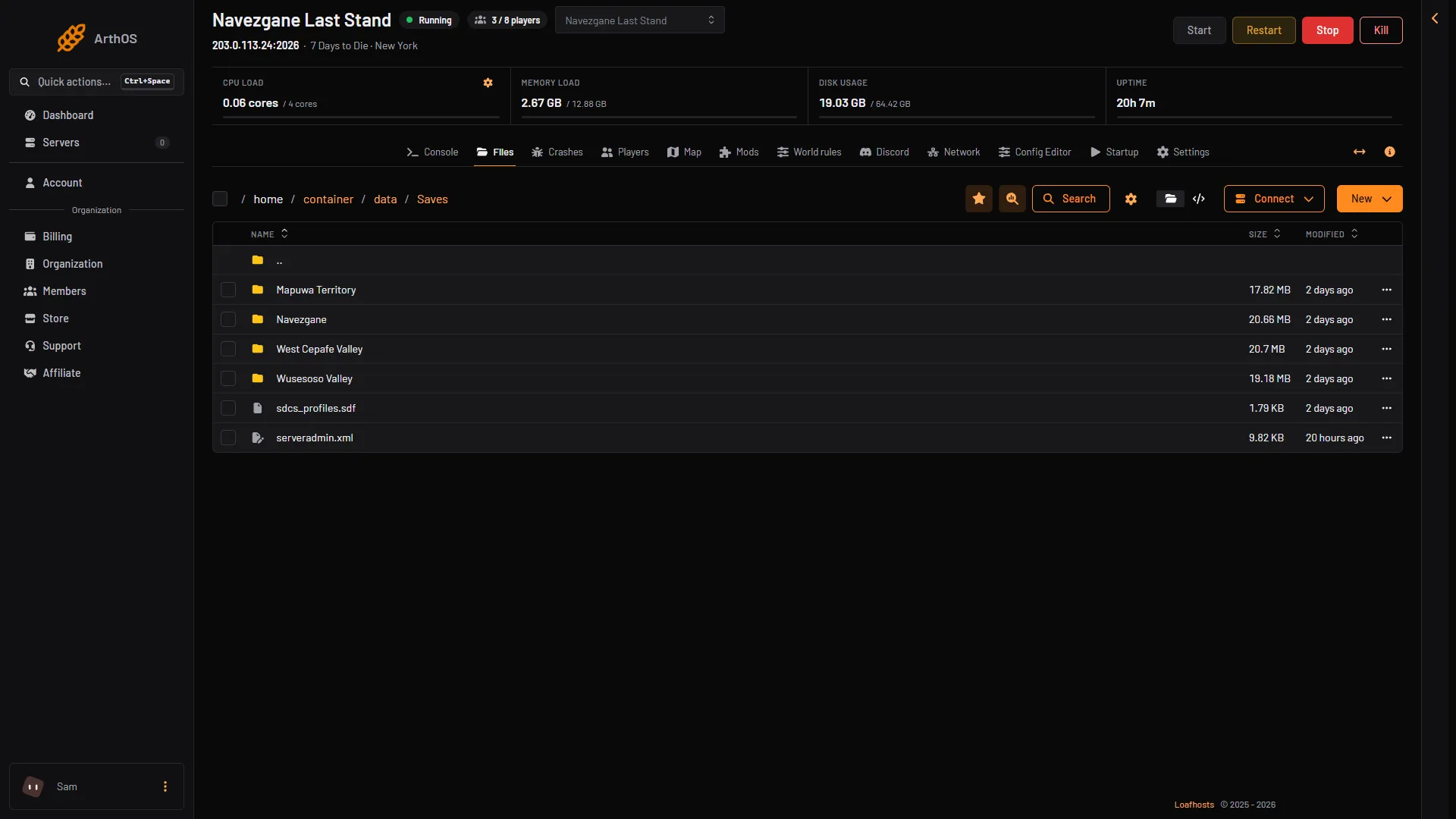
- World folder
- Admins, bans, whitelist
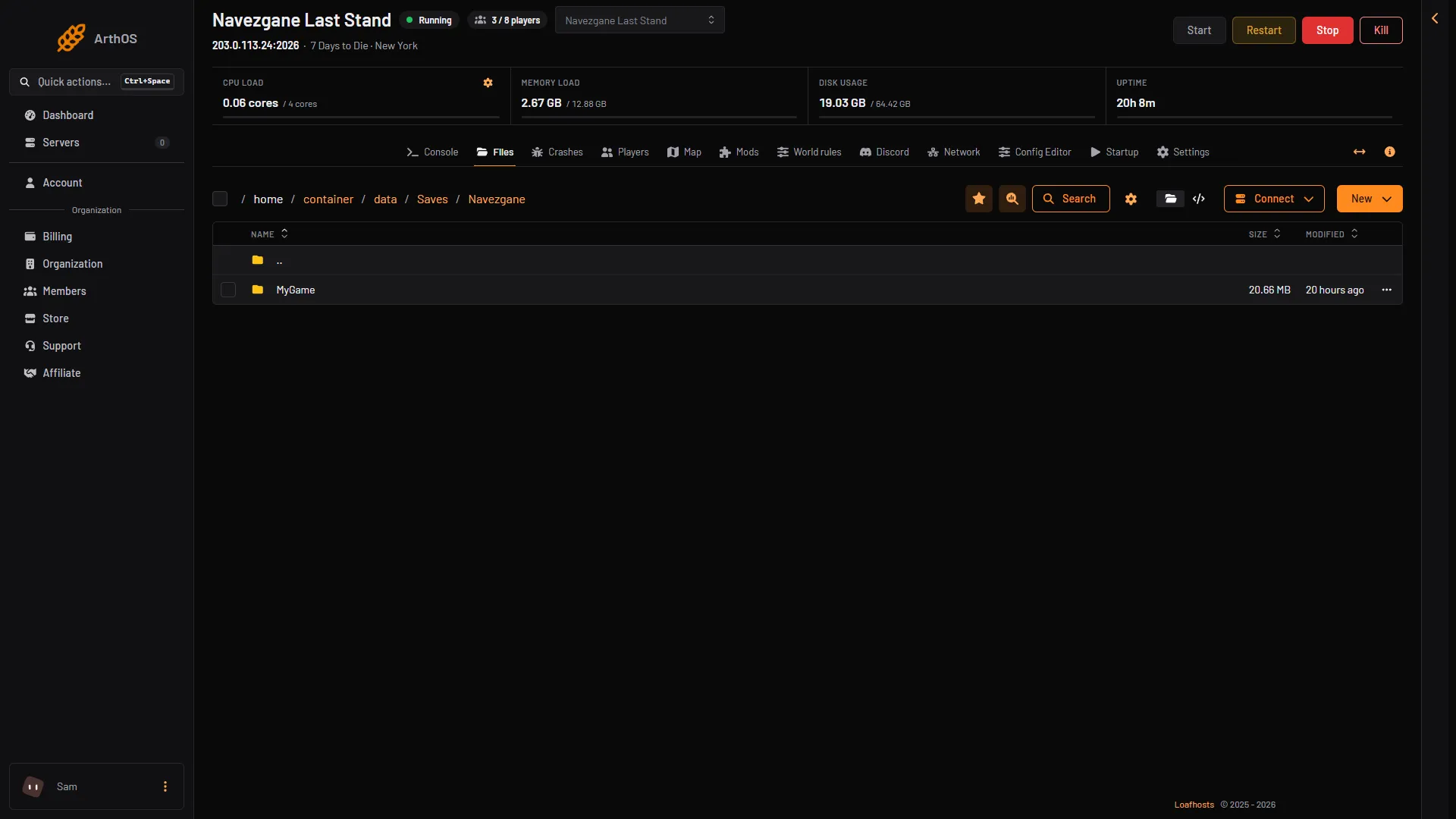
- The save
When the game saves
The game saves the world when the server stops. A stop from the panel takes about 2 seconds and saves first. While it runs, the game writes each player’s file about every 30 seconds.
To save the world yourself, type saveworld on the Console page.
Make a backup
The panel does not save a 7 Days to Die world before a backup. Do it yourself.
- If the server is running, open Console, type
saveworldand send it. Wait a few seconds. - Open Settings and choose the Backups tab.
- Choose Create (1), then Create Backup (2).
- Keep or change the Name.
- Choose Create.
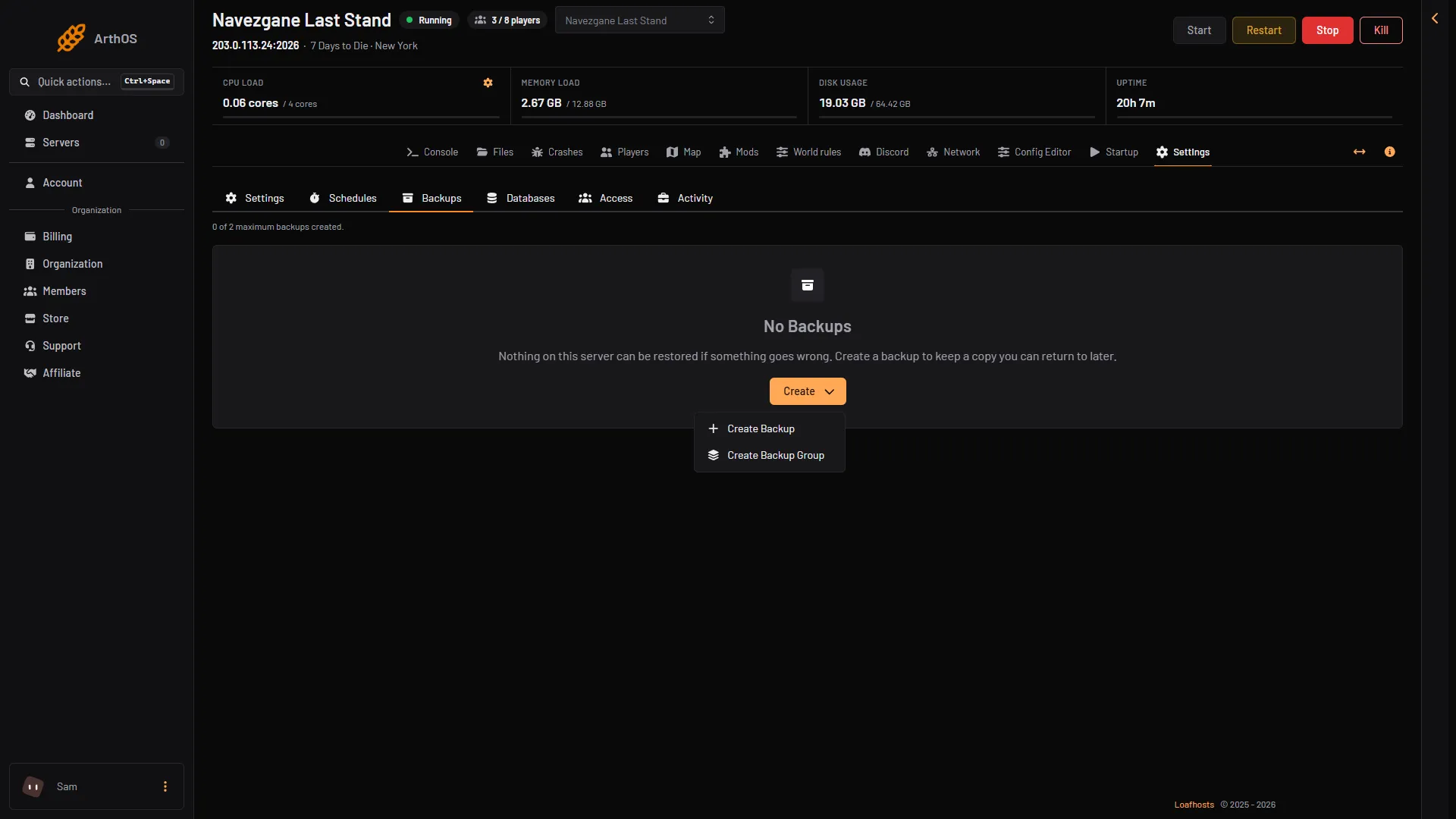
- Create
- Create Backup
A backup is of the server’s files, and that includes the game’s own files. Those are large (the game is about 17.7 GB), so a backup is big and can take a while. The disk usage at the top of the server page shows how much room it takes. Backups are kept on the server’s node.
The backup limit
The Backups tab shows how many backups you can keep, for example “0 of 2 maximum backups created”. The number depends on your server, so read it on the tab.
A manual backup at the limit is refused. Delete a backup you no longer need first.
Back up on a schedule
Open Settings, then Schedules, and add a step Create Backup. To save first, add a step Send Command with saveworld before the backup step, and a Sleep step between them so the game has time to finish.
Restore a backup
Not checked on V3.3.0 as of 19 October 2026: restoring a backup on a 7 Days to Die server. Take a fresh backup of the current files before you try it, and do it first on a server you can lose.
Download a save
- Open Files and go to
data/Saves/<world>/. - Select the save folder and choose Archive.
- Download the archive file.
Stop the server before you download, or run saveworld first, so the files do not change while you copy them.
If it does not work
- You cannot create a backup. The server is at its backup limit. Delete a backup you no longer need.
- The saves folder is empty. The server has not started once yet, or it plays a different world. Check the Change world card on the World rules page.
- A save does not load. Open Crashes. A save cut off by a crash or a full disk can no longer load. Use an older backup.
More about the game: 7 Days to Die servers.
Sources: 7daystodie.wiki.gg: Server