









Open the Startup page, type the version in Game version (for example v3.2.0), choose Save, then choose Restart at the top of the server page. Keep Update on start at 1. Everyone who plays must pick the same version in Steam.
An overhaul or mod is often made for one version of the game. If your mod needs an older version, keep the server on it. Players must run exactly the same version as the server, or they cannot join.
What the Game version box holds
Each version of the game is a branch on Steam. Game version is the name of the branch the server installs.
- Empty: the current stable version. Today that is V3.3.0.
latest_experimental: the newest test build. It can have bugs.- A pinned version such as
v3.2.0. Steam also keeps older ones, for examplev2.6andv1.4.
Check what your mod needs before you pick. The mod’s own page says which version it was made for.
In the panel
- Back up the server first. If it runs, type
saveworldon the Console first. See 7 Days to Die backups and saves. - Open the Startup page.
- Check that Update on start is
1. - Find Game version (1 on the first picture) and type the branch name exactly as the list names it, for example
v3.2.0. The hint under it reads: “The Steam branch the server installs: empty for the current stable version, latest_experimental for the newest test build, or a pinned version such as v3.2.0. A world played on a newer version cannot go back to an older one.” - Choose Save at the top right of the variables.
- Tell your players with Message to everyone on the Players page. A restart drops every player.
- Choose Restart at the top of the server page.
- Open the Crashes page and read Game version to see which version the server runs.
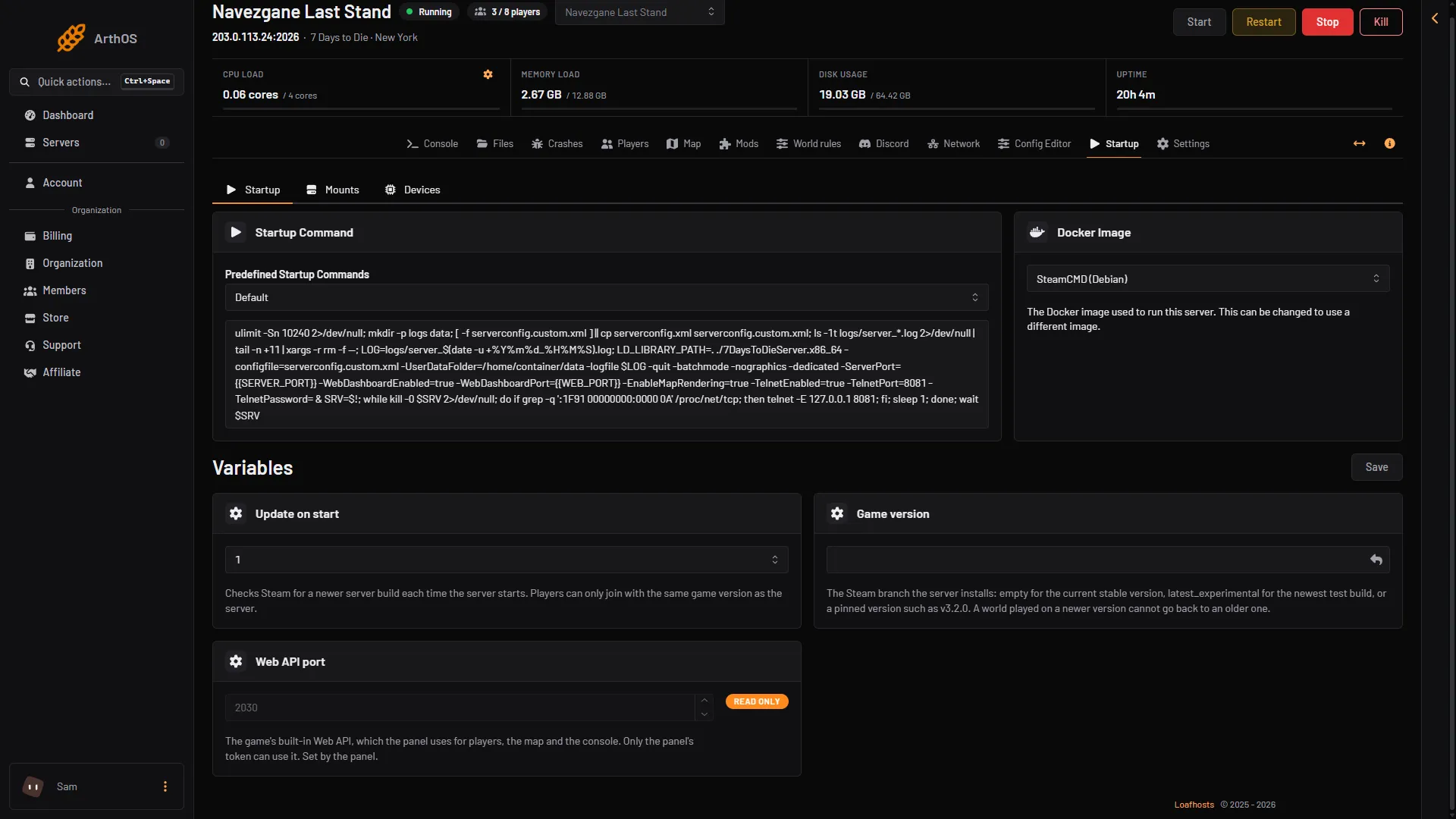
- Type the version here
Every start with Update on start at 1 runs the Steam update with the branch in Game version. No reinstall is needed. With Update on start at 0, a new Game version is not fetched at a start. Set it to 1 for one restart, or use the reinstall below.
If the restart did not change the version
Use Reinstall Server. It runs the Steam download again.
- Open Settings and find the card Reinstall Server. Choose the red Reinstall Server button.
- A box opens with two switches, both off at first. The first reads “Do you want to delete all files of this server before performing this action? This cannot be undone.” Leave it off.
- Turn on Start the server after the reinstall has finished if you want the server to start by itself.
- Choose Reinstall (1 on the second picture).
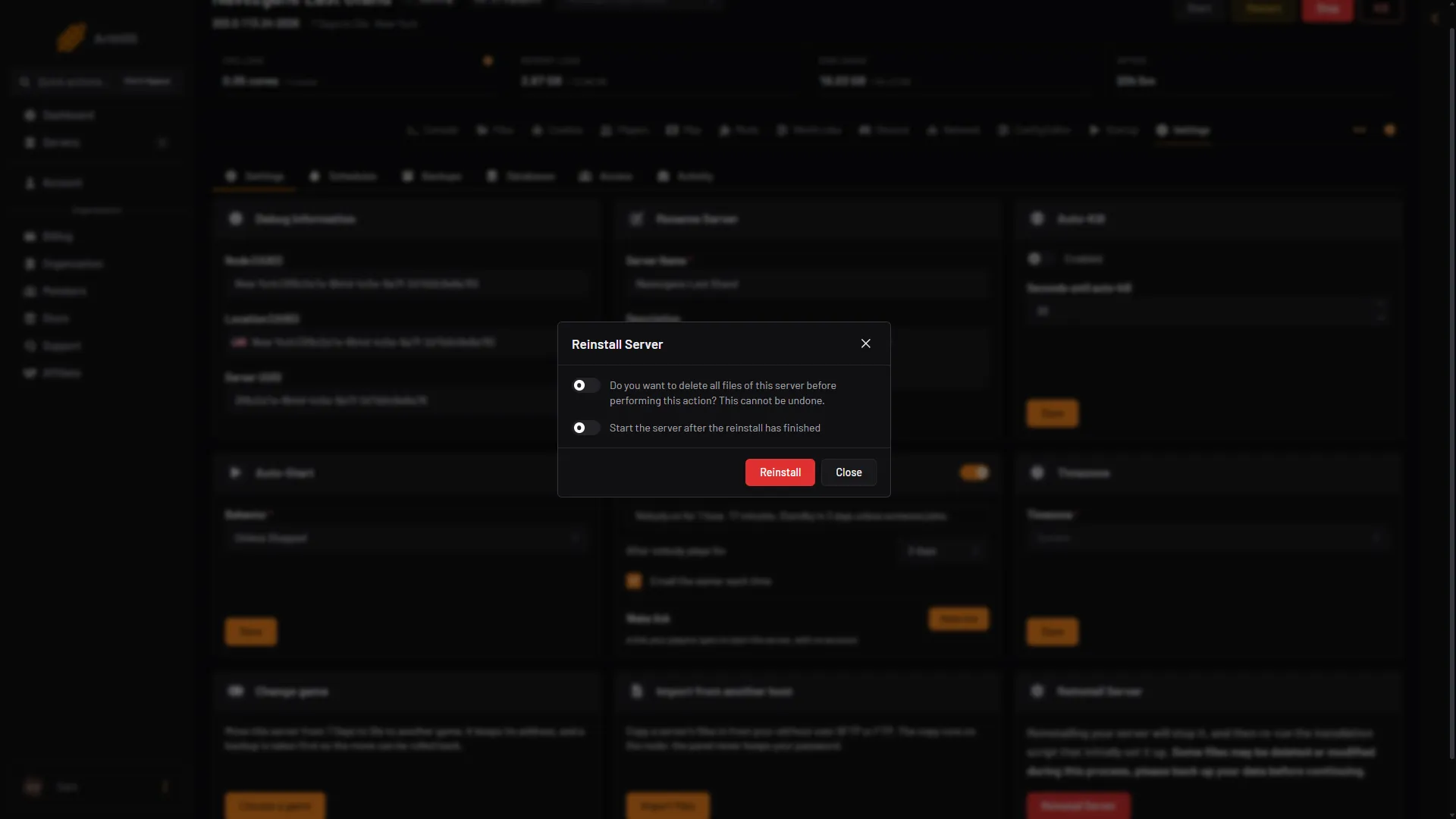
- Reinstall
With the first switch off, the install keeps the data folder and serverconfig.custom.xml. The panel still warns that files may be changed, so keep the backup.
Players pick the same version in Steam
- In the Steam Library, right-click 7 Days to Die and choose Properties.
- Open Betas.
- Pick the same branch from the list, for example
v3.2.0. - Wait for Steam to download it.
To go back to the current version, they pick None in the same list.
Going back to the current version
Empty Game version, choose Save, then Restart. Check Game version on the Crashes page.
Not checked on V3.3.0 as of 19 October 2026: whether Steam leaves a pinned version on a restart alone. If the old version still shows, use Reinstall Server.
Going back with a world you already played
A world that was played on a newer version cannot go back to an older one. If you played on V3.3.0 and move the server to v3.2.0, the old world may not load. Start a new world on the older version, or keep a backup of the world you want. See reset the server.
Not checked on V3.3.0 as of 19 October 2026: how the panel pages and the kept settings file behave on versions before V3.0. V3.0 moved gameplay rules such as difficulty and XP into one code that the World rules page edits. Older versions read them from the settings file instead.
By hand
On a server of your own, use SteamCMD. This installs the stable version:
steamcmd +force_install_dir <folder> +login anonymous +app_update 294420 validate +quitTo pin a version, add -beta v3.2.0 before validate:
steamcmd +force_install_dir <folder> +login anonymous +app_update 294420 -beta v3.2.0 validate +quitIf it does not work
- Players cannot join. Their version does not match. Compare the branch they picked in Steam with Game version. See 7 Days to Die version mismatch.
- The server did not change version. The name has a typing error, or Update on start is 0. Check the spelling and the switch, then restart again. If it still shows the old version, use Reinstall Server.
- The server starts and stops at once. Open Crashes. A save or a mod made for another version is the usual cause. Turn off mods on the Mods page and try again.
More about the game: 7 Days to Die servers.
Sources: store.steampowered.com: 251570, 7daystodie.wiki.gg: Server